
Enhanced notes
Jot a few words during a meeting and Foxl fills each line in from what is being said, in a column beside your notes
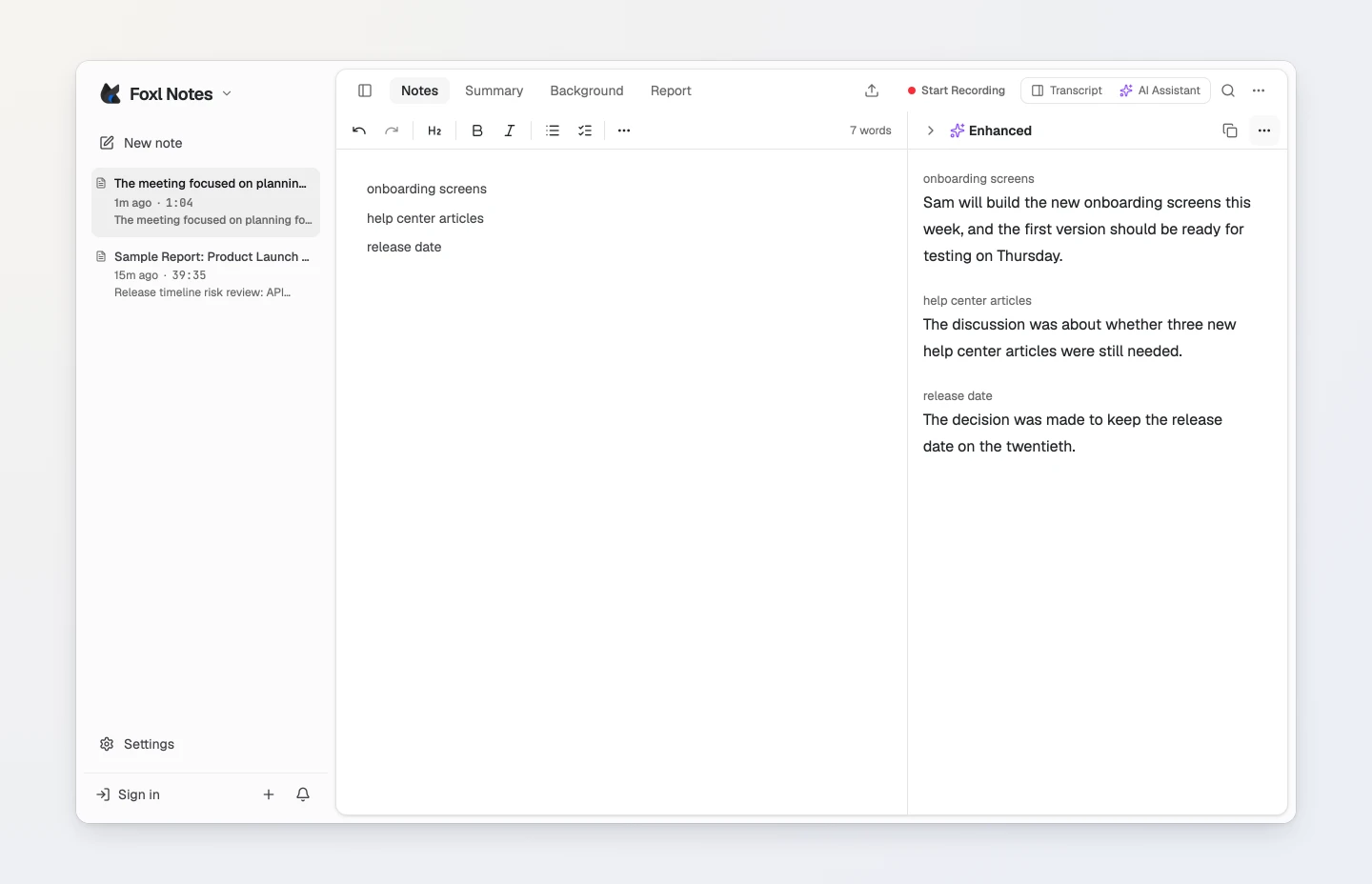
While you record, type shorthand in your notes the way you normally would: "beta date", "installer", "pricing". A few seconds later the Enhanced column beside your notes reads, for each of your lines, what was actually said about it, for example "The beta ships to the first 50 customers on Thursday, October 15th." Your own text is never changed, and in a new setup the transcript stays in the Transcript tab instead of going into your notes.
How it works
- One enhanced line per line you type, in the same order. Every paragraph and list item you write counts as a line; headings and code blocks do not.
- It follows the meeting. A line is enhanced a moment after you move on from it (press Enter or start another line), or once you stop typing in it. When the conversation later says more about a line, the enhanced line is updated by itself.
- Not discussed yet. A line about something nobody has mentioned yet (an agenda item you typed early) shows "Not discussed yet" in grey, and fills in once the topic comes up.
- Facts only. Enhanced lines use what the transcript says: names, dates and numbers are copied as they were said, and your own spelling of names and products is kept. People are named only by the names the conversation uses, never by a speaker label.
- Your language. Lines are written in the language you take notes in. Korean notes get natural Korean.
While a line is being written its previous text stays and shimmers; the new text fades in without moving anything else.
Using the column
- Hover or focus an enhanced line to outline the line of yours it belongs to, and the other way round: the caret in one of your lines highlights its enhanced line.
- Click an enhanced line to open the Transcript tab at the part of the conversation it was written from.
- Copy copies the enhanced lines as a list. The ... menu has Regenerate, Insert into my notes (adds the enhanced lines to the end of your notes as a list, the one way they enter your notes), Read enhanced notes for screen readers, Standard / Concise, and Turn off enhanced notes.
- Standard / Concise chooses between one or two sentences per line and one short sentence. Changing it rewrites the column once.
- Collapse the column with the arrow at the start of its header; Foxl remembers it on this computer.
After you press Stop the column stays with the note. Edit enhanced notes in the ... menu turns its lines into fields (Done editing in the header ends it); your edits are kept with the enhanced text, never in your own notes. Exports, search and the AI summary use your notes and the transcript, not the enhanced text.
When the window is too narrow for two columns (and on an iPad in portrait), a Your notes | Enhanced switch above the editor shows one at a time. In a phone-sized window, a note with enhanced lines has an Enhanced view next to Notes.
The column fills in during a meeting recorded in Foxl Desktop. A meeting recorded on app.foxl.ai or in the phone app has no Enhanced column, and its transcript lines go into your notes as before. The same happens on OpenRouter's free models (see Cost below).
Settings
Under Settings > Notes > AI features:
- Enhanced notes turns the column on or off. It is on by default.
- Enhanced notes style is the same Standard / Concise choice as the column's ... menu.
- Transcript in my notes also writes each transcript line into your notes while recording, as Foxl did before the Enhanced column. It is off for a new setup; if you used Foxl Notes before, your setting is kept. With Enhanced notes turned off, transcript lines go into your notes as before.
- Run live features on is the model used during a meeting, for enhanced notes and other live features. Automatic picks a fast model on the provider you use; you can pick any model your provider offers, including one that runs on this computer.
Cost
Enhanced notes run on the model Run live features on picks. Automatic chooses a fast model on the provider you use for Foxl (Settings > Model & provider), so they spend that provider's tokens, or nothing on a model that runs on your computer. Foxl sends one request at a time for each note: one for the lines you just wrote, and, while the column is on screen, at most one every 10 seconds to update lines the conversation is still talking about (Stop brings every line up to date). A meeting where nobody types sends nothing; one you type through sends roughly 40 to 180 requests an hour. That is why the column does not fill in on OpenRouter's free models: their allowance of 50 requests a day can be gone before the meeting ends, and your chats and that meeting's summary with it. There the transcript goes into your notes as before.
If the Agent has no model to use, the column says so and links to Model & provider. If a request fails, the column shows the error with a Retry button. When Notes has no AI at all (Foxl's servers chosen and nobody signed in), there is no column and transcript lines go into your notes as before.