
このページはまだ日本語に翻訳されていないため、英語で表示しています。
Scheduling
Automate recurring and one-time tasks with schedules, the heartbeat, and webhooks - each on its own model if you like
Foxl can run tasks on schedules - automating work 24/7 without you having to prompt it each time.
Three Trigger Types
Cron (Time-Based)
Time-based schedules. Tell the agent in natural language and it creates the schedule automatically, or set one yourself in the schedule editor without writing cron: Repeats offers Every day, Weekdays (Mon-Fri), Weekly on chosen days or Once, each with a time (and, for Once, a date), and shows the cron it saves. Custom (cron expression) is the last option, and a schedule whose cron the picker cannot show opens in it unchanged.
A Once schedule runs a single time at the date and time you pick. The list marks it One-time, and then Done - or Missed, if the computer was asleep or Foxl was closed at that moment and Run if missed was off. When you ask the agent for a one-time reminder, it turns Run if missed on, so a late reminder still arrives.
| What you say | Cron expression | When it runs |
|---|---|---|
| "Every morning at 7am" | 0 7 * * * | Daily at 7:00 AM |
| "Every Monday at 9am" | 0 9 * * 1 | Mondays at 9:00 AM |
| "Every hour" | 0 * * * * | Top of every hour |
| "First of every month" | 0 0 1 * * | 1st of month, midnight |
Heartbeat (Periodic)
Runs at a fixed interval. Foxl ships one heartbeat, the Feed Generator,
switched off: once you turn it on it wakes hourly between 07:00 and 23:00 and
surfaces items into your Notifications feed rather than replying in a chat.
Everything about it lives under Settings > Heartbeat - the switch, Run
now, the check frequency (every 15 minutes up to once a day, or a custom
interval from 1 minute to 7 days), active hours or Always on, and the
instructions, which are HEARTBEAT.md in your workspace. Run now runs it at any
hour; the active hours apply only to its timed runs. On the Schedules page it
is a locked row: change its cadence, but it cannot be deleted. Heartbeat schedules
of your own cannot be added, from the Schedules page or by the agent; a repeating
task is a cron schedule.
Waiting for something to happen
HEARTBEAT.md takes an optional watch block with a shell command. Foxl runs
that cheap command on the interval and wakes the agent only when its output or
exit code changed - then hands the agent that output, so the run starts already
knowing what it is reacting to.
The block takes command, an optional timeout in seconds (default 20), and
mode: changed (the default - wake when exit code or output differ from last
time) or mode: nonempty (wake whenever the command prints anything, the right
shape for a command that lists work).
A 24/7 agent then stops paying for a model turn every interval just to discover that nothing happened, which means the interval can get shorter rather than longer.
Off unless you configure it. Because HEARTBEAT.md is a file the agent can write, the
command is armed only when you set it: send it with the Feed Generator settings
(PATCH /api/heartbeat/config with { "watch": { "command": "...", "mode": "changed" } };
"watch": null removes it). That writes the block into the file and records the command
outside the workspace. A watch that appears in the file any other way is refused and
logged, and the command goes through your tool approval rules like any shell command - a
run nobody approves is skipped, not executed. With auto-approve off, the question appears
as a card at the top right of the desktop app on whatever screen is open (there is no chat
behind a heartbeat tick), and it waits a minute for an answer.
Webhook (External Trigger)
A webhook schedule runs when something sends a POST to its Trigger URL, which the schedule's editor shows once you save it:
POST http://127.0.0.1:13847/api/webhook/<secret>- The long random part is the secret, and it is the only credential: the call needs no sign-in and no connection token, so anyone who has the URL can run the schedule. Regenerate it if it leaks.
- It works from this computer only - curl, a git hook, a local cron job or another app on this machine. Foxl does not accept connections from other machines, so GitHub, Zapier or another computer cannot call it directly. To reach it from outside, run a tunnel or reverse proxy on this computer that forwards to the URL; the editor's note under the URL says which host settings that forwarder needs.
- It answers as soon as the run is queued and says nothing about the run itself; the result arrives like any other scheduled run's.
- The URL is shown in Foxl on the computer that runs the schedule. On the phone or app.foxl.ai, open the schedule on that computer to copy it.
What ships with the page
Schedules arrives with four pre-made jobs, all switched off:
| Pre-made schedule | When |
|---|---|
| Morning Briefing | Weekdays at 08:30 |
| Evening Wrap-Up | Weekdays at 18:00 |
| Weekly Review | Fridays at 17:00 |
| Memory Tidy - a pass over what Foxl remembers about you | Sundays at 22:00 |
The page lists the heartbeat beside them, so a new install reads 0 of 5 enabled:
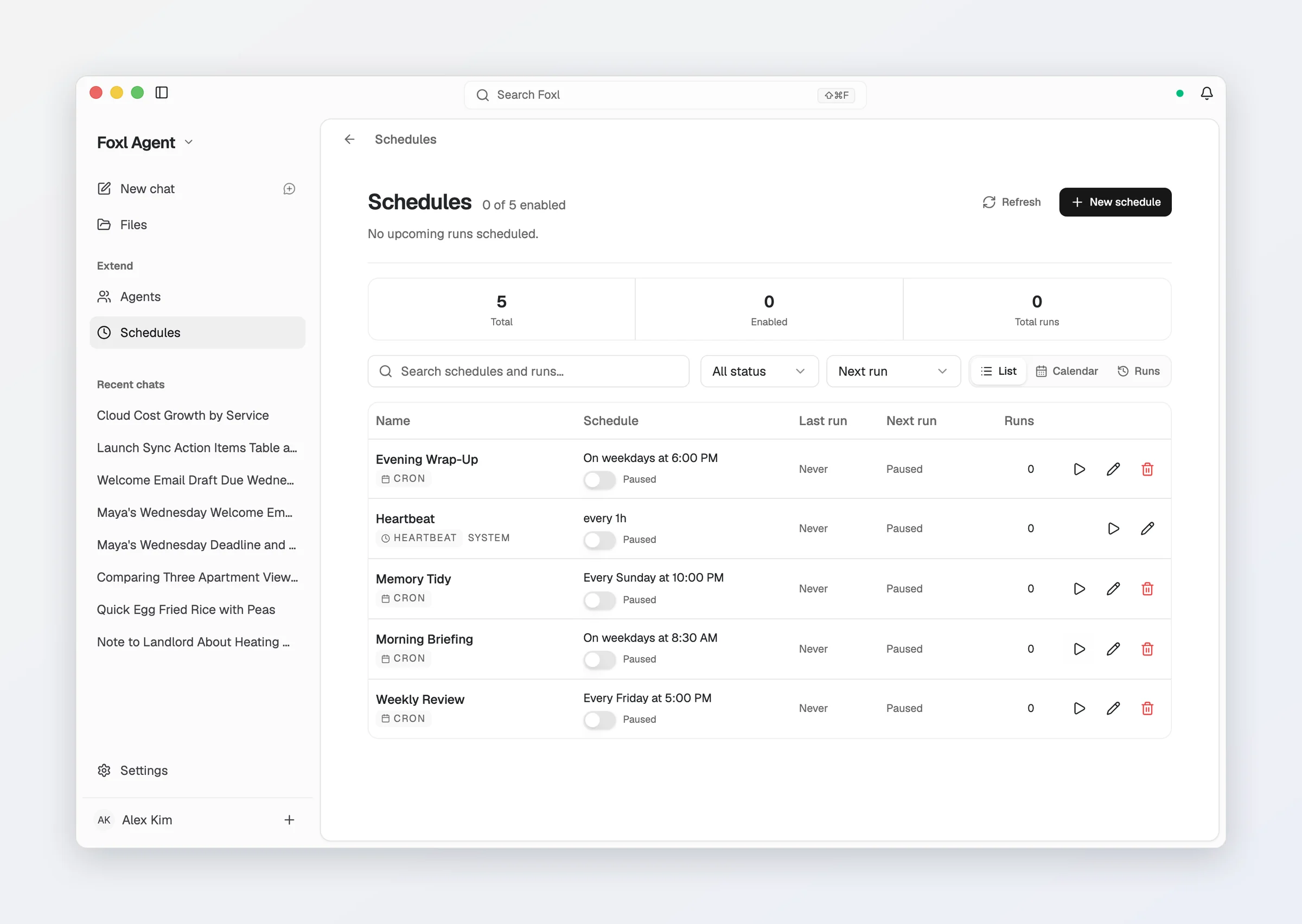
The first time you open Schedules, they are named in the app's language, and so are their cards under Start from a pre-made schedule; schedules you already have keep their names.
They are there so the page shows what an agent can do on a schedule instead of an empty list. Nothing runs until you turn one on - Foxl does not start doing work on your machine because you installed it.
Otherwise they are completely ordinary schedules: edit the prompt, change the time, Run now, delete. Deleting one is permanent and it does not come back on the next launch. When you want it back, "Start from a pre-made schedule" appears under the list showing exactly the ones you do not currently have.
Creating Schedules
Just tell the agent what you want automated:
"Summarize my email every morning at 8am"
The agent will:
- Create a cron schedule (
0 8 * * *) - Set the task prompt ("Check Gmail and summarize unread emails")
- Start executing on schedule
With auto-approve turned off in Settings > Safety, the agent asks before it creates or changes a schedule, because a schedule's instructions later run with nobody watching. Listing and reading schedules do not ask.
Even with auto-approve on, a scheduled run that would send a card number or an ID number, or click a button that can pay or book, waits for your answer; when nobody can be asked, it sends or clicks nothing and its result says it needs your OK. See Steps that always ask.
You can also be more specific:
"Every weekday at 6pm, check my GitHub notifications and send me a summary on Slack"
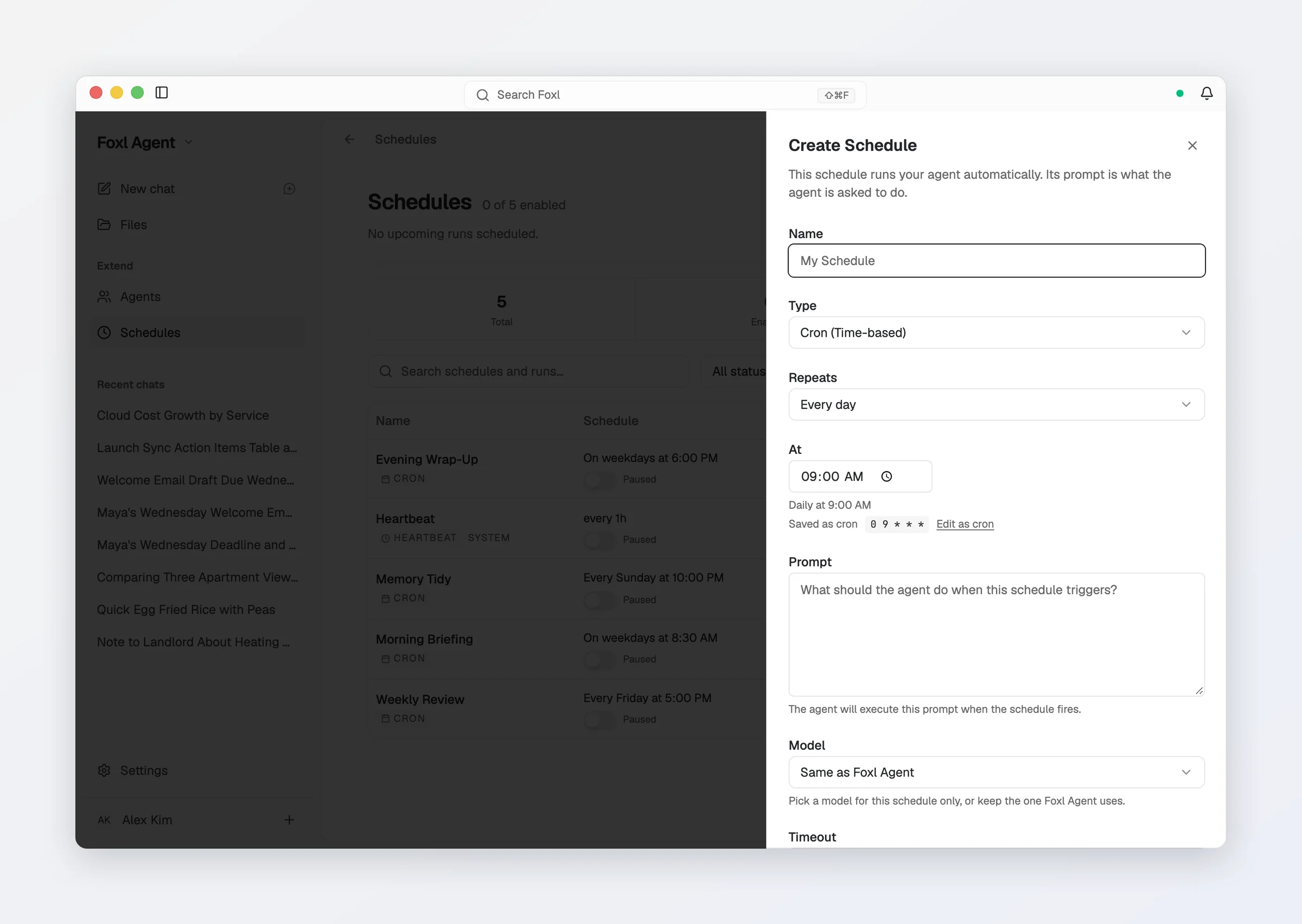
Or set one up by hand: Create Schedule on the Schedules page opens the editor, with a name, the type (Cron or Webhook), Repeats and a time for a cron, the prompt the agent runs, the Model and Run if missed.
Managing Schedules
Open the Schedules page in the sidebar to see:
- All active schedules with their trigger type and timing, as a List or on a Calendar, and every run under Runs
- Human-readable descriptions (e.g., "Daily at 7:00 AM"; a cron the page cannot put into words reads "Custom schedule", with the expression under it)
- Run history with success/failure status and duration
- Enable/disable toggles for each schedule, and Run now
Each schedule can run on its own model. Model in the editor is Same as Foxl Agent by default; pick another model for that schedule only. If the model you picked is no longer available on this computer, the run uses Foxl Agent's model and its result says so.
A schedule that keeps failing is paused, not switched off. After 3 failures in a row the page shows it as paused with the last error and a Resume button, a notification says so, and it keeps retrying - no sooner than an hour, then six hours, then a day after the last failure - until one run succeeds.
Unattended runs are where a rate limit or an outage hurts most. Settings > Model & provider > Automatic fallback lets you list models to try, in order, when the one you picked is unavailable; it only engages after Foxl's own retries are exhausted, and it is off until you turn it on.
On OpenRouter, the Only free models switch in the same pane applies to scheduled runs too, so a key with no credit can still run a schedule.
Use Cases
Morning Briefing
Schedule a daily briefing that checks your email, calendar, and news:
"Every morning at 7am, read my Gmail, check my Google Calendar for today, and give me a briefing"
Competitive Monitoring
Track competitor activity on a daily basis:
"Every day at noon, check globex.example.com for any new blog posts or product updates"
Git Status Reports
Get daily summaries of repository activity:
"Every weekday at 5pm, show me a summary of today's git commits across all my repos"
Health Checks
Monitor your services with regular pings:
"Every 5 minutes, check if api.example.com is responding and alert me if it's down"
Schedules run on your computer, so it has to be awake and Foxl's local server has to be up. With Settings > General > Keep running when closed on (see Background service) the scheduler lives in the background service, so quitting the app window does not pause it. If the machine sleeps, schedules pause either way. Settings > General > Keep this computer awake (off by default) keeps the screen on and stops the computer from going to sleep on its own while Foxl is running, so a long run is not cut off halfway and the next scheduled run finds the computer awake. With Keep running when closed on, it keeps working after you quit the app. Closing the lid or choosing Sleep still sleeps the computer, and it does not wake a computer that is already asleep.
A missed run is skipped unless you ask otherwise. If a cron job was due at 7am while your laptop was asleep it does not fire retroactively when you wake it - only the next scheduled time does. Each schedule has a Run if missed switch in its editor: turn it on and Foxl runs it once on the next startup instead. Plan accordingly for critical automations - keep the service running or use an always-on machine.
Execution History
Every schedule run is logged with:
- Timestamp
- Duration
- Success or failure status
- Output summary
View the full history on the Schedules page, where each run opens on its transcript, or ask the agent: "Show me the last 5 runs of my morning briefing schedule."
Results in the Foxl chat
A chat called Foxl sits at the top of your chats on every device, as one ongoing conversation. When a schedule finishes or fails, its result is posted there, so you can reply to it in the same place; the whole run is still on the Schedules page. On a phone the Chat tab opens this chat, and a label over each posted result shows how that schedule stands when you open it (running, failed, paused after repeated failures, or fine); tap the label to open Schedules. Rename, unpin, archive or delete the Foxl chat like any chat, and it stays the way you leave it; while it is archived or deleted, nothing is posted to it. Heartbeat runs are not posted, and runs from before this version stay where they were.
Notifications
A run that fails sends a notification on this computer, and so does one that pauses its schedule after repeated failures. A run that finishes sends one only while Task Completed is on under Settings > Notifications > Schedules, which is off on a new install (a computer that already used Foxl keeps it as it was). The notification opens the result in the Foxl chat when it was posted there, and the run otherwise. A run also reaches your phone as a push under Scheduled tasks when the phone app is set up for notifications.