
このページはまだ日本語に翻訳されていないため、英語で表示しています。
Browser Automation
Let the agent work in your real Chrome with your logins, or in its own automation browser
Foxl's agent can work in a browser two ways: in your real Chrome through the Foxl extension, with all your logged-in sessions intact, or in a separate automation browser with its own profile.
Why This Matters
A browser that only reaches the public web cannot see your logged-in accounts. Through the Chrome extension, Foxl works in your real Chrome, which means it can:
- Read your Gmail or Outlook inbox
- Check your Amazon order status
- Navigate your company's internal tools
- Fill out forms on sites where you're logged in
- Extract data from authenticated dashboards
Two Browser Tools
browser (agent-browser)
A separate automation browser, driven through the agent-browser CLI (Rust +
Playwright). It uses its own Foxl profile under ~/.foxl/browser-profile, kept
apart from your personal Chrome, and a login you make in it persists between runs.
The agent sends it agent-browser commands:
| Command | What it does |
|---|---|
| open URL | Navigate to a page |
| snapshot -i | List the interactive elements with short refs (@e1, @e2) |
| click @ref | Click an element |
| fill @ref "text" | Type into an input |
| wait --load networkidle | Wait for the page to settle |
| screenshot | Capture the page |
| close | End the session |
It needs Node.js with npm on your machine, and a Chrome that agent-browser can start (on
Windows, Google Chrome or Brave). Foxl runs one pinned agent-browser release
(npx [email protected], never "latest"), so the first use downloads that version and
later runs reuse it; a new agent-browser reaches you only through a Foxl update. It runs in
its own Foxl session, apart from any other program that uses agent-browser, and saves
screenshots under ~/.foxl/data/screenshots. Each browser command leaves one line in
Settings > Logs saying which command ran and how it ended, without the text it typed.
The window is hidden by default. Turn on Show browser window in Settings > Web Access to watch it work, or to sign in to a site yourself in its profile; the next browser command opens the window.
When a step is yours
When the page needs you - a CAPTCHA or "are you human" check, a sign-in you would rather type yourself - the agent hands you the page and waits. A Foxl's browser card appears in the chat with Open browser and Not now. Open browser shows the page full screen, on the computer or on your phone: tap to click, drag to scroll, two fingers to right-click, pinch to zoom, Keyboard and Paste. Tap I'm done and the agent continues from the page as you left it. While you have the page, no other run uses that browser. If the page moves to another site, Foxl stops showing it until you tap Continue on that site.
From a phone it opens only on a phone set up to approve on your computer (the set-up that computer-use approvals use). The card waits up to 10 minutes for you to open it. Only your own chats hand a page over: a schedule or a channel run says what the page needs instead.
A screenshot the agent takes, with either browser tool, appears as a picture in its tool
step in the chat (in a finished reply, open its steps to see it); click it to see it full
size. The agent sees the same screenshot in that step, so checking how a page looks takes no
second step. When the agent opens a page on your own computer, such as a dev server it
started on localhost:5173, its step offers Open preview, which opens that page in your
browser. It appears in the desktop app and in a browser on the same computer, not on your
phone or on app.foxl.ai, where localhost would be a different device.
Best for: JavaScript-heavy sites, forms on public sites, and anything that should stay out of your personal browser.
browser_extension (Chrome Extension)
Enhanced control of your actual Chrome browser:
| Action | Description |
|---|---|
| Tab management | Open, close, switch, and group tabs |
| Navigate | Open a URL in the focused tab |
| Snapshot | A compact accessibility snapshot - the visible text and the controls, with short refs |
| Click and type | Interact with your real Chrome tabs. Typing is read back, and the agent is told when the text did not go in |
| Select | Pick an option in a dropdown |
| Click at a point | Click a spot on the page that has no element of its own |
| Press a key | Enter, Escape, Tab, the arrows, or a combination such as Control+a |
| Hover | Move over an element or a point, for menus that open on hover |
| Scroll | Navigate long pages |
| Screenshot | Capture the visible area; with extension 0.9.0, also a tab in the background, a region or the whole page |
Best for: tasks requiring your login sessions - email, dashboards, authenticated sites.
Opening a page or tab, closing a tab, clicking (on an element or at a point), typing,
pressing a key and choosing an option ask first unless auto-approve is on (a click that can
pay or book always asks, see Security); reading the page, listing tabs,
scrolling and hovering do not. The agent refers to page elements by the names
the extension gives them (ref_12); a name from the other browser tool (@e12) is refused
and the agent takes a fresh look at the page instead. When a click, typing or a choice fails,
for example because the element is gone, the agent is told so with the extension's reason.
Screenshots from the extension are saved in ~/.foxl/data/screenshots too.
The typing read-back, clicking at a point, pressing a key and hovering need extension 0.8.0 or newer and Foxl desktop 0.8.1 or newer. With an older extension, the agent is told the last three are not available and uses clicks and typing instead. The extension's clicks and key presses are events sent to the page, not your real mouse and keyboard, so a site that checks whether input came from a person ignores them. See Chrome Extension for the details.
Extension 0.9.0 adds three things:
- Screenshots of a tab in the background, without switching to it, so your window stays where it is. The extension does this by itself, with any Foxl desktop.
- Region and whole-page screenshots: a rectangle of the visible area, or the whole page down to its end. They need extension 0.9.0 and Foxl desktop 0.9.3 or newer. With an older extension the agent is told which version it needs and uses a screenshot of the visible area or the snapshot instead.
- Snapshot differences: after a first snapshot, the agent can ask for only what changed on the page since then, so re-reading a long page after a click costs little (Foxl desktop 0.9.3 or newer).
The update asks Chrome for the debugger permission, and Chrome turns the extension off until you accept it; see After an update. A background screenshot shows Chrome's "Foxl" started debugging this browser bar for a few seconds; see Screenshots.
The Chrome Extension uses your real browser sessions. When you're logged into Gmail in Chrome, Foxl can read your email. When you're logged into Slack, Foxl can check your messages. No separate login needed.
Installing the Chrome Extension
Open the Foxl listing on the Chrome Web Store and click Add to Chrome. Inside the app the link lives under Settings > Web Access, on the Chrome extension card, which also shows whether the extension is connected.
The extension is its own project (foxl-ai/browser-extension, Apache-2.0), not a folder inside the desktop app, so there is nothing to point Chrome at locally. See Chrome Extension for the manual "Load unpacked" route, which is there for a Chrome that cannot reach the store.
The extension checks the desktop's version when it connects and asks you to update a desktop older than 0.6.5.
Web Access
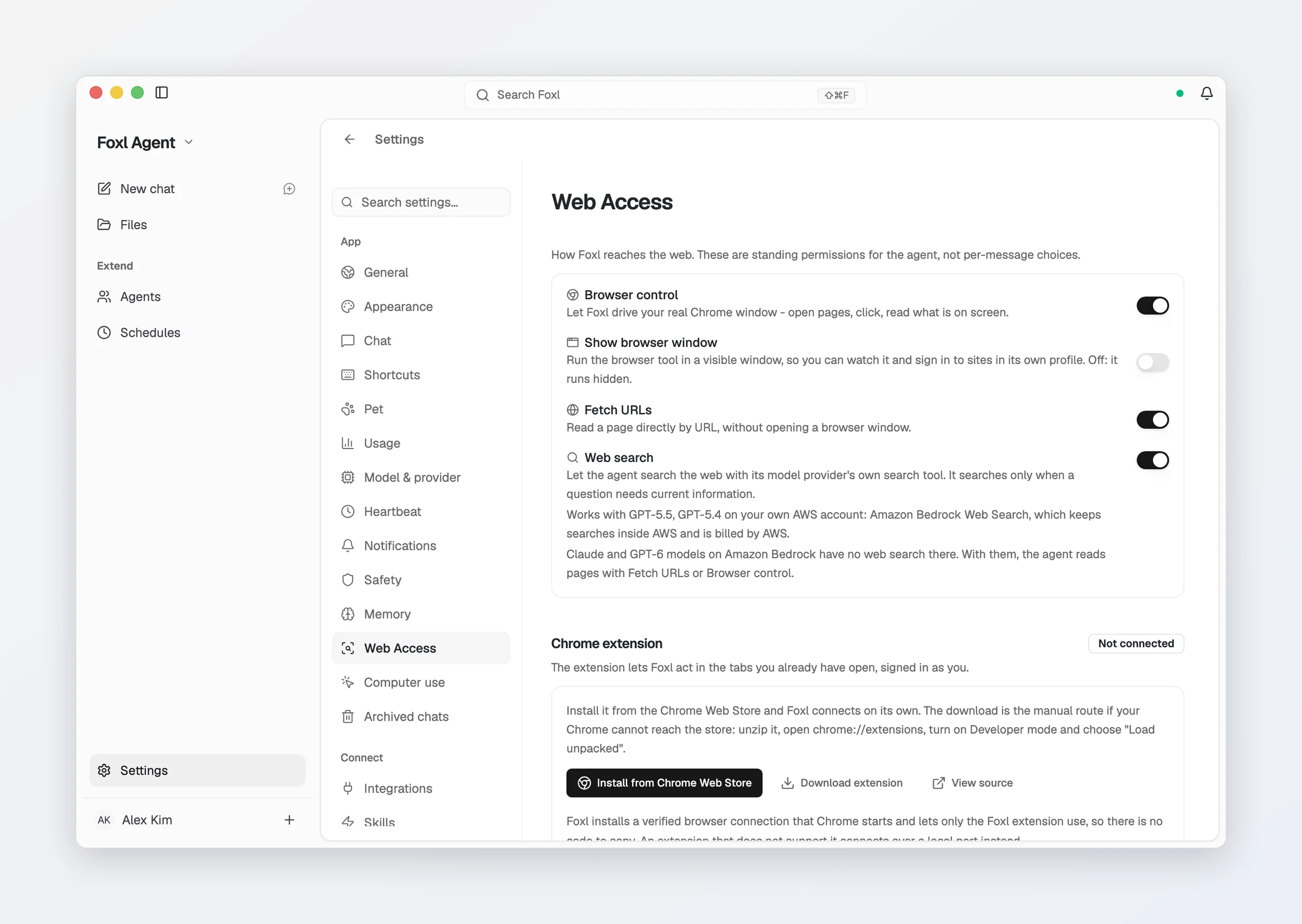
Everything about how Foxl reaches the web is one pane, Settings > Web Access, and its switches are standing permissions rather than per-message choices: Browser control (turns the browser and browser_extension tools on or off together), Show browser window (the browser tool's window, hidden by default), Fetch URLs (the web_fetch tool), Web search (the model provider's own search, where it has one - see Agent Tools), the Chrome extension card (Connected or Not connected, with the Web Store link, the manual download and the source), and Allowed domains. It is desktop-only; app.foxl.ai has no local tool server to drive.
Security
Browser automation is powerful, so Foxl includes several safety measures:
- Sensitive site blocking, off by default: Foxl reaches every site until you ask it not to. Turn the filter on in Settings > Web Access > Allowed domains and it blocks banking, payment, crypto-exchange and tax or government domains (US and Korean); that panel shows how many are blocked and takes the domains that should be allowed through anyway. With the filter on, every address the
browsertool is told to open is checked the way the browser reads it, including each command in abatch, anddata:andjavascript:addresses are refused; links and redirects the page itself follows are not checked. Your choice, and the domains you add, are remembered across restarts and updates. The blocklist itself can be edited through the/api/security/domainsAPI. - Visual feedback: While the agent works in a tab, the Chrome Extension shows a glowing border and a Stop Foxl button there, and outlines an element it clicks from the snapshot for a moment. Stop Foxl ends the run.
- Payments and bookings always ask: in the agent's browser and in the Chrome extension, a click, an Enter or a page script that can pay or book asks first, even with auto-approve on - "Place order", "Pay", "Buy now", "Confirm booking", "Cancel subscription", "Request refund", "Change plan", a "Reserve", "Book" or "Subscribe" shown with a price, and the same buttons in the other nine languages the app speaks. The prompt names the button's own words, the website and the total the page shows. An Enter in a checkout form's field, such as a card number or security code the agent has just typed, asks the same way. Allow covers that one step and there is no Always allow, so the next payment asks again. A scheduled or channel run that reaches such a button clicks nothing when no Foxl window is open to ask, and its result says it needs your OK.
- Card and ID numbers ask before they are typed: text the agent types into a page that carries a card number, a Korean resident registration number or a US Social Security number waits on an approval prompt, even with auto-approve on. The prompt names a card or an SSN by its last four digits only, and a resident registration number by its kind, with no digits.
- Action transparency: Every step shows in the chat as it runs, screenshots included, and each
browsercommand leaves a line in Settings > Logs. - A pinned, reviewed agent-browser: the
browsertool never runs whatever agent-browser version was published last; it moves only with a Foxl release.
Platform Support
The browser tool works on macOS, Windows and Linux alike, with a Foxl-only profile under ~/.foxl/browser-profile. It needs Node.js with npm and a Chrome that agent-browser can start; on Windows that is Google Chrome or Brave. The browser_extension tool works in whichever Chrome (or Chromium-based browser) you installed the extension in - see Chrome Extension.