
このページはまだ日本語に翻訳されていないため、英語で表示しています。
Conversations
Chat sessions, temporary chats, projects, pinned chats, pop-out windows, search, the message box, keyboard shortcuts, what a reply shows, chat settings, and export
Conversations are the primary way you interact with Foxl. Each conversation is a separate chat session with its own context and history.
Creating Conversations
Click New chat in the sidebar, press Cmd+N (Ctrl+N on Windows and Linux), or use File > New to start a fresh conversation. A new chat starts empty: whatever was sitting in the message box - text, attached images and files, pasted-text cards - is cleared with it, along with the find bar and any open file tabs from the previous conversation. Each conversation gets:
- A unique session ID
- Its own message history
- Separate agent context (tools used, files read, etc.)
Temporary chat
A temporary chat is not saved. On a new chat, turn on Temporary chat in the model picker (on a phone, in the chat's ... menu); a line at the top of the chat says it is on. It stays out of your chat list and search, Foxl does not read or add to its memory in it, and it is deleted when you leave it. Files Foxl writes in it stay where they were written. On a phone it needs your computer online.
Conversation History
All conversations are saved automatically. The sidebar lists them by title, grouped by when you last used each one - see Grouped by date.
Foxl names a chat from your first message, and a name you give a chat yourself is never replaced. On a Claude Pro/Max sign-in, your own Amazon Bedrock account or OpenRouter, the name comes from a small, cheap model rather than the chat's own (Haiku 5.5; on OpenRouter a free model, Gemma 4 26B, under your OpenRouter privacy settings, with Haiku 5.5 when it is busy or refused), and the chat is named again from the conversation at your third message. On a ChatGPT sign-in GPT-6 Luna names it from your first message. Other providers, and chats on Foxl credits, are named by the chat's own model after the first reply.
Desktop App
Conversations are stored in the local SQLite database at ~/.foxl/data/pilot.sqlite (%USERPROFILE%\.foxl\data\pilot.sqlite on Windows).
Web App
In the web app (app.foxl.ai) and on the phone, the conversation list and every transcript come from your desktop through the desktop relay. The device keeps its own encrypted copy of what it has already loaded, so when the desktop is asleep you can still read a chat: it is marked Saved on this device, and you reconnect the desktop to reply.
To reload the list on a phone (the iPhone and Android apps, or a phone's browser), pull Recent chats in the side menu down from the top of the list and let go: the list loads again from your desktop while a circle spins above it, the chat you have open stays open, and the chats already loaded further down stay loaded. There is no refresh button there; the pull is the way. If your desktop is offline, a message says the list shows the chats saved on this device; if the list could not be loaded, a message says so and the list stays as it was. Only the list reloads, not the whole app.
Grouped by date
The sidebar list is grouped by when you last used each conversation. Scroll and a date marker appears between the rows: Today, Yesterday, then the individual day for anything inside the last week ("Fri, Jul 3"), then by calendar month, and by month and year beyond that. The markers fade out when you stop scrolling, and stay while your pointer rests on the list.
The groups never overlap - a conversation belongs to exactly one of them.
Pinned chats
Any conversation's menu has Pin. Pinned chats sit in their own group at the top of the sidebar instead of sliding down the list every time you answer something else. A pin is saved with the chat on your computer, so every window and every browser or phone showing this computer's chats shows the same pins, and there is no limit to how many you pin. Pin and Unpin on a phone or at app.foxl.ai change the chat on your computer, so with your computer offline Foxl asks you to connect it, as it does for Rename and Archive.
The Foxl chat
A chat called Foxl sits at the top of your chats on every device, as one ongoing conversation. On a phone the Chat tab opens it. When a schedule finishes or fails, its result is posted there (on a phone, under the schedule's name), so you can reply to it in the same place, and the schedule's notification opens it there; the whole run is still on the Schedules page. Heartbeat runs are not posted. Rename, unpin, archive or delete it like any chat and it stays the way you leave it; while it is archived or deleted, nothing is posted to it.
Projects
Group related chats into projects. Point at the Recent chats heading and a small New project button appears; once you have a project, a Projects section sits above Recent chats.
- Drag a chat onto a project, or use Move to project in its menu, which can also create a project or Remove from project. Dropping a chat on Recent chats takes it out again.
- The button on a project's row starts a new chat in it.
- A project can have a folder on your computer. New chats in the project, and chats you move in that have no folder yet, work in that folder - see A folder for a chat.
- A project folds and unfolds with a click. Delete project keeps its chats, and Undo on the "Project deleted" message puts the project back with its chats in it.
- Projects are kept on your desktop with the chats. On a phone the chat list stays one list, and the collapsed sidebar rail lists every chat as if none were filed.
Two conversations at once
Side by side
Open beside in a chat's menu docks that conversation as a resizable pane on the right, so you can read one thread while writing in another rather than bouncing through the sidebar and losing both scroll positions.
- The side pane is read-only. Open here swaps it into the main pane when you want to answer in it.
- Desktop widths only, and the width is remembered.
A chat in its own window
In the desktop app, Pop out in a chat's menu in the sidebar, or the Pop out button at the top of an open chat, opens that chat in a window of its own. File > New Chat Window (Cmd+Shift+N, Ctrl+Shift+N on Windows and Linux) opens a new chat in one.
- The window stays above your other windows and has the full message box and model picker, with Open in main window and Add to chat buttons.
- Popping out a chat that already has a window brings that window forward.
- The main window can show the same chat at the same time. A reply started in either window appears live in both, and a message you send in one window while the chat is replying waits its turn instead of stopping the reply.
A folder for a chat
The folder button in a chat's header points that chat at a project folder on this computer. Pick it before the first message or at any time later; each chat keeps its own, and a chat started in a project with a folder starts in that folder.
- Shell commands the agent runs start in that folder, and a file path that names no folder points into it. Your memory files stay in your workspace.
- The agent follows the folder's AGENTS.md or CLAUDE.md files, from the
repository root down to the folder: one per directory (
AGENTS.override.mdfirst, thenAGENTS.md, thenCLAUDE.md), the deepest one last so it takes precedence, 32 KB together at most. - Project instructions under the folder lists every file that is sent, with its text, and anything left out, such as a file that links to a credential or to a file outside the folder and its repository.
- Desktop app only, at desktop widths.
Searching conversations
Search matches conversation titles and message contents, so you can find a chat by
something said inside it rather than only by its name. The agent can search them too,
with its conversation_search tool - so "what did we decide about the schema last
week?" works in chat, not just in the search field.
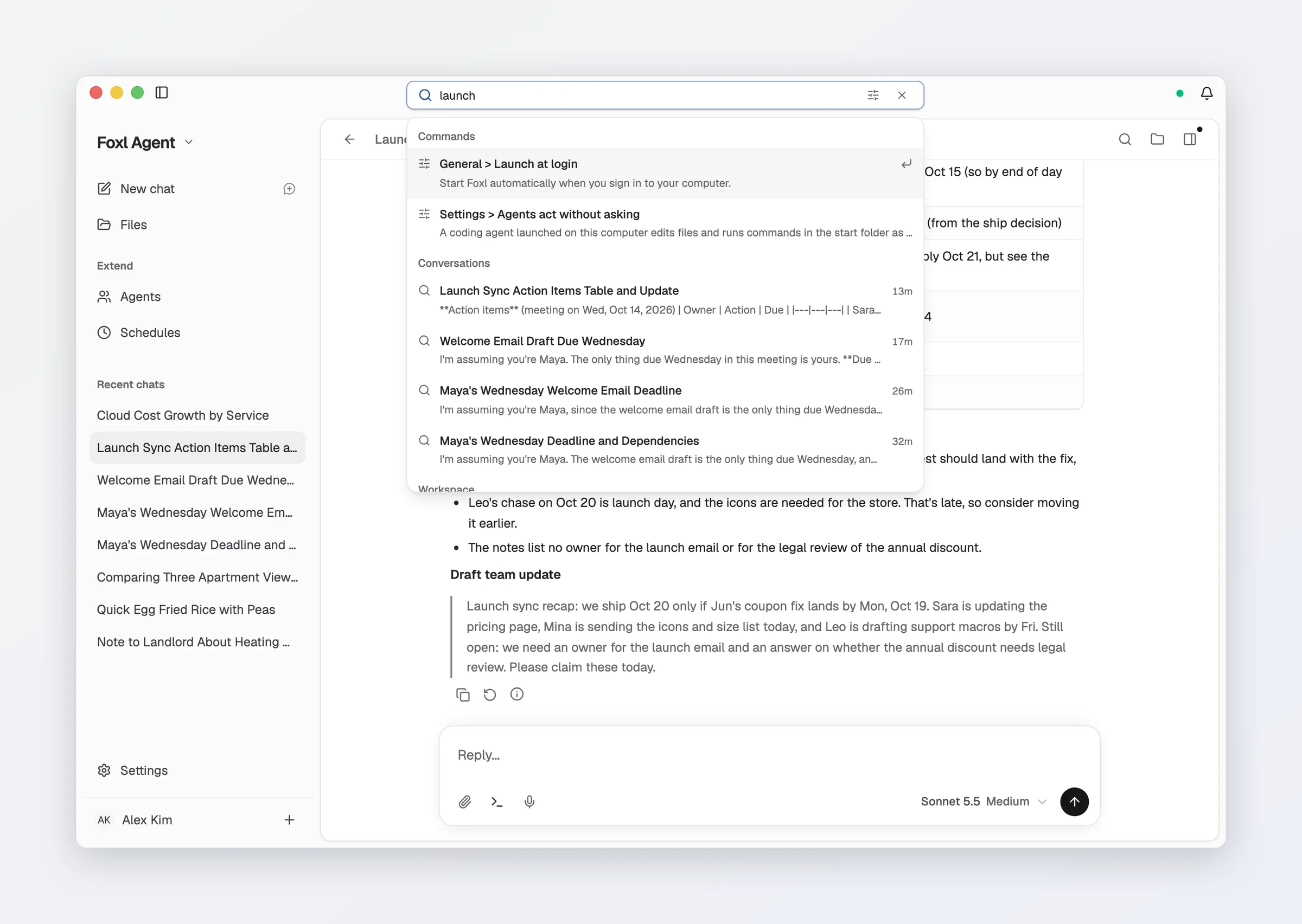
Search is a ranked full-text index: the best match comes first and the excerpt shown is the part that matched, as plain text with your words highlighted, so a conversation genuinely about your subject beats one that mentions it in passing. It works the same on macOS, Linux and Windows. A German word is found however its "ß" is written ("Strasse" finds "Straße" and the other way round), in the search field and in the agent's own recall. In the search field, a Korean word is also found inside a compound noun (예산 in 연간예산) when few chats have the word on its own.
The same search finds your Foxl Notes
too, by title, text and transcript (everywhere except code.foxl.ai). While you are in
Foxl Notes they are listed first; everywhere else they come after the conversations, so
Enter opens the top conversation rather than a meeting note that happens to contain
the word. Pages, Settings panes and single settings that match are listed above
everything else, so search is also a quick way into Settings.
Desktop
On macOS and Linux the search field sits in the centre of the window titlebar. Click it
(or press Cmd+Shift+F, Ctrl+Shift+F on Linux) and results open beneath it as you
type. Use the arrow keys and Enter to open one; opening a result jumps to the matching
message and highlights it.
- An empty field lists the conversations you opened from search most recently. That list is kept on the device, not synced.
- The filter icon narrows the results to the sources you tick: title matches, message matches, notes, workspace files and commands (and Foxl Code tasks while you are in Foxl Code).
The titlebar can show live agent status instead of the search field - turn on Settings > General > Status HUD in titlebar. Search remains reachable from the header's search icon either way.
On Windows the titlebar has no search field: the search icon in the header, or
Ctrl+Shift+F, opens search as a centred palette, as on the web.
Web and mobile
There is no titlebar on app.foxl.ai or on the phone, so search opens as a centred palette from the search icon in the header, or with the same keyboard shortcut.
The command palette
Cmd+K (Ctrl+K on Windows and Linux) opens a command palette in the desktop app, on app.foxl.ai and code.foxl.ai, and on a phone with a keyboard. Type to jump to a page, a Settings pane or a single setting, or to run an action: in Foxl Agent, start a new chat, choose a model, stop the reply, show the files panel, export the chat as Markdown and turn Auto-approve all tools on or off (while your desktop is reachable); everywhere, switch between light and dark or show the keyboard shortcuts. Opened with nothing typed, it lists those actions.
The message box
- The paperclip attaches photos and files in one click; dragging or pasting a file attaches it too. The Terminal button opens and hides the terminal and shows how many sessions are running (Cmd+T, Ctrl+T on Windows and Linux, in the desktop app). On a phone (the iPhone and Android apps and a phone's browser) the bar is one capsule with a +, which holds attachments, the model, the terminal and, when tools ask before they run, the approval mode - see Mobile Apps. The desktop and the iPad keep the bar described here.
- Voice messages, on a phone: the black circle at the end of the message bar records one. Tap it to start and again to send (the X cancels), or hold it and let go to send, sliding toward the + to cancel. Foxl transcribes it as you speak and sends the words as your message, with a play button in your bubble. A voice message is up to a minute long. In a chat your computer answers, the recording is kept with the chat on your computer; otherwise it stays on the phone that recorded it. The circle and the microphone show only where what you say can be transcribed.
- Type @ to pick a file from your workspace (on app.foxl.ai and the phone apps while your desktop is connected). The list narrows as you type and puts this chat's own files first, and the file you pick goes into your message the same way dragging it in does.
- Type / at the start of a message for your installed skills and three commands: /new starts a new chat, /model opens the model picker and /clear empties the message box. Use the arrow keys and Enter or Tab to pick, or Esc to close the list.
- With Auto-approve all tools turned off, the message box shows a small Asks first label. Click it to switch auto-approve back on, or to open Settings > Safety.
- The model button opens the model picker. Every chat uses the model you picked most recently, unless you turn on Settings > Chat > Remember the model for each chat: then opening a chat switches the picker to the model you last used in that chat. See Models.
- Which key sends is yours to choose under Settings > Chat > Send messages with
- see Chat settings.
Keyboard shortcuts
Cmd+/ (Ctrl+/) shows every keyboard shortcut Foxl answers to, including the ones you changed, with a button to Settings > Shortcuts, where each one can be changed (an iPad, a tablet or a computer lists that pane; a phone does not). In Foxl Agent (Ctrl instead of Cmd on Windows and Linux):
| Shortcut | What it does |
|---|---|
| Cmd+N | New chat |
| Cmd+Shift+F | Search everything |
| Cmd+F | Find in this chat |
| Cmd+K | The command palette |
| Alt+Up / Alt+Down | The previous / next chat in the sidebar's order |
| Cmd+L | Go to the message box (in the desktop and phone apps; in a browser Cmd+L stays the address bar's, so pick another key in Settings > Shortcuts) |
| Cmd+Shift+C | Copy the last reply |
| Cmd+Shift+M | Open the model picker |
| Cmd+Shift+E | Show or hide the files panel |
| Cmd+D | Delete the open chat (with Undo, see below) |
| Up arrow | Edit your last message, with the message box empty |
| Esc | Stop the reply that is running |
Message Features
Streaming Responses
Foxl streams responses token-by-token in real-time. You can see the response forming as the AI thinks.
On a phone (the iPhone and Android apps and a phone's browser) a reply arrives one paragraph at a time instead: the paragraph Foxl is still writing waits behind the typing dots and appears whole when it is done. A paragraph that takes longer than a second and a half shows as it is written from then on, and code blocks and tables still stream. The desktop and the iPad show a reply word by word.
Extended Thinking
When the model reasons before it answers, you can see its reasoning in a collapsible "Thinking" section above the response. Which models reason, and the effort levels each one offers, are on the Models page.
Opus 5.5 is the default for Foxl Agent chat and managed coding agents. Its adaptive thinking is always on, so the selector shows five effort levels (low, medium, high, xhigh, max) with no off switch. The default effort is medium. Foxl Notes keeps Sonnet 5 as its default. See Adaptive thinking.
While it works, and when it is done
While a reply is still running, a line at its top counts the time ("Working for 8s") and shows only what the assistant is writing and the step it is on right now.
A finished reply shows only its answer, under one quiet Worked for 1m 12s line (on a phone, a small caption just above the reply). The thinking, the tool steps and the notes the assistant wrote along the way are folded behind it; click the line to see them. Each thinking step there shows the first line of what the assistant thought, with how long it took. A step waiting for your approval and a picture the assistant generated always stay on screen, and Find in chat opens a folded reply when it finds a match inside.
A reply you stop - with the Stop button or Esc - says Stopped under what it had written, in the chat and after a reload.
The plan checklist
When a task takes several steps, the agent keeps a checklist of them pinned above the message box: each step done, in progress or still to do, with how many are done. A chat has one checklist, so a task that stops to ask you and carries on after your answer keeps counting in the same list. Once every step is done it goes away after a few seconds; click its header to fold it to one line (on a phone it starts folded, showing the step the agent is on).
- The X on its header closes the plan in that chat. It stays closed while the agent works through it, and comes back when the agent starts a new plan.
- The eye button hides the checklist in every chat, and so does turning off Settings > Chat > Show plan checklist, which is also where you turn it back on. It is hidden on that device only; the agent still plans its work the same way.
- A Claude Pro/Max sign-in does not get the checklist, and schedules, the heartbeat and channel replies (Telegram, Slack, iMessage and the others) do not use it.
When the plan and sub-agents run at the same time, they share one panel above the message box. On a phone it rests as one row, such as "Plan 2/5 · 2 subagents running 12m 40s": tap it for the plan's steps and each sub-agent, with Hide plan, Close plan, a Stop for each sub-agent and Stop all. On a computer and an iPad it opens on the plan's steps, with the sub-agents folded to one line under them.
Files changed, with Undo
Under a reply that created or edited files, a Files changed card can list each file with how many lines it added and removed, a diff you can expand, and Open. It shows what the whole reply changed, so a file the agent wrote twice shows the end result; files changed by a shell command are not listed. The card is hidden by default: turn on Settings > Chat > Show files changed to see it (on that device only).
- Undo on the card puts every file the reply wrote back the way the reply found it, and removes a file the reply created. If a file was changed again after the reply, Foxl asks before overwriting those later changes.
- After an Undo the card offers Redo, which puts the files back the way they were right before the Undo, asking first if a file was changed since.
- Your next message in that chat tells the assistant which files Undo or Redo changed, so it does not keep working from edits that are no longer there.
- The earlier versions are kept in Foxl's own folder on this computer for 30 days, at most 4 MB per file and 256 MB in all, and are deleted when the chat is deleted for good.
Code, diagrams and math
- Code blocks are syntax highlighted, in light and dark mode and in every colour theme, for about 40 languages including TypeScript, Python, shell, Go, Rust, Java, SQL, HTML and YAML. A block is coloured as soon as it has finished arriving; a very long block, over about 20,000 characters, stays plain.
- Mermaid diagrams open on the diagram as soon as the reply has finished writing them, using the app's colours. A diagram that cannot be drawn shows its source with a note, and a diagram never loads anything from the internet.
- Math is typeset:
$...$inline and$$...$$as a centred formula, and also\(...\)and a\[...\]block on lines of its own. A dollar amount such as$5stays as it was written.
Tool Use Display
When the agent uses tools (browser, code execution, file read, etc.), each tool call is shown inline with:
- Tool name and action
- Input parameters
- Execution result
- Duration
File paths in a tool's arguments are clickable. A path in an expanded tool row -
what file_write just changed, what file_read looked at - opens the workspace
viewer at that file, and at the cited line when the tool named one. Selecting text
across a tool row no longer collapses it, so you can copy a path out by hand too.
In the desktop app a file path in the reply text is clickable too, including one that
starts with ~: Cmd-click (Ctrl-click on Windows and Linux) opens the file in whatever
application handles that kind of file, and a folder opens in your file manager.
A sub-agent's tool calls are not drawn in the chat. While sub-agents run, a bar above the message box shows them (shared with the plan when both run, see The plan checklist), and each one's steps are on its own run screen.
Explain details
Select text in a reply and an Explain details button appears, which opens Quick Chat about what you selected. To select and copy without it, turn off Settings > Chat > Show "Explain details" on selected text.
Reply ready
When a reply that took 30 seconds or more finishes while the Foxl window is in the background, the desktop app shows a silent banner titled with the chat's name that says "reply ready"; click it to open that chat. Shorter replies show none, and a reply that stops with an error says so. A reply you watch finish in a chat popped out into its own window, or in Quick Chat while that window is in front, shows none either. A chat that hands work to sub-agents shows one banner for the final answer, and a reply to a message sent from your phone or app.foxl.ai shows none on the computer. Turn it off in Settings > Notifications > Chat.
Attaching files
Attach a file to a message and the model reads it with that message. A few rules decide what it can still see later:
- Up to 10 files per message, images and documents together, of which at most 5 can be PDF or Office (Word, Excel) files. Files over either limit are not attached, and the message box says so.
- Up to the five most recent PDF or Office files stay readable as files. Past five, an older one is left out with a note, so the model can ask you for it again. A text file (txt, md, csv, html, json or xml) past five stays readable: it is sent to the model as text.
- A file with the same name as an earlier one is numbered (for example
notes 2.txt) rather than refused. - Files are kept with the conversation. Foxl saves each attached file in the
conversation's own folder in its data directory (
~/.foxl/data/attachments/<conversation id>), outside your workspace, so another conversation's agent never finds it. After a restart or a model switch the model sees them again (the ten most recent documents, at most five PDF or Office files at a time, an older text file as text, and the ten most recent images), and Retry and Edit send a message again with its files. The folder is removed when the conversation is deleted for good. A file attached with an earlier version of Foxl has no saved copy: retrying its message asks you to send it as a new message and attach the file again, and editing it says so in the editor and keeps your text - remove the file there to save the edit without it. - On ChatGPT sign-in and on OpenAI-compatible providers such as OpenRouter, a text file (txt, md, csv, html, json or xml) goes in as text in the message.
- An image on a model that cannot view images - after switching to one, or after an OpenRouter model refused the image - is replaced by a note saying an image was there, so the conversation keeps working.
- A refused attachment does not stick. When a model refuses a file ("This model doesn't support documents", for example), the next message in the conversation works again.
The receipt on every reply
Hover an assistant message and its timestamp appears. Open it and you get:
- the model that answered
- the tokens it read and wrote
- what the prompt cache saved
- how full the context window is
- the estimated cost of that turn
- Delegated - the tokens the subagents this chat spawned used, and how many of them there were. They count toward the chat's usage but not toward its context bar, since a subagent's prompt is not what sits in your window
It reports the whole turn rather than the last model call, so a reply that ran six tools tells you what the reply cost.
Message Editing
Click Edit on any of your messages to change it (or press the Up arrow in an empty message box to edit your last one). Foxl sends the edited text as a new version of that message and keeps the earlier version, with every reply that followed it. Under an edited message, < 1 / 2 > switches between the versions: the conversation below it, and what the model sees on the next turn, follow the version on screen. Editing the same message again adds another version. The other versions are not listed or searched as separate chats, and they are deleted with the conversation. A message whose attached file is no longer held cannot be edited or retried with it; see Attaching files.
Sources
An answer lists what it read under it, as N sources; click it to see each one. That
covers the web pages it read (with web_fetch, the agent's browser, the Chrome extension or
the model's own web search), your Foxl Notes,
and the emails Foxl opened in Gmail or Outlook, Outlook meetings and files it read: an email
by its subject and date, a meeting by its title and start (it opens in Outlook on the web),
and a file by its name (it opens when it is in your workspace). A chip never shows the text
of an email.
Under an answer
An answer's actions sit in a row under it; on a phone, tap the answer first to show them (a reply that was stopped or failed keeps them on screen). Besides copy, share and Regenerate:
- Read aloud (the speaker) reads the answer in its language with the voices installed on your device, leaving out code, and costs no credits. Tap it again to stop. In Chrome or Edge, an answer in a language your device has no voice for may be read by the browser's online voice.
- Retry with another model, under the latest answer: pick a model and the new answer appears with arrows to switch back to the earlier one. It works in chats kept on your computer, in the desktop app and from your phone or the web while your computer is connected; not in cloud chats.
- Suggested replies, on a phone: an answer that ends with a quick question, such as "Want me to dig in?", can offer up to three short replies as buttons under it. Tap one and it is sent as your message, word for word. This works in chats your computer answers, except on a Claude Pro/Max sign-in or the on-device model.
Regenerate
Click the regenerate button on any assistant message to get a different response to the same input. On the answer a chat wrote from its sub-agents' results, it rewrites only that summary, from the same results, instead of running the sub-agents again.
Deleting a chat is undoable for 7 days
Deleting a conversation does not destroy it immediately. It moves to Settings > Archived chats, where you can read it, Restore it, or delete it for good - and everything there is removed automatically after 7 days. There is also an Empty archive button when you want it gone now.
Deleting the open chat with Cmd+D (Ctrl+D) shows "Chat deleted" with an Undo button for 8 seconds; Undo brings the chat back, pinned where it was, and reopens it.
While a chat is archived, it is out of the search bar and out of the agent's own
conversation search, and Foxl's automatic memory of it - its lines in the daily memory
log and its session records (memory/sessions/) - is taken out of the workspace, so the
agent does not list it as recent history or read those back as memory. Restore puts
all of it back. Deleting it for good removes that memory along with the chat. What was
saved on purpose (USER.md, MEMORY.md and memory topics) is not moved.
Desktop app only, since it is your local database that holds the chats.
Chat settings
Settings > Chat holds the settings about how a chat looks and behaves. Each one applies to the device you set it on.
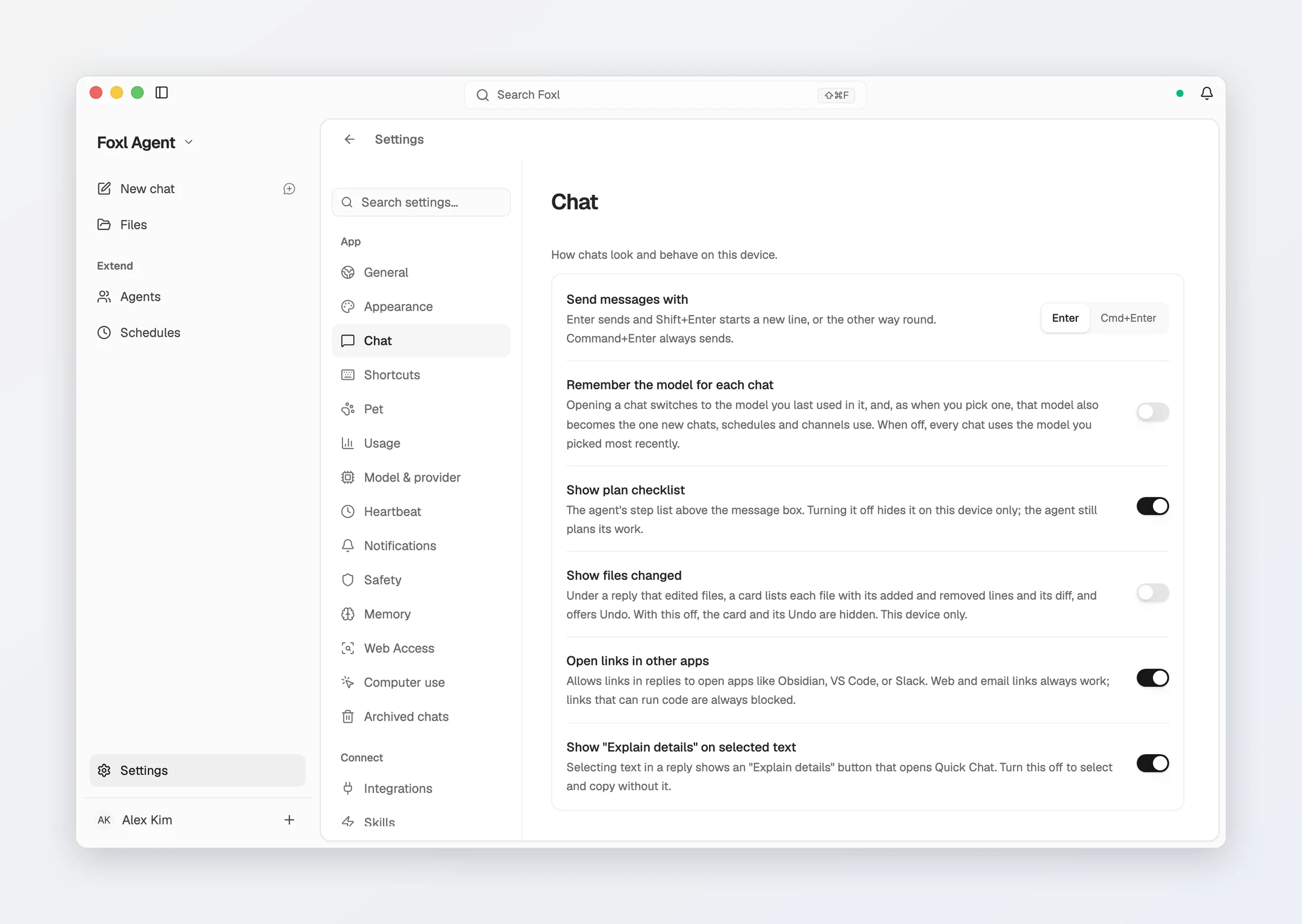
| Setting | What it does |
|---|---|
| Send messages with | Which key sends a message - see the table below. Not shown in the iPhone app, where Return always starts a new line and the send button sends. |
| Remember the model for each chat | Off by default. On, opening a chat switches the model picker to the model you last used in that chat. See Models. |
| Show plan checklist | On by default. The agent's step list above the message box; turning it off hides it in every chat, and the agent still plans its work. See The plan checklist. |
| Show files changed | Off by default. The card under a reply that edited files, with its Undo; with this off, the card and its Undo are hidden. See Files changed, with Undo. |
| Open links in other apps | On by default. Lets links in replies open apps like Obsidian, VS Code or Slack. Web and email links always work; links that can run code are always blocked. |
| Show "Explain details" on selected text | On by default. See Explain details. |
| Offline chat history | On app.foxl.ai and in the phone apps only: how many of your most recent chats (20 by default) to download in the background while your desktop is connected, so they stay readable when it is offline. |
| Send messages with | Enter | Cmd+Enter |
|---|---|---|
| Enter (the default, and what Foxl has always done) | Sends. Shift+Enter is a new line. | Sends. |
| Cmd+Enter | A plain new line. | Sends. |
Pick the second if you write long prompts. Cmd+Enter sends in both modes, and the choice is remembered per device - the right answer depends on the keyboard in front of you. On Windows and Linux the option and the key are Ctrl+Enter.
On code.foxl.ai this pane has the two settings Foxl Code uses: Send messages with and Open links in other apps.
Export
Export conversations in multiple formats:
- JSON: Full conversation data including tool calls and metadata. On the phone and app.foxl.ai, an export over 4 MB leaves out the oldest turns' attachments and tool results, and says so at the top of the file.
- Markdown: Clean text format suitable for sharing or archiving
Right-click a conversation in the sidebar (long-press on a phone) and pick Export as JSON or Markdown. The command palette's Export this chat as Markdown does the same for the open chat, and so does Export chat in an open chat's ... menu in the iPhone app and a phone's browser. To take every chat at once, use Settings > Advanced > Import and export > Export everything - see Foxl Agent.
Conversation with Desktop Relay (Mobile/Web connection)
When connected via Desktop Relay, conversations in the web app are routed through your desktop agent:
- The desktop agent processes tool calls locally
- Conversation history is stored on the desktop (not in the browser)
- Traffic runs over TLS, and the relay in the middle can read the message you send, the chat deltas and the tool results it forwards - it keeps none of them. It is a trusted-service hop, not an opaque pipe; see Transport security for the exact message types and why.
When your desktop is unreachable, the web app tells you that chat runs on your desktop and to open Foxl on your computer. You can still read the chats saved on the device, and start a new chat from a saved one once the desktop is back. On the accounts remote chat is offered to, an empty chat also shows Switch to cloud chat: it first says what remote chat does, that replies use your Foxl credits and where those chats are kept, and only Turn on there switches it on - see remote chat.
Sub-agents
Named workers with their own prompt, toolset and model - and the switch that decides whether one starts from the conversation
Channels & Integrations
Message Foxl from Telegram, Slack, Discord, iMessage, Signal and eight more, let it act in Microsoft 365 and Slack as you, and read the threads those bots collect