
Get Started
Set up Foxl in about five minutes. Install it, connect an AI model, then chat with Foxl Agent and take your first meeting note.
Foxl is a free app for your computer. You talk to it in plain words, and it does the work: it reads and writes your files, runs programs, looks things up on the web, and writes down your meetings.
Here is the whole setup, one step at a time.
1. Download Foxl
Open the file you downloaded and install Foxl like any other app. If your computer shows a warning, Install Foxl shows what to click.
2. Sign in
Open Foxl and sign in with Google, Apple, GitHub or your email address. Foxl is free.
3. Connect an AI model
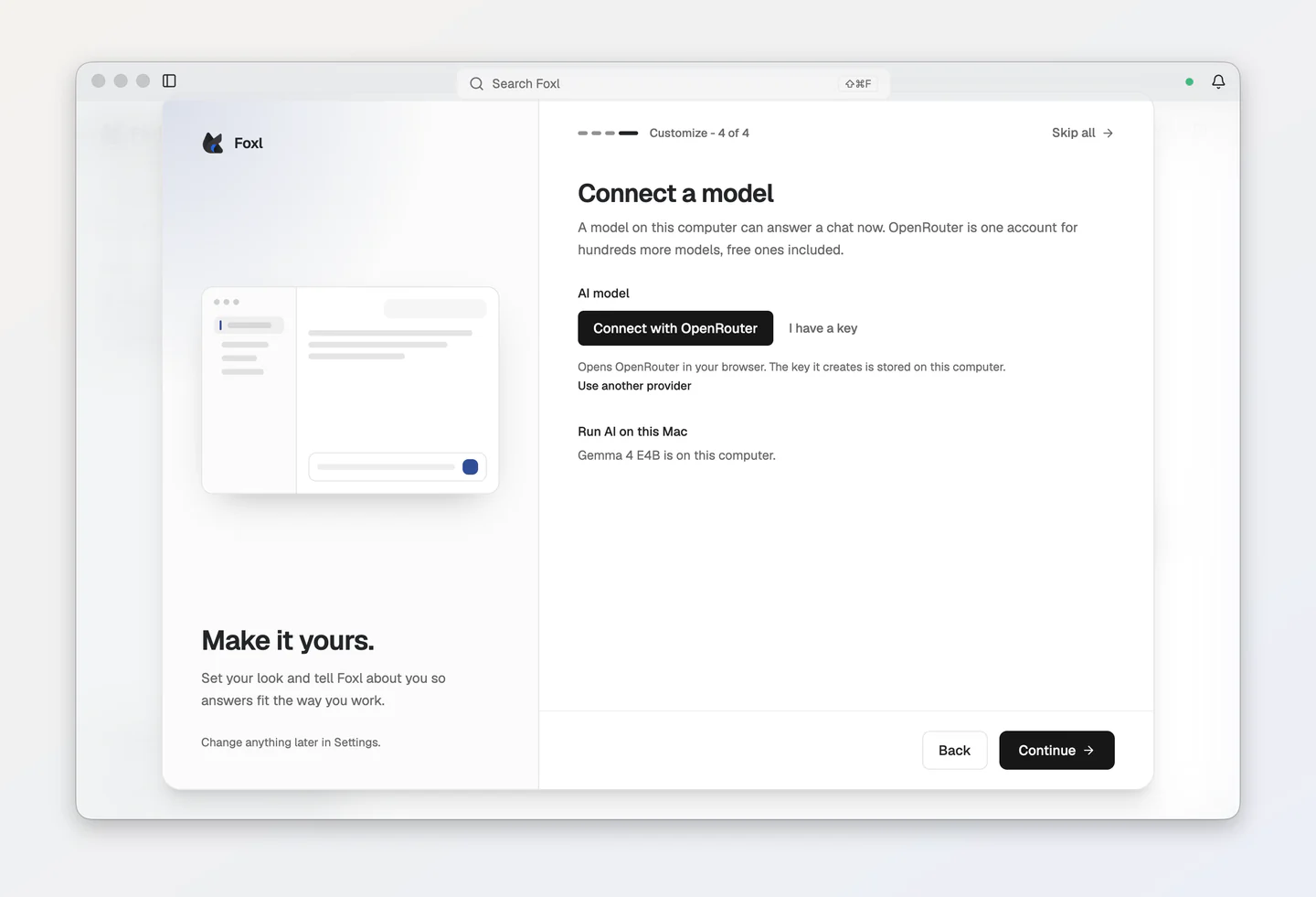
Foxl needs an AI model to think with. If your computer already has one Foxl can use (AWS credentials for Amazon Bedrock, a Claude Code or ChatGPT sign-in, Ollama, or a provider key), Foxl uses it and setup skips this step. If nothing on your computer can answer a chat yet, the last setup screen, Connect a model, helps you choose one:
- No AI account yet? Click Connect with OpenRouter. It opens OpenRouter in your browser. Approve it, and you can start with free models.
- Already have an OpenRouter key? Click I have a key and paste it. (A key from another provider goes in Use another provider, below.)
- On a Mac with Apple Silicon, a Windows PC or a Linux x64 computer? Foxl can run Google's open Gemma 4 on the computer itself, free and offline. Run Notes on this Mac, on the earlier Set up Foxl Notes screen, installs it, and this screen then shows its progress under Run AI on this Mac (when that screen did not offer it, this one does). On a Windows PC or a Linux x64 computer they read Run Notes on this computer and Run AI on this computer. Skipped it? Your first note shows where to install it later.
- Want something else? Click Use another provider. You can sign in with a Claude or ChatGPT plan you already pay for, use Amazon Bedrock, or run a model on your own computer.
Here is that screen on a Mac where Run Notes on this Mac has just installed Gemma 4:
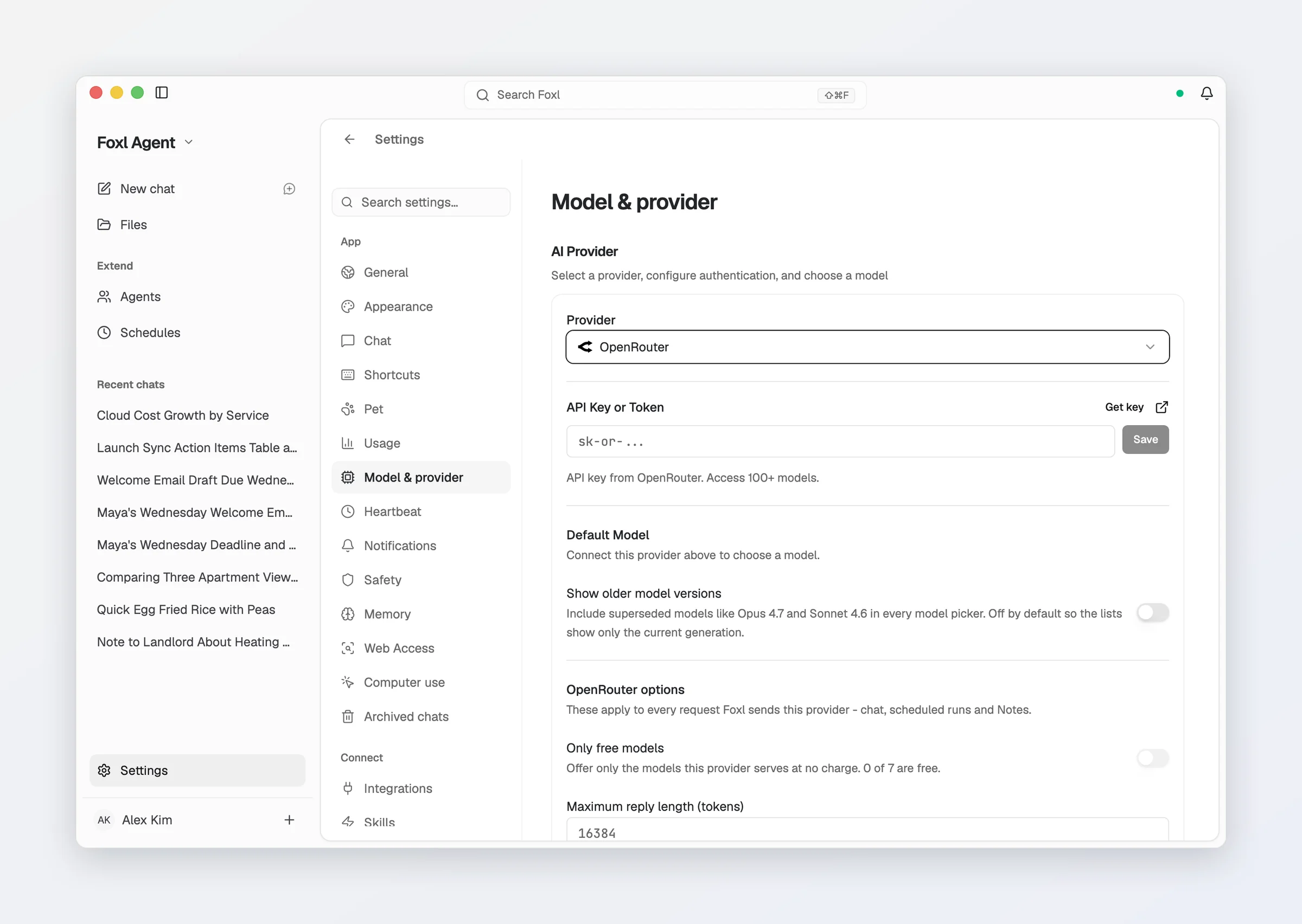
You can change this any time in Settings > Model & provider:
More help: Models and Cost & model access.
4. Ask Foxl Agent to do something
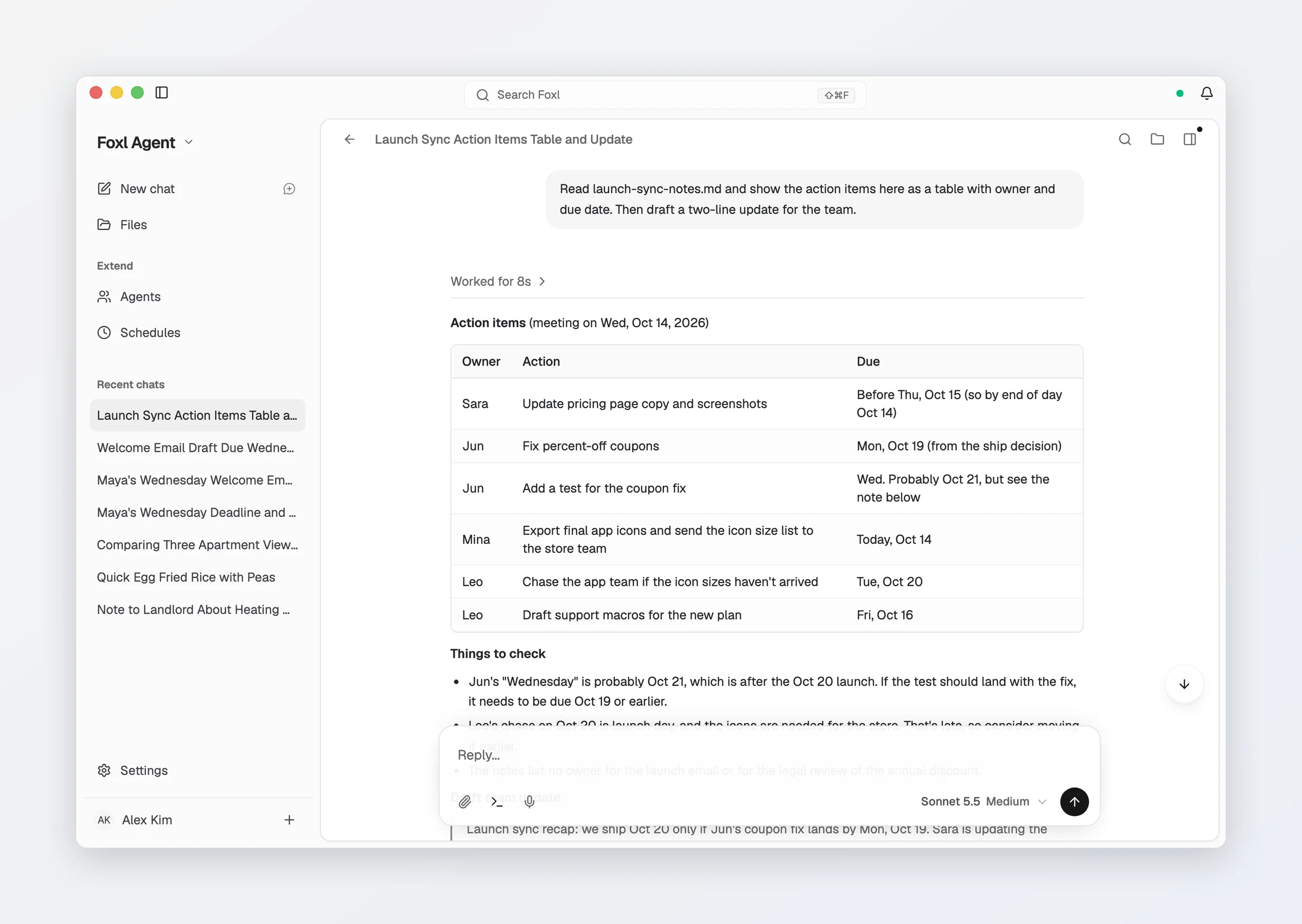
Click New chat and type what you want, the way you would ask a person. Foxl can look at files on your computer, so you can point it at one:
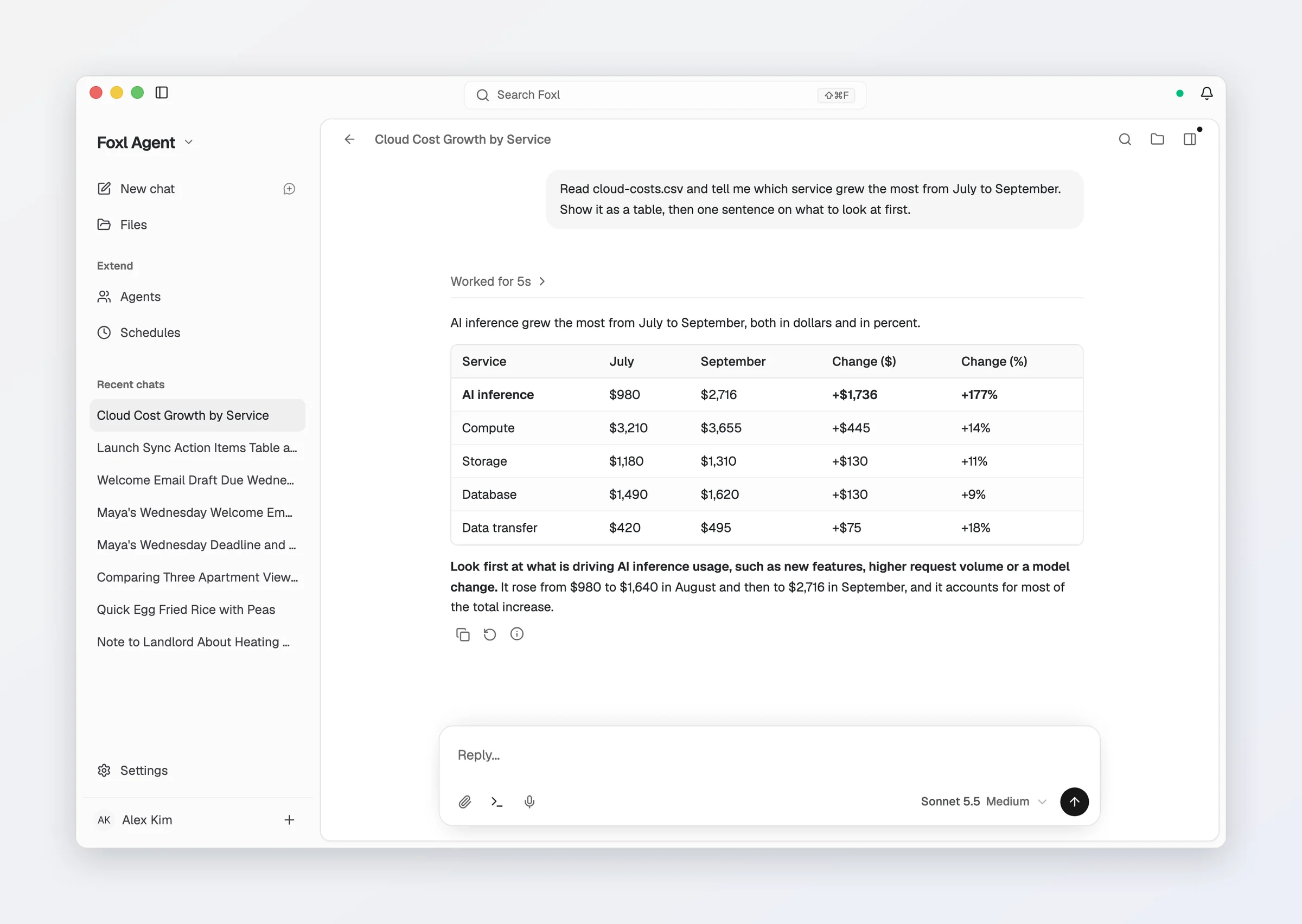
It can make tables, too. Here it read a cost spreadsheet and showed what grew the most:
Some things to try:
- "Look in my Downloads folder and put the PDFs into folders by month."
- "Read this spreadsheet and tell me what changed the most. Show it as a table."
- "Every Monday at 9, tell me what changed in my projects folder last week." (Foxl can do things on a schedule: see Scheduling.)
5. Take your first meeting note
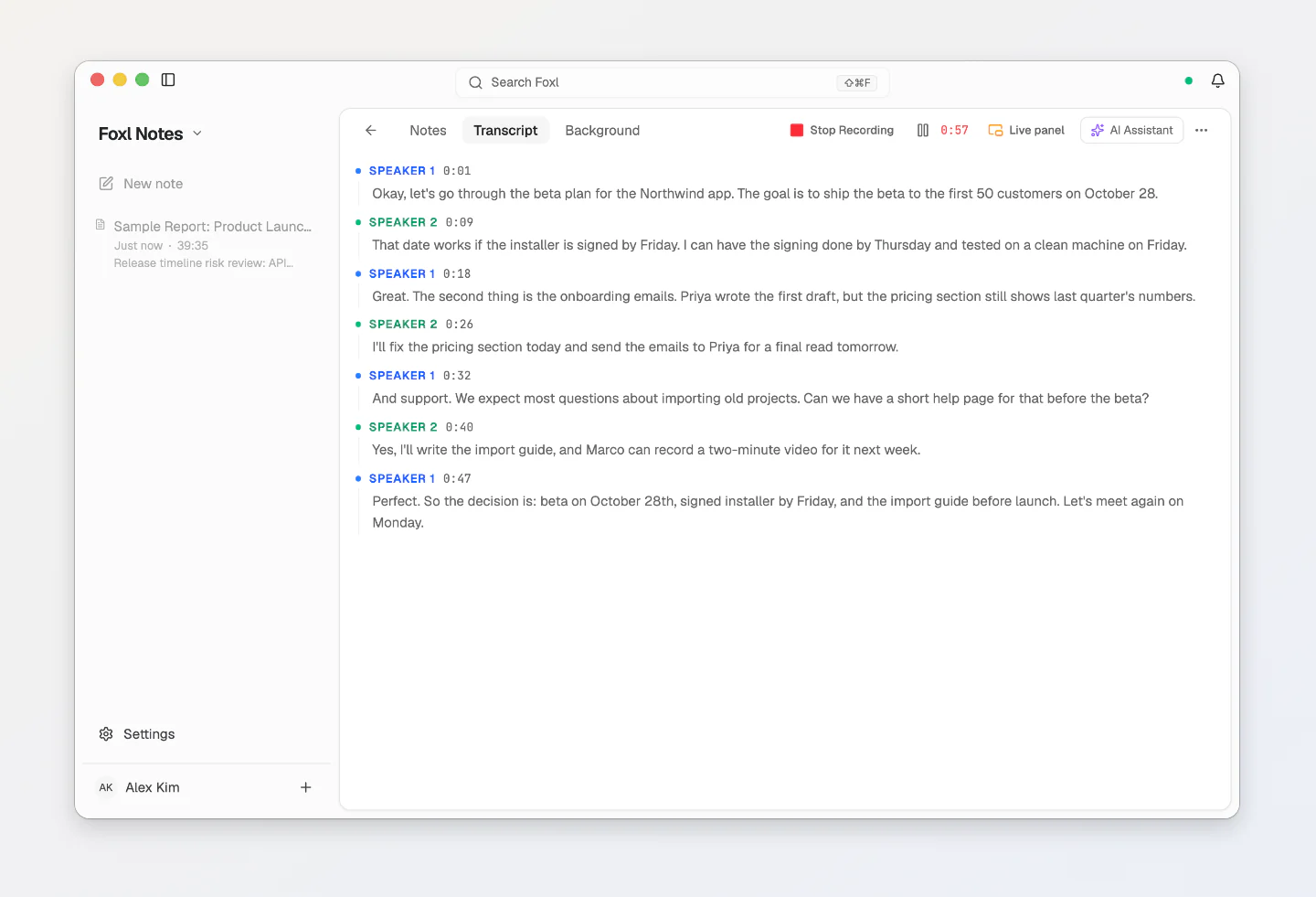
Click the menu at the top of the sidebar (it says Foxl Agent) and choose Foxl Notes. Press Start Recording when a meeting starts, or bring in a recording or a meeting transcript you already have (Import a recording or transcript, or drag the file in).
Foxl writes down what was said and who said it:
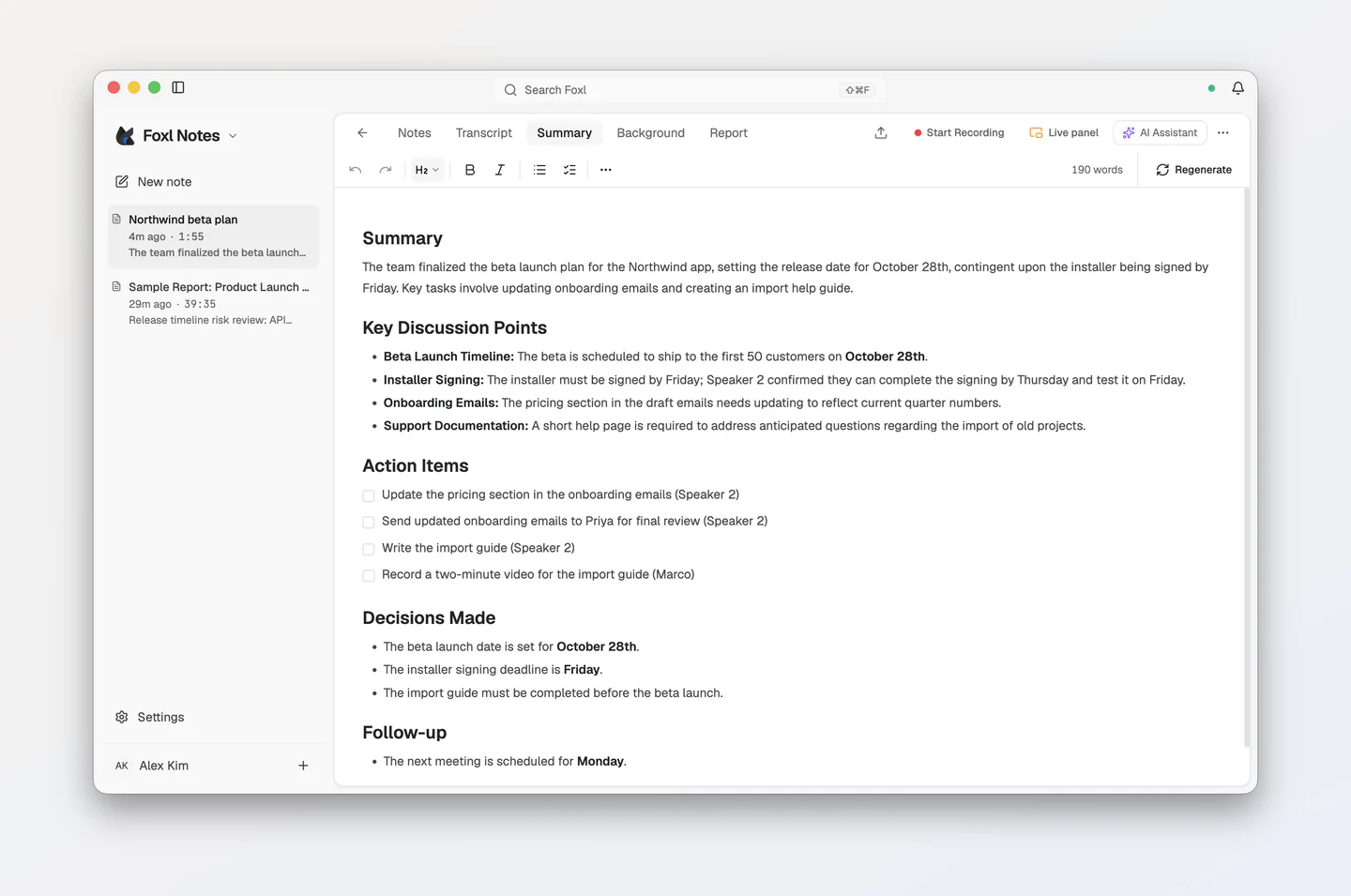
When the recording stops, Foxl turns it into a short summary with action items and decisions, in the note's Summary tab (or press Generate AI Summary there):
To write down a meeting, Foxl needs a speech engine. On a Mac with Apple Silicon, a Windows PC or a Linux x64 computer, Run Notes on this Mac (Run Notes on this computer on Windows and Linux) in the first-run setup installs one on the computer, together with an AI model for the summary: free, and it works offline. On other computers, use your own AWS account or a service like AssemblyAI. Your first note shows both, step by step.
6. Use Foxl on your phone
Your phone can talk to the Foxl on your computer. Everything still runs on your computer, with its files and its AI model. (How the connection works: Desktop relay.)
- On your computer, open Settings > Connect > Mobile/Web and turn on remote access.
- Install the Foxl app on your phone: iPhone and iPad on the App Store, or Android (see Mobile apps).
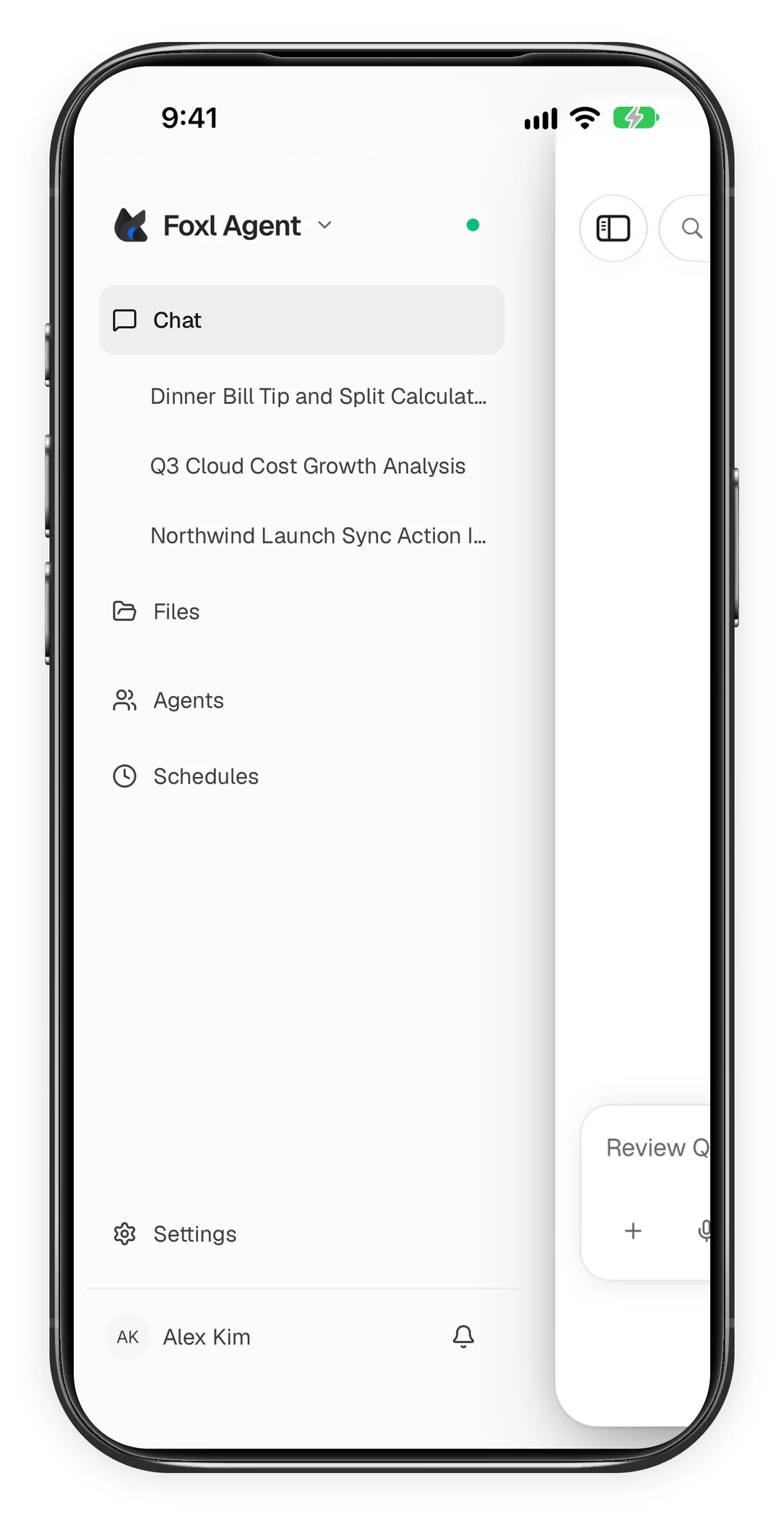
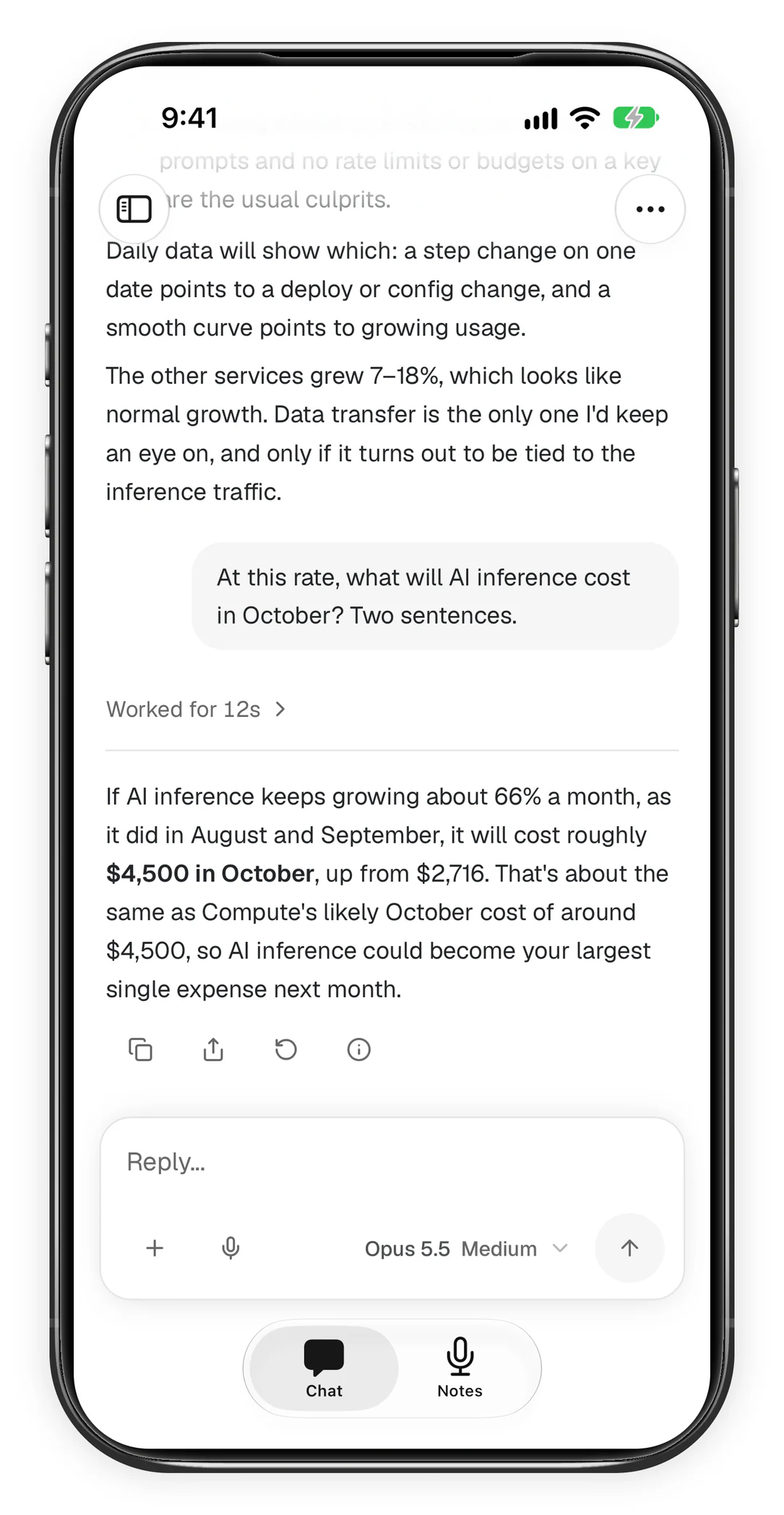
- Sign in with the same account. Your computer's chats show up there (it can take a moment), and you can keep going (your meeting notes sync between the phone and the computer too):
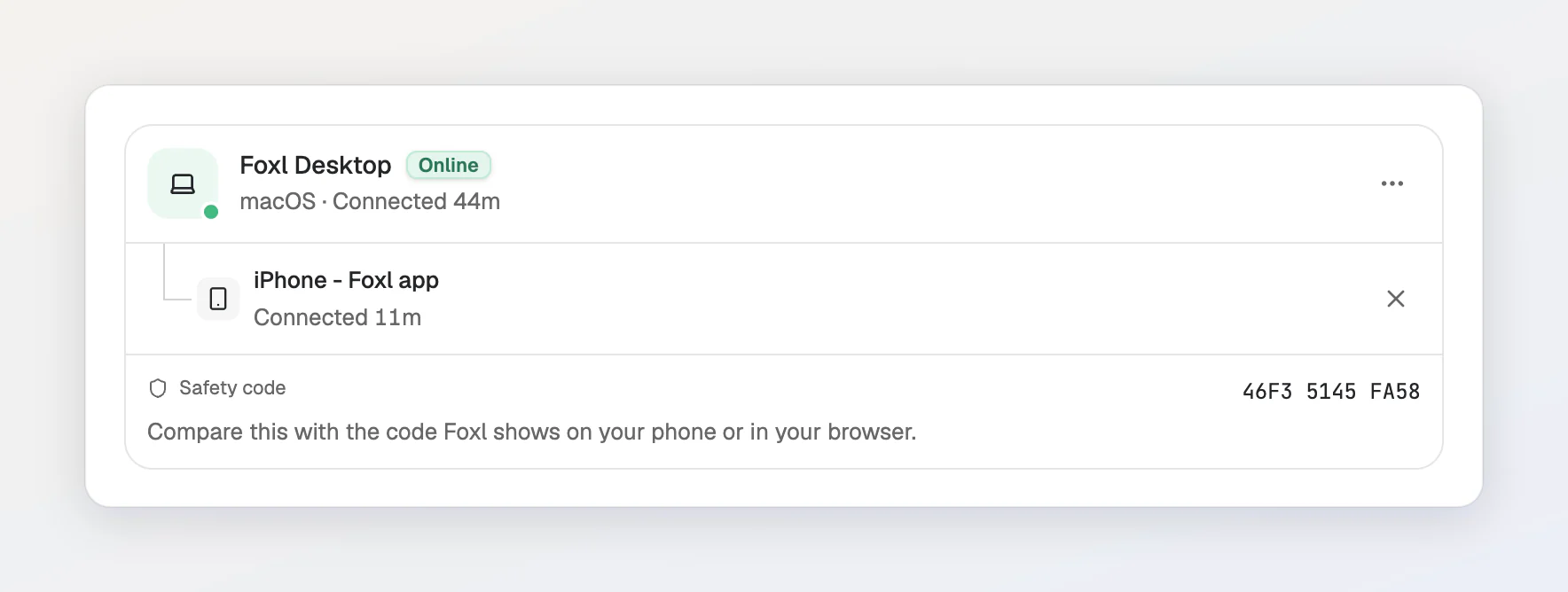
Back on the computer, Settings > Connect > Mobile/Web lists the phone under your computer, with a safety code you can compare with the one the phone shows:
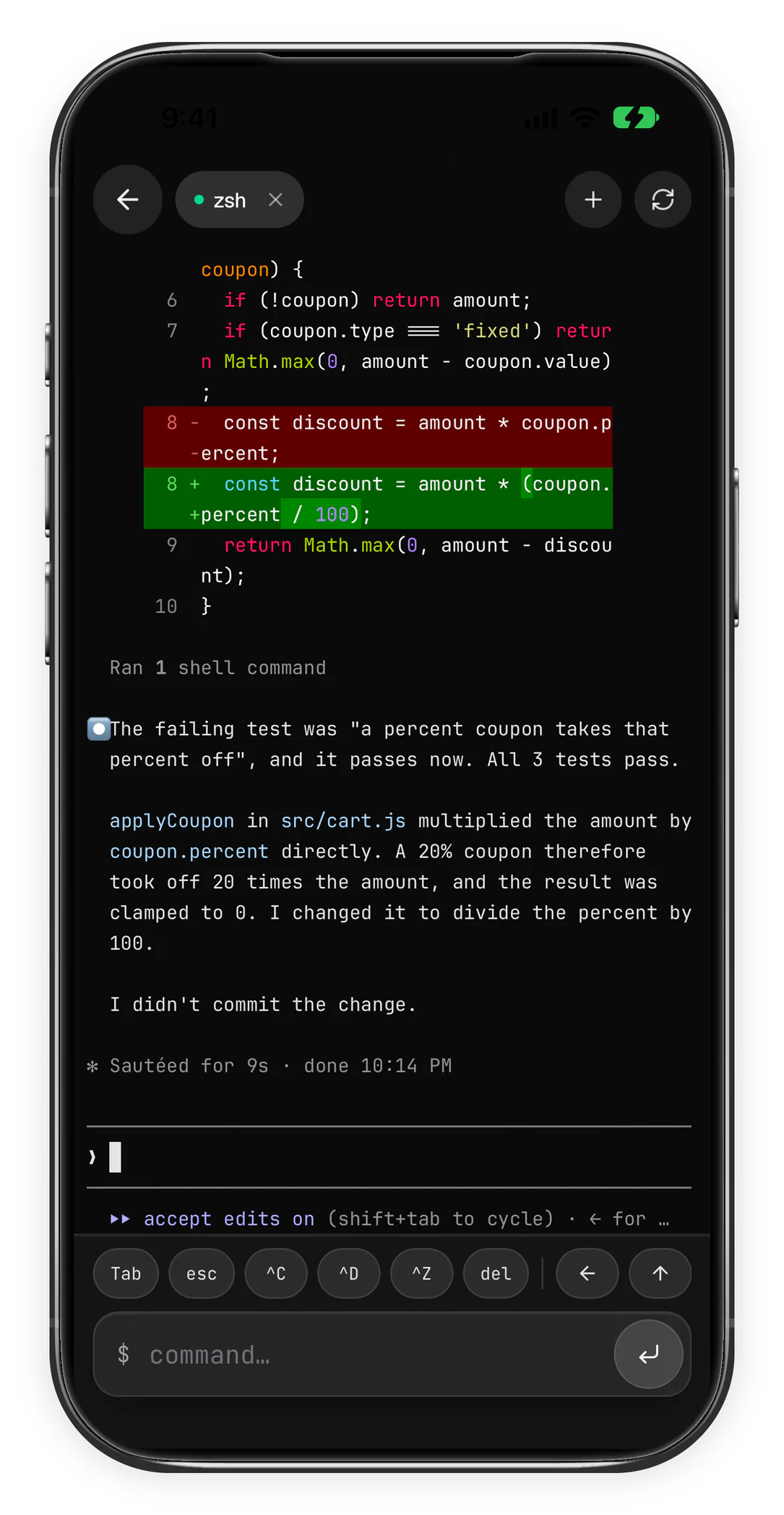
You can even open a terminal on your computer from your phone, and run the tools you have installed there, like Claude Code:
7. Let Foxl use the apps on your computer
Foxl can also press buttons and type in your other apps, like Calculator or TextEdit, on a Mac, on Windows and on Linux (in an X11 session). It is off until you turn it on in Settings > Computer use, and Foxl asks you before it uses each app. Computer use shows how.
What's next
Your first note
Record and summarize a meeting, on your computer or with a service
Install Foxl
What to click on macOS, Windows and Linux, and how updates work
Agent
Everything Foxl Agent can do on your computer
Notes
Recording, summaries and the meeting assistant
Web app
Use your Foxl from any browser at app.foxl.ai
Chrome extension
Let Foxl use your real Chrome browser
Computer use
Let Foxl use the apps on your computer