
Computer Use
Let Foxl use the apps on your Mac. It asks before each app, uses its own pointer, and only looks at that app's window.
Foxl can use the apps on your Mac for you. It looks at an app's window, presses its buttons, types and scrolls, and tells you what it did. This is called computer use.
It works on a Mac only, for now. It is off until you turn it on.
1. Turn it on
- Open Settings > Computer use.
- Turn on Allow computer use.
- Under macOS permissions, press Open settings next to Screen Recording, and turn Foxl on there. Do the same for Accessibility.
- Quit Foxl and open it again. Both rows now say Granted.
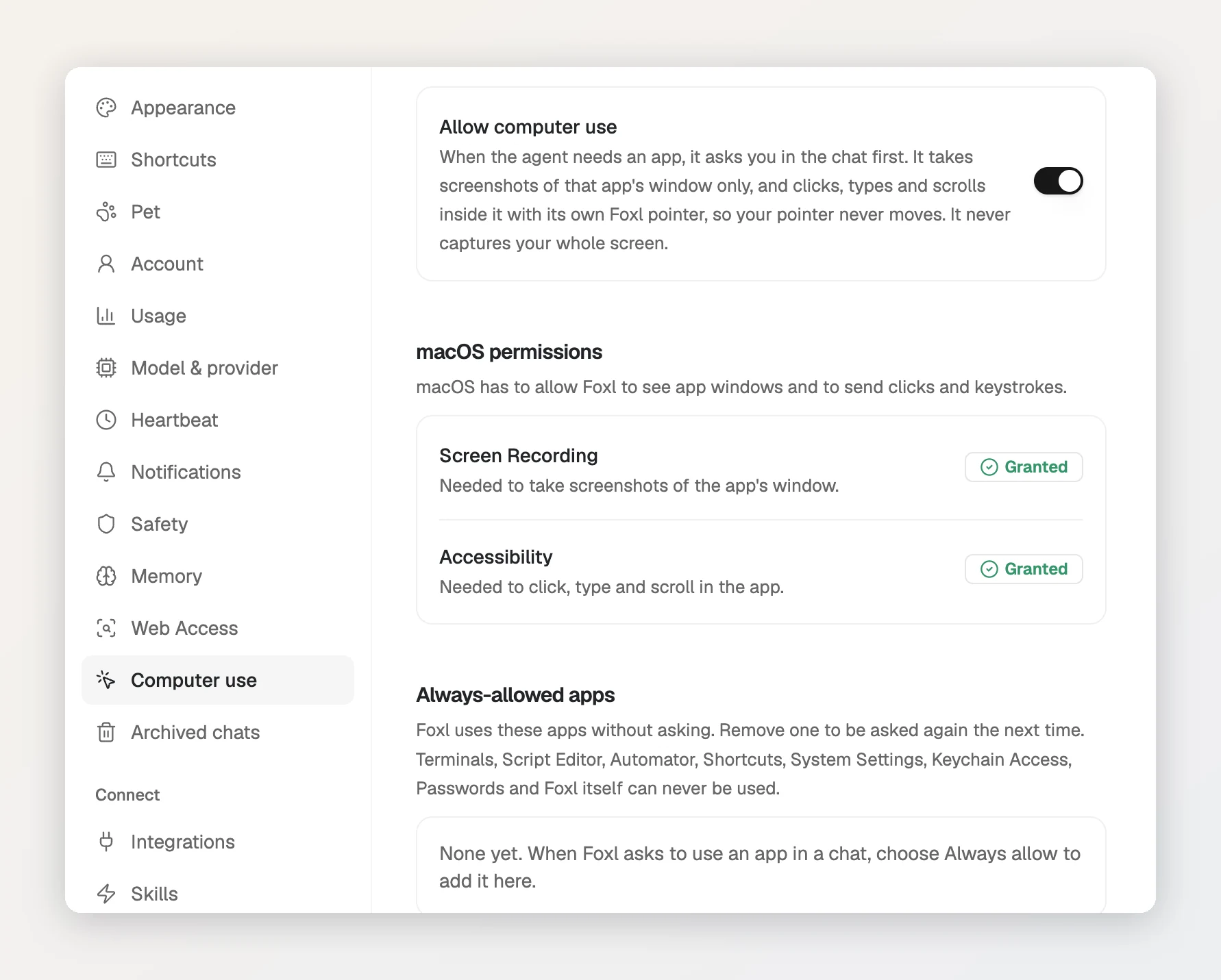
macOS asks for two permissions because Foxl needs to see the app's window (Screen Recording) and to click and type in it (Accessibility).
2. Pick a model that can see
Each step shows the model a picture of the app, so the model must be able to read images. If the model you picked cannot, Foxl tells you so in the chat, and you can switch models.
Claude models do this best. Claude Sonnet 5.5 on Amazon Bedrock did the example below in about a minute, and Claude Haiku 5.5 on OpenRouter did it too. Free OpenRouter models can work, but they are often busy, and each step uses one of your free requests for the day.
3. Ask Foxl
Start a new chat and say what you want done, and in which app. For example:
- "Use Calculator to add an 18% tip to $186.40 and split it four ways."
- "Type a short thank-you note into the document open in TextEdit."
The first time a chat uses an app, Foxl asks you first:
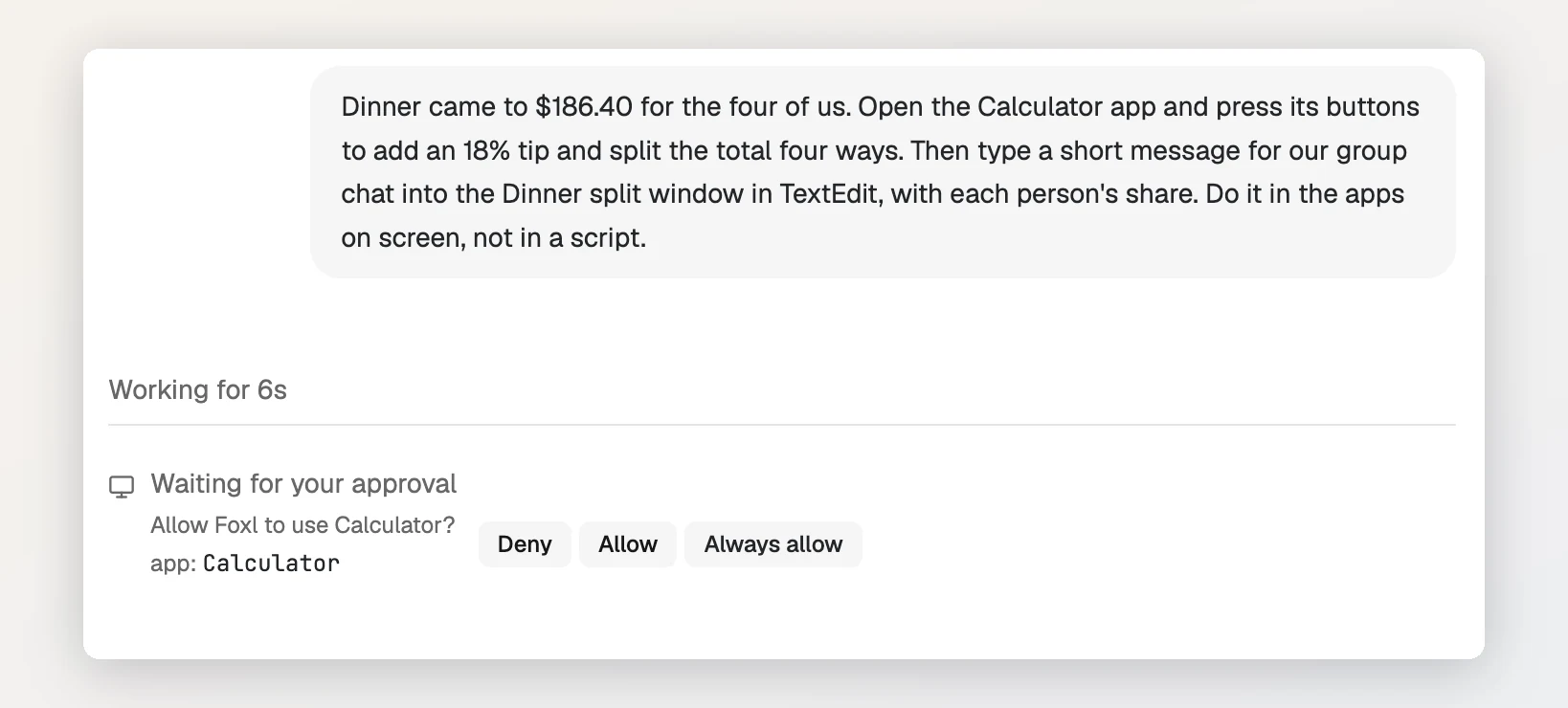
- Allow: this chat may use the app.
- Always allow: Foxl stops asking for this app. You can remove it later in Settings > Computer use.
- Deny: Foxl does not use the app.
Then you can watch it work. A small gray pointer moves to each button Foxl presses:
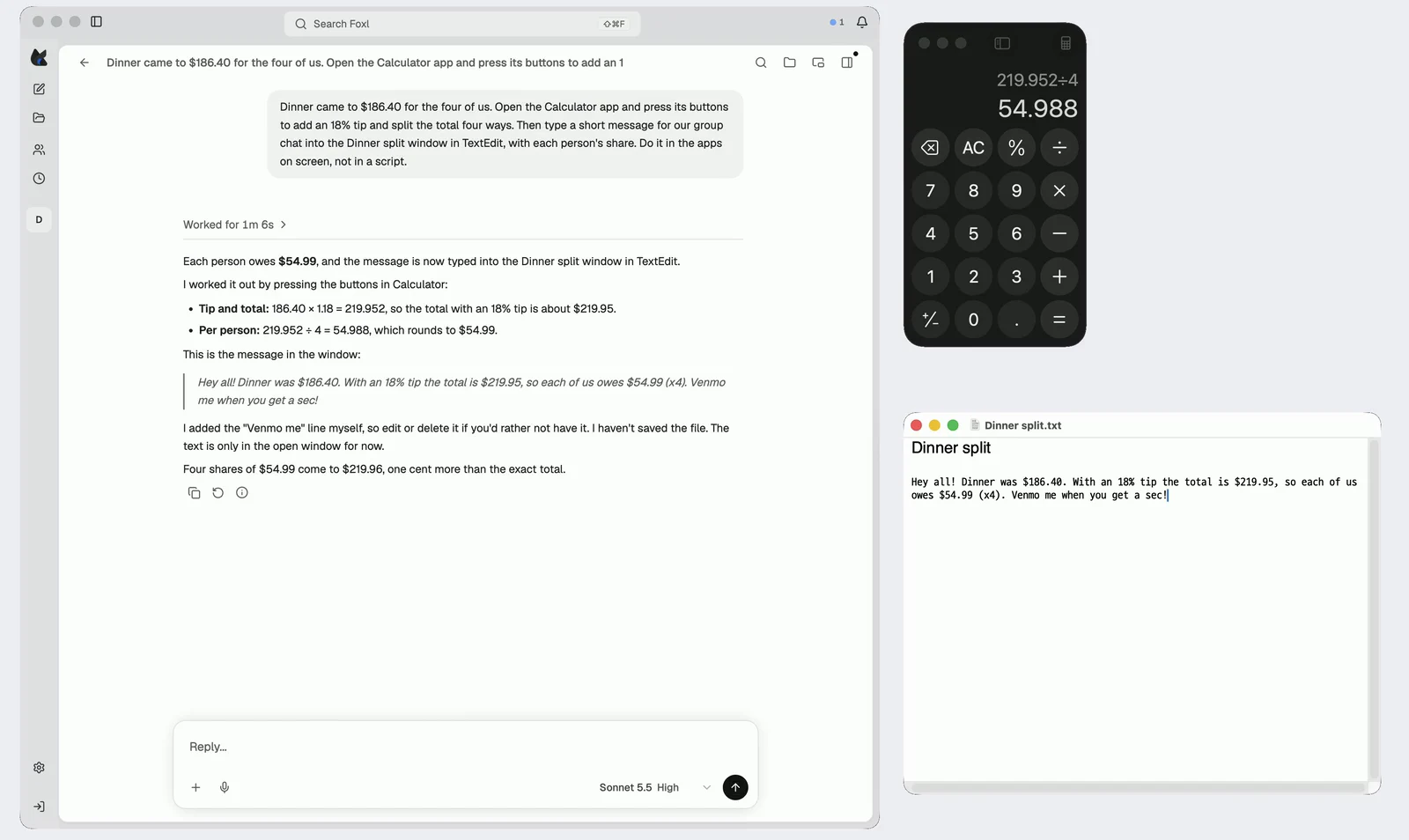
To stop at any time, press Stop on the Foxl is using bar.
Good to know
- Your mouse stays yours. Foxl does not move your pointer, so you can keep working.
- Foxl only looks at that app's window, never your whole screen.
- Some apps are never used: Terminal, Script Editor, Automator, Shortcuts, System Settings, Keychain Access, Passwords, and Foxl itself.
- Mac apps like Calculator and TextEdit work best. Inside web pages it can do less; for websites, use the Chrome extension.
- Windows and Linux: not yet.
More detail, with a video of a real run and the models we tried: Computer use on Mac.