
Your first note
Turn a meeting into a transcript and a summary with Foxl Notes, using AssemblyAI for speech-to-text. Step by step, about five minutes.
Foxl Notes writes down your meetings. To turn speech into text it uses a speech-to-text service. This page sets up AssemblyAI, which gives new accounts free credit, and then makes your first note. (On an Apple Silicon Mac you can also pick On this Mac, which is free and works offline.)
1. Get an AssemblyAI key
- Go to assemblyai.com and create an account. New accounts start with free credit, and no credit card is needed (see AssemblyAI pricing).
- Open the API keys page and copy your key.
2. Paste the key into Foxl
-
In Foxl, open Settings, then Recording (under Notes).
-
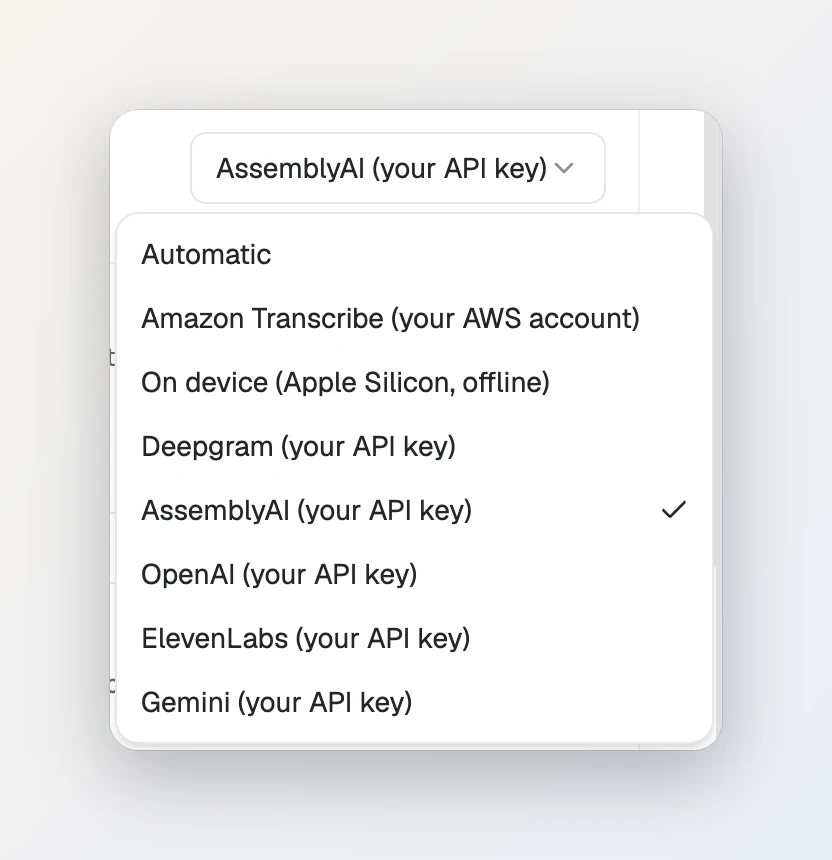
Under Transcription Provider, choose AssemblyAI (your API key).
-
Paste your key into the AssemblyAI API key field and press Save.
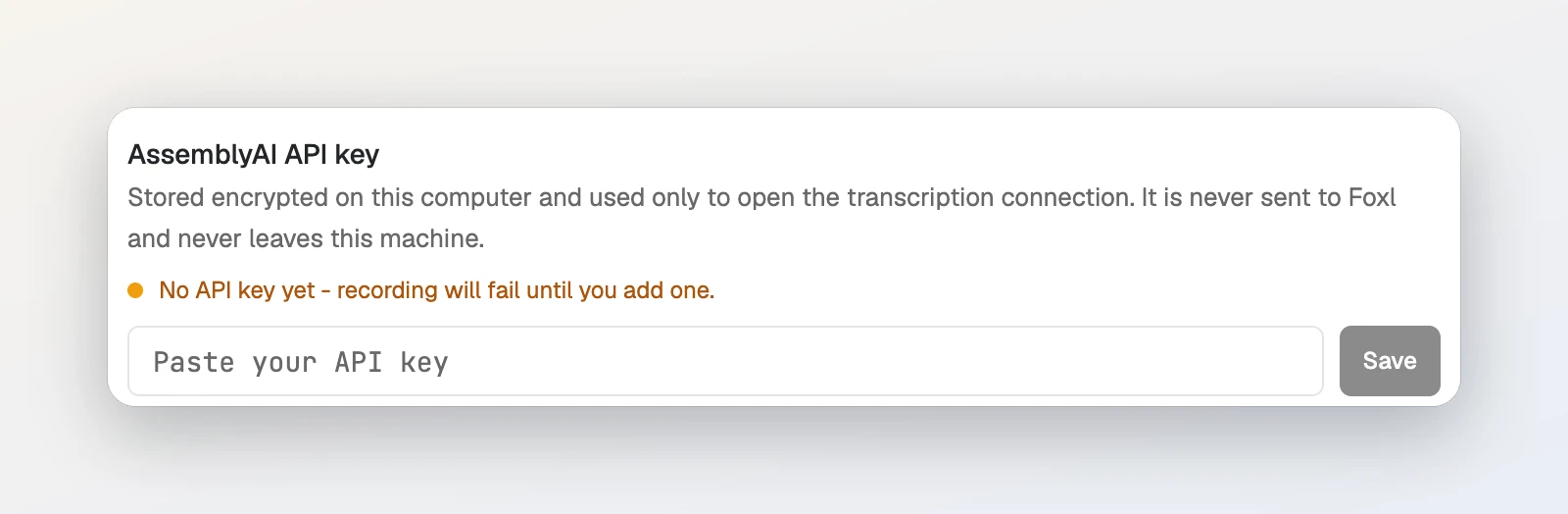
The key is stored encrypted on your computer. It is not sent to Foxl.
3. Record or import a meeting
Open Foxl Notes from the menu at the top of the sidebar. Then do one of these:
- Record a meeting: press Start Recording. On a Mac or Windows PC, Foxl also records the other people's voices from your meeting app (Capture system audio, on by default in the same settings page).
- Use a recording you already have: press Import a recording, choose File > Import Recording... (Cmd+O on a Mac, Ctrl+O on Windows and Linux), or drag the audio file into the window.
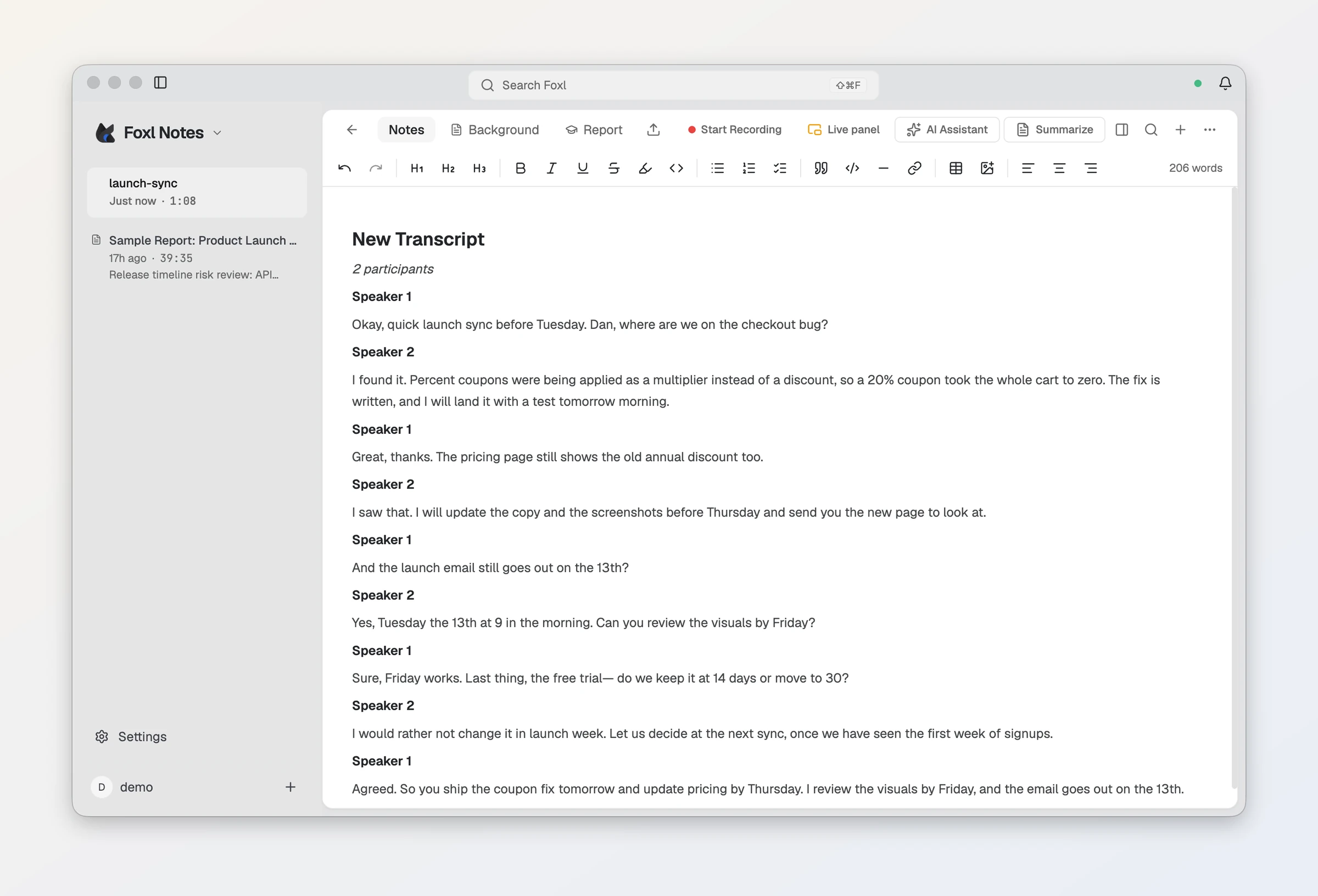
Foxl writes down what was said and who said it:
4. Get a summary
Press Summarize at the top. Foxl turns the transcript into a short summary, the main points, a checklist of action items and the decisions made:
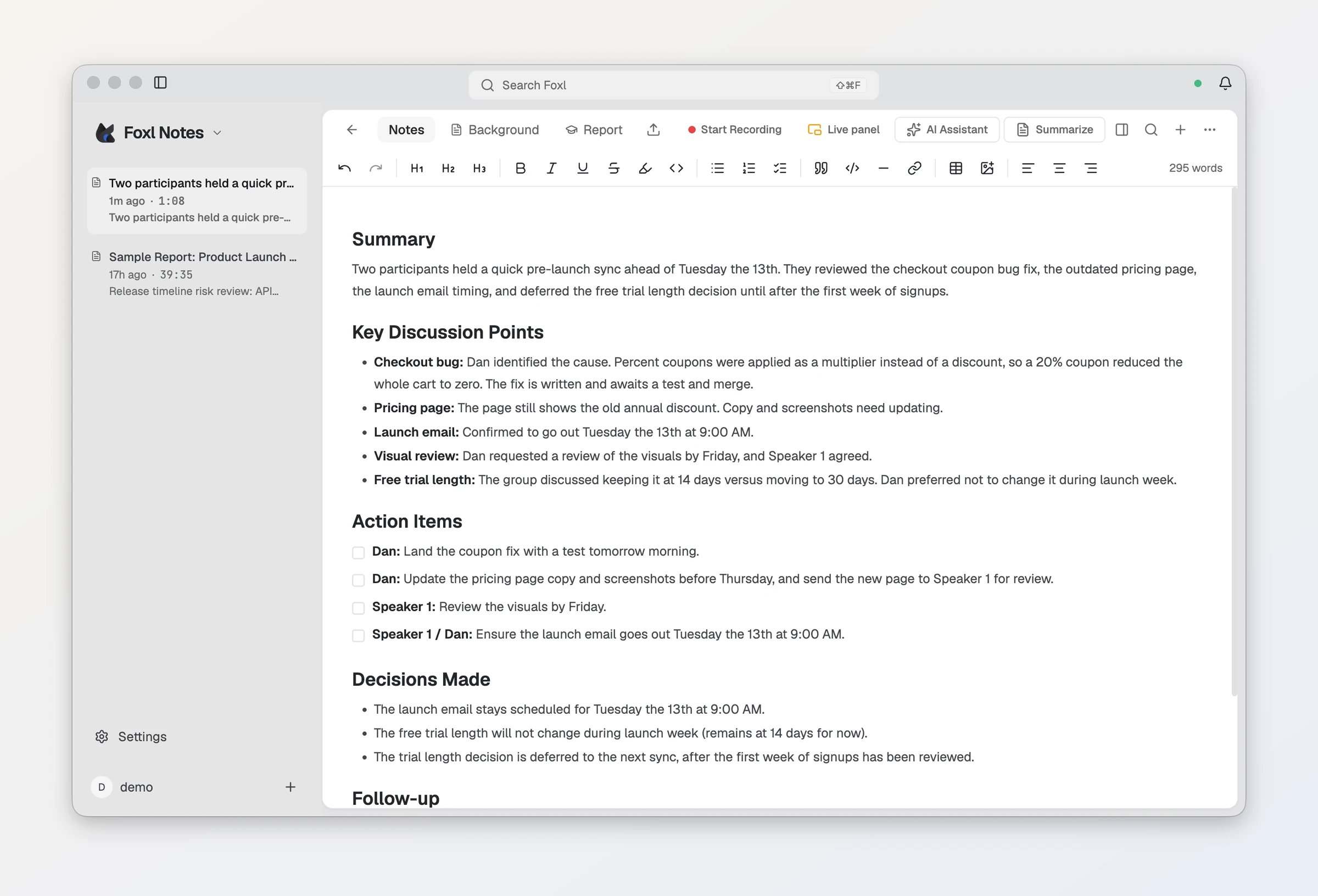
The summary takes the place of the transcript in the note. The transcript is still there in the transcript panel. To get a summary every time a recording stops, turn on Auto Summary in Settings > AI features (under Notes).
The summary is written by the AI model you connected in Get Started, and Summarize needs it to be working.
What it costs
Foxl does not charge for Notes. AssemblyAI charges your AssemblyAI account for the time Foxl is connected to it while it writes down a meeting, and its free credit is used first. In our test with a new account, AssemblyAI used Universal-3.6 Pro Realtime, which its pricing page (read October 7, 2026) lists at $0.45 per hour, and speaker labels add $0.12 per hour. Foxl always asks for speaker labels, so an hour of meeting is about $0.57. AssemblyAI says the default model can differ between free and paid accounts.
Good to know
- Languages. We tried an English meeting and a Korean meeting, and both came back as the right text. Foxl does not send your Transcription Language setting to AssemblyAI; AssemblyAI works out the language itself.
- Speakers are shown as Speaker 1, Speaker 2 and so on. Click a speaker's name in the transcript panel to rename them everywhere.
- Other engines. You can also write down meetings for free on an Apple Silicon Mac (On device), with your own AWS account (Amazon Transcribe), or with your own key for Deepgram, OpenAI, ElevenLabs or Gemini. See Recording.
- Privacy. Your audio goes from your computer straight to AssemblyAI, with your key. See Credits & privacy.