
Foxl Agent
The Foxl Agent - models, tools, memory, schedules, and browser control on your own machine
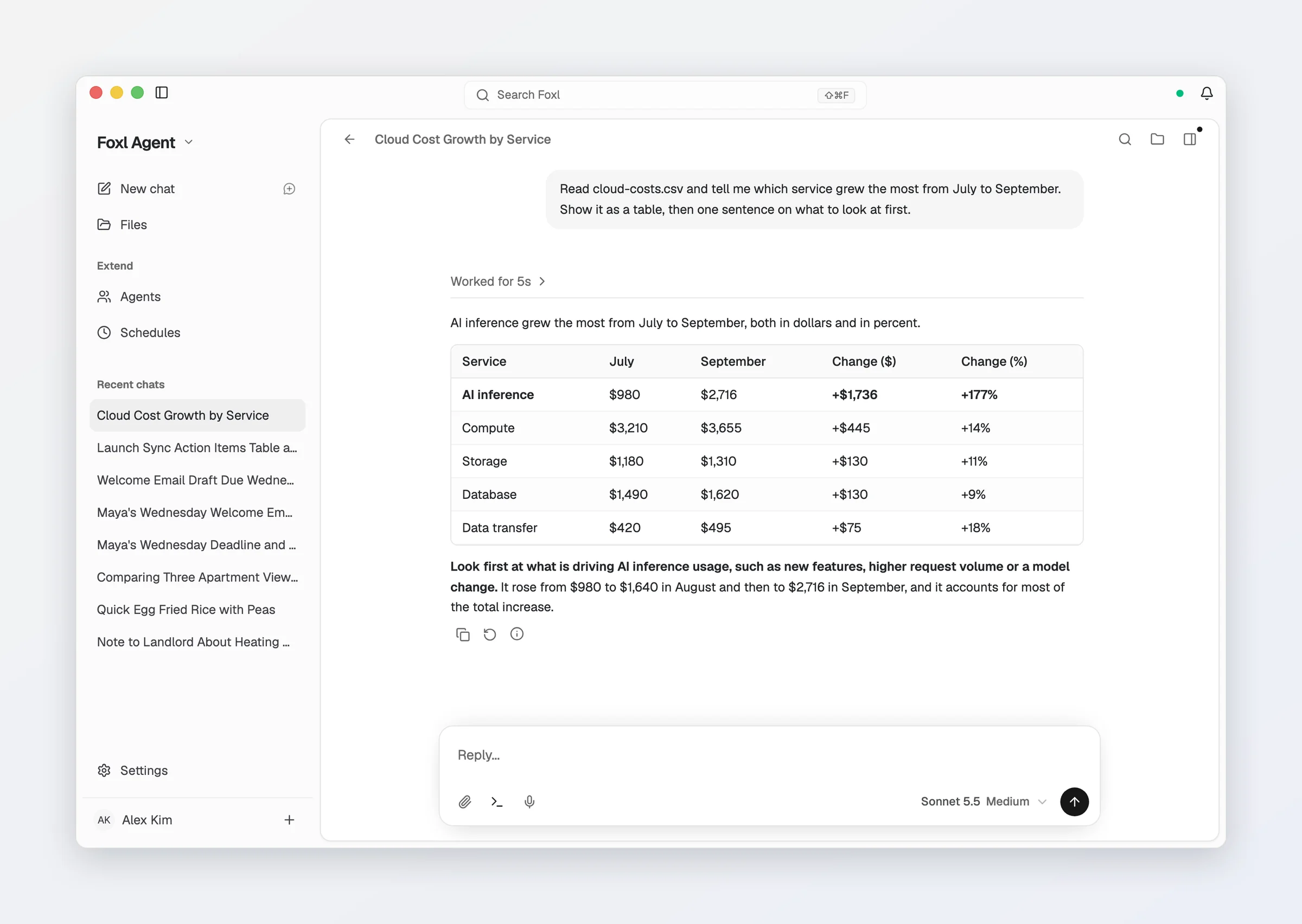
Foxl Agent runs in the Foxl desktop app, a native app for macOS, Windows and Linux that keeps an agent on your own machine: it holds your files and memory locally, drives your real browser with your existing logins through the Chrome extension, runs on a schedule while you are away, and reaches you through the channels you already use.
app.foxl.ai and the iOS and Android apps reach this same agent through the desktop relay: their chat runs on your Foxl desktop, which has to be running and signed in to the same account. The desktop is also where the parts that need a real computer live - browser control through the Chrome extension, local files, and a terminal - and the web and phone apps drive them remotely.
Start here
If you have not installed Foxl yet, begin with Download. Then come back to this section to configure the agent itself.
One sidebar, three products
Foxl Agent, Foxl Notes and Foxl Code share one shell. The product menu at the top of the sidebar - the name of the product you are in and a chevron - picks which one you are in, and the body below it is that product's pages and its own list (conversations, recordings, or tasks).
- The menu lists all three products, each with a short description, and a check mark on the one you are in. The arrow keys move through it, Enter picks and Escape closes it.
- Each product says what is going on in it, on a quiet line under its name: "Recording 4:12" (or "Paused 4:12") under Foxl Notes while a recording runs, "2 running" under Foxl Code while tasks run, and "1 replying" under Foxl Agent while a chat is still answering. A product with nothing going on shows no extra line. Foxl Code's task list refreshes only while you are in Foxl Code, so seen from Agent or Notes its count says how long ago it was checked, for example "2 running · 12 min. ago".
- Going back to a product returns you to the page you were last on in it, rather than resetting you to its front page. Files, then Notes, then Agent lands back on Files.
- Cmd+1 / Cmd+2 / Cmd+3 (Ctrl on Windows and Linux) jump between the three and restore your place too. Signed out, Cmd+3 (or View > Foxl Code) stays on the current screen and shows Sign in to use Foxl Code with a Sign in button; an account still waiting for its private beta is told that instead.
- One Settings row for the whole app, not one per product. On a phone it is in the account menu under your name instead.
- Collapse the sidebar to the 48px rail and it starts with the product's first row (New chat, New note or New task), then its pages. The product menu comes back when you expand the sidebar, and Cmd+1 / Cmd+2 / Cmd+3 change product either way.
- code.foxl.ai serves one product, so it has no product menu - its header is a Home button with a "Foxl Code" wordmark instead.
- A desktop window narrower than 640 pixels (the smallest window on Windows, or a half-screen snap) uses the same narrow layout as app.foxl.ai at that width: the bottom tab bar, with the sidebar one click away behind the sidebar button. Wider windows keep the docked sidebar. In the Mac app, zooming in (View > Zoom In) on a small window grows the window to fit instead of switching it to this layout.
What each section holds:
| Section | Pages |
|---|---|
| Agent | New chat, Files, Channels, then under Extend: Agents, Schedules; your projects and Recent chats below them |
| Notes | New note, then your recordings list |
| Code | New task, Runtimes, then under Workspace: Work, Repos, Files, Schedules; Recent tasks below them |
Channels is listed once a channel adapter (Telegram, Slack, iMessage and the others) is switched on; see Channels and Integrations.
Skills, Integrations, Channels setup, Mobile/Web, Usage and Logs are not sidebar
rows - they live inside Settings, which keeps the sidebar to the places you actually
work. Each page below names its own path. Built-in tools and tool profiles, your own
custom tools and MCP servers all live under Settings > Connect > Tools/MCP - the
System tab for the built-ins, the Custom tab for yours. The older /tools
address still opens the System tab.
On a phone the bottom bar is one row for the whole app and does not rearrange itself per product. The shipped row is Chat, Tasks, Make and Notes, one tap from anywhere; Chat opens the Foxl chat, and Channels is in the side menu. A tab the account cannot use - Tasks outside the Foxl Code private beta, for example - is left out of the bar and comes back when the account can use it. The row is yours to change under Settings > Tab bar (on a phone or tablet: the iPhone, iPad and Android apps and a mobile browser): any destination, any order, up to five, with each tab's name under its icon unless you turn Show labels off. While you read, the bar shrinks to its icons; tapping another tab there opens it at once. A row you had already customised is the row you keep.
What to read, and when
Choosing how the agent thinks
- Models - which models are available and what each is good at.
- AI Providers - connect a model: your own key for Anthropic, OpenAI, Google, Amazon Bedrock or one of nineteen OpenAI-compatible vendors (OpenRouter, DeepSeek, Groq, Mistral, xAI and more), a local model (on a Mac with Apple Silicon, a Windows PC or a Linux x64 computer, Foxl can also download and run Gemma 4 itself, under Settings > Model & provider > On this device), or a Claude / ChatGPT subscription you already pay for. This is the one setup step that matters.
Giving the agent capability
- Tools - the built-in actions the agent can take: files, shell, web, and more.
- Skills - installable packages that add new abilities for productivity, communication, media, and dev work.
- Browser Automation - control your real Chrome with your sessions intact, rather than a throwaway headless browser.
- Subagents - hand a long or parallel job to a dedicated worker agent.
Giving the agent context
- Memory - how Foxl remembers preferences and facts across conversations, how
SOUL.mdshapes its behavior, Settings > Personality, where you tell it how to answer and about yourself, and Settings > Memory, where you see and delete what it remembers. - Workspace - the folder the agent treats as home, and what each file in it does.
- Conversations - temporary chats, projects, pinned chats and the Foxl chat, pop-out windows, search, the message box, what you can do under an answer, keyboard shortcuts, and export.
Making it work without you
- Scheduling - cron schedules, heartbeats, and webhooks that run when you are not watching.
- Background service - "Keep running when closed", so your machine stays reachable from your phone after you quit the app, and "Keep this computer awake".
- Morning Briefing - a daily digest built from your mail, calendar, and news.
- Channels and Integrations - message Foxl from Telegram, Slack, Discord, iMessage, Signal and eight more, let it act in Microsoft 365 and Slack as you, and read the threads those bots collect. The iMessage setup guide walks through iMessage step by step.
- Gmail - let Foxl send email from your own Gmail address when you ask it to. Send only: it cannot read your mail.
Making it yours
- Appearance - light and dark, nineteen colour themes, the fifteen Surfaces, and the first-run setup.
- The desktop companion - the collectible character, and letting it out of the app window.
Updates, reports and your data
Updates. Settings > General shows the version; drag over it to copy it into a bug report. In the desktop app the same pane has Check, Download updates automatically and Beta updates: with Beta updates on, this computer is offered prereleases before they go out to everyone. A beta build uses your normal account and data, and moves to the next stable release when it ships. When an update is ready to install, its notice has a folded What's new in this update with the start of that release's notes and a link to the full changelog, and Help > What's New opens the changelog on foxl.ai at any time.
Report an issue goes straight to the Foxl team: Settings > General > Report an issue > Send a report, Report this beside an error, or Send a report on the crash screen. You can also tell Foxl in a chat that something went wrong, and it shows a report as a card under its reply, sent only when you press Send. Details are in Community & Support.
- Opened from an error, the error is already written in, so the report is one tap.
- The conversation, a log and (signed out) a reply address are under Optional details, folded away and off unless you choose them. Signed in, replies go to your account's address.
- Your app version, platform and language are always included, and your Foxl account if you are signed in. Keys, tokens and the account name in file paths are removed before the report leaves your device.
- If it cannot be delivered, the dialog keeps your text and offers to copy it or email it.
Open source licenses. Settings > General, under About Foxl, lists the third-party software in the app you are using, with the licence and notice texts it ships with.
System report. Settings > Advanced > System Report downloads the diagnostic report on its own. It leads with recent problems - chat failures you were shown, tool failures and warnings - and includes the state of each MCP server, the server log at every level, a per-route summary of requests with the failed and slow ones, the end of the previous run and the desktop app's own log. Message text and chat titles are left out unless you choose Include recent conversation.... The server log is also kept in a daily file for a week, so it survives a restart.
Take everything with you. In the desktop app, Settings > Advanced > Import and export > Export everything saves all your chats, archived ones included, with the files attached to them, plus Foxl's settings, skills and workspace files, as one .zip file. The keys and sign-ins Foxl stores are left out, and so is anything in your settings, tools or skill files that looks like a key; chats are exported as they are, so a key pasted into a chat is in that chat's file. The same group imports a Claude Code or Codex setup - see Skills.
Related
- Cost & model access - Foxl is free; what you supply is the model.
- Security - where your data lives and what leaves your machine.
- Troubleshooting - fixes for the problems that come up most.