
Foxl Notes
AI meeting notes inside Foxl - record, transcribe, and summarize
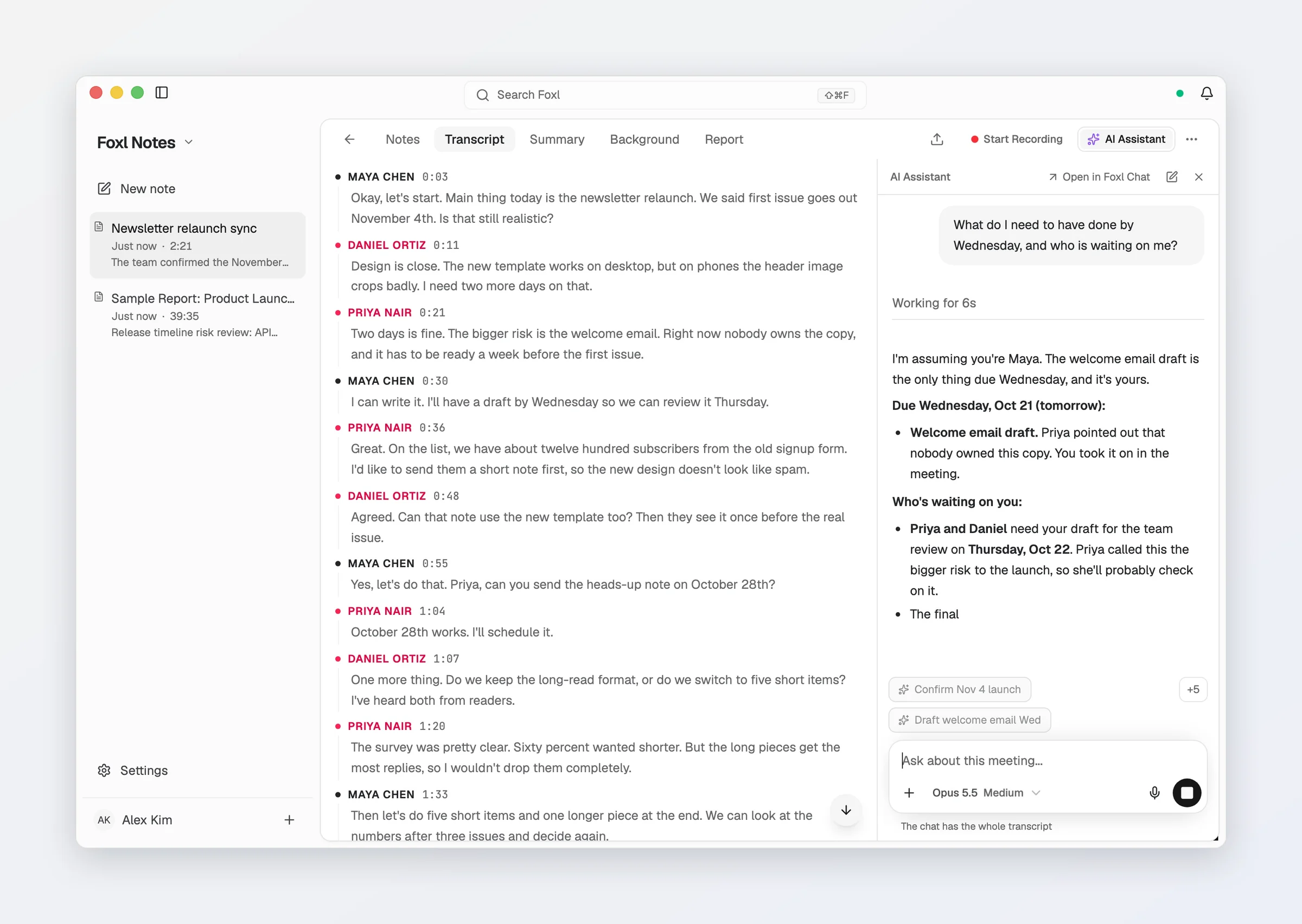
Foxl Notes is the meeting-notes side of Foxl. It records a conversation, transcribes it live with speaker labels, and turns the transcript into a clean, structured summary you can edit, search, and export. It lives in the same app as Foxl Agent and Foxl Code - pick it from the menu at the top of the sidebar. Foxl Notes is also on the phone apps, so you can record from your device microphone and read your notes anywhere.
Foxl Notes stores its notes on the device you record on, and syncs them with Foxl on your computer, so your phone, iPad, app.foxl.ai and the computer show the same notes (the audio stays where it was recorded; see Notes on every device). Reading, editing, exporting and searching never need an account, and neither does recording on the default engine, which uses your own AWS account or runs on your computer.
On a Mac with Apple Silicon, a Windows PC or a Linux x64 computer, all of Notes can run on the computer itself, free and offline: Run Notes on this Mac in the first-run setup (or Install both on this Mac on the Notes home; on Windows and Linux, Run Notes on this computer and Install both on this computer) installs a speech engine for the transcript and Google's open Gemma 4 for the summary. See Your first note.
Recording runs on a transcription engine you choose under Settings > Notes > Recording: that engine on the computer, Amazon Transcribe on your own AWS account, or Deepgram / AssemblyAI / OpenAI / ElevenLabs / Gemini / OpenRouter with your own key. The default, Automatic, picks Amazon Transcribe when this computer has AWS credentials and otherwise the on-device engine once it is installed. Whoever runs the engine bills you, not Foxl. AI summaries and the assistant run on the model you set for Foxl Agent (Settings > Model & provider), which can be Gemma 4 on the computer; Notes has no AI model of its own - see Credits & privacy. The one exception is the phone and app.foxl.ai on the accounts remote chat is offered to, which can have the summary written in the cloud on Foxl credits while your computer is offline (how).
The short version
- Press Start Recording. Foxl captures your microphone and streams a live, speaker-labeled transcript.
- Talk through your meeting. The transcript fills in as you go, in its own Transcript tab right after the Notes tab where you jot your own notes. AI Assistant opens the assistant beside either one.
- Press Stop. Foxl names the note from what was said, and, if Auto Summary is on (it is for a new install), writes a structured summary (overview, key points, action items, decisions, follow-ups) into the note's Summary tab.
- Edit the note like any document, rename it, and export it to Markdown or Word.
- Everything you record shows up in the sidebar list, searchable from anywhere in the app.
No audio? Import a transcript Zoom, Google Meet or Teams already made, or paste one - see Import a transcript. With a calendar connected, today's meetings are on the Notes home with a Record button each - see Calendar meetings.
What it's good for
- Meetings and standups - a shared record with action items already pulled out.
- Interviews - a verbatim transcript plus a readable summary.
- Lectures and talks - capture everything, read the short version later.
- One-on-ones and calls - keep notes without typing during the conversation.
Read next
- Recording - starting, pausing, and stopping a recording, the live transcript, the Live panel, transcription engines, and importing recordings and transcripts.
- Calendar meetings - today's meetings on the Notes home, recording one, and reminders.
- AI summary & assistant - automatic summaries, the AI Assistant, Live Q&A, live translation, the coaching report and a follow-up email.
- The editor - formatting, the Notes / Transcript / Summary / Background / Report tabs, and playing the recording back.
- Organizing notes - the sidebar list, titles, renaming, search, and syncing notes across your devices.
- Exporting & saving - Markdown / Word export, auto-save, and asking Foxl Agent about your meetings.
- Credits & privacy - who bills you for transcription and AI, where your audio and notes live, and how they sync.
- Keyboard shortcuts - every shortcut in Foxl Notes.