
Exporting & saving
Export a note or its transcript to Markdown or Word, copy and share, auto-save the summary, the transcript or both as Word, Markdown, plain text or subtitles, and let Foxl Agent search your meetings
Your notes are kept in the app, on the device you recorded on and on the devices it syncs with, but you'll often want a file on disk or text on your clipboard.
Export a single note
Right-click any note in the sidebar. A divider separates what goes on your clipboard from what is saved as a file:
- Copy my notes - puts your own notes (the Notes tab) on your clipboard as Markdown, to paste anywhere.
- Copy AI summary - the same for the AI summary (the Summary tab), on a note that has one.
- Export summary + notes (.md) - the whole note as a Markdown file, great for Obsidian, Notion, GitHub, or any plain-text workflow: the AI summary first, then your notes. Before a note has a summary the row reads Export notes (.md) and writes what its Notes tab holds.
- Export summary + notes (.docx) - the same as a Word document with headings and lists preserved (Export notes (.docx) before there is a summary).
- Copy transcript, Export transcript (.md) and Export transcript (.docx) - on a phone, and in a window too narrow to show the tabs above a note: the same for the note's transcript, on a note that has one, each in its group. Everywhere else the transcript is copied or exported from its tab (below).
- Open saved file (desktop) - opens the auto-saved copy in your word processor or editor, or reveals the folder if there is none yet.
Copy or export one tab
Right-click a tab above an open note - Notes, Transcript, Summary, Background or Report - and choose Copy, Export (.md) or Export (.docx) for just that tab. The file name ends in the tab's name, for example - Transcript. A tab with nothing in it yet (no summary, no report) shows the three rows greyed out. A phone shows no tabs, so there the transcript's rows are in the note's menu in the list (above).
Markdown keeps your headings, lists, checkboxes, and formatting. Word export preserves the structure as native Word styles. A note with an AI summary is written as one document: the summary first, then your own notes under a Notes heading.
The transcript is written under the note's title: each speaker's turn with the time it starts in the recording (for example Speaker 1 (0:10)), then what they said. Its file name ends in - Transcript.
Auto-save
On the desktop app, turn on Auto Save under Settings > Notes > Auto-save & export (it is off for a new install) and every time a recording ends (and again whenever a summary is generated) Foxl writes the note to a folder on disk, no manual export needed. It is a desktop feature - the web app and the phones keep notes inside the app only. What is saved, the format and the location are in the same pane:
- Format - Word (.docx), Markdown (.md), plain text (.txt), or subtitles (.vtt or .srt). Plain text is the same file as the Markdown one, without the formatting marks. A subtitle file holds the transcript and nothing else, not the summary or your notes: each line with its time, and who said it when more than one person speaks or a speaker has a name. It opens in a video player or caption editor, and Foxl can import it back as a note. A note with no transcript saves no subtitle file.
- What to save (Word, Markdown and plain text) - Summary (the default): the AI summary first, then your own notes under it. Transcript: every line with its speaker and time, as the Transcript tab's Export writes it. Summary and transcript: the summary and your notes, then the transcript under a Transcript heading. A note with nothing of the chosen kind (a typed note, with Transcript) saves no file.
- File name - how files are named: Date - Title (the default, for example
2026-09-02 - Sprint planning.docx, so files sort chronologically), Title - Date, or Date Time - Title. Exporting a note from the sidebar uses the same name. - Name files with AI - off by default. Turn it on and write how files should be named in your own words, for example "customer name, then the topic, then the date as YYYY-MM-DD". AI reads each note when it is saved and names the file that way, such as
Northwind Traders - pilot kickoff - 2026-09-29.docx. If AI is unavailable the file is still saved, under the File name above. - Location - a folder, Documents/Foxl Notes by default.
With Auto Save off, nothing is written to the folder until you export a note yourself.
This is handy if you keep your meeting notes in a synced folder (Dropbox, iCloud, OneDrive, a notes vault) - every meeting ends up as a file there without any extra steps. You do not need a folder per customer for Foxl to find a meeting later: see Search your notes from Foxl Agent.
Search your notes from Foxl Agent
On the desktop app, Foxl Agent, and the assistant inside a note (with Use Foxl Agent tools on), can find past meetings by customer, person, topic or date and read them before answering - for example "prep me for my call with Northwind", "what did we decide about the beta" or "who owns the landing page". There is nothing to switch on: Let Foxl Agent search your notes and Include transcripts under Settings > Notes > AI features are on by default.
- It searches each note's title, summary and your own notes, and with Include transcripts the full transcripts as well, so a detail that was only said, never written down, can be found. The Agent is told to search with the question's words and their translation, so a question in Korean can find English meetings and the reverse, and never to give an unnamed speaker ("Speaker 1") a person's name.
- Under the two switches, Settings says how many notes are shared with Foxl Agent, or, for a library too large to share, its size and that turning off Include transcripts makes the copy much smaller.
- Every note an answer used is listed under it as a source: the note's title and date, and the time in the recording when the match was in the transcript (for example 12:04). Hover over a source (or press and hold on a touch screen) to see the matched lines; click it to open the note with the transcript scrolled to that line and highlighted.
- On the phone and on app.foxl.ai, an answer from your desktop can cite a note that lives on the desktop. It still shows as a source with its preview, and says the note is on your desktop.
- Foxl keeps a copy of the shared notes on this computer for the Agent to search; turning Let Foxl Agent search your notes off deletes that copy, and turning off Include transcripts removes the transcripts from it. What the Agent reads is sent to its model like the rest of the chat.
- If you used an earlier version, the update turns both on once, unless you had turned the search off after including transcripts: that stays off. Turn either one off again and it stays off.
- Search works on the words in a note, not on folders, so a single save folder for every meeting is fine. Putting the customer's name in the title helps most: turn on Custom summary template in the same pane and choose Customer call, and every summary - and so the note's title - starts with the customer's name (see Summary templates).
Share
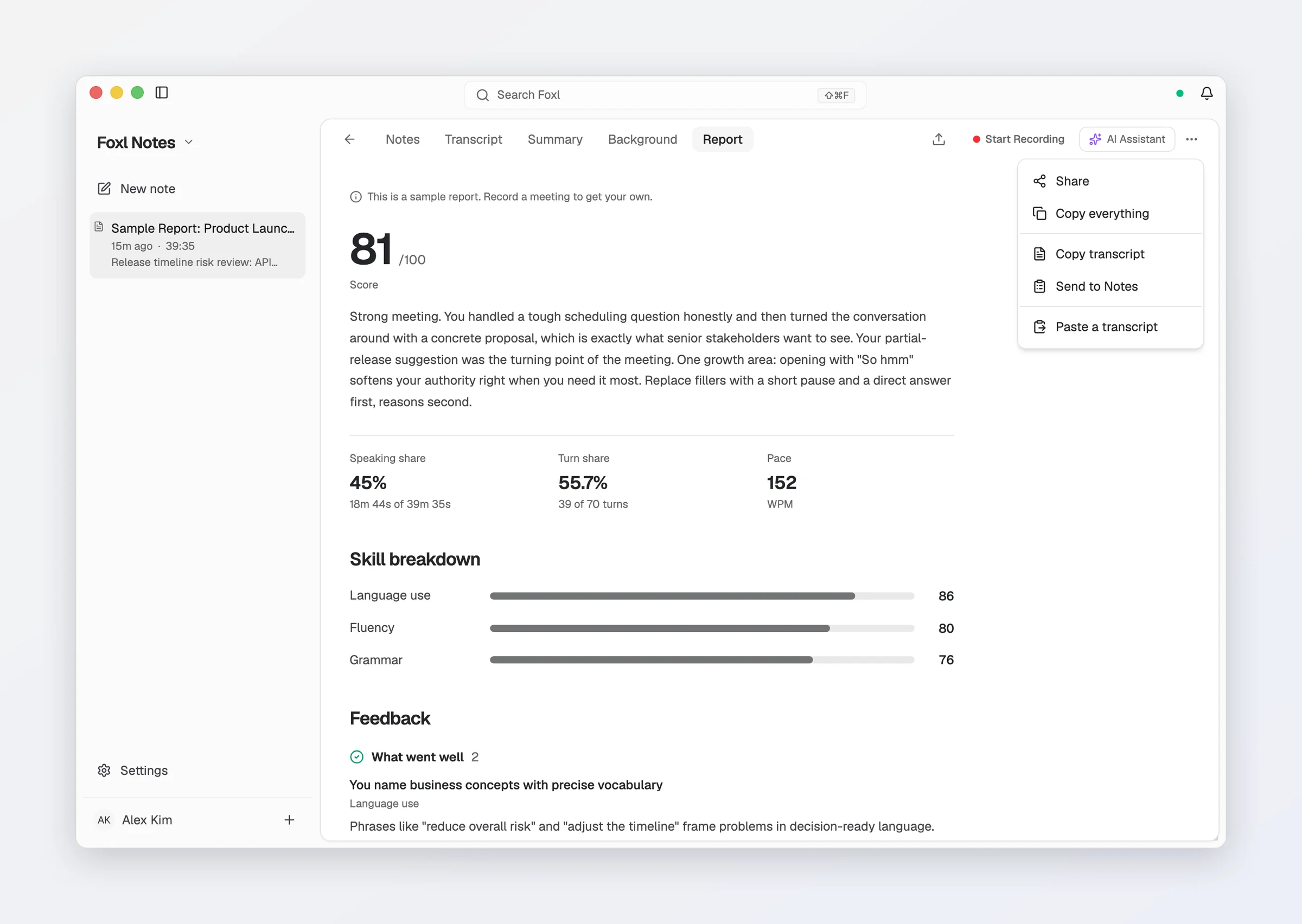
Share in the ... menu at the top of an open note (and the share button in the Transcript tab's toolbar) sends the whole note - summary, transcript and your notes, translations included - through the share sheet on the phone, the browser's share dialog where there is one, or onto your clipboard on the desktop. The same menu has Copy everything, Copy transcript and Send to Notes (drop the transcript into your notes), and, on a note with a summary, notes or a transcript, Draft follow-up email (see Follow-up email).