
Your first note
Record a meeting and get its transcript and summary with Foxl Notes. On a Mac with Apple Silicon, a Windows PC or a Linux x64 computer both run on the computer itself, free and offline, after one download. Step by step.
Foxl Notes writes down your meetings and sums them up. It needs two things: a speech engine that turns the audio into text, and an AI model that writes the summary.
On a Mac with Apple Silicon (M1 or later), a Windows PC (64-bit Intel or AMD) or a Linux x64 computer, Foxl can run both on the computer itself. That is free, needs no account or key, and keeps working with the internet off. On Windows and Linux both use the graphics card when there is one that works with Vulkan, and the processor otherwise, where the first message to Gemma after it loads can take a few minutes (see AI Providers). This page sets that up and then makes your first note. On an Intel Mac, or Linux or Windows on Arm, see Other computers.
1. Run Notes on this computer
The first time you open Foxl, one of the setup screens is Set up Foxl Notes. Every row on it is optional. On a Mac with Apple Silicon, the first row is Run Notes on this Mac (Run Notes on this computer on a Windows PC or a Linux x64 computer), reading "Transcription and AI run here, free and offline." with the size of the download and an Install button. A side panel explains what runs on this computer, what goes online and how much is downloaded.
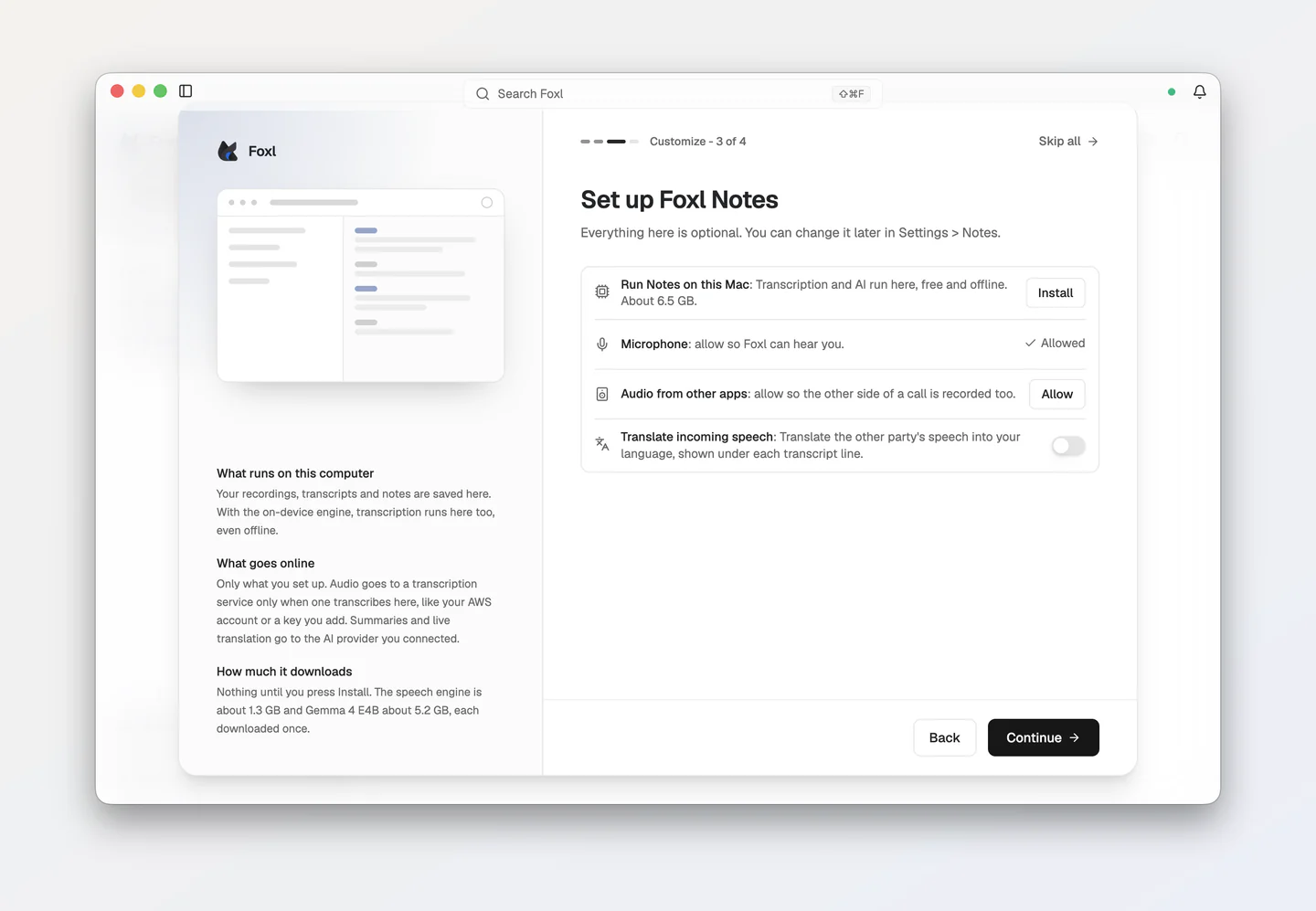
Press Install. Foxl downloads two things, once:
- the speech engine (Qwen3-ASR 0.6B), which writes down what is said and who said it;
- Gemma 4, Google's open AI model, which writes the summary and answers your questions about the meeting.
Together that is about 6.5 GB on a computer with 16 GB of memory or more. With 8 GB, Foxl picks the smaller Gemma 4 E2B, and it is about 4.6 GB. If your computer already has one of them (an AI model you connected earlier, for example), Foxl downloads only the part that is missing, and the row says how much. While it downloads, the row shows how much is done and about how long is left, with Pause and Resume:
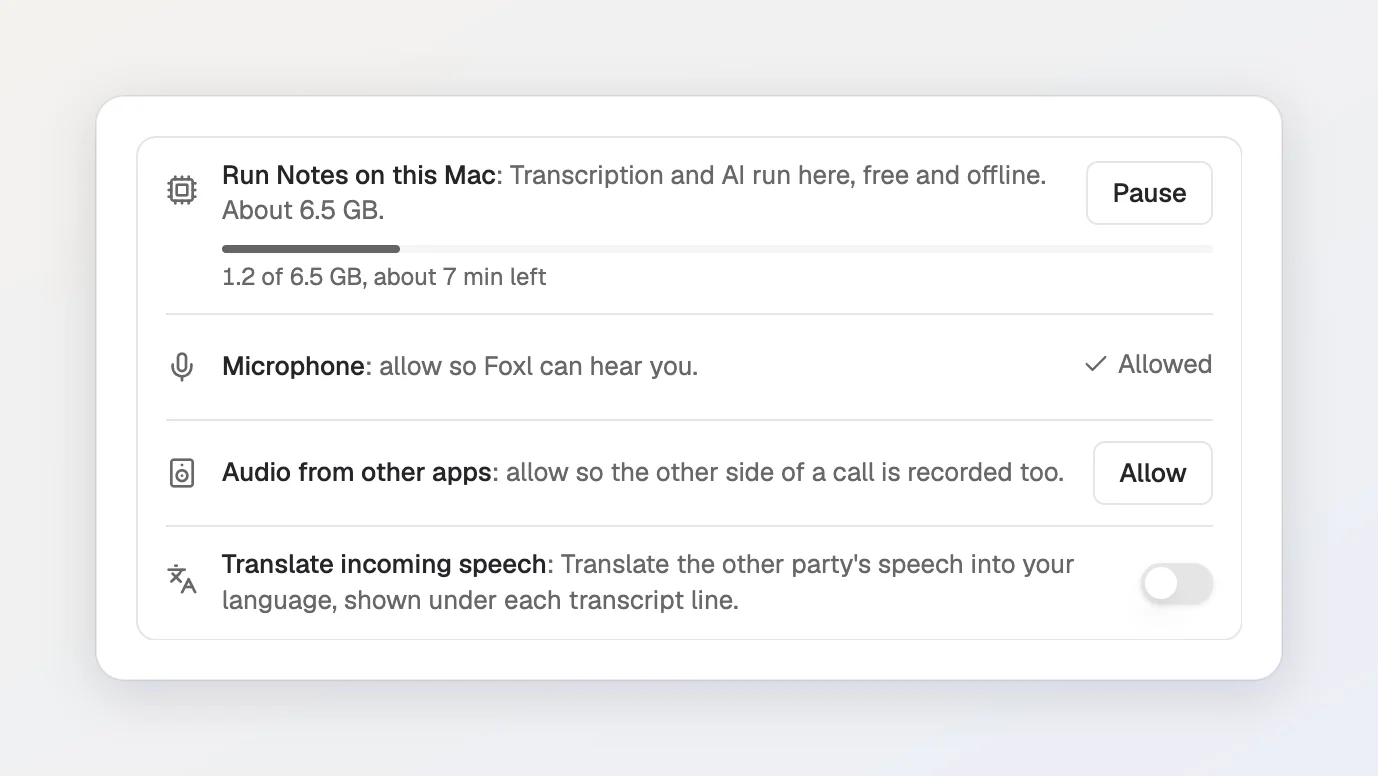
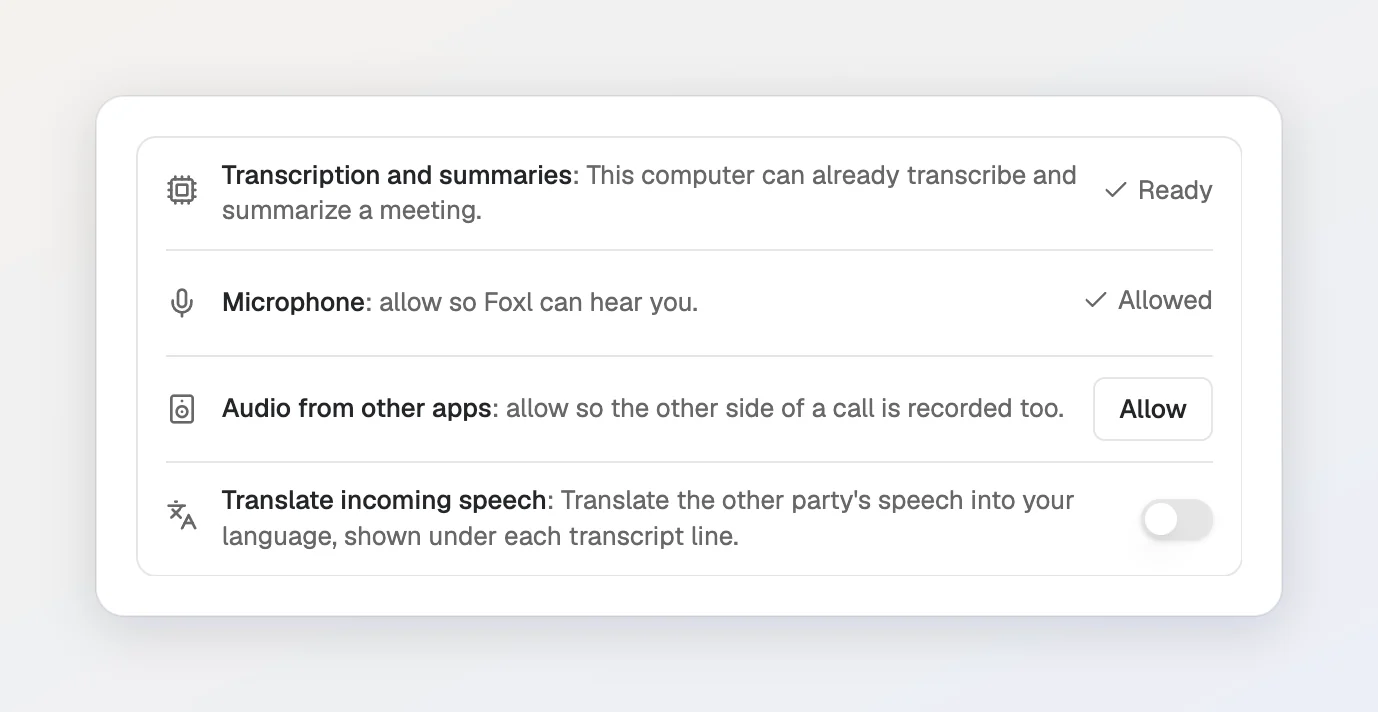
You do not have to wait on this screen. Press Continue and the download keeps going in the background; a thin line at the bottom of the sidebar shows Gemma's download. When both parts are installed, the row says Ready:
Later, or on a computer you already use
You can install the same two parts any time:
- On the Foxl Notes home. While something is missing, the home shows Notes is almost ready, with Install on this Mac for each part, or Install both on this Mac (on Windows and Linux, Install on this computer and Install both on this computer).
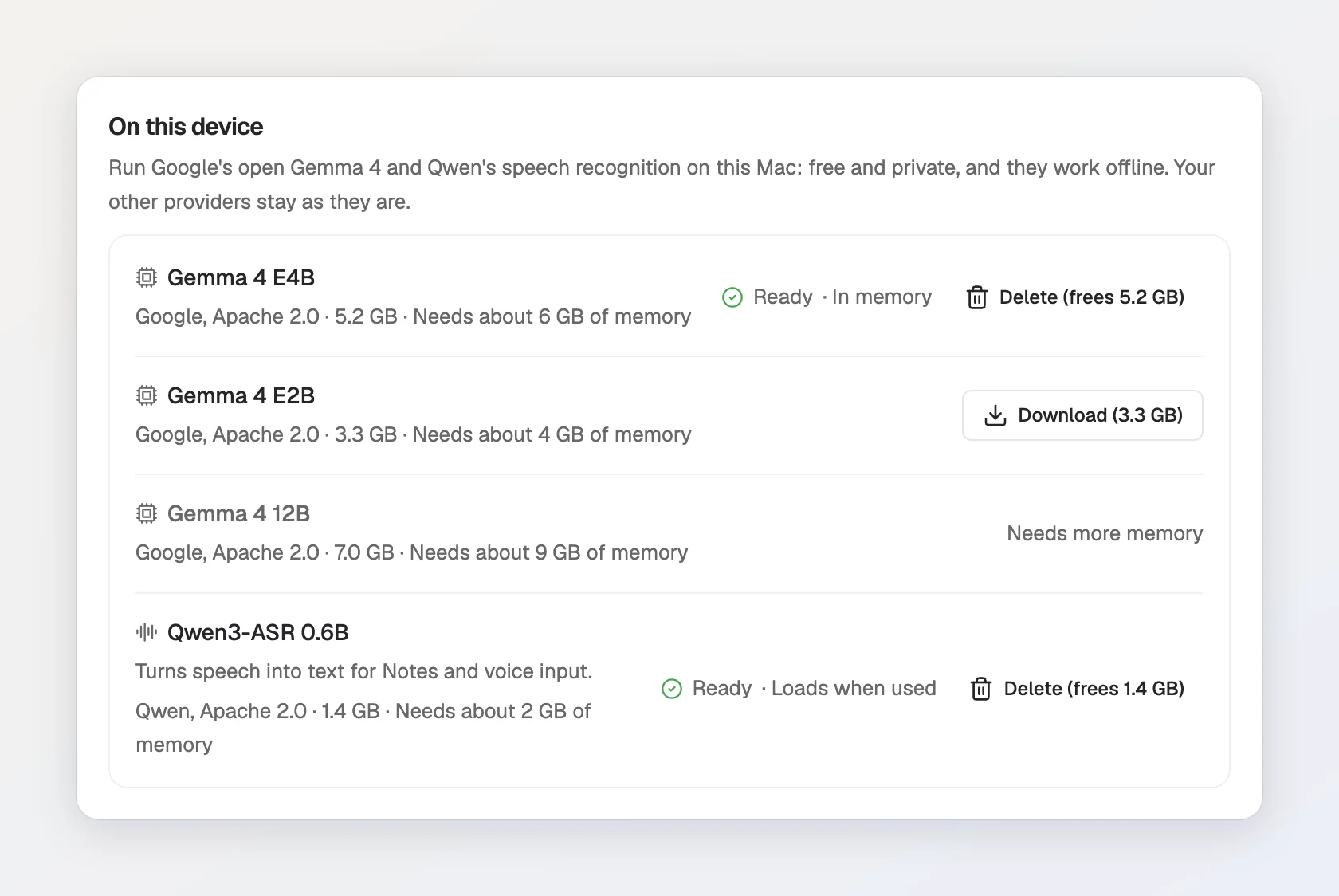
- In Settings > Model & provider > On this device. The speech engine and the Gemma 4 models are listed there with their size and the memory they need, and whether each is in memory now or loads when it is used. Download installs one, Cancel stops an install, and Delete frees the space again.
What runs on your computer
- The transcript. Transcription starts on Automatic, which uses the speech engine on your computer once it is installed. If your computer also has AWS credentials, Automatic uses Amazon Transcribe on your own AWS account instead. To always use the computer, choose On device (Apple Silicon, offline) (on Windows and Linux, On device (offline)) under Transcription Provider in Settings > Notes > Recording.
- The summary. Notes uses the same AI model as Foxl Agent. On a computer with nothing else connected, Gemma becomes that model as soon as it is downloaded. If you already use another provider, it stays selected and Gemma is added beside it, as one more choice in the model picker. To keep summaries on your computer in that case, pick the Gemma model under Summary AI model in Settings > Notes > AI features.
With both on your computer, the audio and the summary stay on it. While Auto Summary is on, the note's title is taken from that summary. If you turn on answering questions asked in the meeting, it reads the transcript too, on Run live features on, which starts on Automatic and picks a fast model on the providers this computer has set up (see Choosing a model), so it runs on the computer only when Gemma is Foxl Agent's model and this computer has neither Amazon Bedrock (AWS keys or a profile) nor an Anthropic API key. To keep it on the computer in any case, pick the Gemma model for Run live features on in Settings > Notes > AI features, and for Title model there too if you turn Auto Summary off. If you turn live translation on, do the same for Live translation AI model in Settings > Notes > Live translation.
2. Record or import a meeting
Open Foxl Notes from the menu at the top of the sidebar. Then do one of these:
- Record a meeting: press Start Recording (the large round button in the middle of Notes). On a Mac or Windows PC, Foxl also records the other people's voices from your meeting app (Capture system audio, on by default in Settings > Notes > Recording). On your first recording, a notice says that recording other people may need everyone's consent; Tell participants copies a line to paste into the meeting chat (more).
- Use a recording you already have: press Import a recording or transcript, choose File > Import Recording... (Cmd+O on a Mac, Ctrl+O on Windows and Linux), or drag the audio file into the window.
- Use a transcript Zoom, Google Meet or Teams already made: import the
.vtt,.srt,.txtor.docxfile the same way, or paste its text with Paste a transcript in the ... menu. See Import a transcript.
The transcript fills in as people speak, in the note's Transcript tab right after Notes, with each voice as Speaker 1, Speaker 2 and so on:
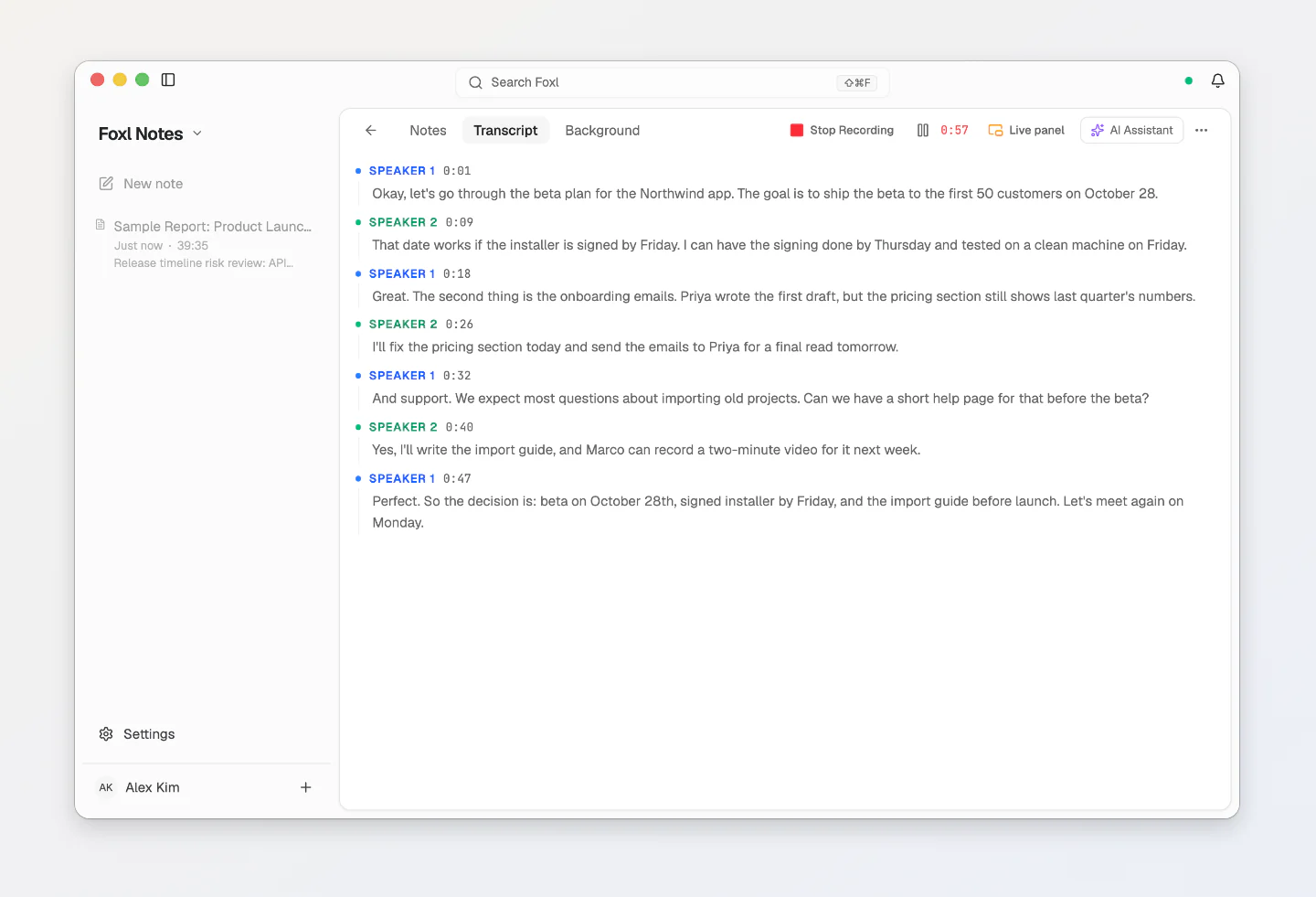
You can type your own notes in the Notes tab while you record, and switch to the Transcript tab to read what was said; switching back keeps your place in your notes. AI Assistant in the top bar shows or hides the assistant at the right edge of the window, beside either tab, and Foxl keeps that choice for your next note.
3. Get a summary
When a recording stops, Foxl writes the summary by itself (Auto Summary, on for a new install). For a note without one, open its Summary tab and press Generate AI Summary. The summary has a short overview, the main points, a checklist of action items and the decisions made:
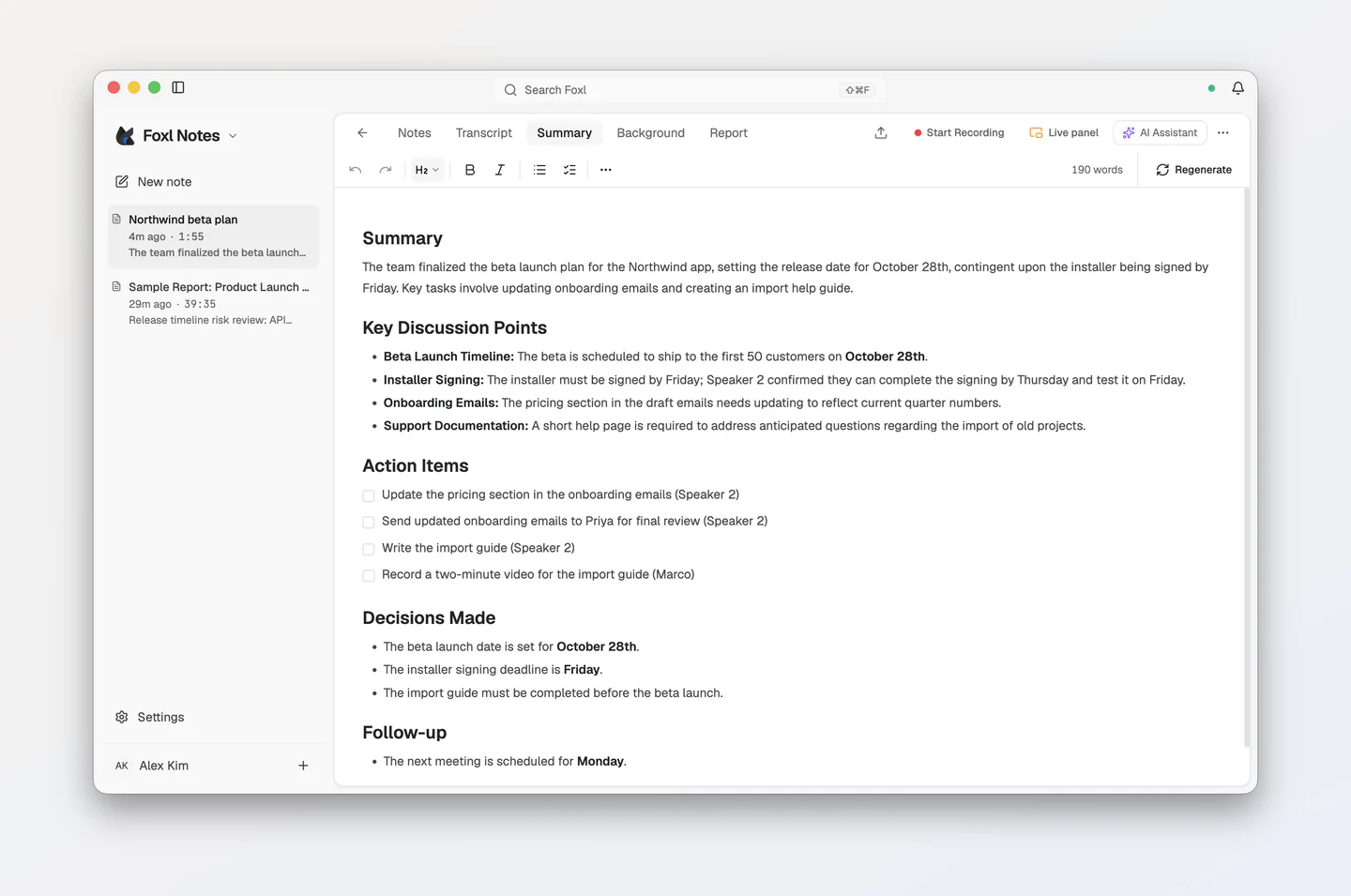
The summary has its own Summary tab, after Transcript and before Background, so the Notes tab keeps what you typed. To stop Foxl writing one every time a recording stops, turn off Auto Summary in Settings > Notes > AI features.
Other computers
The speech engine and Gemma run only on a Mac with Apple Silicon, a Windows PC (64-bit Intel or AMD) or a Linux x64 computer. On other computers (an Intel Mac, or Linux or Windows on Arm), the Set up Foxl Notes screen shows a Meeting transcription row instead:
- Ready when this computer can already transcribe, for example because it has AWS credentials, which Foxl uses for Amazon Transcribe on your own AWS account;
- otherwise Add a key, for an AssemblyAI key (the steps are below).
The summary runs on the AI model you connect for Foxl Agent: on the first-run Connect a model screen (Connect with OpenRouter, which has free models, or I have a key), or later in Settings > Model & provider. See Get Started.
Set up AssemblyAI
AssemblyAI gives new accounts free credit, and no credit card is needed (see AssemblyAI pricing).
-
Go to assemblyai.com and create an account, then open the API keys page and copy your key.
-
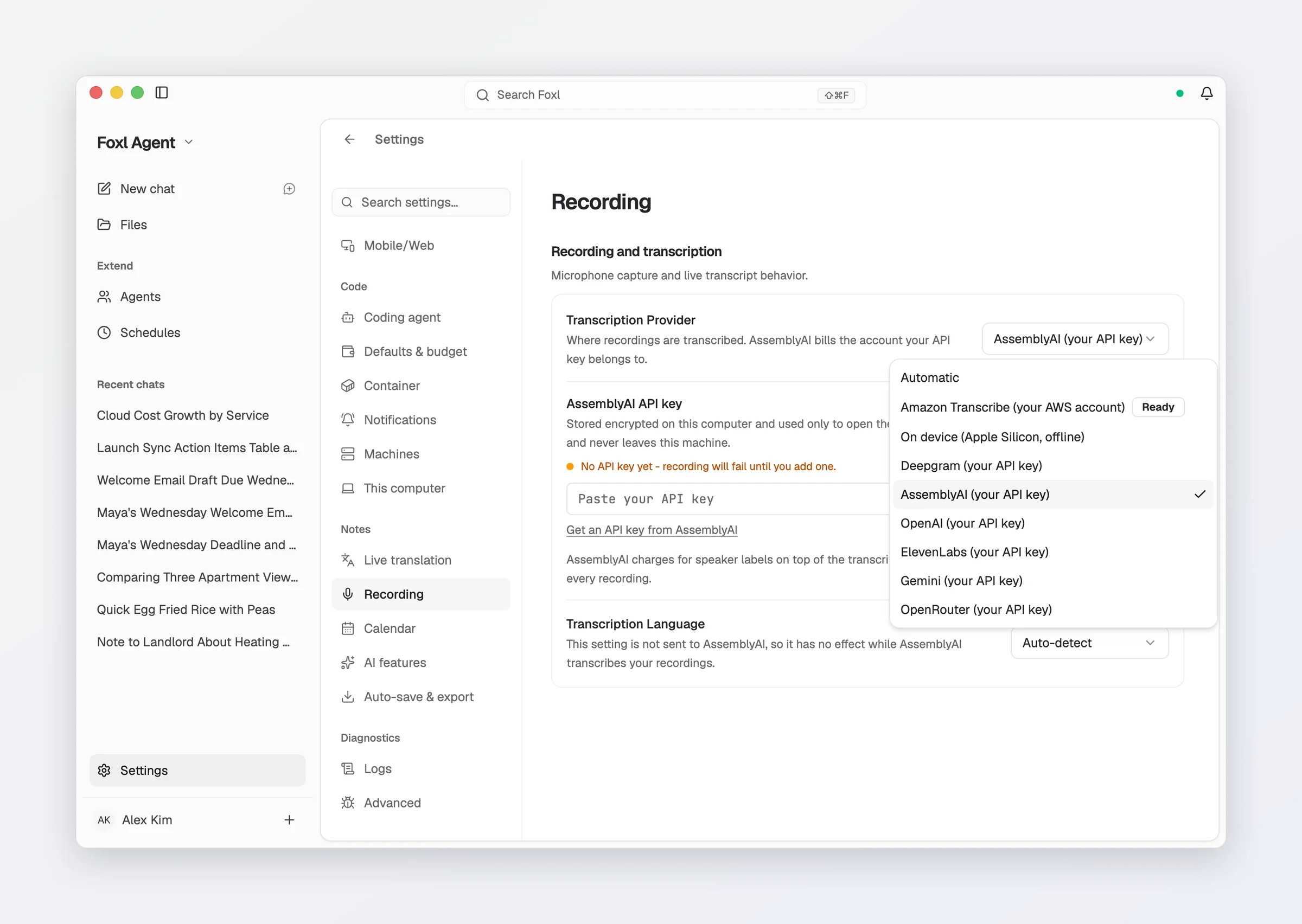
Paste it on the first-run screen (Add a key), or in Foxl's Settings > Notes > Recording: under Transcription Provider, choose AssemblyAI (your API key).
-
Paste your key into the AssemblyAI API key field and press Save.
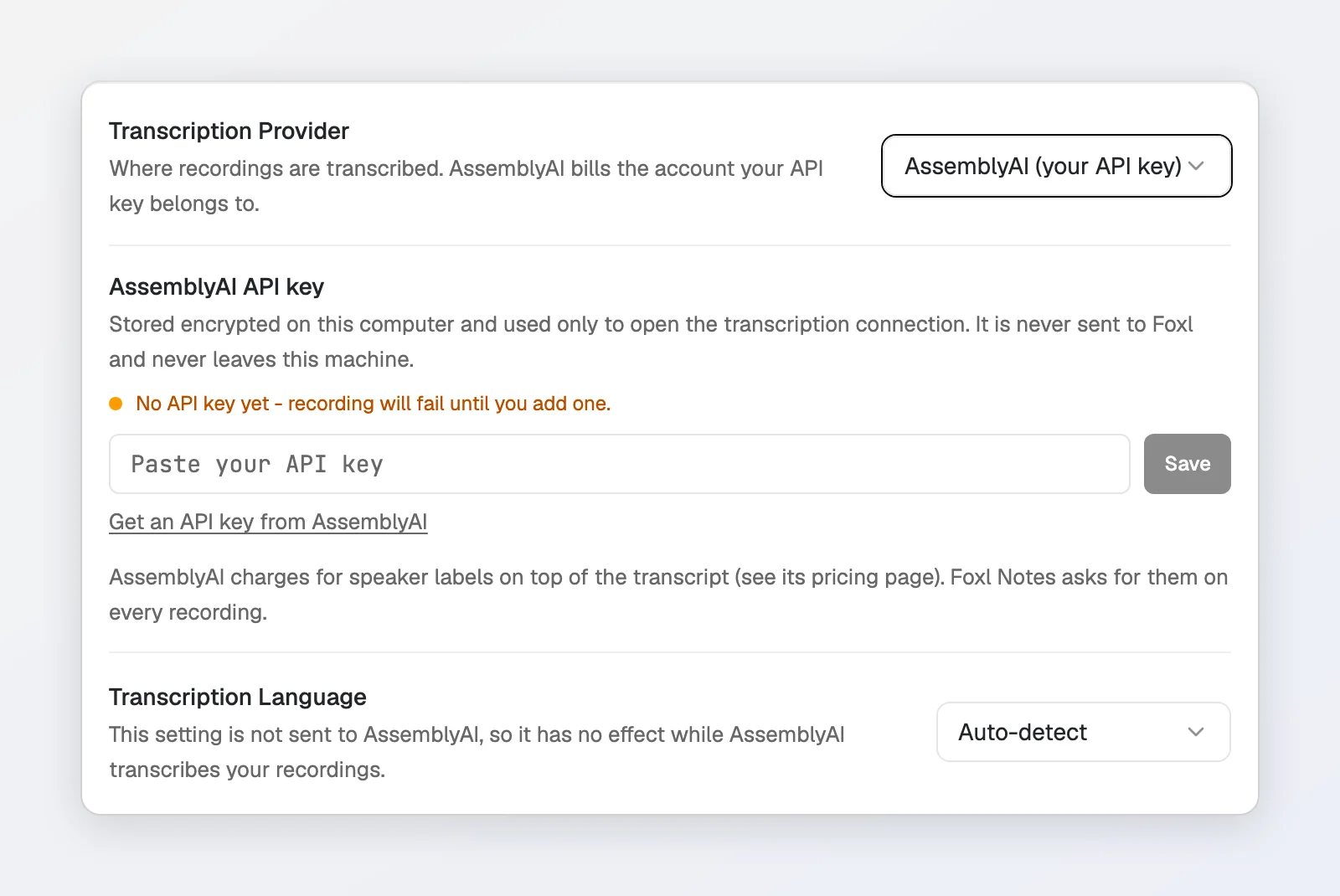
The key is stored encrypted on your computer. It is not sent to Foxl. Your audio goes from your computer straight to AssemblyAI, with your key.
Other engines
You can also transcribe with your own AWS account (Amazon Transcribe), or with your own key for Deepgram, OpenAI, ElevenLabs, Gemini or OpenRouter. Each one, and who bills you for it, is on Recording.
What it costs
Foxl does not charge for Notes.
- On your computer it costs nothing: the speech engine and Gemma are free, and nothing is metered.
- AssemblyAI charges your AssemblyAI account for the time Foxl is connected to it while it writes down a meeting, and its free credit is used first. In our test with a new account, AssemblyAI used Universal-3.6 Pro Realtime, which its pricing page (read October 7, 2026) lists at $0.45 per hour, and speaker labels add $0.12 per hour. Foxl always asks for speaker labels, so an hour of meeting is about $0.57. AssemblyAI says the default model can differ between free and paid accounts.
- A summary on another provider costs what that provider charges for the model.
Good to know
- Languages. On Auto-detect, the speech engine on your computer works out the language of each sentence by itself; you can also set one language under Settings > Notes > Recording. Foxl does not send that setting to AssemblyAI, which works out the language itself. We tried an English and a Korean meeting on AssemblyAI, and both came back as the right text.
- Speakers are shown as Speaker 1, Speaker 2 and so on. Click a speaker's name in the Transcript tab to rename them everywhere. To have Foxl put the names said in the meeting on them, turn on Name speakers automatically in Settings > Notes > AI features (off by default; see Speaker names).
- Privacy. See Credits & privacy for where the audio goes with each engine.