
Cette page n'est pas encore disponible en Français, elle s'affiche donc en anglais.
Desktop Relay (Mobile/Web connection)
Connect your desktop Foxl to app.foxl.ai and the phone apps for remote access with full agent capabilities, and what the relay can still read
The Desktop Relay - Settings > Connect > Mobile/Web in the desktop app - lets you connect your desktop Foxl agent to the web app at app.foxl.ai and to the phone apps. When connected, they route your conversations through your desktop agent, giving you full tool access from any browser.
This connection reaches the Foxl app on your computer. code.foxl.ai is a standalone cloud service: it does not pair with the Foxl app on your computer or require it to be running. Its orchestrator and coding agents use Foxl-managed models and credits. See Code model access.
How It Works
| Mode | What you get |
|---|---|
| Connected | Full agent: browser automation, code execution, file management, git, memory, skills, terminal |
| Disconnected | Read-only: your conversations are still there, but a new message is refused until a desktop is reachable. This connection does not supply managed model inference. |
Connecting Your Devices
Step 1: Sign In on Desktop
Open the desktop app and sign in with your Foxl account (Google, Apple, GitHub, or magic link). Open Settings > Connect > Mobile/Web and turn on Remote access (on a computer that has never connected, the page says Remote access is off and offers Enable remote access).
Step 2: Sign In on the Web App
Open app.foxl.ai and sign in with the same account. Your desktop is automatically detected - no pairing code needed.
Step 3: Connected
The web app connects to your desktop agent automatically. When your desktop app is running, the web app has full tool access.
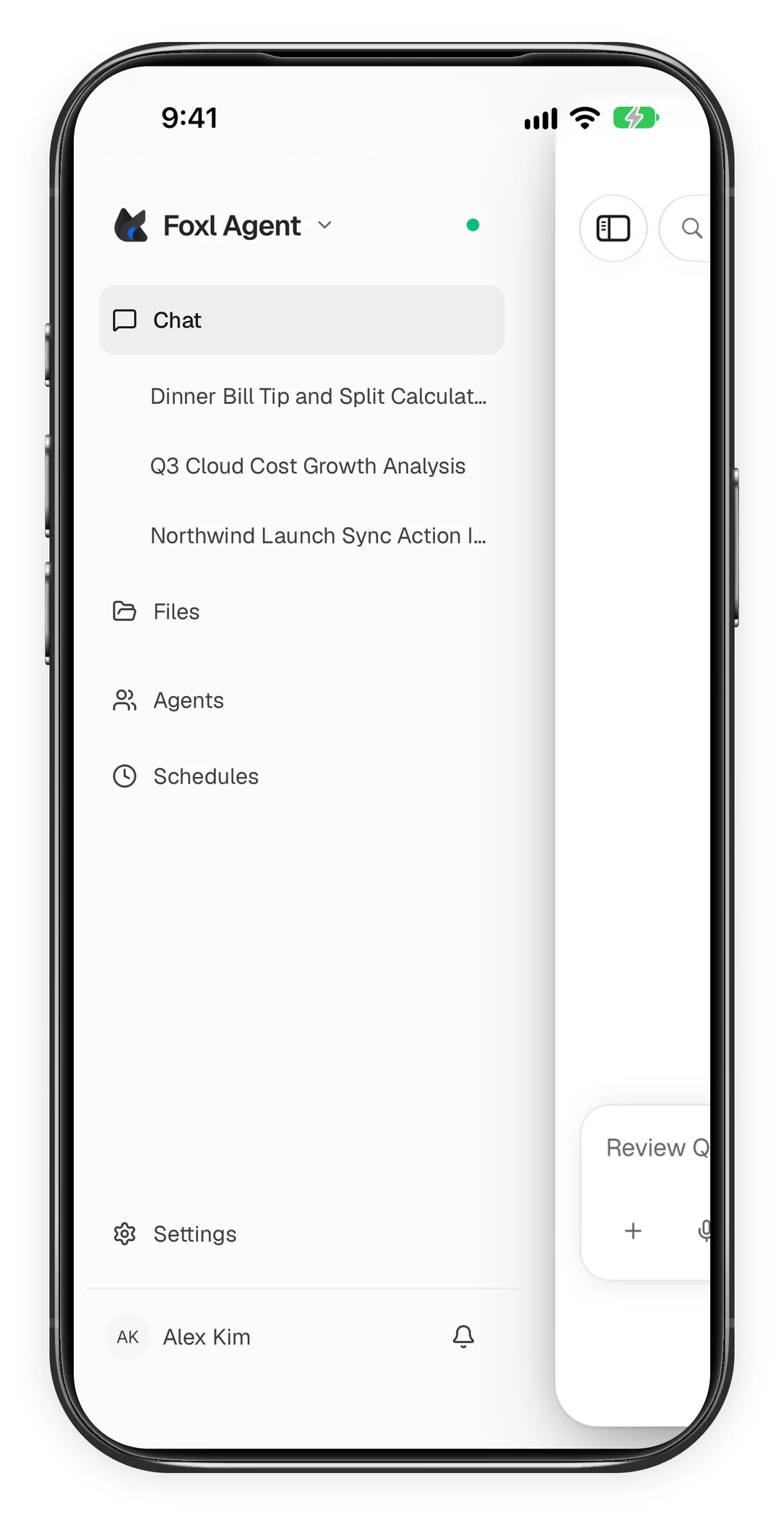
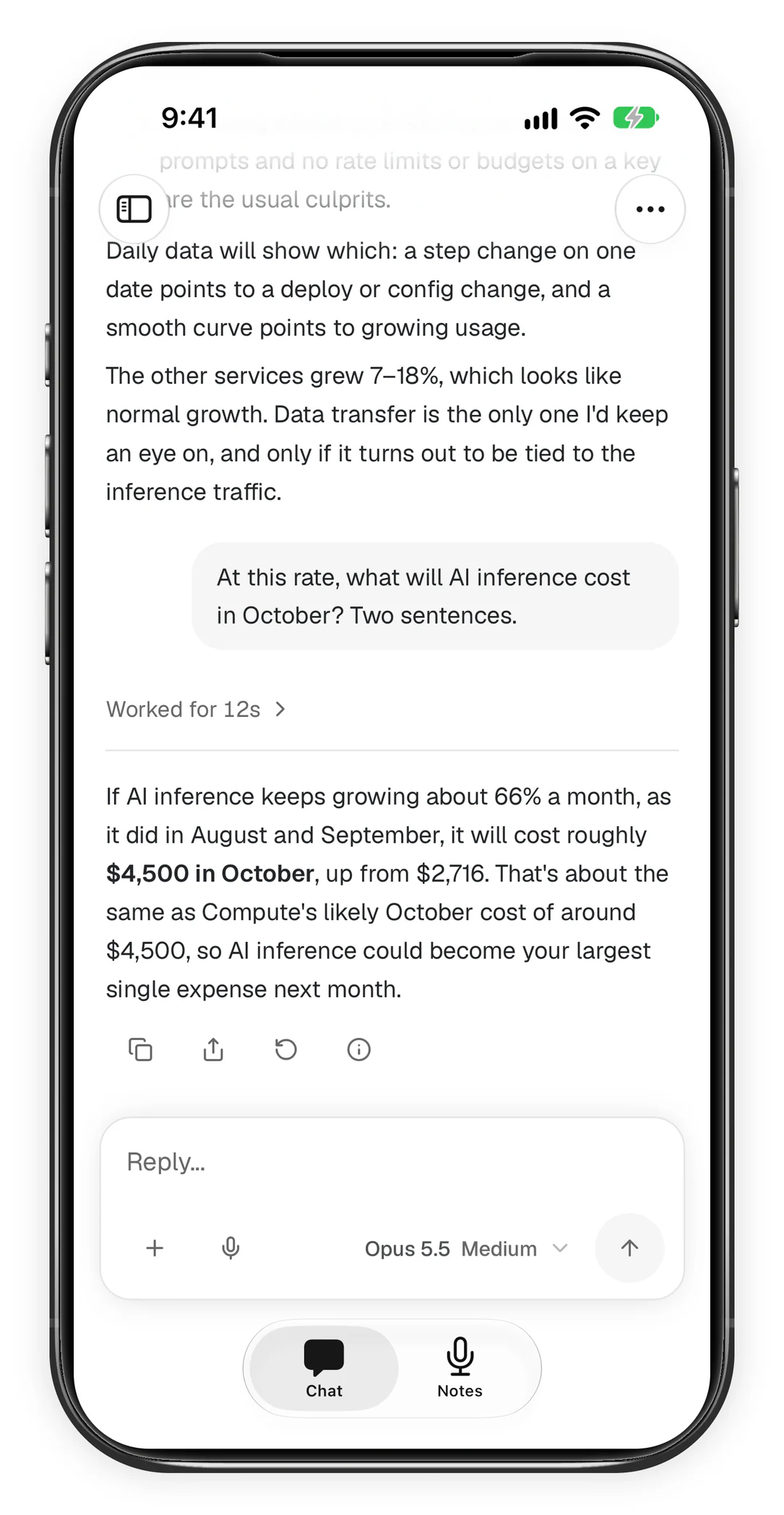
The phone apps work the same way. Here the iPhone app lists the computer's chats and carries one on; the answer was worked out on the computer:
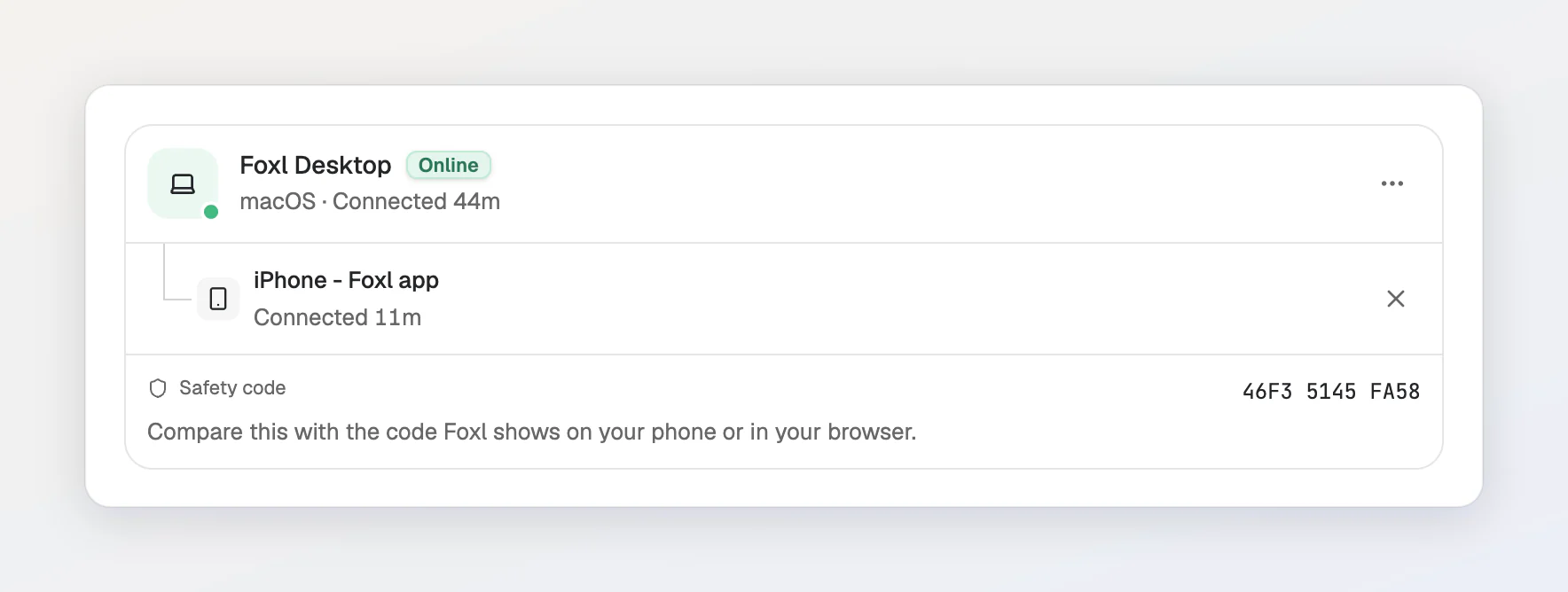
On the desktop, Settings > Connect > Mobile/Web then lists the phone under this computer, with the safety number to compare:
Connection is automatic - just sign in with the same account on both devices. Multiple web browsers can connect to a single desktop.
Connection Status
The web app shows your connection status:
- Desktop Connected: Connected to your desktop agent. Full tool access available.
- Desktop Offline: Desktop app is not running or unreachable. You can read your conversations; sending waits for the desktop.
When the desktop comes back online, the web app detects it automatically and switches back to full agent mode in place - no reload.
If the connection drops while your computer is still writing a reply, the reply stays on screen in the phone apps and app.foxl.ai while Foxl reconnects to it.
Remote Terminal
When connected, you can access your desktop terminal from the web app:
- Spawn terminal sessions directly from the chat UI
- View real-time terminal output remotely
- Multiple tabs and split view supported
- The agent can also use the terminal tool to run commands
The phone apps open the same terminal. Here Claude Code, installed on the desktop, runs in it from an iPhone:
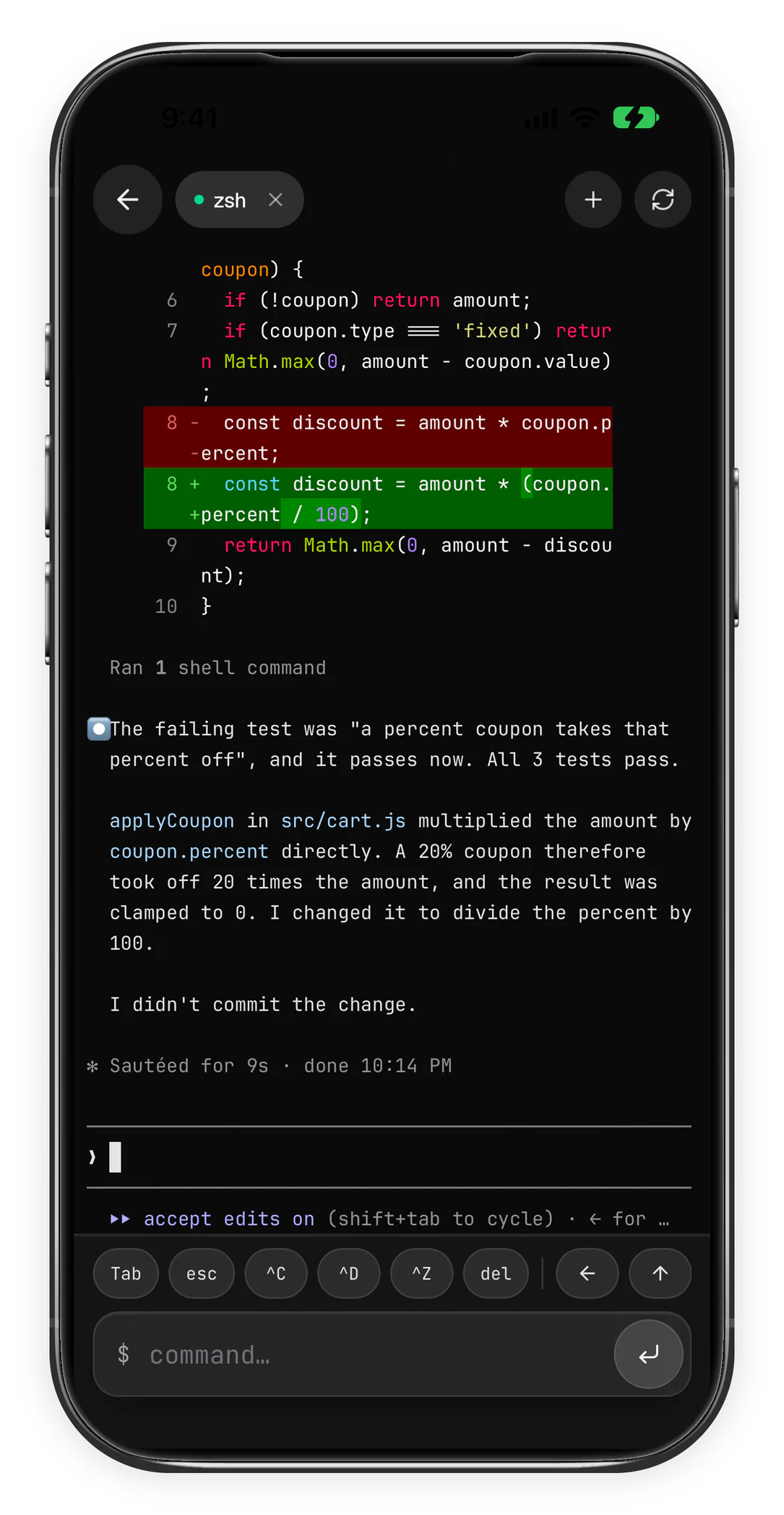
While no phone or browser is connected, the output of terminals you use on the computer itself is not sent to the relay at all.
Tool approvals from your phone
With Auto-approve all tools off (or a run from a source set to Ask first in Settings > Safety), a tool approval prompt, such as a shell command or a file write, can be answered from the phone app or app.foxl.ai while it is connected to your desktop, not only in the desktop window. The prompt shows in the chat that asked, or as a card on any other screen, and the desktop then shows that it was answered on another device. A step that uses another app on your computer (computer use) is allowed on the computer, or from a phone you set up for it (how); otherwise the iPhone, iPad and Android apps and app.foxl.ai in a phone's browser show it as waiting there, with Deny, and say so when it was answered on the computer. app.foxl.ai in a wider browser window does not show it.
On a phone (the iPhone and Android apps, and app.foxl.ai in a phone's browser) the prompt is a card:
- An email or message the agent would send (Gmail, Outlook send, reply and forward, or a channel message) shows in full: the recipients, the subject, the words and any attachment, with Not now and Send.
- A command shows the command itself, with Approve and Not now.
- Any other tool shows its arguments, with Approve and Not now.
- Always allow stays as a quieter third choice.
Your answer replaces the buttons in the same card. In the chat, a message you sent reads Approved until it has actually gone, then Sent, or Not sent if the send failed; the card shown over other screens stops at Approved. Not now refuses the call (it does not keep it for later). The iPad and the desktop keep Deny, Allow and Always allow.
Transport security
Every connection between your browser, the relay and your desktop runs over TLS, so nothing on the network between them can read your traffic.
On top of that, your browser and your desktop establish their own encryption with keys the relay never holds, so what travels through it is ciphertext it has no way to open. What that covers today:
- terminal output and what you type into a terminal,
- every request your app makes to your desktop and its response - a note you save, a file you write, and the file contents, workspace listings, settings and tool output that come back. A live chat message is not one of these, and neither is the reply to a streaming Notes AI request or a local Foxl Code task's live output; they take a different route and are listed below,
- the method and the path of those requests, so the relay does not learn which endpoints you touched either,
- terminal session lists, spawns and exits, and the folder a terminal opens in.
Foxl Notes sync is one of those requests, and it is stricter than the rest: a phone, iPad or browser sends or fetches notes only in requests sealed with the key it shares with your computer, and with no encrypted session yet it waits rather than sending (Settings > Notes > Sync across devices says so). It never takes the compatibility path described below.
The keys are ECDH P-256, one session per connected client, and the payloads are AES-256-GCM. Payloads are compressed before they are encrypted, because encrypted bytes cannot be compressed afterwards - measured on one real 1.5 MB conversation, that is 224 KB on the wire instead of 1536 KB, so a long chat opens as quickly on cellular as it did before encryption.
Encryption engages per connected client, and only when both ends can do it. A client that cannot complete the handshake is served in the clear instead, on purpose: the relay carries a spread of client versions, and a phone runs the web bundle that was signed into the app build you installed rather than the one on app.foxl.ai, so it gains the handshake only when you install v0.6.27 or later. A browser tab, phone app or desktop older than that runs over TLS alone until it updates - nothing stops working and the other clients on the same desktop are unaffected, but for that one session the relay reads the whole list above as well. This is not a rare case: when this page was last measured, in September 2026, most clients that had connected in the previous week were still on builds older than v0.6.27, so treat the encryption as a property of a pair of updated devices rather than of your account.
Four things are not covered yet, and all four are live HTTP paths. Live chat - the message you send, with any images or documents attached to it, and the reply as it streams back - a file preview's raw bytes, the reply to a streaming Notes AI request, and a local Foxl Code task's live output while it streams (a task running on This computer that you watch from the phone or web app, with the task id in the path of the request that opens the stream) travel inside HTTP requests and responses the relay handles directly rather than over the encrypted socket. They are protected by TLS only, not encrypted between your devices, so the relay can read them while they are in flight. The app sends the current message only, so your earlier messages do not cross the relay on this path; a Foxl Code chat turn that runs its model on your desktop travels the same way and does carry the conversation so far. For Notes it is the REPLY that travels this way: a summary, an Ask AI answer, a report, an automatic title, or a live translation, which is your meeting's transcript in another language. The request that asks for it, with the transcript it carries, is encrypted like the other requests above for a client that completed the handshake. A question to the Notes AI Assistant from the phone or web app while your desktop is online is the exception: it is a live chat message, so it and the transcript lines it attaches travel like one. Making the replies ciphertext needs a framing change on these routes and a decrypting reader in the app, which is the next step rather than a setting. Note the stored conversation and the file itself are covered by the point above; it is the live exchange - what you send and what streams back - that is not.
Verify your desktop's safety number
Because the relay passes the key exchange between the two ends, it is worth being
able to tell that it only passed it along. Your desktop has a permanent identity key,
kept in ~/.foxl/tunnel-identity.json, so reinstalling the app leaves it in place.
Your browser or phone remembers its fingerprint the first time it connects and
refuses to set up the encrypted session if it ever changes, so after a device's first
connection a changed identity cannot silently replace the pinned one. Until an
encrypted session is established, the compatibility path uses TLS alone.
The short code derived from that key - the safety number - is shown on the Mobile/Web page on both the desktop and the connected browser or phone. Compare the numbers on both screens, including on your first connection: the initial pin records the identity presented, so the comparison is how you check that it belongs to your desktop.
If the key changes, the encrypted session is refused and a persistent warning
shows the old and new numbers. Resetting the ~/.foxl data folder or moving to a
new machine can legitimately change it; an unexpected change can also indicate
interference with the connection. Review the number on the desktop before
explicitly confirming that you trust the new key. Cancelling the confirmation
keeps the existing pin, and the warning cannot simply be dismissed.
What the relay can still read
- Notification previews. A notification's title and body pass through readable, because the relay is what builds the push your phone shows on its lock screen and it has to put the text in it. Showing a generic "you have a notification" instead was the alternative, and we chose the useful lock screen.
- Live chat, in both directions - the message and attachments your app sends, and the reply while it streams - and a file preview's bytes: two of the paths described above. Live chat is TLS-only, not end-to-end encrypted.
- Notes AI replies while they stream back - summaries, Ask AI answers, reports, automatic titles and live translation, which is your meeting's transcript in another language. The request that asks for one is encrypted for a client that completed the handshake; the reply is TLS-only. A question to the AI Assistant from the phone or web app is a live chat message (above), with the transcript lines it attaches.
- A local Foxl Code task's live output while it streams to the phone or web app - the task's events and its live terminal output - and the task id in the path of the request that opens that stream. TLS-only.
- The conversation id on a chat request, so a "reply finished" push can open the right conversation.
- The shape of your use: that a device connected, when, and how much data moved.
Everything in the list above these is encrypted, for a client that completed the handshake; a client too old for it gets all of it in the clear. These are the reasons this page does not make a blanket claim, and they are listed rather than summarised so you can decide for yourself.
What this page used to say
An earlier version of this page claimed end-to-end encryption for browser-to-desktop traffic before the software did it - the desktop offered a key and no browser ever answered, so every session was protected by TLS alone and the relay read the payloads it forwarded. The page was corrected at the time, and the encryption described above has since been built and tested. We are recording both because the first version of that claim was one you might have made a decision on.
Tracked in #538.
What this means in practice. The relay stores none of your traffic - it forwards and forgets, and it does not keep your conversations, memory or files. Most of what it forwards it now has no key for; the list above is what is left.
If even that is not acceptable for your data, the desktop app works fully offline from the relay - use it locally and leave remote access off. Bring-your-own-key requests never touch the relay at all.
Device Management
From Settings > Connect > Mobile/Web on the desktop, you can:
- See what is connected: the status line says "Connected to 1 device" (or "Connected to 2 devices"), and under Connected devices each phone, tablet or browser is listed once, with a name such as "iPhone - Foxl app" or "Mac - Chrome". Hover over a row to see the browser's full details.
- Disconnect a device: its Disconnect button closes every connection that device has open
- Toggle remote access: the Remote access switch turns remote connections on or off
- Use the device menu (the ... button on your desktop's row): Refresh reconnects to the relay without restarting the app; while the desktop is online, Check for updates and Restart desktop; and Unpair device, which also turns remote access off on that computer
Only the Foxl app on this computer can sign the desktop in to a different Foxl account or turn on Keep it synced automatically for your Claude Code and Codex sign-ins. A phone or browser using the desktop connection can still pick Foxl models, refresh the sign-in of the account the desktop already uses and turn that sync off.
Offline Fallback
When your desktop is disconnected, the web app stays open in a read-only state:
- Your conversations are still readable; sending a message is refused with a note to open Foxl on your computer, because foxl.ai serves no model inference. On the accounts remote chat is offered to, an empty chat offers Switch to cloud chat instead, and Foxl Notes can write summaries in the cloud on your Foxl credits (Remote chat, Notes offline)
- The Channels screen (your team's channels and DMs) and Foxl Code keep working, since they run on the relay and in the cloud rather than on your desktop; the channel bots (Telegram, Slack, iMessage and the others) run on the desktop and pause with it
- When the desktop reconnects, the app switches back to full agent mode in place
Sleep/Wake Reconnection
Foxl automatically reconnects after your laptop sleeps:
- The desktop app detects sleep/wake events via Durable Object ping timing
- If no ping is received within 90 seconds, a reconnect is triggered
- The web app detects the reconnection and restores full agent access without a reload
Troubleshooting
Web app says "Desktop Offline" but the app is running
- Check that both devices are connected to the internet
- Wait a few seconds - the web app detects desktop status automatically
- Try a hard refresh (Cmd+Shift+R) in the web app
- On the desktop, Settings > Connect > Mobile/Web says when this computer is registered but not connected: check its internet connection, then choose Refresh in the device menu
- Toggle Remote access off and on under Settings > Connect > Mobile/Web
Connection drops after laptop sleep
- Foxl should auto-reconnect within a few seconds of waking
- If it doesn't reconnect, toggle Remote access off and on under Settings > Connect > Mobile/Web
Connection drops frequently
- Ensure your network allows WebSocket connections
- Check if a firewall or VPN is blocking the connection
- The relay closes a browser or phone connection that sends a single message over 4 MB, more than 2,000 messages in 10 seconds, or more than 200,000 in a UTC day across your account. Normal use, including fast typing, terminal scrolling and large pastes, stays well under all three
The desktop is unreachable until 00:00 UTC
The desktop's own connection has a daily limit per account: 1,000,000 messages from the desktop per UTC day, counted across every reconnect. Past it, the desktop cannot be reached from app.foxl.ai or the phone, and its notifications no longer reach the phone, until 00:00 UTC, when it reconnects by itself. The desktop app itself keeps working, and its Settings > Connect > Mobile/Web says so, with that time in your own time zone. Ordinary use stays far below it. A terminal that prints nonstop is the usual way to reach it: while a phone or browser is connected, it sends about 20 messages a second, so about 14 hours of nonstop output from one terminal reaches the limit.
The desktop goes offline whenever you quit the app
That is the default - the tunnel belongs to the app window. Turn on Keep running when closed and your machine stays reachable after you quit; see Background service.