
iMessage setup guide
Text Foxl from your iPhone over iMessage - give Foxl its own Apple Account in a second user on your Mac, every step of the Connect iMessage dialog with screenshots, what to do after a restart, and how to undo it
With iMessage connected, Foxl is a contact in your iPhone's Messages: you text it like anyone else, and it answers from your Mac with the tools it has there. This page goes through the Connect iMessage dialog one step at a time, with what each check mark in it means.
iMessage is marked Preview in Foxl: this setup has not yet been run from start to finish on a real Mac, with a real message answered the way it ships, so a step may not work as described yet. The screenshots on this page use example addresses, numbers and a made-up password.
What you need
- A Mac with Foxl. iMessage is offered only on a Mac, because Foxl reads and sends through the Messages app.
- An administrator's name and password for this Mac, once.
- An email address for Foxl's Apple Account, and a phone number Apple can send a code to.
- Your iPhone (or any device signed in to iMessage), to message Foxl from.
- About 20 minutes. Do the setup at the Mac itself: the dialog in the iPhone app and on app.foxl.ai has no bot setup, because it creates a user on this Mac.
How it fits together
Foxl answers only messages from another account. A message you send to yourself gets no
answer, because in your own chat every bubble is yours. So Foxl gets an Apple Account of its
own. Messages holds one iMessage account per Mac user, so that account lives in a second user
on your Mac, named foxlbot.
- You text Foxl's address from your iPhone.
- Messages, signed in to Foxl's Apple Account in the
foxlbotuser, receives it. - Foxl Messages, a small app that comes with Foxl, reads it there and hands it to Foxl in your own user, which runs the agent on this Mac.
- Foxl's answer goes back the same way, into the same chat on your iPhone.
The two users meet in the folder /Users/Shared/foxl-imsg, through a connection only you and
foxlbot can open. Nothing listens on the network.
1. Open the iMessage dialog
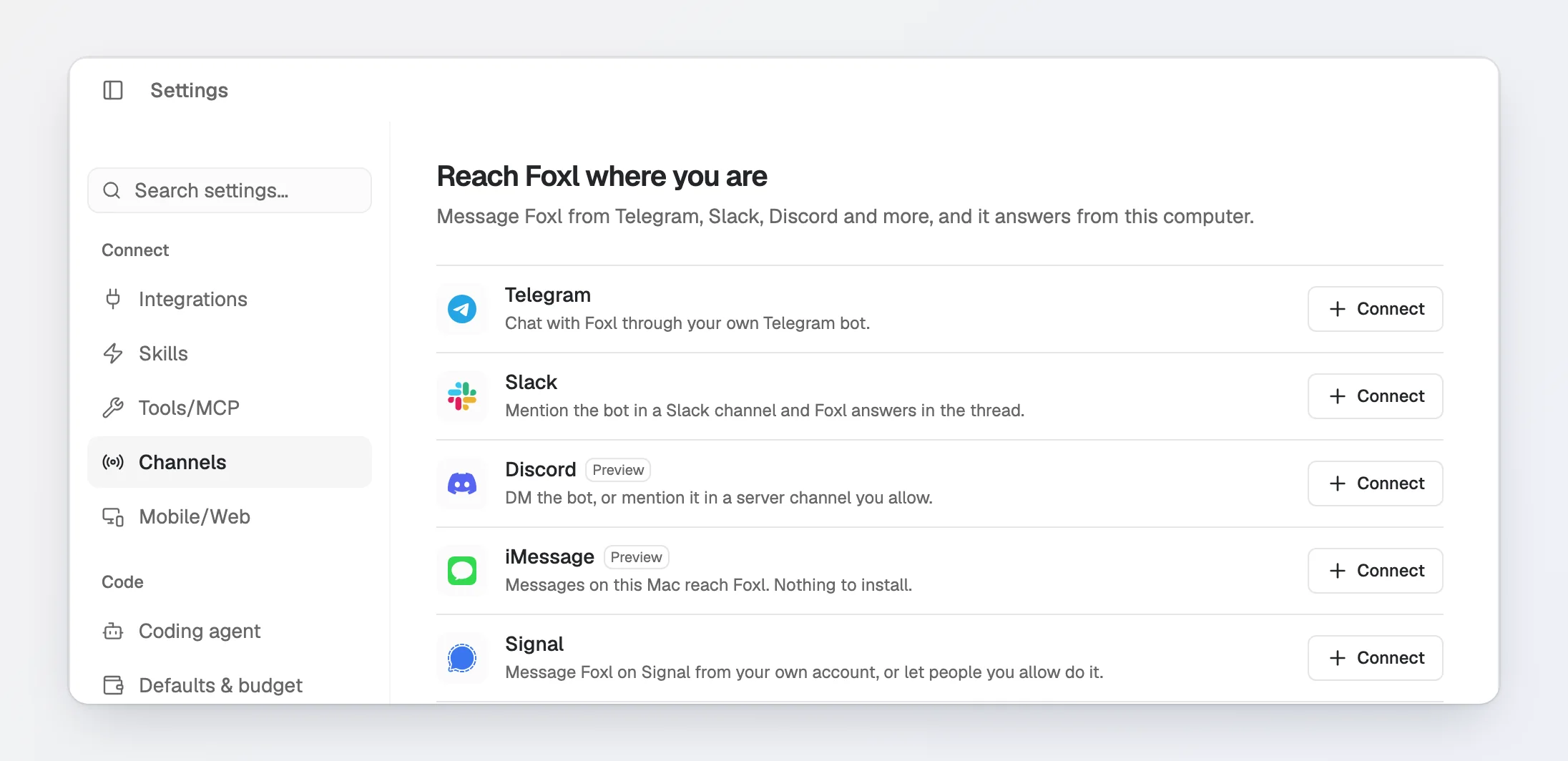
Open Settings > Connect > Channels, then press Connect beside iMessage.
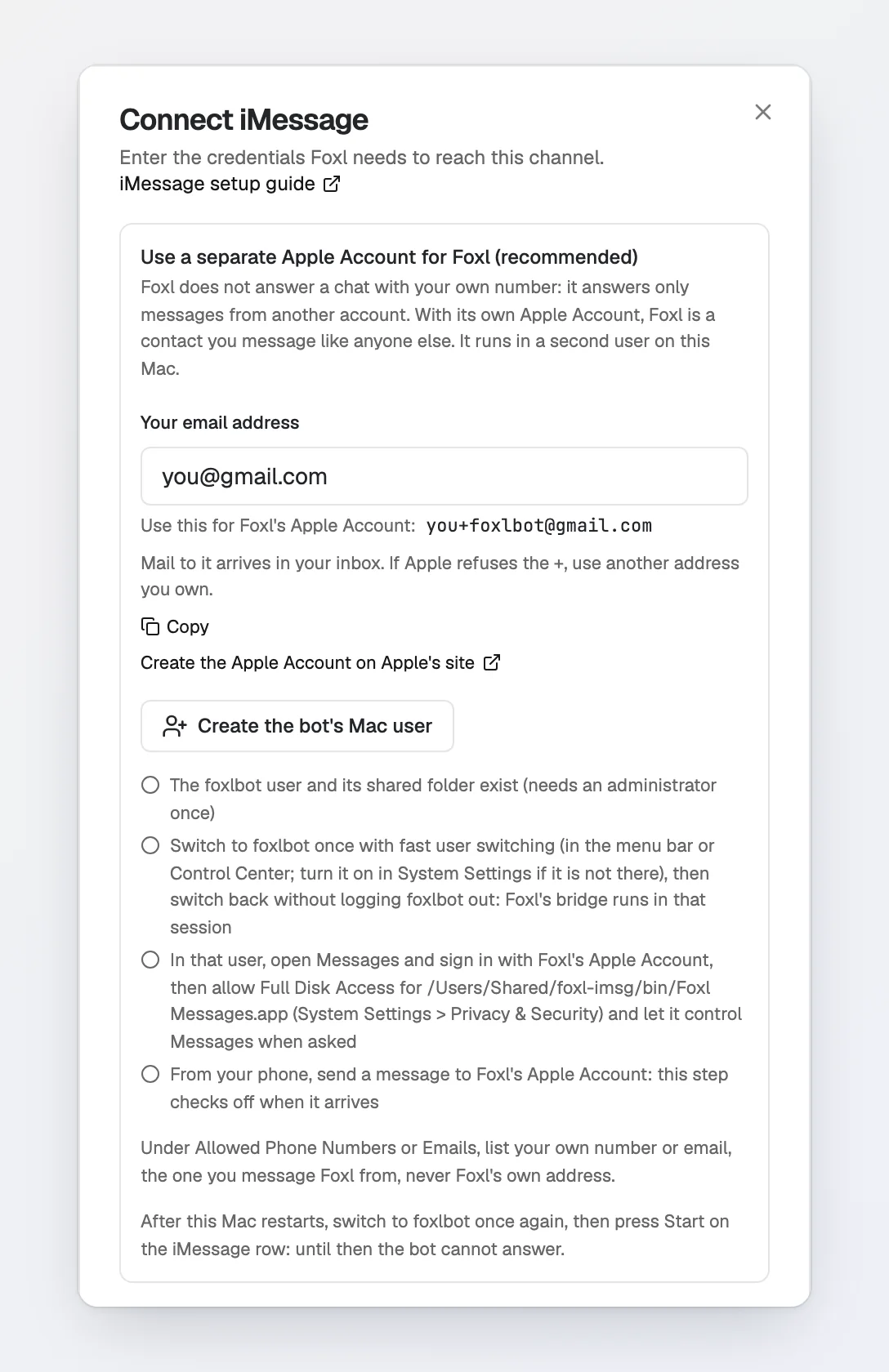
The dialog opens on Use a separate Apple Account for Foxl (recommended). Keep it open while you work through this page. Each circle in it is checked by this Mac itself, and ticks off on its own when that step is done.
2. Pick the address for Foxl's Apple Account
Foxl's Apple Account needs an email address of its own, one that is not already an Apple Account.
- If you use Gmail, the dialog suggests your own address with
+foxlbotadded, for example[email protected]. Gmail delivers mail to that address to your own inbox, so you can read Apple's verification email there. When your Foxl account uses a Gmail address, the dialog opens with it filled in. Press Copy to copy the suggestion. - Any other address gets no suggestion, because Foxl suggests a
+address only where the mail provider documents them (Gmail so far). Use another address you own.
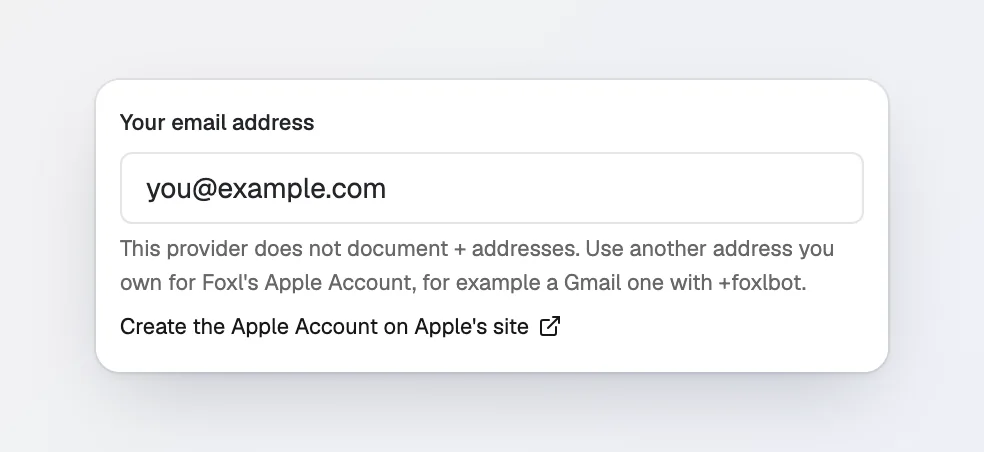
Apple does not say whether it accepts a + address. If it refuses the one you picked, use
another address you own.
3. Create Foxl's Apple Account
Press Create the Apple Account on Apple's site. It opens account.apple.com, where you press Create Your Apple Account. Apple asks for:
- the email address from step 2, which becomes the account's sign-in,
- a password,
- a birthday and a phone number, which Apple verifies with a code,
- and a code it sends to the email address.
Apple's own steps are in Create your Apple Account. Only you can do this part, because Apple sends its codes to your phone and your inbox. Keep the account's password at hand for step 6.
4. Create the bot's Mac user
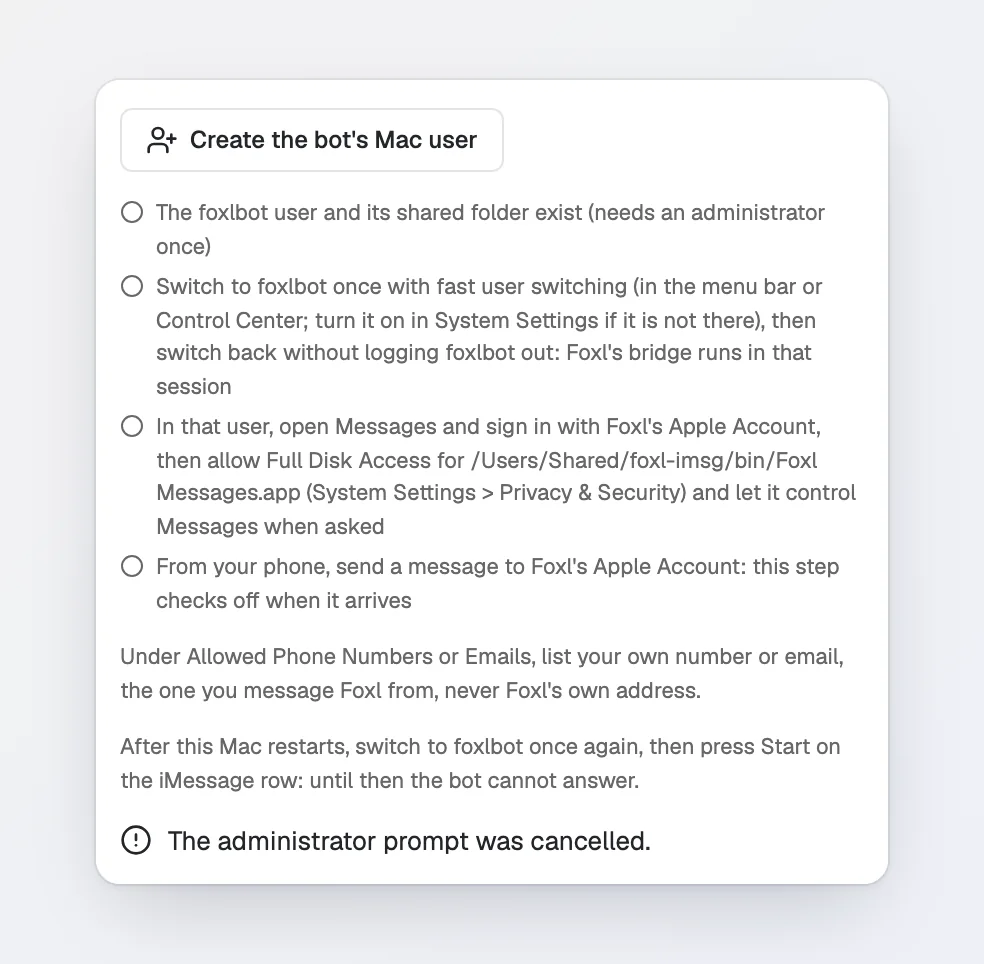
Back in the dialog, press Create the bot's Mac user. macOS asks for an administrator's name and password in its own window, so Foxl never sees them. Foxl then makes:
- a standard (not administrator) Mac user named
foxlbot, shown as Foxl Bot, - a group named
foxl-imsg, with only you andfoxlbotin it, - the folder
/Users/Shared/foxl-imsg, with a copy of Foxl Messages forfoxlbotto run, - and a launch agent in
foxlbot's home folder, which starts Foxl's bridge each timefoxlbotlogs in.
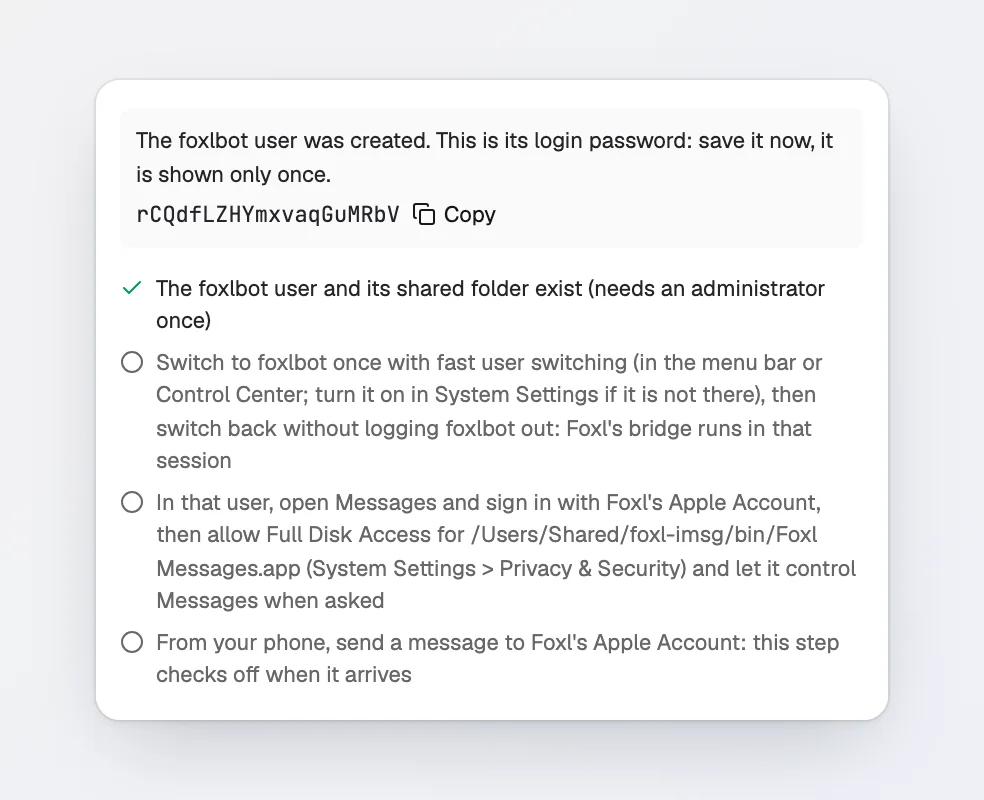
The dialog then shows foxlbot's login password, once. Save it now, for example in your
password manager: you need it to log in to foxlbot, and the dialog does not show it again.
It is the password of this Mac user only, not of any Apple Account.
If you press Cancel in macOS's window instead, the dialog says so. Press Create the bot's Mac user again when you are ready.
5. Switch to the bot user once
Foxl's bridge runs inside foxlbot's own session, so foxlbot has to be logged in, alongside
you. Fast user switching does that without logging you out.
-
If your menu bar has no fast user switching menu, turn it on in System Settings:
- macOS 26 or later: System Settings > Menu Bar, select Fast User Switching, then choose how to show it.
- macOS 15 or earlier: System Settings > Control Center, then under Fast User Switching choose an option next to Show in Menu Bar.
Apple's steps: Switch quickly between users on Mac.
-
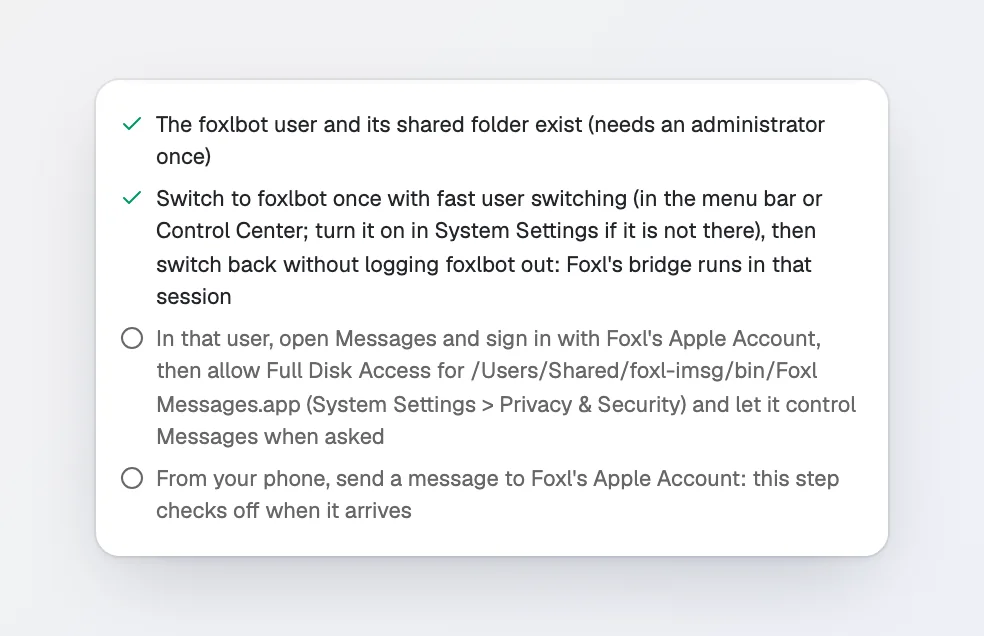
Open the fast user switching menu, choose Foxl Bot, and enter the password from step 4. On the first login macOS may show a few setup screens for the new user first.
Stay in foxlbot for step 6. When you come back to your own user, the dialog shows this step
checked: the bridge has started in that session.
6. In the bot user: sign in to Messages and allow two permissions
Still logged in as Foxl Bot:
- Let Foxl Messages control Messages. Soon after you log in, macOS asks whether Foxl Messages may control Messages, with Foxl's reason: "Foxl Messages sends your replies through the Messages app." Allow it. Without it Foxl can read messages but cannot answer them. If you missed the question, turn it on in System Settings > Privacy & Security > Automation, under Foxl Messages, switch Messages on.
- Sign in to Messages. Open Messages, then sign in with Foxl's Apple Account from step 3: its email address, then its password. If Apple asks for a verification code, it goes to the phone number you gave Apple in step 3. Apple's steps: Set up Messages on Mac.
- Give Foxl Messages Full Disk Access. Open System Settings > Privacy & Security > Full
Disk Access and press the add button (+). Press Command-Shift-G, paste
/Users/Shared/foxl-imsg/bin/Foxl Messages.app, press Return, then Open. Make sure the switch beside Foxl Messages is on. If macOS asks for an administrator's name and password, enter yours:foxlbotis a standard user. If macOS offers Quit & Reopen, choose it. - Switch back to your own user with the same fast user switching menu. Do not log out of Foxl Bot: logging it out stops the bridge.
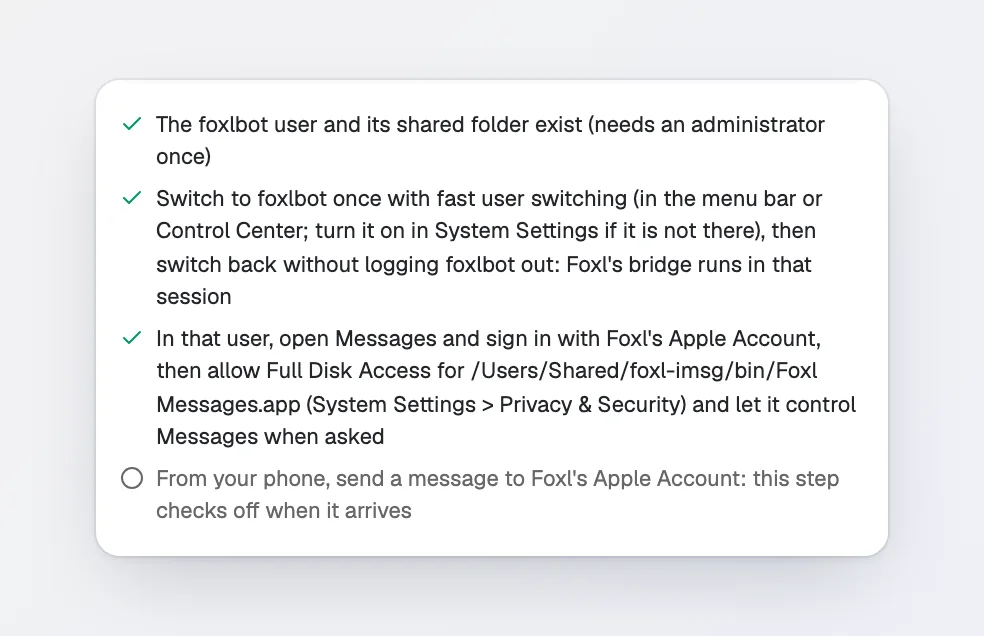
Back in your user, the third step is checked once Foxl Messages can read the bot's Messages,
and Bot Socket at the bottom of the dialog fills itself in with
/Users/Shared/foxl-imsg/run/imsg.sock. Leave it as it is.
7. Message Foxl from your iPhone
On your iPhone, open Messages, start a new message to Foxl's address from step 2 (for example
[email protected]), and send anything, such as "hi". The last step is checked when the
message arrives, and names the account Messages uses for Foxl: Messages is signed in as
[email protected].
This first message only finishes the setup. Foxl answers the messages that arrive after you press Start in step 9, not this one.
8. List who may message Foxl, then press Connect
Under Allowed Phone Numbers or Emails, list the number or email address you message Foxl from:
- A phone number with its country code, such as
+1 415 555 0123. Spaces and dashes are fine. - An email address, if your iPhone sends iMessages from one.
- Several, separated by commas.
To see which address your iPhone sends from, open Settings > Apps > Messages > Send & Receive on the iPhone and look under Start New Conversations From (Apple's page). Never list Foxl's own address here: a message from it would be a message to itself, and Start refuses it.
Leave Name as iMessage (or call it what you like) and Bot Socket as it was filled in, then press Connect.
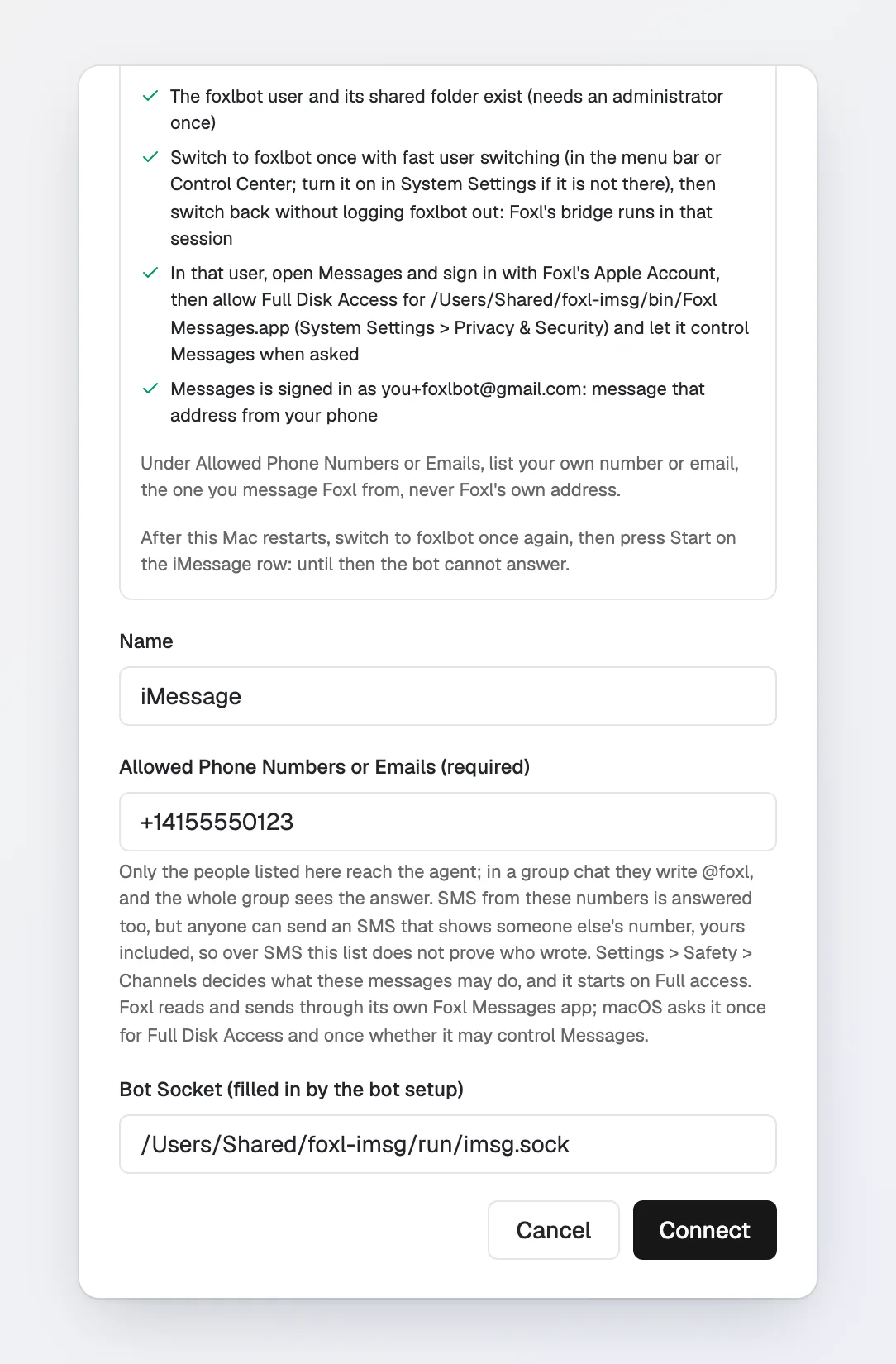
Only the people on this list reach the agent. In a group chat, a listed person writes @foxl
to ask Foxl something, and the whole group sees the answer.
9. Press Start
The iMessage row now says Stopped. Press Start.
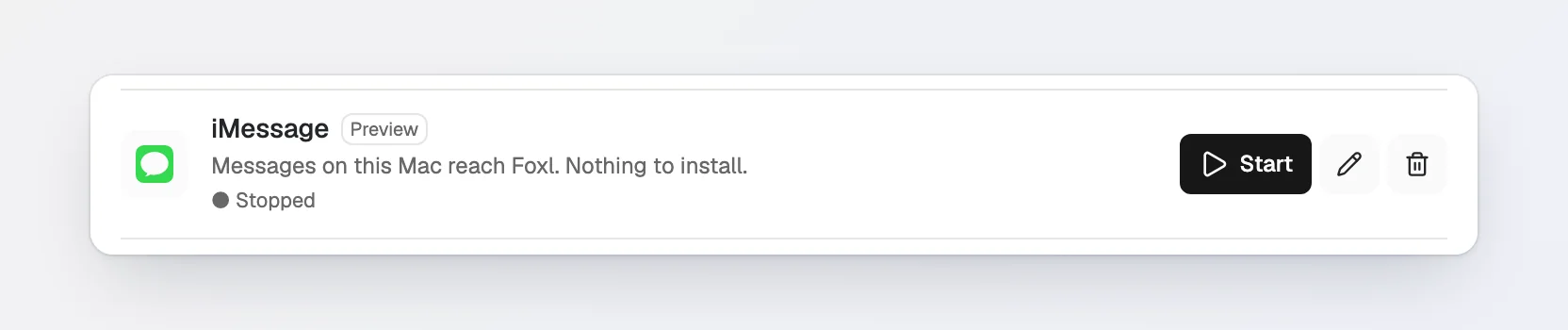
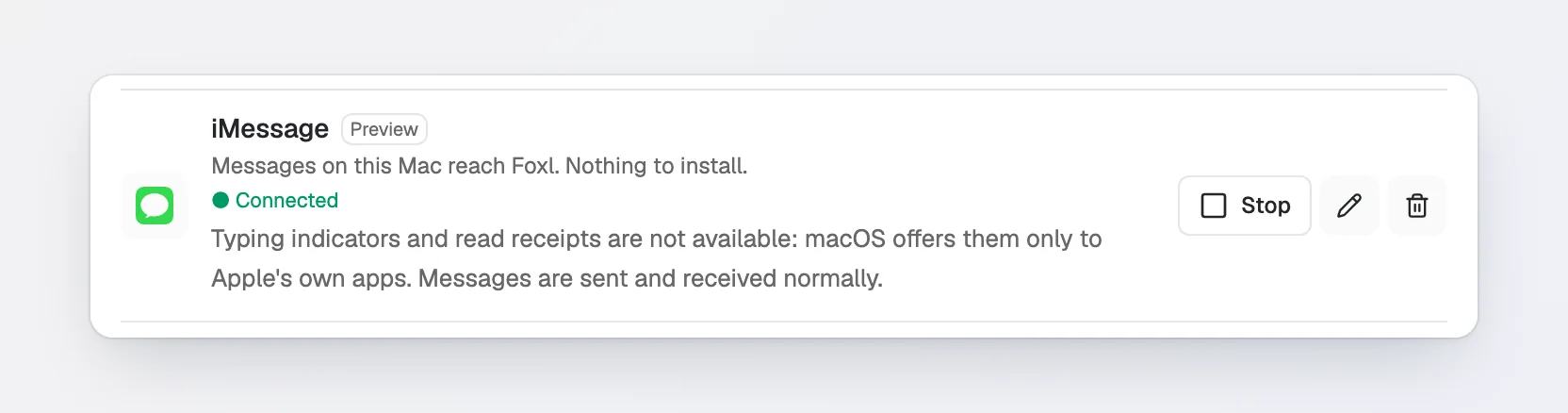
The row says Connecting for a moment, then Connected. It also notes that typing indicators and read receipts are not available, which macOS offers only to Apple's own apps.
Now message Foxl again from your iPhone. Its answer comes back in the same chat, and the conversation shows on the Channels screen beside Chat, where every reply the AI wrote is labelled.
After your Mac restarts
A restart logs foxlbot out, and its bridge runs only while it is logged in. After every
restart:
- Switch to Foxl Bot once with fast user switching, and enter its password.
- Switch back to your own user, without logging Foxl Bot out.
- Press Start on the iMessage row.
Until then Foxl cannot answer, and pressing Start shows this:
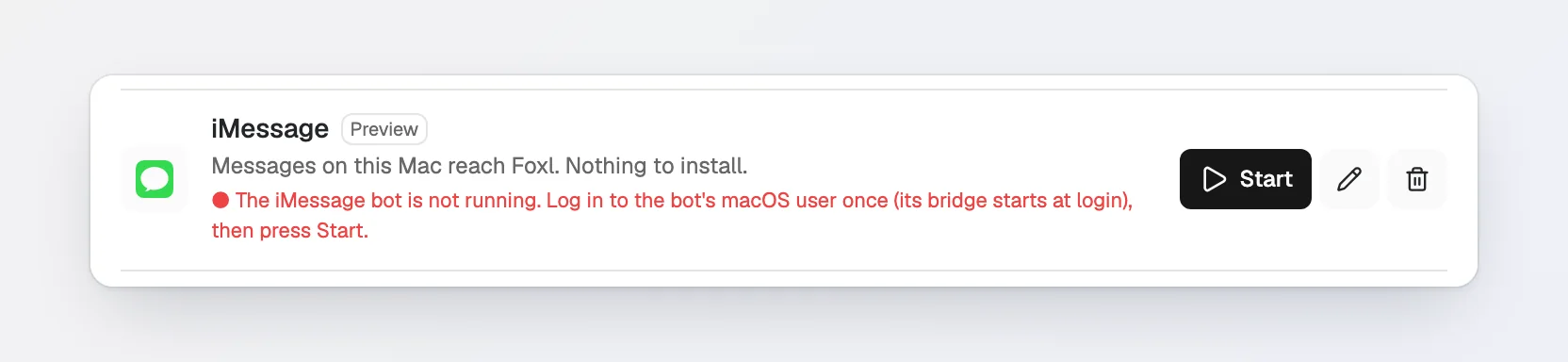
Messages that arrive while the bot user is logged out or the channel is stopped are not answered later. Your Mac must also stay awake and Foxl running for Foxl to answer; see Background service to keep it running after you quit the app.
What a message from iMessage may do
A message from a listed person runs the agent on your Mac. What that run may do follows Settings > Safety > By where a run comes from > Channels, which starts on Full access: your Safety rules as they are, auto-approve included.
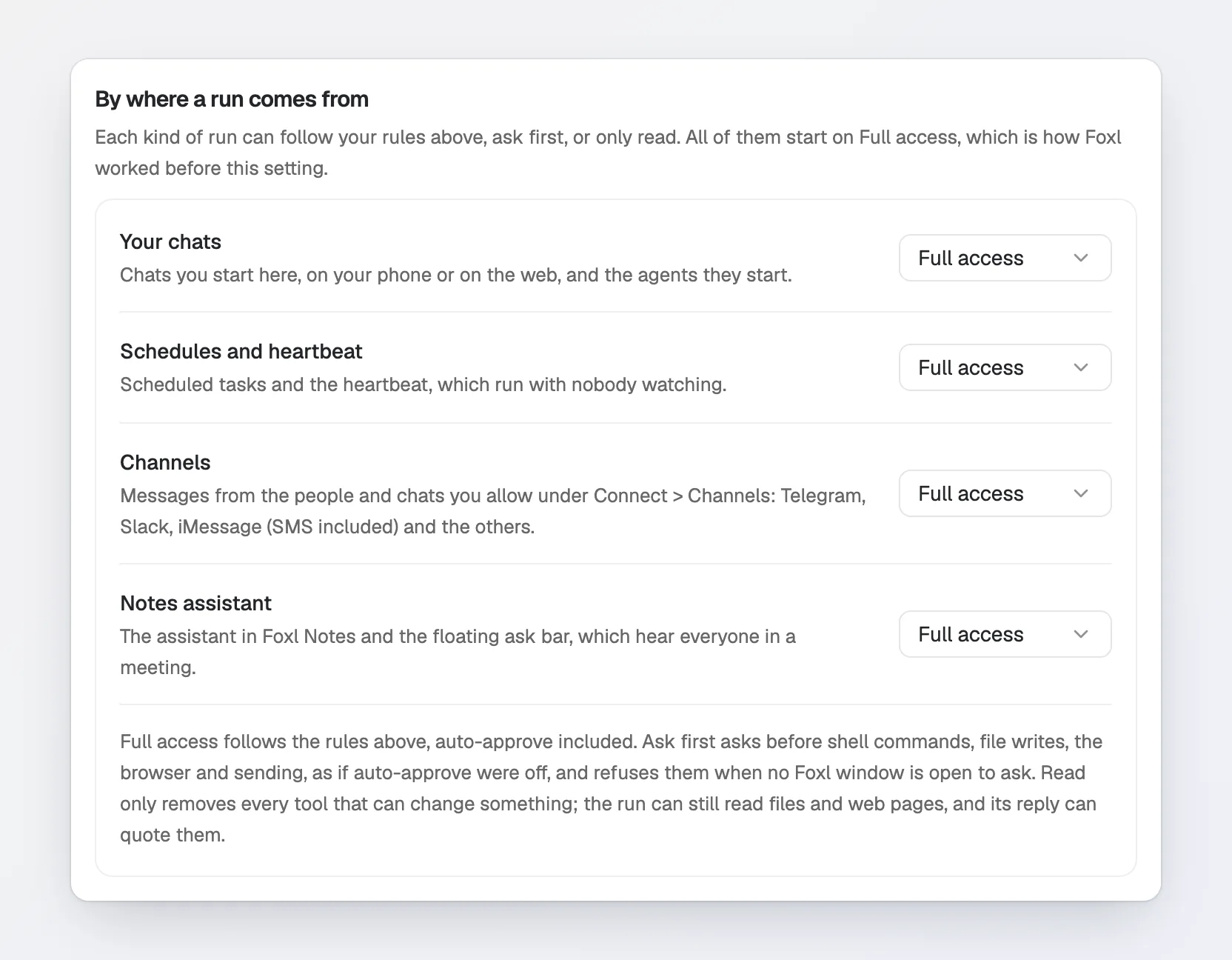
- Ask first: shell commands, file writes, the browser and sending ask for approval in a Foxl window on this Mac first, and are refused when no Foxl window is open.
- Read only: the run gets only the tools that read.
SMS from a listed number is answered too, and anyone can send an SMS that shows someone else's number, yours included. Over SMS, the list does not prove who wrote. If that matters to you, put Channels on Ask first or Read only. More in What a channel run may do.
When something does not work
The row says the iMessage bot is not running. The bot user is logged out, usually after a restart. See After your Mac restarts.
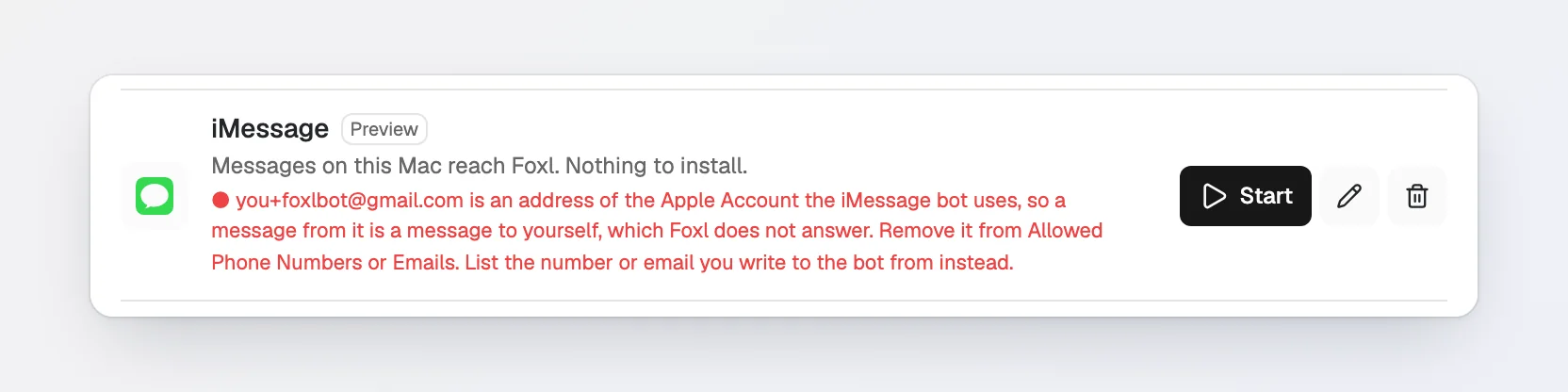
Start says an address belongs to the Apple Account the bot uses. Foxl's own address is on the allowed list. Remove it, list the number or email you write to Foxl from, and press Start again.
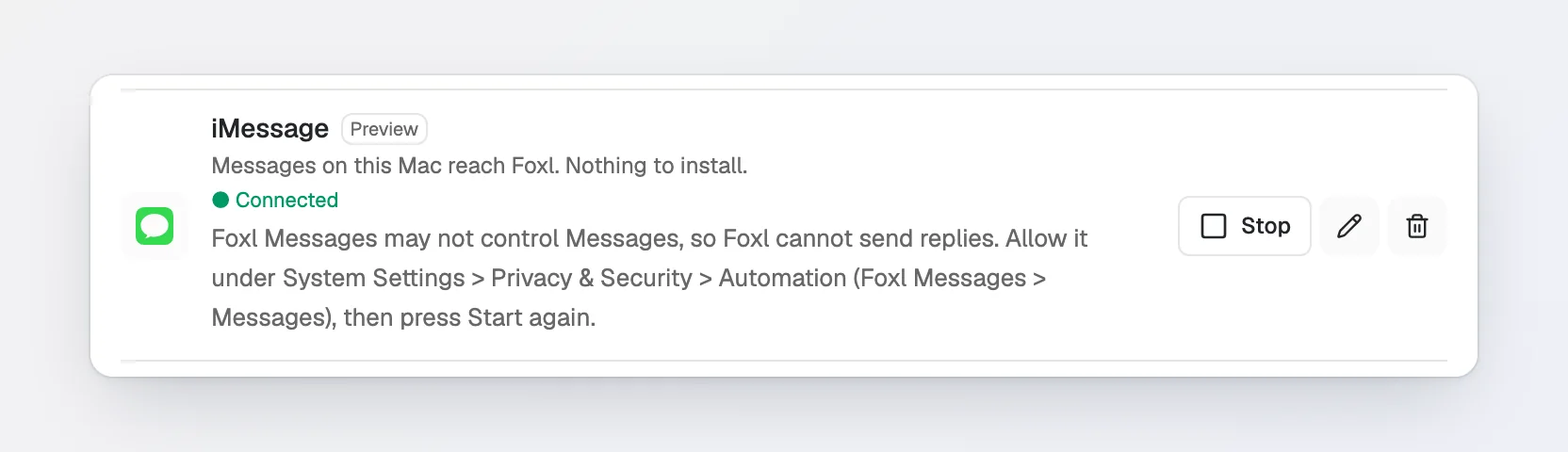
Foxl reads your message but never answers. If the row says Foxl Messages may not control Messages, the Automation permission from step 6 is missing. Switch to Foxl Bot, open System Settings > Privacy & Security > Automation, switch Messages on under Foxl Messages, switch back, and press Start again. It has to be allowed in the Foxl Bot user, where Foxl Messages runs.
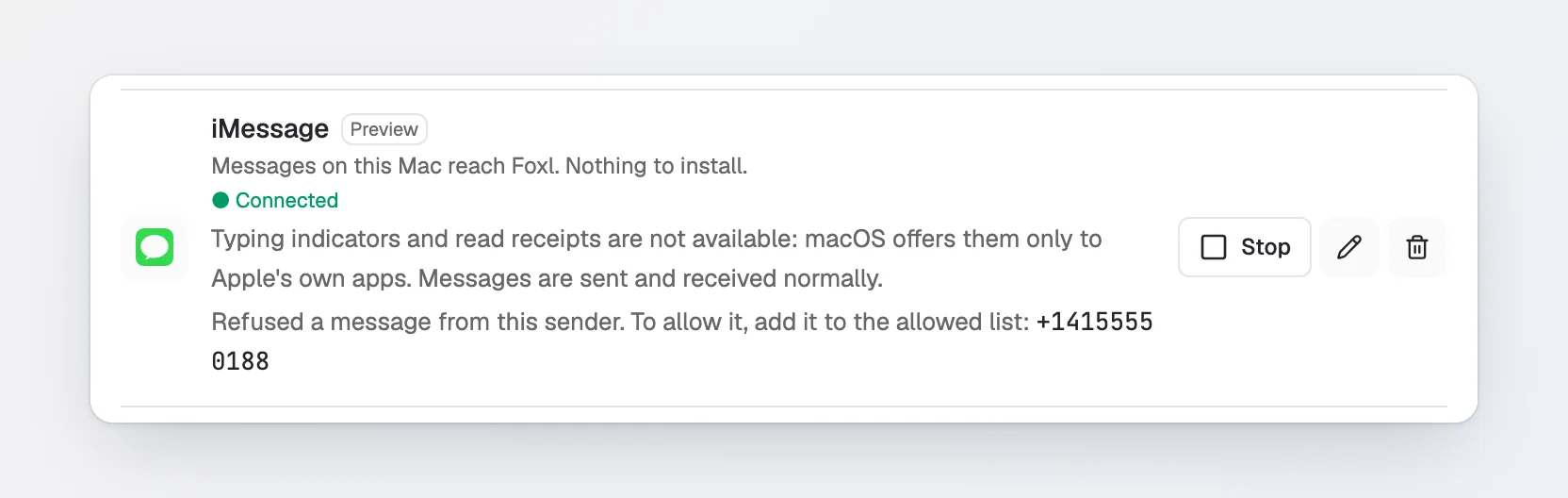
Foxl does not answer you at all. If the row shows a sender it refused, the address you wrote from is not on the list (often the phone number without its country code, or an email address your iPhone sends from instead). Press the edit button on the row and add the address the row shows.
The third step never gets its check mark. Switch to Foxl Bot and check that Messages is signed in to Foxl's Apple Account and that Foxl Messages is switched on under Full Disk Access. The check needs both.
You closed the dialog before you saved the password. The dialog shows it only once. To start over, undo the setup as described below, then run it again.
Without a second user: this Mac's own Messages
If Messages on this Mac is already signed in to an Apple Account that you do not message from (for example a Mac kept for Foxl), Foxl can use it directly: leave Bot Socket empty, list your own address, press Connect, then Start. The row then asks once for Full Disk Access for Foxl Messages; Allow Full Disk Access opens System Settings for you.
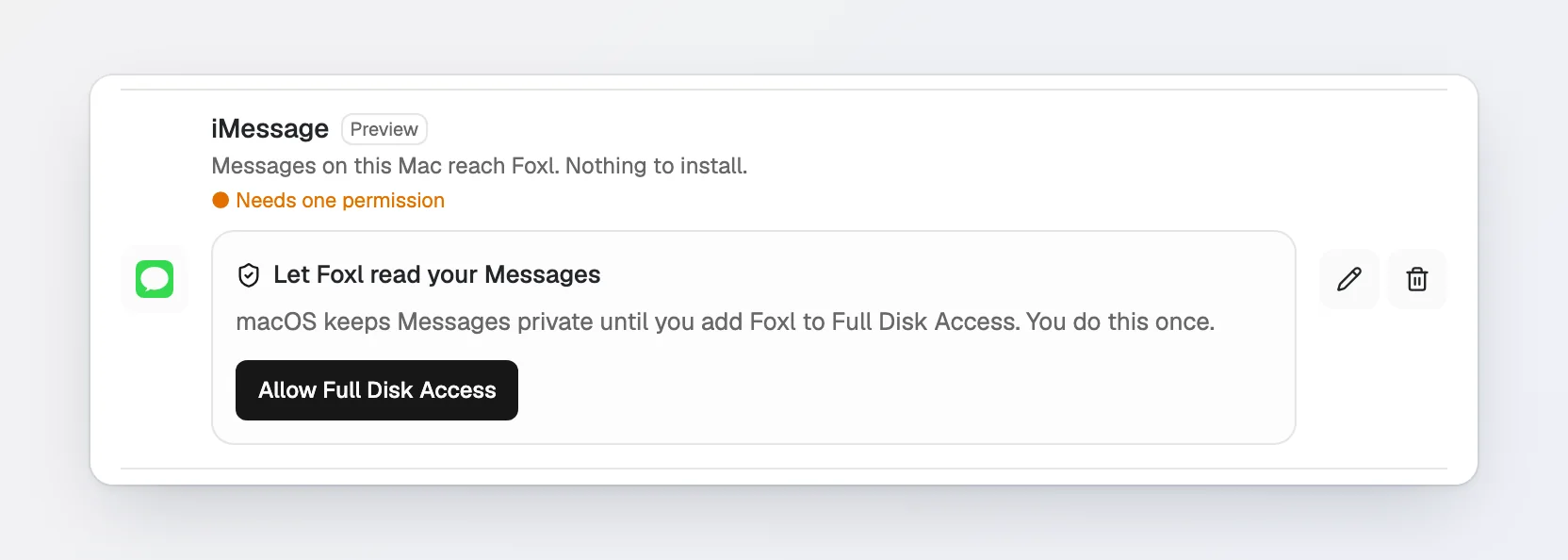
A message to the account Messages uses on this Mac is still never answered, so to write to Foxl from your own iPhone, this Mac's Messages must be signed in to an Apple Account other than yours.
Undo the setup
Foxl has no button to undo the setup yet. Log Foxl Bot out first, then run this in Terminal as
an administrator (sudo asks for your password):
sudo bash /Applications/Foxl.app/Contents/Resources/server-bundle/dist/imessage-bot/setup-imessage-bot.sh --remove foxlbotIt deletes the foxlbot user with its home folder, the foxl-imsg group and
/Users/Shared/foxl-imsg, and refuses any account the setup did not create. Deleting foxlbot
in System Settings > Users & Groups also stops the bot, with any Foxl version; the group and
the folder then stay behind. Then remove the iMessage row in Settings > Connect > Channels.
Foxl's Apple Account stays yours to keep or delete on Apple's site.
Channels & Integrations
Message Foxl from Telegram, Slack, Discord, iMessage, Signal and eight more, let it act in Microsoft 365 and Slack as you, and read the threads those bots collect
Gmail (send only)
Let Foxl send email from your Gmail account - what it can and cannot do, how to connect it, where the access is stored, and how to remove it