
Diese Seite gibt es noch nicht auf Deutsch, deshalb wird sie auf Englisch angezeigt.
Keyboard shortcuts
Every keyboard shortcut in Foxl Notes
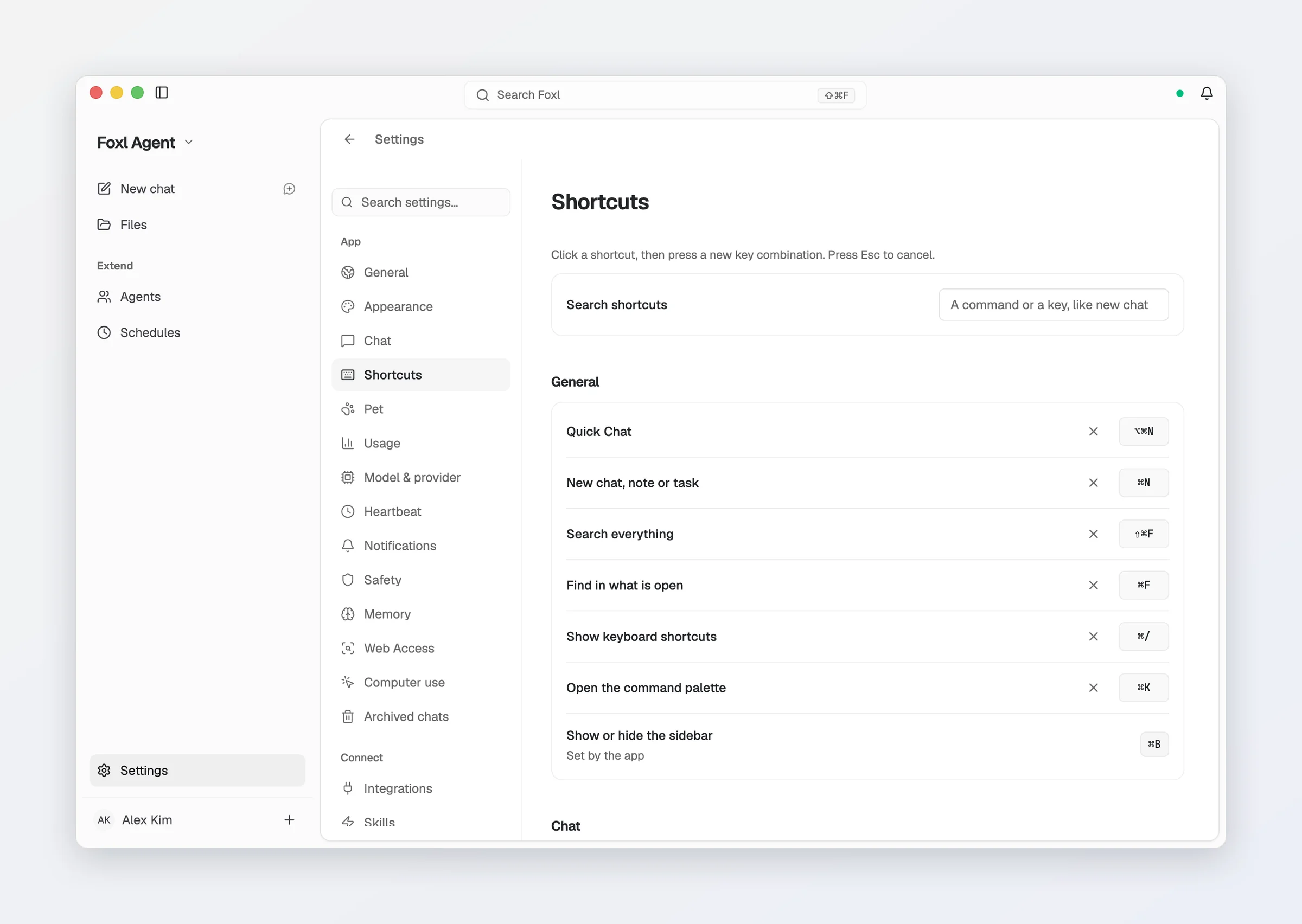
Shortcuts use Cmd on macOS and Ctrl on Windows and Linux. On the desktop app the main ones are also in the File and View menus, so the menu bar and the in-app shortcuts match. Settings > Shortcuts (on a computer or an iPad; a phone's Settings does not list it) lists the app's shortcuts, lets you rebind the ones the app itself handles (New, Find, Search, Delete, the command palette and the shortcut sheet) and warns about conflicts; Cmd+/ shows the same list over any screen.
| Shortcut | Action |
|---|---|
| Cmd+N | New note - clears the editor to an empty state |
| Cmd+F | Find in the current note (when a note is open) |
| Cmd+Shift+F | Search across all notes (the app search, with your notes listed first) |
| Cmd+D | Delete the open note, with Undo for 8 seconds (not while your cursor is in its text) |
| Cmd+K | Open the command palette: jump to a page or a setting, or run an action |
| Cmd+/ | Show keyboard shortcuts |
| Cmd+O | Import a recording or transcript (desktop app, File menu) |
| Cmd+1 / Cmd+2 / Cmd+3 | Switch to Foxl Agent / Notes / Code (desktop app, View menu) |
| Cmd+, | Open Settings (desktop app) |
| Hold Fn (macOS) / Control+Alt+D (Windows and Linux) | Dictate anywhere: type what you say into any app (desktop app). On Windows and Linux press it once to start and again to stop; change it in Settings > Dictate anywhere |
| Shift+Enter | New line in the assistant's message box, beside the note and in the Live panel's AI Assistant |
| Enter / Shift+Enter | In the find bar: next / previous match |
| Escape | Close the find bar |
How find behaves
- Cmd+F finds text inside the note you're viewing and highlights matches in place; on the Transcript tab it brings your notes forward with the find bar. With no note open it opens the app search on the web, the phones, the iPad and Windows; on the Mac and Linux desktop app, while the titlebar shows its search field, it does nothing, as in Foxl Agent - use Cmd+Shift+F there.
- Cmd+Shift+F opens the app search on the web, the phones, the iPad and Windows. On the Mac and Linux desktop app it focuses the titlebar search field instead while that field is shown (its default). Both find notes as well as chats, listing notes first while you are in Foxl Notes and after the conversations everywhere else.
These mirror the same shortcuts across all three products in the Foxl app (Cmd+N for a new item, Cmd+F to find within the open item, Cmd+Shift+F to search across all items), so switching between Agent, Notes, and Code feels consistent. In Foxl Agent, Cmd+F stays inactive when no conversation is open - on a settings screen, for example. In Foxl Notes it does the same on the Mac and Linux desktop app while the titlebar search field is shown; elsewhere, with no note open, it opens the app search.
The File menu
The File menu carries New, Find..., Search All... and Import Recording..., and the View menu switches products with Cmd+1/2/3. The menu items are product-aware: they act on notes while you're in Foxl Notes and on chats while you're in Foxl Agent.