
Diese Seite gibt es noch nicht auf Deutsch, deshalb wird sie auf Englisch angezeigt.
Calendar meetings
See today's meetings in Notes, record one with its title and attendees, and get a reminder before it starts
Connect a calendar and the Notes home lists today's meetings. Press Record next to one and the note is titled after that meeting and lists the people who were invited. This is on the desktop app.
Connect a calendar
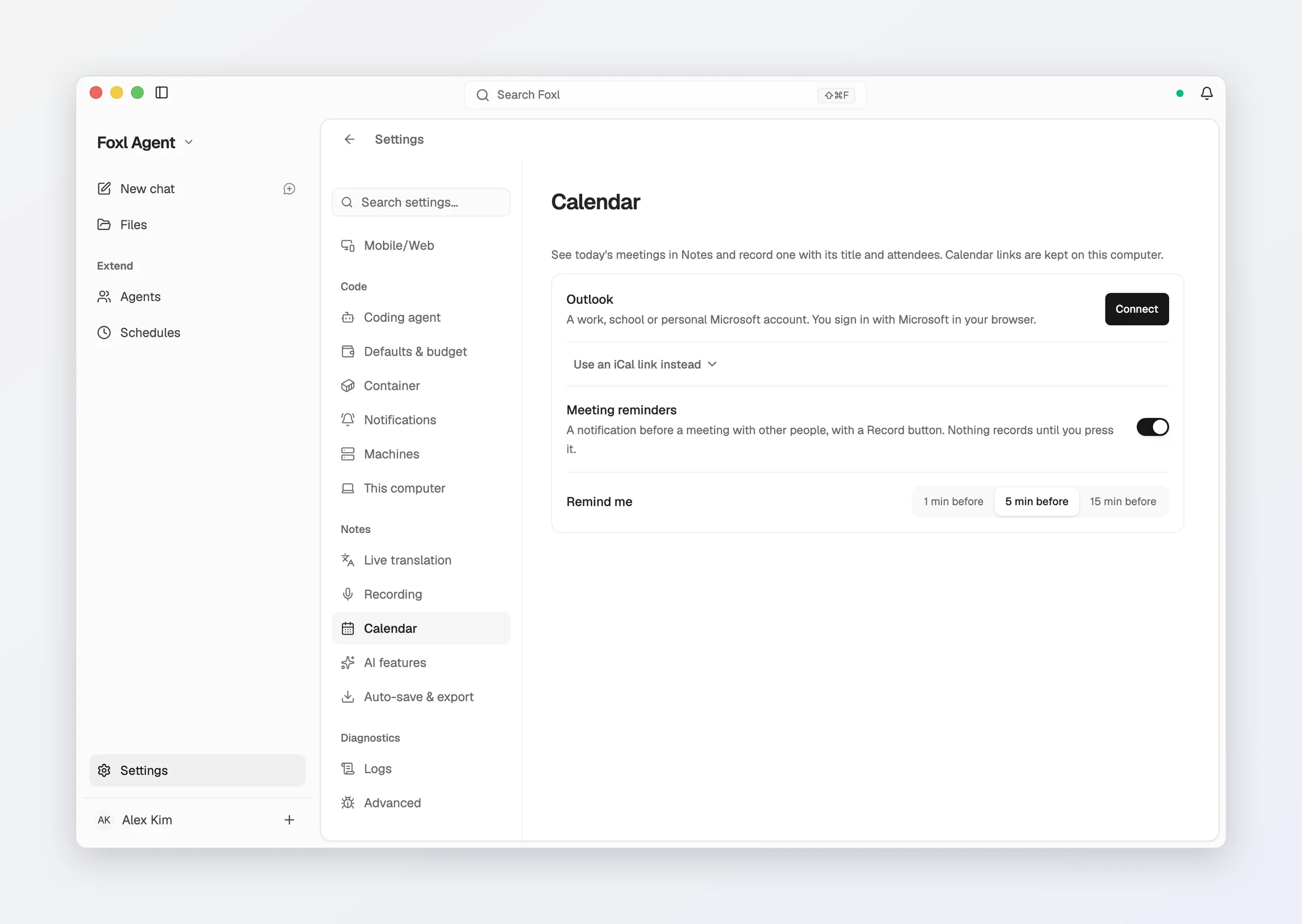
Open Settings > Notes > Calendar (the first time you open Settings, its tour points there):
- Calendar on this Mac (macOS): every calendar in the Calendar app, including the iCloud, Google and Exchange accounts added in System Settings > Internet Accounts. Press Connect and allow Foxl when macOS asks. If you chose Don't Allow, turn Foxl on in System Settings > Privacy & Security > Calendars; Open System Settings takes you there.
- Outlook (macOS, Windows and Linux): a work, school or personal Microsoft account. Press Connect and sign in with Microsoft in your browser. This is the same sign-in as Microsoft 365 on the Integrations page, so it also connects the agent's Outlook tools, and disconnecting Microsoft 365 there stops this calendar too. Foxl reads your default Outlook calendar.
- iCal link: for any other calendar, press Use an iCal link instead and paste the calendar's secret iCal (.ics) address. It needs no sign-in, and the calendar keeps itself up to date.
- Google Calendar: on the web, open Settings, pick your calendar under Settings for my calendars, then Integrate calendar, and copy Secret address in iCal format.
- Outlook: on the web, open Settings > Calendar > Shared calendars > Publish a calendar, choose Can view all details, and copy the ICS link.
- iCloud: in the Calendar app, share the calendar as a Public Calendar and copy its link. A
webcal://link works as it is.
Foxl checks a link when you add it. A link that does not return a calendar, such as a sign-in page, is refused with the reason, and nothing is saved.
Cancelled meetings are not listed, and neither are meetings you declined in the Calendar app or in Outlook.
Each calendar has its own switch. Turn it off to hide its meetings without removing it, and use the trash button to remove it.
Today's meetings
With a calendar connected, the Notes home shows a Today list under Start Recording:
- Each meeting shows its time, its title and how many people were invited. Hover over the count to see their names.
- Record starts a recording for that meeting, the same as Start Recording.
- Click the time or title of a meeting still to come to open its brief: your last two notes from a meeting with the same title or the same people, their open action items, and the meeting's description from your calendar. Click a note to open it. The brief is put together from the notes already on this computer and sends nothing anywhere.
- Meetings that have ended are dimmed. If you recorded one, Open note takes you to it.
- A thin Now line separates the meetings that have ended from the ones still to come.
- All-day entries, such as holidays, are not listed.
- A day with nothing on it says "Nothing on your calendar today", and once the last meeting has ended, "No more meetings today".
With no calendar connected, the list does not appear and nothing asks you to connect one. It is also hidden while you record, and while the Notes is almost ready card fills the home because a setup step is still missing.
Notes recorded from a meeting
A note recorded with a meeting's Record button:
- Is titled after the meeting. The automatic title from the AI summary does not replace it. You can still rename it.
- Shows the meeting's time and the people invited in a line above the note.
- Keeps that title and those people if Foxl closes in the middle of the recording and recovers the note.
- Fills in those people as recipients when you choose Draft follow-up email in the note's ... menu.
Meeting reminders
Five minutes before a meeting with at least one other person, the desktop app shows a notification, for example "Design review starts in 5 min". On macOS the notification has a Record button that opens Notes and starts recording that meeting. On Windows and Linux, click the notification to open Notes, then press Record next to the meeting.
- Reminders are on when you connect your first calendar. Turn Meeting reminders off in Settings > Notes > Calendar, or change the timing to 1, 5 or 15 minutes before.
- There is no reminder while a recording is already running, and only one per meeting.
- It follows Settings > Notifications like every other Foxl notification: with notifications turned off there is no reminder, and with sounds turned off it is silent.
- Nothing records until you press Record.
Privacy and cost
- Your calendar links and the downloaded calendars are kept on this computer, in Foxl's data folder (on macOS and Linux, readable only by your user account). Settings shows only the calendar's website, such as calendar.google.com, never the whole link.
- This computer downloads a link straight from your calendar provider when Notes opens or the Foxl window comes forward, at most once every 10 minutes, and otherwise at most every 4 hours. Reading a calendar uses no Foxl credits.
- Calendar on this Mac is read on this Mac by the Foxl app, and Foxl keeps no copy of it. Outlook is read straight from Microsoft by this computer, at most every 2 minutes while Notes is open and otherwise every 10 minutes, and is not saved to disk. Neither goes through Foxl's servers.
- A note recorded from a meeting stores the meeting's title, time and invited people with the note, like the rest of the note.
Recording
Start, pause, and stop a recording, the live transcript and the Live panel, where the audio goes, and importing recordings and transcripts
AI summary & assistant
Meeting summaries, speaker names, the AI Assistant, Live Q&A, the coaching report, follow-up emails, live translation, and choosing the models Notes uses