
Diese Seite gibt es noch nicht auf Deutsch, deshalb wird sie auf Englisch angezeigt.
Channels & Integrations
Message Foxl from Telegram, Slack, Discord, iMessage, Signal and eight more, let it act in Microsoft 365 and Slack as you, and read the threads those bots collect
Three different things share the word "channel" in Foxl, and it is worth separating them before anything else:
| What it is | Where | |
|---|---|---|
| Integrations | Services the agent can reach and act in, as you. Outbound. | Settings > Connect > Integrations |
| Channel adapters | Bots that let somebody message the agent from Telegram, Slack, Discord, iMessage, Signal and more. Inbound. | Settings > Connect > Channels |
| The Channels screen | The conversations the adapters collect - who wrote, and what Foxl answered. | Beside Chat, in Foxl Agent, once an adapter is switched on |
The rest of this page is about the first two. The Channels screen is described in The Channels screen at the end.
OAuth Integrations
Connect services with one click from Settings > Connect > Integrations. No API keys needed - Foxl uses OAuth to act as you.
| Service | Tool | Capabilities |
|---|---|---|
| Microsoft 365 | outlook | Email (inbox, read, send, reply, forward, search, folders, drafts, attachments, contacts, move, categories, update), Calendar (view, meeting, availability, room booking, search, shared list), To-Do (lists, tasks, checklist) |
| Slack | slack | Search messages, read channels/DMs/threads, send messages, open conversations, reactions, file uploads, user lookup |
| Gmail | gmail | Send email from your Gmail address. Send only: it cannot read, search or delete your mail. See Gmail |
After connecting, the corresponding tool is automatically registered and available to the agent. Disconnecting removes the tool.
Slack Workspace Selection
By default, Slack OAuth connects to the workspace you're logged into in your browser. To connect a specific workspace, enter the workspace name (the part before .slack.com) in the input field before clicking Connect.
Available Channels
Messaging bots (channel adapters)
Every adapter is under Settings > Connect > Channels, and each one answers only the people you list. A channel whose row is marked Preview has not yet answered a real message the way it ships, so it may not work yet. iMessage replies into SMS and RCS chats have not been tried with another person yet either.
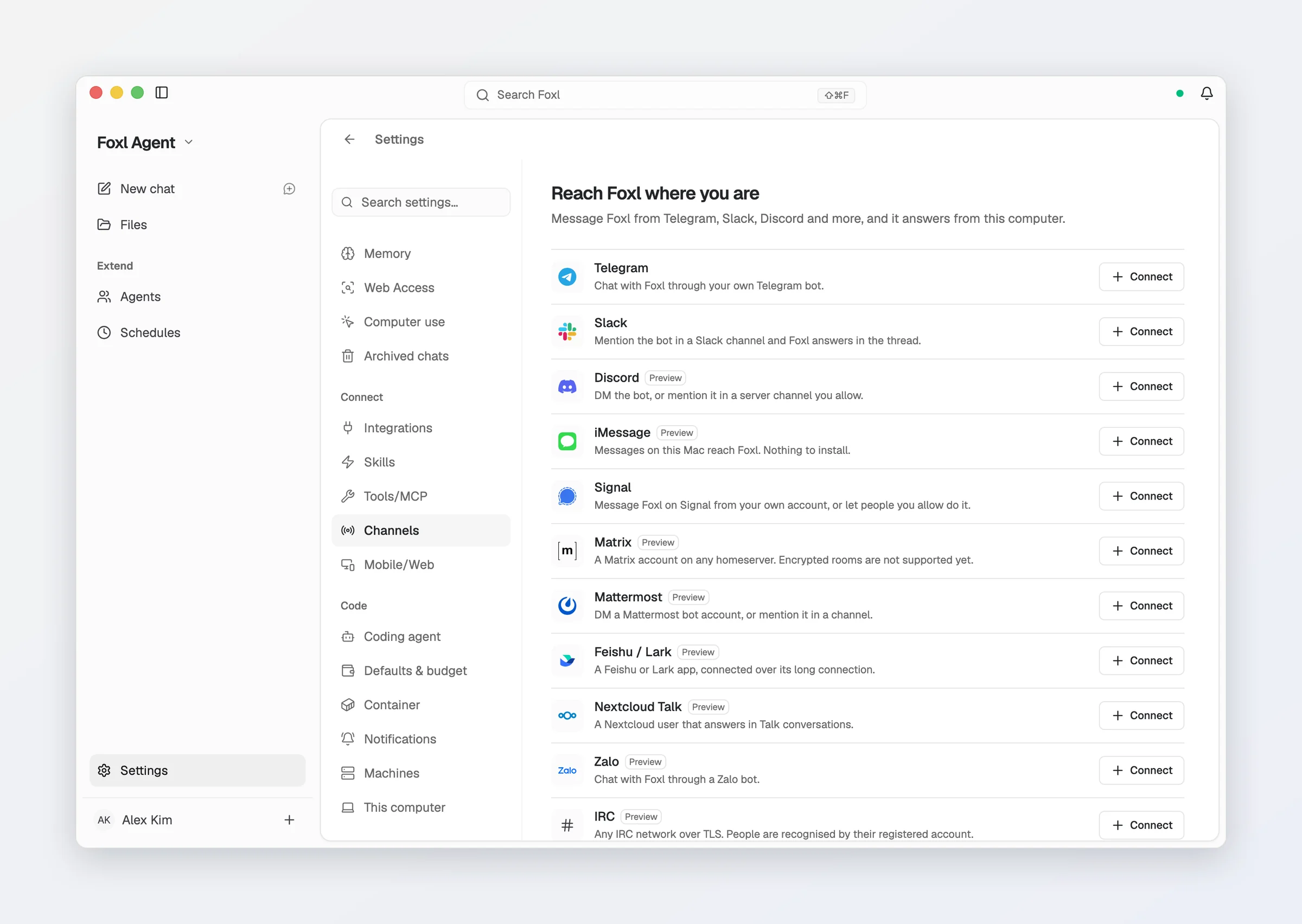
| Channel | What it needs | Notes |
|---|---|---|
| Telegram | A bot token from @BotFather, plus your chat id or an allowed-users list | Replies are formatted (bold, links, code) |
| Slack | A bot token (xoxb-) and an app-level token (xapp-, with connections:write), plus the channel ids it may answer in | Mentions in those channels. Direct messages too, from Allowed Users, once the app subscribes to message.im with the im:history scope and has the Messages tab on under App Home |
| Discord | A bot token from the Developer Portal with Message Content Intent on, plus the user ids that may message it | DMs; server channels only when listed and the bot is mentioned |
| iMessage (Mac only) | Full Disk Access for Foxl Messages (Foxl asks with one button), permission for Foxl Messages to control Messages (macOS asks once, when you press Start), and the phone numbers or emails that may message it, none of them an address of the Apple Account Messages uses on this Mac. Nothing to install: Foxl Messages, which reads and sends for Foxl, comes with Foxl | Messages on this Mac, including SMS and RCS chats (a reply keeps the chat's service; an SMS from someone you also have an iMessage or RCS chat with is answered in that chat). In a group chat Foxl answers a listed person who writes @foxl, and the whole group sees the answer. Foxl answers only messages from another account: a message you send to yourself gets no answer, and Start refuses a listed number or email of this Mac's own account. To write to Foxl from your own phone, sign Messages on this Mac in to a separate Apple Account for Foxl. Typing indicators and read receipts are not available (macOS offers them only to Apple's own apps), and the row says so. If Foxl Messages may not control Messages, the row says that replies cannot be sent and where to allow it |
| Signal | A phone number to link by QR code, plus who may message it: your own Note to Self once Phone Number is filled in, and each other person by their Signal ID (the row shows the ID of the last sender it turned away) | Direct messages only |
| Matrix | Homeserver URL, the bot's user id and access token, and the Matrix ids that may message it | Unencrypted rooms only for now; an encrypted DM gets a short note instead of an answer |
| Mattermost | Server URL, a bot account token, and the usernames that may message it | DMs; channels when listed and mentioned |
| Feishu / Lark | App ID and App Secret of an app using the long connection, and the open_ids that may message it (the row shows a refused open_id to copy) | DMs; groups when the bot is mentioned |
| Nextcloud Talk | Server URL, the bot user's name and an app password, and the user ids that may message it | One-to-one conversations; groups when mentioned |
| IRC | Server, nickname and the services accounts that may message it (optional SASL password) | Over TLS. People are matched by their logged-in services account, never by nickname |
| Twitch | The bot's username and an OAuth token with chat:read chat:edit, the channels to join and who may talk to it | Answers @mentions, in the channel's public chat |
| Nostr | A secret key made for the bot, and the public keys that may message it | Encrypted direct messages (NIP-04) |
| Zalo | A Zalo bot token, and the user ids that may message it (the row shows a refused id to copy) | Direct messages |
Slack is also an outbound integration (the slack tool, connected by OAuth above) -
the bot and the integration are separate connections. This is the whole list: the pane
offers only channels this desktop can run. WhatsApp is held for now (its only library brings in
a GPL-3.0 dependency). Microsoft Teams, Google Chat, LINE, Synology
Chat and SMS through Twilio are not offered, because those services deliver messages only to
a public web address, and this desktop does not accept connections from the internet. A
channel saved for another platform by an earlier version is still listed, with Remove,
so what was saved for it can be deleted.
iMessage: give Foxl its own Apple Account
The iMessage connect dialog opens on the recommended setup: an Apple Account of Foxl's own,
signed in to Messages in a second user on this Mac (foxlbot). You then message Foxl like any
other contact, and its replies never look like your own. The
iMessage setup guide walks through every step of the dialog with
screenshots: picking Foxl's address, creating its Apple Account and Mac user, the two macOS
permissions, the first message, what to do after the Mac restarts, and how to undo the setup.
This setup has not been run end to end on a real Mac yet, which is one more reason the iMessage
row is marked Preview.
Social Media
There is no built-in X/Twitter skill today; use the exec tool with a CLI of your choice, or the browser extension on x.com.
| Channel | Skill | Requirements |
|---|---|---|
| Microsoft 365 (Outlook) | outlook integration | Connect under Settings > Connect > Integrations (OAuth) |
| Email (CLI) | himalaya | himalaya CLI tool |
| Gmail (send only) | gmail integration | Connect under Settings > Connect > Integrations (OAuth); it sends and never reads |
| Gmail | browser_extension | Logged into Gmail in Chrome |
| Outlook | browser_extension | Logged into Outlook in Chrome |
Smart Home
| Channel | Skill | Requirements |
|---|---|---|
| Spotify | spotify / spotify-player | Spotify account |
| Sonos | sonos | Sonos speakers on network |
Setting Up a Channel
Method 1: Channel adapters
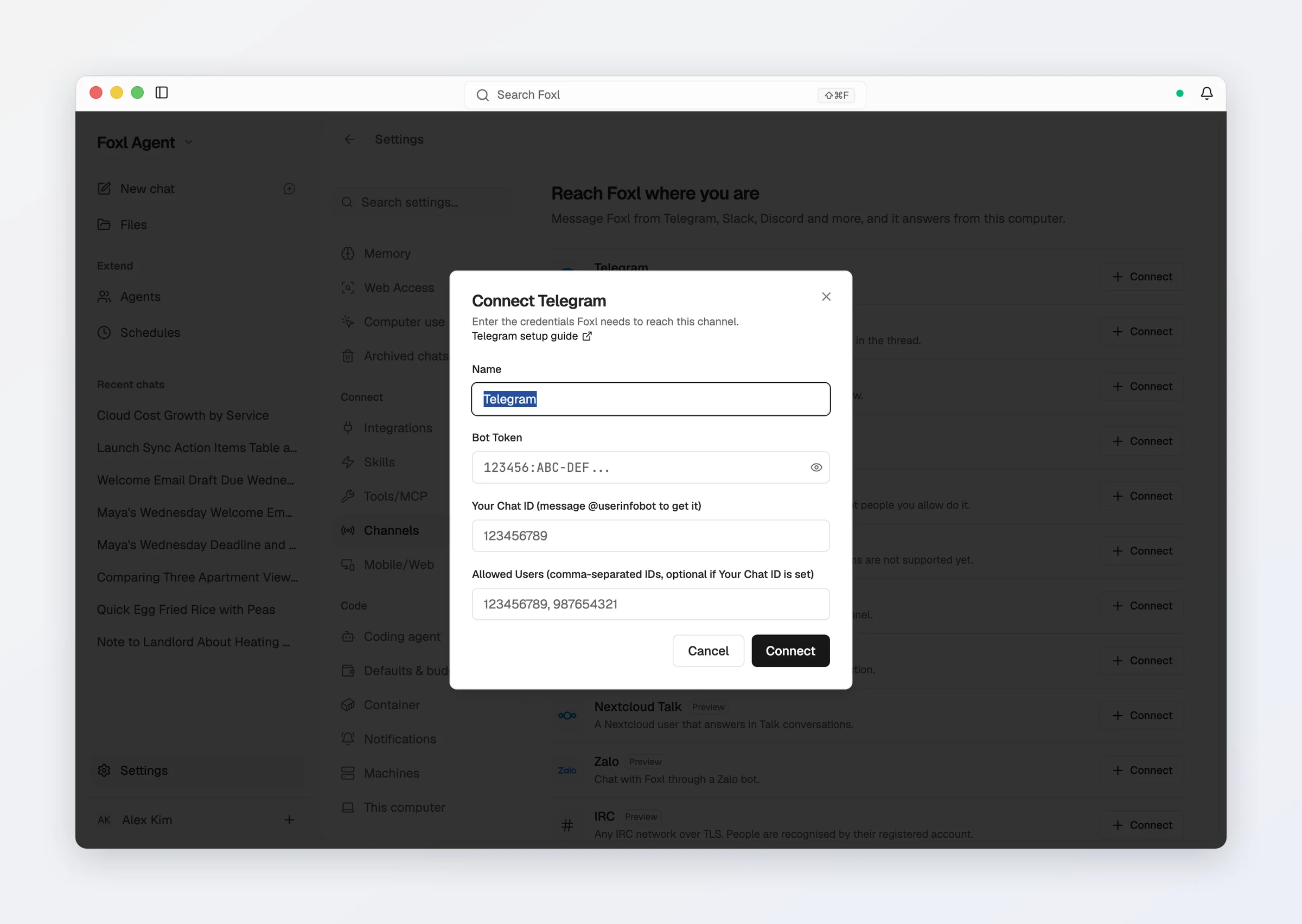
- Open Settings > Connect > Channels and press Connect beside the channel (the dialog links to that service's own setup guide)
- Paste the bot's credentials and list who may talk to it - the list starts empty, and an empty list answers nobody. For Signal, press Show QR code and scan it in Signal on your phone (Settings > Linked devices > Link new device); this needs
signal-clion the computer, and the dialog says so when it is missing - Save, then press Start; the row says Connecting at once (its button is then Stop) and Connected once the channel is up, and later links to the conversations it has collected
Other services are reached through skills: open Settings > Connect > Skills, and each skill's SKILL.md contains its setup steps, including what API keys or tools are needed.
Method 2: Browser Extension
For web-based services (Gmail, Outlook, Google Calendar, Slack web), the Chrome Extension provides direct access:
- Install the Chrome Extension
- Log into the service in Chrome
- Ask the agent to interact with it
No API keys needed - the agent uses your existing browser sessions.
Method 3: Shell Tools
Some integrations work through CLI tools:
# Email via himalaya
brew install himalaya
# Then: "Check my email"
Signal needs none of this - it is a built-in adapter under Settings > Connect >
Channels that drives its own signal-cli and links your number by QR
code.
Example Workflows
Morning Slack Summary
"Every morning at 8am, check my Slack channels and summarize unread messages"
Uses: the slack integration + scheduling
Answering a team channel
Add your Telegram group (or a Slack channel id) under Channels and let Foxl answer questions there with your local tools.
Uses: the Telegram or Slack adapter
Email-to-Slack Bridge
"When I get an email from [email protected], send a summary to my Slack #clients channel"
Uses: browser_extension (Gmail) + the slack integration + scheduling
Music at a set time
"At 7pm, play my Focus playlist on the kitchen speaker"
Uses: sonos or spotify skill + scheduling
Integrations and channel adapters run on the Foxl desktop app. In the iOS app, connecting Microsoft 365 or Slack tells you to connect it in Foxl on your computer, signed in to the same account; once it is connected there, the agent can use it from your phone too, while your computer is on.
Adding New Channels
If you need a channel that isn't available as a built-in skill, you can:
- Create a custom skill with instructions for the agent
- Use the
exectool to run CLI commands for the service - Use the
browser_extensionto interact with the service's web interface
The Channels screen
Channels sits beside Chat in Foxl Agent and holds every conversation that arrived through a channel adapter. It appears in the sidebar, and in the phone's tab bar, once an adapter is switched on under Settings > Connect > Channels; while it has no conversation yet, it says one appears when someone messages your bot, with Open channel settings. While your desktop is off, it says Can't reach Foxl Desktop, where these conversations live.
The first time a channel connects, the people you allowed are listed there right away, each as a conversation with no messages yet, so you can write first (on Telegram only to someone who has messaged your bot before: Telegram does not let a bot start a conversation). When one of them writes, it continues that conversation instead of opening a second one. This works for Telegram, Signal, Slack, Discord, iMessage, Mattermost, Nostr and Zalo; Matrix, Feishu, IRC, Twitch and Nextcloud Talk show a conversation once someone writes, and a channel that already has conversations keeps just those.
Conversations from your channels
Somebody messages your bot, Foxl answers with your local tools, and the reply posts back to that platform. Here you see the whole exchange: who wrote, what they said, and what Foxl replied. Each reply is labelled, so an answer the AI wrote can never be mistaken for one you sent. While a channel is set up, these conversations stay out of your own chat list (search and Export everything still include them).
An adapter answers only in channels you list, and the list starts empty. A message from a channel you have not added is ignored - it is not "everyone in the workspace unless you say otherwise". That default is deliberate and load-bearing: a channel-originated run uses your local tools on your machine, so the allowlist is what stands between a workspace member and a shell. Add channels under Settings > Connect > Channels.
One consequence worth knowing: in a channel, the Slack adapter only sees messages that
@-mention the bot (so it is not reading your channel history). Direct messages arrive
only from the people in Allowed Users, and only once the Slack app subscribes to
message.im with the im:history scope and has the Messages tab on under App Home.
Everything the Slack bot posts has its &, < and > escaped, so a reply cannot notify a
whole channel (@channel, @here, @everyone), mention someone, or show a link whose label
is a different address from where it goes: a link is posted as its label followed by the
address. Bold, italic and code formatting still show.
What a channel run may do
Channel runs follow Settings > Safety > By where a run comes from > Channels, which starts on Full access - your Safety rules as they are, auto-approve included, which is how channel runs always worked. Two stricter choices:
- Ask first: shell commands, file writes, the browser and sending ask for approval in a Foxl window on this computer, as if auto-approve were off. With no Foxl window open the call is refused at once and the thread is told why.
- Read only: the run gets only the tools that read - files, web pages, memory, past conversations. Every tool that can change something, your custom and MCP tools included, is removed, and a call to one is refused. The reply can still quote what the run read, so this keeps a message from changing your computer; it does not keep your files private from the person who asked.
Even on Full access, a message, mail or web-page text that carries a card number, a Korean resident registration number or a US Social Security number, and a browser click that can pay or book, wait for your approval in a Foxl window; with no Foxl window open, nothing is sent or clicked and the run says it needs your OK.
Over iMessage an SMS from a listed number is answered too, and anyone can send an SMS that shows someone else's number, yours included. A listed number is therefore no proof of who wrote an SMS: under Full access, whoever fakes one runs the agent with this computer's tools. If that matters to you, put Channels on Ask first or Read only.
Replying yourself
You can answer straight from the thread. Your reply goes out on the channel it came from, in the right Slack thread, and it is only recorded once the platform has actually accepted it.
Tapping a "message from Telegram" notification lands on the thread rather than on the assistant chat, and the Channels row in Settings links to the conversations it has collected.
Where the threads live
Threads live on the desktop, so they show up wherever your desktop is reachable - including a phone on the relay. They do not need a team or a shared workspace.
A mention that arrives while your computer is asleep or the app is quit is missed, not queued. The adapter holds an outbound connection rather than a mailbox, so there is nothing to replay when it comes back. Turn on Keep running when closed if you want the machine to keep answering after you quit the app.
The Channels screen belongs to Foxl Agent only. On code.foxl.ai, /channels
lands on Tasks like any other unknown path.
Team channels, direct messages and huddles
Once you create or join a Foxl workspace (any account can, a Free one included), the same screen also holds the workspace's own channels and direct messages, and huddles. Until then the Channels screen shows the adapters' conversations only, and everything above works the same without them. A workspace a Free account owns is never charged for them.
Where an account has them:
- Threads: Reply in thread is on a message's hover bar, its right-click menu and, on a phone, the long-press sheet. The reply goes under the message it answers, which then shows 3 replies with who replied and when; the thread opens beside the channel on a wide screen and as its own screen on a phone. A link to a reply, or a notification about one, opens its thread. A reply to a message further back than the channel has loaded stays in the channel until Load older messages brings that message in. Loading older messages keeps your place.
- Statuses: Set a status at the top of the workspace menu (the ... beside the workspace name) takes an emoji, a line such as "In a meeting" and when it clears (30 minutes up to the end of the week, or never). It shows after your name in direct messages and in a direct message's header, for everyone who shares a channel or direct message with you. A person's dot is green while they are active and a hollow ring while they are away; Set yourself as away and Appear offline set it by hand (Appear offline hides your dot and leaves a status you set showing). Dots show only for people in the channel you have open.
- People: click or tap someone's name or picture on a message, an @mention of them, or their row in the member list, and their card opens with their name, email and role in the channel, Message (opens your direct message with them, starting one if needed) and Copy email. The member count in a channel's header opens the member list, with a search field and Add people at the top; on a phone the channel's ... menu has a Members row.
- Unreads: a message in a room you are not looking at raises its unread count and moves it up the list as soon as it is sent (in a room with more than 50 other members, the 50 who read it most recently see it at once and the rest within 5 minutes). On a computer or an iPad, More unreads at the foot of the channel list takes you to an unread channel below the fold. While you read back, the date of the day you are in stays pinned at the top.
- Keyboard: Option+Up and Option+Down (Alt on Windows and Linux) move to the channel above or below, passing over a channel you are not in, and Option+Shift+Up and Option+Shift+Down to the previous or next unread one. Both can be changed in Settings > Shortcuts.
- Pictures in a channel or direct message show in the conversation, as in Slack: click one (or press Enter on it) to see it full size, zoom in, or save it. The ones you pick show as small previews in the message box before you send. A file that is not a picture, a picture over 8 MB, or a format your browser cannot show (HEIC in Chrome, for example) stays a file you can download.
- Coming back: in the iPhone, iPad and Android apps and on app.foxl.ai, a channel or direct message you read before opens on its last messages right away, also after the app was closed, and new messages, edits and deletions arrive a moment later. What the device keeps for this is limited: each workspace's channel list, the newest 50 messages of up to 24 conversations, and up to 48 MB of the pictures you saw there (each up to 4 MB), which then load from the device instead of downloading again; all of it for a week at most, encrypted like the chat history Foxl keeps on the device. It is deleted when you sign out or another account signs in, and a conversation you can no longer open is removed from it. The desktop app also reopens a conversation on its messages, but keeps nothing once it is closed.
- Huddles: press the headphones in a channel or DM to start one. Starting one rings the other side of a DM - on their phone too, and everyone else in a group DM at the same time - and posts a "started a huddle" line in the conversation. A huddle in a channel does not ring everybody in it; the line plus the pulsing headphones is the signal there, and the invite picker calls someone in. A huddle invite is marked time-sensitive, so the ring can reach you inside Do Not Disturb, and it expires after two minutes. See Notifications.
- Profile pictures: teammates see the picture you set on the Account page. A picture set from an image link is copied into your Foxl account when you save it, so their apps load it from Foxl rather than from the site you linked; the link has to point to a JPEG, PNG, WebP or GIF of up to 512 KB.
- Limits: each account can post about 1,000 messages, edits, reactions and typing indicators a day (a message counts once per 2,000 characters) and 120 a minute, and create 20 workspaces and 300 shared folders a day. Over a limit the action is refused and nothing is saved; the message says whether to wait a minute or, for the daily limit, about how many hours until it resets.
Conversations
Chat sessions, temporary chats, projects, pinned chats, pop-out windows, search, the message box, keyboard shortcuts, what a reply shows, chat settings, and export
iMessage setup guide
Text Foxl from your iPhone over iMessage - give Foxl its own Apple Account in a second user on your Mac, every step of the Connect iMessage dialog with screenshots, what to do after a restart, and how to undo it