
此页面尚无中文版本,因此以英文显示。
Recording
Start, pause, and stop a recording, the live transcript and the Live panel, where the audio goes, and importing recordings and transcripts
A recording is the heart of a Foxl note. While you record, Foxl streams your microphone audio to a live transcript in the note's Transcript tab, one tab over from the Notes tab where you type.
Start a recording
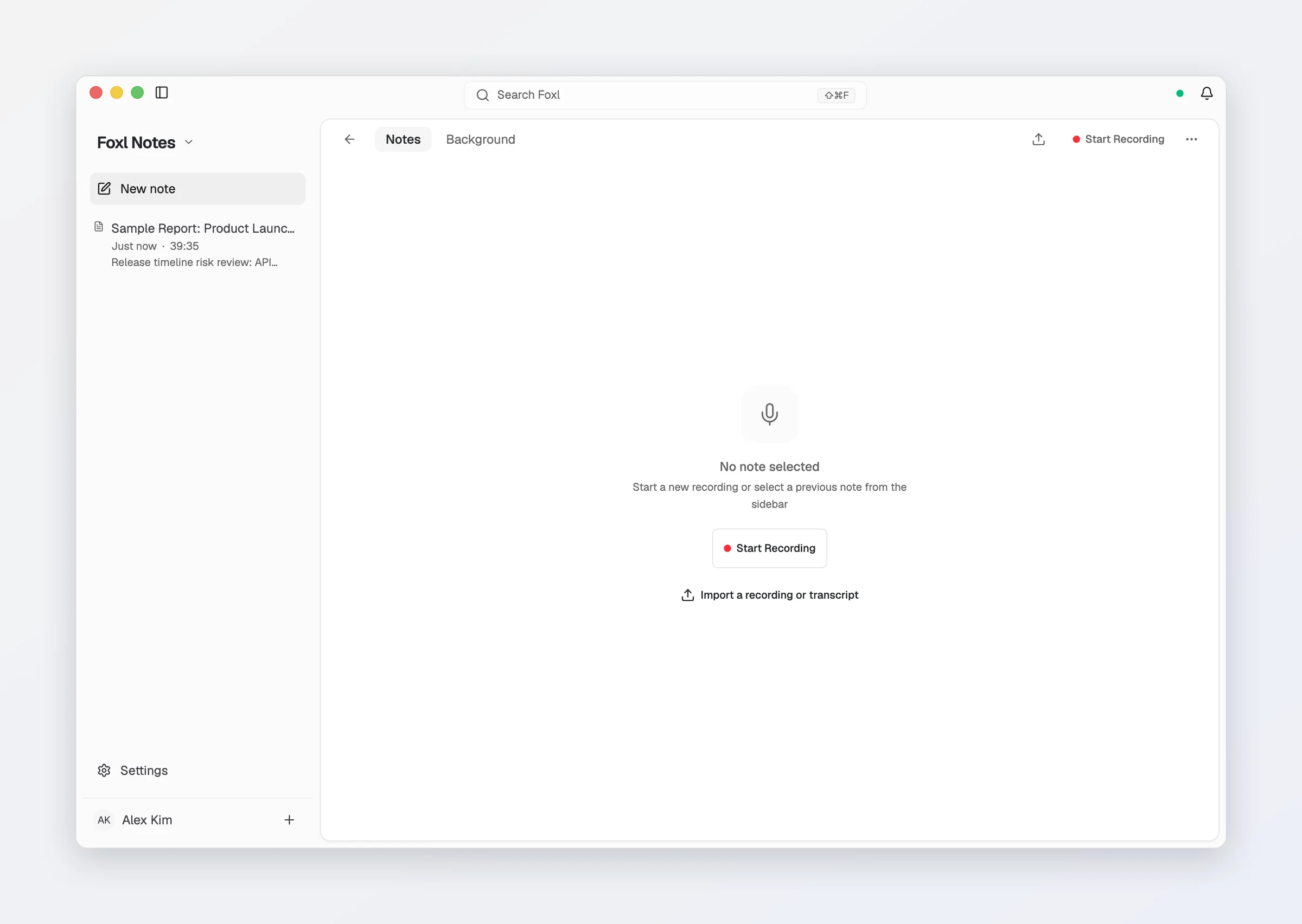
Press Start Recording in the top bar (on the desktop the tray menu's New Recording does the same and jumps to Notes). With no note open, the desktop, a tablet and a wide browser window show a large round Start Recording button, with Import a recording or transcript under it. On the iPhone and iPad, New Recording on the Foxl icon's home-screen menu, or in the Shortcuts app (iOS 16 and later), opens Notes and starts recording; on Android, a long press on the icon offers New recording, which opens Notes with a Start Recording button for you to tap. Foxl asks for microphone permission the first time, then begins capturing immediately. A red dot and a running timer show that recording is active.
On your first recording, and on each one that also records the meeting's audio on your computer, a notice says that recording other people may need everyone's consent. Tell participants copies a line to paste into the meeting chat, and Don't show again stops the notice. It appears once the recording is running, so it never holds up the start.
On the desktop app you can grant the permissions before your first meeting instead. While something is still missing, the Notes home shows Ready for your first meeting with a row for the Microphone and one for Audio from other apps: Allow asks the system for it, and the row reads Allowed once the system reports it granted. The system asks only once, so a permission turned down earlier reads Blocked in System Settings (on Windows, Windows Settings), and Open System Settings takes you to the system's privacy settings for it; come back to Foxl and the row updates. The rows disappear once everything is allowed, and they never stop you from recording: Start Recording still asks for anything missing. On a Mac, audio from other apps needs two permissions, System Audio Recording and Screen & System Audio Recording (Foxl captures the screen only to get its audio, and keeps no video), and the row checks both. Windows needs no permission for audio from other apps, so there only the microphone row can appear. On Linux there is only the microphone row, and Allow opens the microphone once to check it works.
On the desktop, transcription starts on Automatic: Amazon Transcribe on your own AWS account when this computer has AWS credentials it can sign with, otherwise the on-device engine once you have installed it. For Amazon, the desktop app signs the connection from the AWS credentials already on your computer, found the same way Amazon Bedrock chat finds them (a profile, an SSO session, environment variables, a credential_process in a custom AWS config file, an EC2 instance role), so there is nothing to paste and no Foxl sign-in. With neither AWS credentials nor the engine, Foxl says plainly, and at once, that transcription is not set up, before the microphone opens, with the Install engine button on a Mac with Apple Silicon, a Windows PC or a Linux x64 computer. A provider with your own API key is always something you choose: when this computer already holds such a key (a Gemini key from Settings > Model & provider, for example), the Notes is almost ready card and the "not set up" line in Settings > Notes > Recording offer it as one button, such as Use Gemini, and the card says beforehand when that provider's free tier may use the audio. If something is missing, the Notes home says so before you press record: Notes is almost ready lists each missing step (Transcription, or Summary when no model can write one) with one line and one button, and the microphone and audio-from-other-apps rows join the same card. On a Mac with Apple Silicon that button is Install on this Mac (the speech engine, about 1.3 GB, or Gemma 4 for the summary, about 5.2 GB on most Macs), or Install both on this Mac (on Windows and Linux, Install on this computer and Install both on this computer), with Other options and Use a provider instead one link away; elsewhere it is Set up, which opens the pane that fixes it. A step leaves the card when it is done. Foxl remembers the answer for a few minutes, and the Check again button on the card asks this computer again at once, so a credential you have just fixed (an instance role you have just attached, for example) shows up without waiting. In Settings > Notes > Recording the "not set up" line under Automatic has its own Re-check button that does the same. See Where the audio goes below for the other engines.
On the desktop app for macOS and Windows, Foxl also records the other participants' voices playing on your computer (meeting apps, browser tabs) alongside your microphone, so a call on headphones is not one-sided. This is Capture system audio under Settings > Notes > Recording, on by default; macOS asks once for System Audio Recording permission (and for Screen & System Audio Recording, which the capture needs too), and the pane has a Test system audio button to check it. The Linux app cannot capture system audio, so it records your microphone only and offers neither the option nor its test; live translation still translates what your microphone hears.
The live transcript
As you speak, the note's Transcript tab, right after Notes in the top bar, fills in line by line:
- Speaker labels. Foxl groups speech into "Speaker 1", "Speaker 2", and so on, in the app's language (화자 1 in Korean, for example), numbered in the order they first speak and each in its own colour. Click a label to rename the speaker - the new name applies across the whole transcript and keeps a colour of its own. To have Foxl put the names said in the meeting on them once a recording ends, turn on Name speakers automatically (off by default; see Speaker names). (OpenAI, Gemini and OpenRouter do not separate speakers; every other engine does. AssemblyAI charges for speaker labels on top of the transcript.)
- Your notes stay yours. The Notes tab is for what you type, and the transcript stays in its own Transcript tab. To also have every finalized transcript line written into your notes as it arrives, turn on Transcript in my notes under Settings > Notes > AI features (off for a new install; an install that used Foxl Notes before v0.8.6 keeps it on). A recording you did not type into still becomes a note with the whole transcript in it.
- Partial vs final. Words may appear faintly first (a best guess) and then firm up - that's the transcriber settling on the final text.
- Following along. The transcript follows the newest line. Scroll up to read back and it stays where you are; Jump to latest takes you back to the end.
Your notes and the transcript share one place in the window: the Notes and Transcript tabs switch between them, and a look at the transcript during a meeting keeps your place in your notes. The AI Assistant button in the top bar shows or hides the assistant at the right edge of the window, beside either tab, so the window never splits into more than two columns, and the next note and the next recording open with the assistant as you left it. In a narrow window the button moves into the top bar's ... menu. Drag the assistant's left edge to make it wider or narrower - Foxl remembers the width.
The Live panel
On the desktop app a floating, always-on-top glass panel opens when a recording starts (turn that off with Live panel under Settings > Notes > Recording; the Live panel button in the top bar, or the ... menu in a narrow window, opens it any time). It has three tabs: Live, the transcript with each speaker in their own colour; Notes, the note itself, with the same editor and toolbar as the main window (what you type there is in the note, and the other way round); and Background, the same context as the note's Background tab. A recording always starts on Live.
The purple sparkle in its title bar opens the AI Assistant on the right of the transcript and widens the panel to make room, so the transcript stays in view while you ask; press it again to close it. It is the same assistant and the same conversation as the one beside your note, and it opens with the recording when you left the assistant open in the main window. The title bar also has its own start / pause / stop controls, Mini mode (a small caption pill for screen sharing, with a small red dot while it records) and the Options menu, in three groups:
- Display - Transparency (70% to start), Text size (13px to start), Theme (Auto, Dark or Light; Dark to start) and Fully transparent.
- Captions - Transcription language (the same setting as Settings > Notes > Recording; it applies to your next recording), Live translation, Translate into, Translation only (the translated line in place of the original) and Show times.
- Window - Live Q&A (see Live Q&A), Suggestions (the AI Assistant's suggestions and quick actions, such as What to say), Always on top and Close the Live panel when the meeting ends.
The panel closes when the recording stops; turn off Close the Live panel when the meeting ends, in its Options menu or under Settings > Notes > Recording, to keep it open across back-to-back meetings. The same Settings pane has Live panel transparency, Text size and Suggestions.
Closing the panel brings the Foxl window forward on that meeting's note: the one being recorded, or the one you just stopped. So does pressing Stop in it, while Close the Live panel when the meeting ends is on (the default). A panel you open and close with nothing recorded, or a Stop pressed in the Foxl window, leaves everything where it was.
Pause and resume
Press Pause to stop capturing without ending the recording - useful for a break or an off-the-record moment. Press again to resume. The timer pauses with you.
A recording you forgot about pauses itself. Once nobody has spoken for 15 minutes, counted from the meeting's scheduled end when the recording is for one, Foxl pauses it so nothing more is transcribed, and a notice offers Keep recording, which carries on in the same note. On the desktop the notice is also a system notification. If you leave it, the recording is saved as a note 30 minutes later. A meeting that keeps talking is never cut, and a recording you paused yourself is left alone. While it waits paused, the iPhone and iPad app has released the microphone; the desktop, Android and browser apps hold it until the note is saved. Turn it off with Stop a forgotten recording under Settings > Notes > Recording.
Stop a recording
Press Stop to finish. Foxl saves the note, names it from what was said (Auto title, on by default) and, if Auto Summary is on and a model provider is connected, immediately writes a structured summary into the note's Summary tab (see AI summary). On the desktop, with Auto Save on, a copy is also written to your auto-save folder (see Exporting & saving). The finished note appears at the top of the sidebar list.
If the transcription engine refuses mid-recording - an expired AWS session, a key that has run out of quota, or, on an account with the Foxl Relay engine, its credits running out - Foxl says why and stops the recording rather than running on with an empty transcript. An Amazon Transcribe refusal is put in a few words ("your AWS credentials are not allowed to use it") instead of Amazon's own message, which names your AWS account number and role, and any other refusal has account numbers, ARNs and access key ids removed. The live text already written into the editor stays on screen, but no note is filed and the audio is not kept, so fix the cause and record again.
Languages
Foxl transcribes many languages. Set your spoken language under Settings > Notes > Recording (Korean, English, Japanese, Chinese, Spanish, German, French or Portuguese), or leave it on Auto-detect, which lets the engine identify the language and leans toward the app language. The interface language is separate and lives under Settings > General.
Where the audio goes
By default (Automatic) transcription runs on Amazon Transcribe in your own AWS account, or on the on-device engine when this computer has no AWS credentials and the engine is installed; on the phone and app.foxl.ai, Automatic is Amazon Transcribe through your desktop. Under Settings > Notes > Recording (the pane is headed Recording and transcription) you can pick a destination yourself, and the choice applies to live recordings and imported audio files (Dictate anywhere has its own, see below). Voice input from the microphone button in the chat, Quick Chat and Code message boxes uses it too, on Amazon Transcribe, the on-device engine or Foxl Relay; with a provider that takes your own API key picked here, that button says it cannot use the provider yet. The button shows only where what you say can be transcribed: on an account Foxl Relay does not transcribe for, it is gone from the desktop app while Foxl Relay is picked here, and from the phone apps and app.foxl.ai while no computer is connected or Foxl Relay or On device is picked. The Notes AI Assistant's microphone follows the same rule. The pane says which engine Automatic is using, and the Transcription Provider list marks each destination this computer can already use (AWS credentials, the installed on-device engine, an API key) as Ready and lists those first:
| Destination | What you need | Who bills you |
|---|---|---|
| Amazon Transcribe | AWS credentials on this computer, and a region | AWS, directly |
| On device (Apple Silicon, offline), or On device (offline) on Windows and Linux | a Mac with Apple Silicon, a Windows PC or a Linux x64 computer, and a one-off download of about 1.3 GB (plus about 33 MB for speaker labels), from the Install engine button in this pane | nobody - the audio never leaves your computer |
| Deepgram | a Deepgram API key | Deepgram, directly |
| AssemblyAI | an AssemblyAI API key | AssemblyAI, directly |
| OpenAI | an OpenAI API key | OpenAI, directly |
| ElevenLabs | an ElevenLabs API key | ElevenLabs, directly |
| Gemini | a Gemini API key from Google AI Studio (the free tier works) - the one you connected under Settings > Model & provider is used unless you paste another | Google, directly - free of charge on the free tier |
| OpenRouter | an OpenRouter API key - the one you connected under Settings > Model & provider is used unless you paste another | OpenRouter, from your account's credits |
| Foxl Relay | an account Foxl has enabled for it - the option is hidden otherwise | Foxl credits, by the second of audio |
Paste the API key into the field that appears under the provider you picked (for Gemini and OpenRouter the field says when the key from Settings > Model & provider is already being used). It is stored encrypted on your computer, is used only to open the transcription connection, and is never sent to Foxl. On the iOS and Android apps you can paste a Deepgram, AssemblyAI, OpenAI or ElevenLabs key in the same place; see Recording on mobile.
With OpenRouter you also pick the Transcription model, from the speech-to-text models OpenRouter offers at the time (for example MAI-Transcribe, Universal-3.5 Pro, Whisper or Voxtral); the list comes from OpenRouter, and the link under it compares their prices. OpenRouter transcribes audio only for an account holding at least $0.50 in credits, so a free OpenRouter account cannot be used for this. Refuse providers that train on your data in Settings > Model & provider does not cover this audio yet: it follows the training setting in your OpenRouter account's privacy settings, and while that switch is on, a line under the OpenRouter model here says so. OpenRouter transcribes one passage at a time rather than as a live stream: the desktop cuts the audio at the speaker's pauses, so each line appears shortly after a pause, with no live preview, and when you press Stop or Pause the recording waits a moment for the last passage.
Two things to know before you switch. The on-device engine needs the Foxl desktop app, and so do Gemini and OpenRouter with your own key; the iOS and Android apps keep their own Deepgram, AssemblyAI, OpenAI or ElevenLabs key (see Recording on mobile), and app.foxl.ai in a browser has nowhere safe to keep a key, so it offers none of these. And OpenAI, Gemini and OpenRouter do not separate speakers, so with any of those the whole transcript is attributed to one speaker. Amazon Transcribe, Deepgram, AssemblyAI, ElevenLabs, the on-device engine and Foxl Relay all label speakers; AssemblyAI bills speaker labels as an add-on to the transcript. Foxl tells you which is which under the provider you pick. On Google's free tier, Google may use the audio and transcripts to improve its products; a key on a paid plan (billing enabled) is not used that way, and the Gemini key field says so.
On device (offline, on your computer)
The On device engine runs speech recognition on your Apple Silicon Mac's GPU, or on the graphics card of a Windows PC or a Linux x64 computer when it has one that works with Vulkan and its processor otherwise - nothing is uploaded, nothing is metered, and it keeps working with the network off, which suits a confidential conversation or a machine with no internet. Pick it under Settings > Notes > Recording (on Windows and Linux the option reads On device (offline)) and press Install engine: a one-off download of about 1.3 GB that lives outside the app, so a Foxl update does not fetch it again. Run Notes on this Mac in the first-run setup, Install on this Mac on the Notes home (Run Notes on this computer and Install on this computer on Windows and Linux) and the Qwen3-ASR 0.6B row under Settings > Model & provider > On this device run this same install, so its progress shows in each of them. A second small download (about 33 MB) adds speaker labels, and Settings offers Install engine once more if you installed before those existed. While it transcribes, the engine needs about 2 GB of memory (Settings > Model & provider > On this device lists it with its size). If it ever falls more than 10 seconds behind the conversation, the recording says so and keeps going; every line still arrives. While the on-device chat model (Gemma 4) answers a chat during a recording, the line of words still being recognized holds still until the answer is done, and the finished sentences keep arriving: both run on the same chip, and measured on an M5 with Gemma 4 E2B a new chat's first words came about a second sooner this way. A Notes request, such as a translation or a summary, does not pause the line, and voice input in a message box is not paused: its words keep appearing as you speak. Auto-detect lets it work out the language of each sentence, checked against the app language and the languages your notes are written in: when it hears Korean speech as one of the languages it is known to confuse with Korean (Chinese, Japanese, Cantonese or Thai), that sentence is transcribed again in Korean, while English and anything outside those four are left as heard, so a Korean meeting can still carry English sentences and product names. In a meeting that is mostly Korean, a short sentence really spoken in Chinese or Japanese can come out in Korean too. It prefers treating two very similar voices as one person over splitting one in two, and it is offered only on a Mac with Apple Silicon, a Windows PC (64-bit Intel or AMD) or a Linux x64 computer - not on the phone, the web app, an Intel Mac, or Linux or Windows on Arm, where the option is greyed out with the reason.
On a Windows PC or a Linux x64 computer it is the same model, Qwen3-ASR 0.6B, as a GGUF file run by llama.cpp, with the same speaker separation and the same live line, installed from the same button. On Linux nothing needs to be installed by hand: Foxl downloads its own Python and tools for the engine. On Windows the install is about 1.25 GB on disk: the model files (about 1.02 GB), a small Python environment and the speaker models. It needs the Microsoft Visual C++ 2015-2022 Redistributable, which most PCs already have; without it the install says so and points to Microsoft's installer (vc_redist.x64.exe): Settings > Model & provider > On this device, the Notes home and first-run setup put a Get it from Microsoft button beside the error (in Settings, next to Retry), and Settings > Notes > Recording gives the installer's address in the message. Measured on a 4-core Windows PC with no graphics card, a 5-minute recording of two voices came back word for word, every line with the right speaker, and each final line arrived about a second after it was spoken; with an NVIDIA T4, about a third of a second. On a PC with a graphics card the install ends by starting the engine once, which prepares the card for it (about 15 seconds there), so the first recording starts as quickly as the next.
Dictate anywhere
Dictate anywhere - press a shortcut, speak, and the cleaned-up text is typed wherever your cursor is, in any app - is a desktop feature with its own pane at Settings > Dictate anywhere, in the App group: its own shortcut, spoken language, cleanup model and transcription provider. The Cleanup model starts on Automatic, a small, fast model (Gemma 4 31B when Foxl Agent uses Amazon Bedrock) so the text lands sooner; Same as Model & provider is one pick away, and a model you picked yourself stays as it is. Dictation transcribes with Amazon Transcribe on your own AWS account, or with Foxl Relay where your account has it; the on-device engine and the providers that take your own API key work for recordings only. The pane says when this computer has no AWS credentials.
On macOS you hold a key while you talk and let go when you are done - Fn unless you pick another. Holding a key needs macOS, so on Windows and Linux the pane shows the shortcut that starts and stops dictation instead: Control+Alt+D unless you change it, pressed once to start and again to stop.
When a dictation cannot start, its pill says why for five seconds: "Transcription is not set up · open Settings > Dictate anywhere" when there is nothing to transcribe with, "AWS sign-in expired · run aws sso login" when your AWS SSO sign-in has run out (the pane shows the expired sign-in too), or a line of its own for a microphone that will not open and for a connection Amazon refuses (for example "Your AWS credentials can't use Amazon Transcribe"), never showing the AWS account number or role.
Turn on Press Enter after typing in the same pane and Foxl presses Enter once your words are typed, so a chat message or a prompt is sent without touching the keyboard. It is off by default, because in a terminal that Enter runs the line. Foxl does not press it when the dictation was cut off partway, or when it could not confirm the text was typed.
You can also press keys by voice: turn on Voice key commands in the same pane. It is off by default, because with it on a dictation that ends in "press enter" is sent without those words. Say only a key and Foxl presses it instead of typing the word: "엔터" or "Enter", "탭 두 번" or "Tab twice", "ESC", "백스페이스" or "Backspace", "스페이스", "Shift tab", and arrows with the word arrow in them, such as "왼쪽 화살표 세 번", "아래 방향키" or "Left arrow". A key can be repeated up to 20 times. End a dictation with "엔터 쳐" or "press enter" and Foxl types the words before it and then presses Enter. Commands are understood in English and Korean. A lone direction like "Right." is typed as a word, because it is also an ordinary reply. Short commands are recognised far more reliably when the dictation language is set to one language rather than Auto.
Recording from another screen
A recording keeps running even if you switch to Foxl Agent, Foxl Code, or open Settings. A small Recording pill with the running timer appears at the bottom-right while you're away - click it to jump back to the note, or drag it somewhere else; Foxl remembers where you put it.
Import an existing recording
Foxl can transcribe an audio file you already have. On the desktop, drag the file onto
the Notes window, press Import a recording or transcript (the upload button in the top
bar, also on the Notes home), or use File > Import Recording... (Cmd+O / Ctrl+O). On the phone, tap
Import a recording or transcript on the Notes home screen. Common formats work, including .m4a,
.mp3, .wav, .mp4, .aac, .flac and .ogg. A file that is neither a recording nor a
transcript, such as a .zip, is refused with the recordings and transcripts Notes can import.
Transcription runs at roughly the speed of the audio, so a 30-minute recording takes about 30 minutes. Foxl shows a progress bar with the file name and a live percentage while it works, and names the note it created when it finishes. You can leave the screen - or the app - while it runs, and Foxl will notify you when the transcript is ready (see Notifications).
If a file contains no recognisable speech - a silent stretch, music only, or audio in a language other than your transcription setting - Foxl still creates the note with the audio attached, so you can play it back, change the language, and run it again rather than starting over.
Import a transcript
If the meeting already has a transcript - Zoom, Google Meet and Teams all make one - Foxl can turn it into a note without the audio. The note works like any other: it gets a title, the summary is written as usual, and you can search it and ask the AI Assistant about it.
- A file: use the same Import a recording or transcript button, File > Import Recording...,
or drag the file onto the Notes window. Foxl reads
.vtt(Zoom's and Teams' transcript download),.srt,.txtand.docx(Teams' Word download), with each speaker's name and the time of each line. - Pasted text: choose Paste a transcript in the ... menu at the top of Notes, and paste the
text, for example the Google Docs transcript Meet saves to your Drive. Each line should start with a
name and a colon (
Alex: Shall we start?); titles, attendee lists and the closing notes Meet adds are skipped. While you paste, Foxl shows what it read, such as "3 speakers, 42 lines, 31 min".
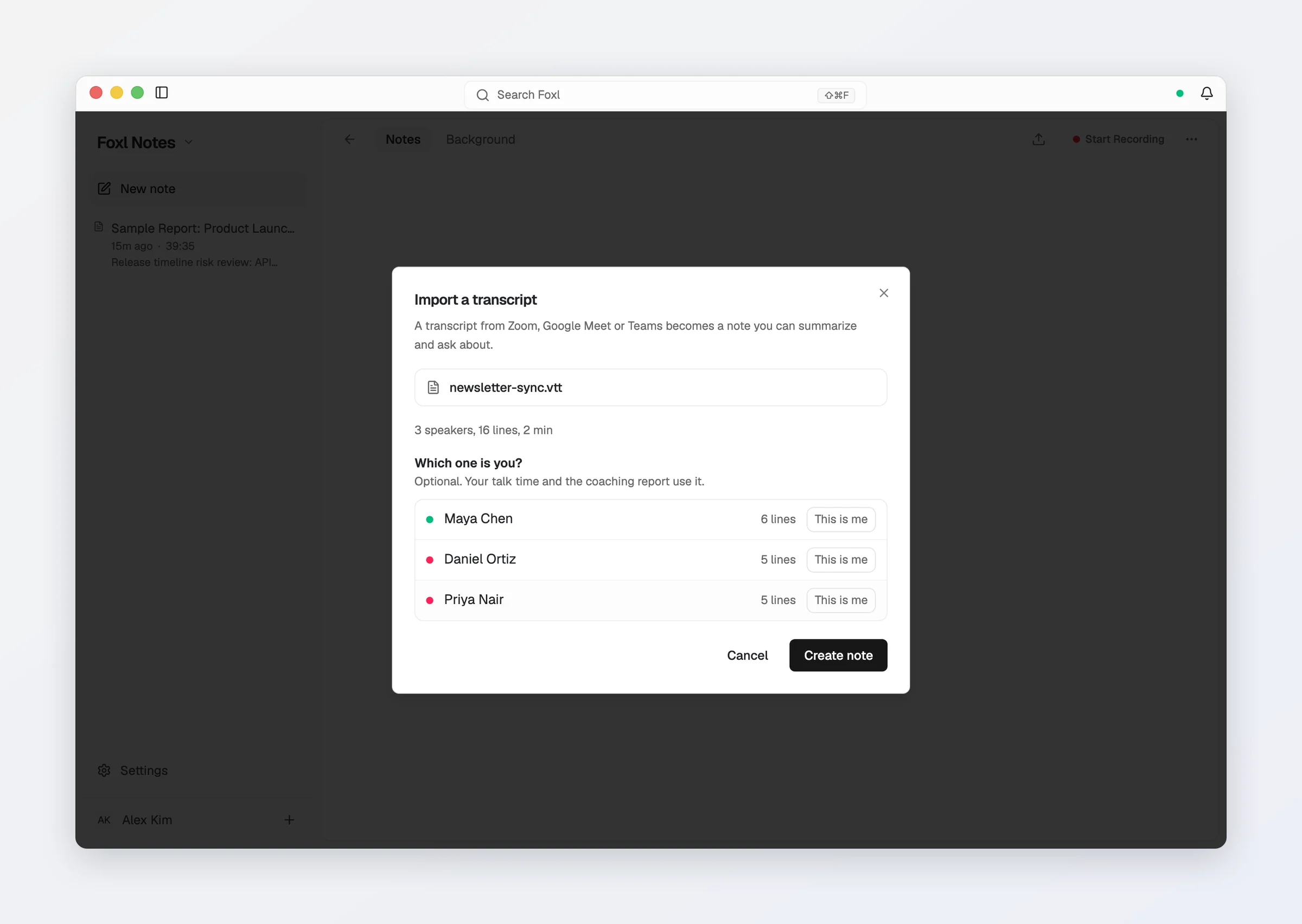
When the transcript names its speakers, Foxl asks Which one is you?. Choosing This is me is optional; it tells the coaching report whose talk time to measure, instead of assuming you spoke first. The note then opens on its transcript while the summary is written.
A transcript without times (most pasted text) gets times estimated from how long each line takes to say, so the note's length reads "about" so many minutes. A caption file with no names becomes one speaker, which you can rename in the transcript.
Recording on mobile
On the iOS and Android apps, recording uses your device microphone, and the iPhone keeps recording while the screen is locked or you are in another app. Start and stop work the same way as on desktop; the phone home screen adds Add context for better AI, Import a recording or transcript and a Recent list, and an open note switches between Summary, Transcript, Notes and Report with a segmented control.
Which engines the phone can use:
- Amazon Transcribe (default) - your computer must be running Foxl and reachable through the desktop relay when you press record. It hands the phone a one-hour, transcribe-only pass, so the meeting keeps going even if the computer then goes to sleep. If your AWS login cannot issue such a pass (an SSO session, for example), the phone instead asks your computer to sign each five-minute renewal, so it has to stay awake.
- Deepgram, AssemblyAI, OpenAI or ElevenLabs with your own API key - no computer involved. Pick the provider under Settings > Notes > Recording and paste the key in the field below it. The phone keeps it in its own secure storage (the iOS Keychain, or a key in the Android Keystore), for the account you are signed in with, and shows only its last four characters. Each recording starts with a short-lived pass the provider issues for that key, and the audio goes from the phone to the provider; nothing is billed in Foxl credits. Signing out, or deleting your account, removes the keys from the phone. If the provider refuses the key, recording does not start and the message says what the provider said. This needs the app from the App Store update to Foxl 0.9.3 (the 0.9.3 APK on Android); an older app says to update it.
- Gemini and OpenRouter with your own key, and the on-device engine work on the desktop only. The phone does not offer them; a phone left on one of them says so when you press record.
- Foxl Relay works with no computer involved, but only on accounts Foxl has enabled for it. On any other account, a phone with no reachable desktop cannot record, and the message says which destinations to pick instead.