
Esta página ainda não está disponível em Português, por isso aparece em inglês.
Chrome Extension
Install and configure the Foxl Chrome Extension for real browser control
The Chrome Extension is what gives Foxl access to your real Chrome browser with all your logged-in sessions. It connects your browser to the desktop agent via WebSocket.
The extension is open source at foxl-ai/browser-extension, under Apache-2.0. It is public on purpose: a "Load unpacked" install is only trustworthy if you can read what you are loading first.
Requirements
- Chrome 116 or newer (the side panel API landed in 116). Edge and other Chromium browsers work; Firefox is not supported yet.
- The Foxl desktop app running on the same machine, version 0.6.5 or newer - the side panel says so if yours is older. The extension has no AI of its own and nothing to talk to without the desktop. Clicking at a point, pressing keys and hovering (see Interaction) also need desktop 0.8.1 or newer.
- The extension has its own version line, independent of the desktop release number, and updates from the Web Store on its own.
- Extension 0.9.0 asks Chrome for one more permission, the debugger (Access the page debugger backend), to take screenshots of tabs in the background. When an update asks for a new permission, Chrome turns the extension off until you accept it: see After an update.
Installation
Install from the Chrome Web Store
Open the Foxl listing and click Add to Chrome. Foxl links to it from Settings > Web Access (the Settings tour points there as well).
That is the whole install: Chrome keeps the extension up to date on its own, and a store install does not raise the "Disable developer mode extensions" warning that an unpacked one does.
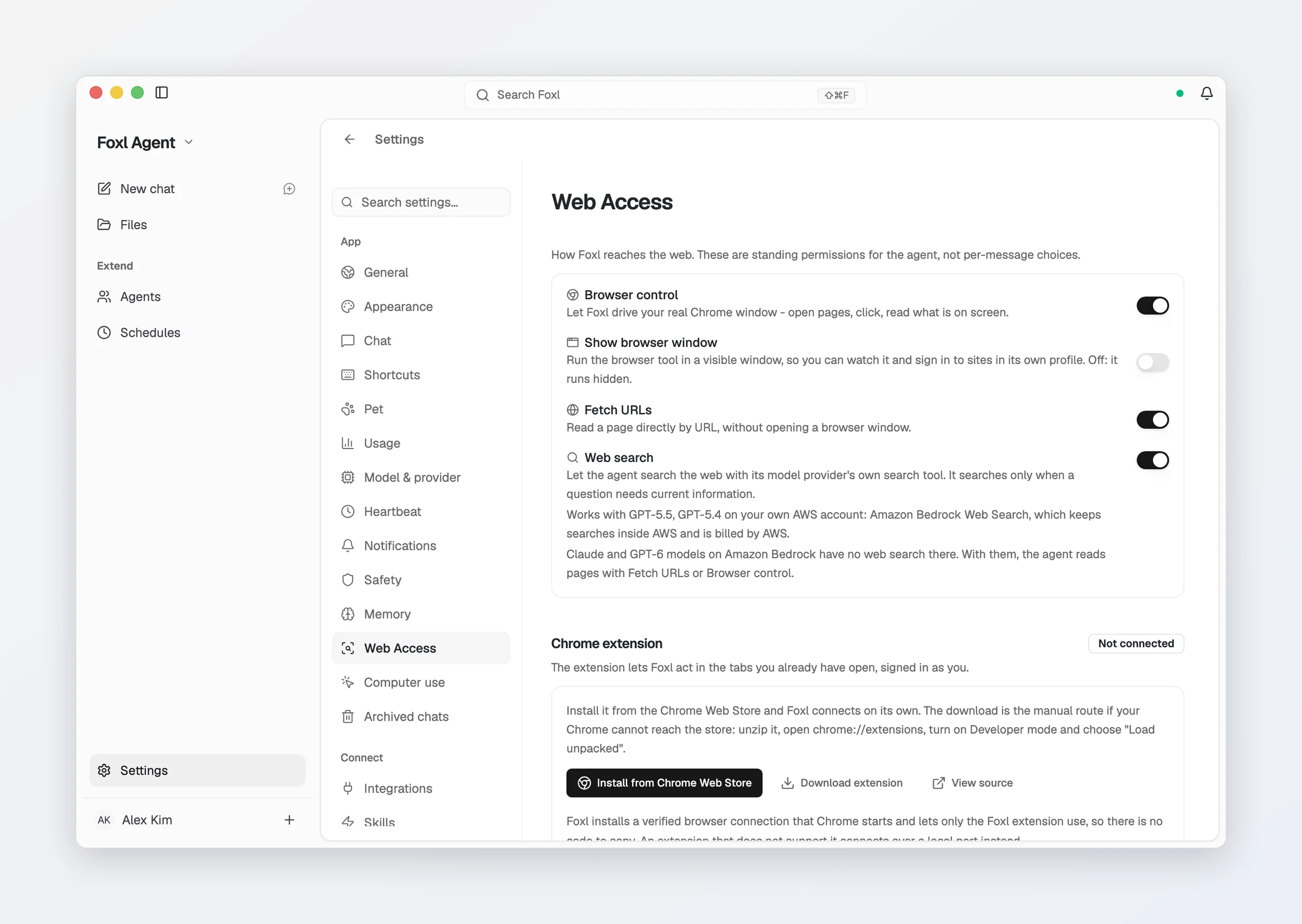
Or install it manually
The manual route is for a Chrome that cannot reach the Web Store - an enterprise policy that blocks it, or a Chromium fork that does not carry it - and for trying a build before it clears review. The store listing is the same code, one review behind.
- Download the source archive, then unzip it.
- Open Chrome and go to
chrome://extensions - Enable Developer mode (toggle in the top-right corner)
- Click Load unpacked
- Select the unzipped folder (the one containing
manifest.json)
The archive is the repository as it stands, so what you load is exactly what you can read on GitHub - there is no build step and nothing is minified. Each release is also on the releases page as a zip with a SHA256SUMS.txt, and you can rebuild that zip from the release's tag and get the same bytes.
Chrome shows a "Disable developer mode extensions" warning on startup for any unpacked extension. That is Chrome's blanket notice, not specific to Foxl; installing from the Web Store instead is what clears it.
How the connection works
There is nothing to copy and nothing to configure. The extension finds the desktop on
your own computer and connects to it over a WebSocket on localhost. Nothing on that
connection leaves your machine.
The released extension, 0.8.1 included, connects without a key, and the desktop accepts that connection. So any program running on your computer could connect to the desktop the same way the extension does. Settings > Web Access describes this state as "Your extension is connected over a local port, which is the only way it can connect today" and ends with "Nothing to do here": there is no extension update yet that would change it.
What comes next. The desktop already installs a small connector (foxl-browser-bridge)
for Chrome's native messaging. It is how the desktop will tell the Foxl extension apart from
other programs: Chrome starts it for the Foxl extension only, and it presents a key that it
reads from your Foxl folder (~/.foxl). No published extension uses the connector yet, so it changes
nothing today. The Reinstall browser connection button in Settings > Web Access rewrites
its files.
Verify the connection
Once loaded, you should see the Foxl icon in your Chrome toolbar. Click it (or press Cmd+Shift+F / Ctrl+Shift+F) to open the side panel; the dot in its header is green when the desktop agent is connected and grey when it is not. With no desktop found, the panel says Foxl Desktop is required and offers Retry connection and Set a custom port.
After an update: turn Foxl back on
Chrome turns an installed extension off when an update asks for a permission it did not have, and keeps it off until you accept. Extension 0.9.0 is such an update. Until you accept, Foxl cannot reach your Chrome.
- Open Chrome's menu (⋮, at the top right of the window).
- Choose Foxl is disabled.
- Chrome lists the new permission, Access the page debugger backend. Accept it, and Foxl is on again and connects by itself.
The switch on Foxl's card in chrome://extensions turns it back on as well, after the same question. On a computer the extension has connected to before, Settings > Web Access says Not connected with these steps first, and the agent is told the same, from Foxl desktop 0.9.3 on.
What the Extension Does
Tab Management
The agent can open, close, switch between, and group your Chrome tabs. This lets it navigate between multiple sites during complex tasks.
Accessibility Tree
The extension extracts the accessibility tree from any page - a structured representation of all interactive elements (buttons, links, inputs, headings). Elements inside web components (open shadow roots) are included, and rich-text editors are listed as text boxes. This is how the agent "sees" and understands web pages. Each element gets a short name such as ref_12, which the agent uses to click or type into it. A name from Foxl's other browser tool (such as @e12) is refused, and nothing in your Chrome is clicked: the agent is told to take a fresh look at the page instead.
Interaction
The agent can click buttons, type into input fields, choose options, scroll pages, and submit forms - all in your real Chrome browser with your actual sessions. With extension 0.8.0 or newer and Foxl desktop 0.8.1 or newer:
- Typing is checked. After typing, the extension reads the field back and reports it when the text is not there, so the agent is told instead of assuming it worked. A field that formats what you type, such as a phone number, counts as holding it. Rich-text editors (
contenteditable) take typed text too. - Enter submits the way the page expects. The form's own submit handling and validation run, and the agent is told whether the form was submitted, the form refused it as invalid, or the page handled Enter itself.
- Clicking at a point, pressing a key, hovering. The agent can click at a spot on the page that has no element of its own, press a key (Enter, Escape, Tab, the arrows, or a combination such as Control+a), and hover over an element or a point to open a menu that appears on hover. Pressing a key on an element focuses it first; it does not click it. With an extension older than 0.8.0, the agent is told these three are not available and uses clicks and typing instead.
- One action at a time on each tab, the way one keyboard and mouse would work. If a page stops responding, for example because it opened a confirmation dialog, only that tab waits, and an action that cannot start within 25 seconds is refused and nothing is done, instead of running later. Stop Foxl cancels the actions still waiting.
Clicks, key presses and hovers are events sent to the page, not your real mouse and keyboard. A key the browser itself acts on does not take effect (Tab does not move focus to the next field), and a site that checks whether input came from a person ignores these events.
Visual Indicators
While the agent works in a tab, the tab shows a glowing border and a Stop Foxl button at the bottom center, also when the run was started from your phone, and an element the agent clicks from the page's accessibility tree is outlined for a moment (a click at a point is not). Stop Foxl stops that chat's run, the same as Stop in the chat, and the border goes away when the run ends. A click or hover at a point skips Foxl's own button and reaches the page element underneath it.
Screenshots
The extension can capture screenshots of a tab's visible area, which the agent uses for visual understanding and verification. Foxl's border and Stop Foxl button are hidden while the screenshot is taken, so the agent does not see them. If the page is too busy to hide them in time, they show in that screenshot.
Extension 0.9.0 adds:
- Tabs in the background, without switching to them. A tab you are not looking at is captured through Chrome's debugger, so your window stays where it is. The tab you are looking at is captured as before. Where Chrome refuses the debugger (DevTools turned off by an organization's policy, a page that embeds another extension's frame) or cannot draw a tab in the background (a PDF), Foxl switches to the tab for a moment and back, as 0.8.1 always did. Scrolling a background tab uses the debugger the same way, so the tab draws what it scrolled to.
- A region or the whole page. The agent can ask for a rectangle of the visible area, or for the whole page down to its end. Both need extension 0.9.0 and Foxl desktop 0.9.3 or newer; with an older extension the agent is told which version it needs and takes a screenshot of the visible area or reads the page instead.
A site you have withheld from Foxl in Chrome's site access settings is not captured, through the debugger either.
The "started debugging this browser" bar. While the extension uses the debugger, Chrome shows a bar saying "Foxl" started debugging this browser in every tab of every Chrome window, until about 5 seconds after the last background screenshot or background scroll. On macOS the bar takes about 57 CSS pixels at the top of every page while it shows, so pages move down and back up. Its height on Windows and Linux has not been measured.
Side Panel
Click the Foxl icon in the Chrome toolbar to open the side panel. It is a chat with your desktop agent - ask anything or hand it a browser task from inside Chrome - with a connection dot in the header, a settings button that opens the extension's options (including the desktop port), and a notice if your desktop is older than the extension needs.
Security
The extension communicates with the desktop agent over a local WebSocket connection (localhost only). It does not send any data to external servers.
- All communication is local (localhost WebSocket)
- The connection has no key yet (see "How the connection works"). The released extension connects without one and the desktop accepts it, so a program running on your computer could connect in the extension's place. The connector the desktop already installs is what will close this, once an extension that uses it is published
- The extension only activates when the desktop agent requests it
- Asking first. With Auto-approve all tools off, or for runs from a source set to Ask first in Settings > Safety, Foxl asks before the extension goes to a page, opens or closes a tab, clicks, types, chooses an option, clicks at a point or presses a key. Reading a page, scrolling, screenshots and hovering do not ask. With the default settings (auto-approve on, every source on Full access), nothing asks, except the two steps below
- Steps that can pay or book always ask, even with auto-approve on: a click or an Enter on a button such as "Place order", "Pay", "Buy now", "Confirm booking", "Cancel subscription", "Request refund" or "Change plan", a "Reserve", "Book" or "Subscribe" shown with a price, the same buttons in the other nine languages the app speaks, and an Enter in a checkout form's field. The prompt names the button's words, the website and the total the page shows. Allow covers that one step, and there is no Always allow. A scheduled or channel run that reaches such a button clicks nothing when no Foxl window is open to ask
- Typing a card number, a Korean resident registration number or a US Social Security number into a page always asks too, with the card or SSN shown by its last four digits only, and again with no Always allow
- Financial sites can be blocked by switching on the site filter in Settings > Web Access; it is off on a new install
- You can review all extension permissions in Chrome's extension settings
- The debugger permission (0.9.0) is used only to capture a tab's pixels and to let a background tab draw after a scroll. The extension takes no other debugger command from the desktop, and it checks your site access settings before every capture
Troubleshooting
Extension shows "Disconnected"
Make sure the Foxl desktop app is running. The extension connects to the local agent server.
A connection key is not the cause: the released extension does not use one, and the desktop accepts it without one. The exception is a desktop started with FOXL_EXTENSION_ALLOW_UNPAIRED=0, which refuses every connection that has no key, and today that means every published extension. Start the desktop without that setting.
Foxl stopped working after the extension updated
Chrome turned it off to ask about a new permission. See After an update.
Extension not appearing in Chrome
Verify that Developer mode is enabled and the extension loaded without errors in chrome://extensions.
Pages not responding to agent commands
Some pages block automation (CAPTCHA, certain SPAs), and a site that only accepts input from a person ignores the extension's clicks and key presses (see Interaction). Try refreshing the page. The agent may fall back to its own browser (the browser tool, a separate browser with its own profile) for these cases.
Desktop Relay (Mobile/Web connection)
Connect your desktop Foxl to app.foxl.ai and the phone apps for remote access with full agent capabilities, and what the relay can still read
Computer Use
Let Foxl use the apps on your computer, on macOS, Windows and Linux. It asks before each app, uses its own pointer, and only looks at that app's window.