
このページはまだ日本語に翻訳されていないため、英語で表示しています。
AI summary & assistant
Meeting summaries, speaker names, the AI Assistant, Live Q&A, the coaching report, follow-up emails, live translation, and choosing the models Notes uses
Foxl Notes turns a raw transcript into something you'd actually want to read, and lets you ask questions about the meeting while or after it happens.
Automatic summaries
When Auto Summary is on (Settings > Notes > AI features - on for a new install), Foxl writes a summary the moment you stop recording. The summary is structured for meetings:
- Summary - a one or two sentence overview.
- Key Discussion Points - the main topics, as bullets.
- Action Items - tasks, as a checklist, with the responsible person when it's clear.
- Decisions Made - what was settled.
- Follow-up - next steps.
The summary goes in the note's Summary tab, after Notes and Transcript, and the note opens on it. It replaces nothing: the Notes tab keeps whatever you typed (or the transcript, for a note you did not type into), and the Transcript tab is unchanged. You can edit the summary in its tab like any note. Share, Copy and every export put the summary first and your own notes under it. The note's title in the sidebar updates to match the summary, unless you turned Auto title off or renamed the note yourself, so the list reads like a table of contents. A note summarized in an earlier version of Foxl shows that summary in its Summary tab.
Summarize on demand
If Auto Summary is off, open the note's Summary tab and press Generate AI Summary. Once a note has a summary, Regenerate at the end of the summary's toolbar writes it again, replacing the summary and any edits you made to it. Foxl writes the summary from the Notes tab and the transcript: what you typed, plus the transcript when your notes do not already hold it. A note you did not type into holds the transcript itself, so a correction you make there reaches the summary. While the button cannot run (during a recording or import, or while another note's summary is being written) the tab says why, and if a summary fails the reason stays under the button until the next try.
Summary templates
The summary above is the standard meeting layout. To change it, turn on Custom summary template under Settings > Notes > AI features and pick a Template:
- Customer call - the customer's name and the purpose of the call first, then the customer and attendees, needs and pain points, key discussion points, objections and risks, decisions, action items and next steps. Because the name comes first, the note's title, its auto-saved file name and Foxl Agent's notes search all find it by customer.
- 1:1 - topics discussed, feedback given or received, action items and what to revisit next time.
- My own instructions - say in Summary instructions what to include and how to lay it out. Keep a "## Summary" section first if you want the note titled from it.
The template applies to automatic summaries and to Generate AI Summary alike.
Titles
Notes names itself. Auto title (Settings > Notes > AI features, on by default) writes a short title from the transcript as soon as you stop, using a small fast model set in the Title model row; a summary then re-titles the note from itself. A note you rename by hand is left alone. See Organizing notes.
Speaker names
Name speakers automatically, in Settings > Notes > AI features, is off by default. Turn it on and, after a recording or an import with two or more voices, Foxl sends the transcript to a fast model on your AI provider (the one Automatic picks, see Choosing a model) and replaces Speaker 1, Speaker 2 with a person's name when the conversation says it: someone introduces themself, or is addressed by name and answers. A calendar invitee's full name can be used when the conversation says that name, for example Tom for Tom Lee. When the transcript split one person into two speakers (a voice that moved away from the microphone, a long pause), it makes them one speaker again. This happens before the summary is written, so the summary, the title and the report use the names too.
- A name nobody says in the conversation is never used, and a speaker without a name stays Speaker N.
- A speaker you renamed keeps your name, and two speakers who keep answering each other's questions are never merged.
- A message lists what changed, with Undo.
- Each recording with two or more voices sends one more short request to your AI provider.
The AI assistant
Press AI Assistant (the purple sparkle) in the top bar to show the assistant in its own panel at the right edge of the window, beside whichever tab is open, so the window never has more than two columns. Press it again to close the panel; Foxl keeps your choice for the next note and the next recording. In a narrow window AI Assistant is a checked row in the top bar's ... menu, and on the phone you use Ask AI in the bottom bar. The assistant is available both while recording (ask about what's been said so far) and after (ask about the finished note), and the Live panel's sparkle button opens the same one.
In the desktop app, and in the iPhone and iPad app and on app.foxl.ai while your desktop is online, the assistant panel is a Foxl Chat conversation on your desktop (while Use Foxl Agent tools, below, is on - the default): the same messages, tool cards, model picker, attachments, skills and voice input as chat, next to your note. On the phone and the web with your desktop offline, a simpler assistant without tools answers instead. The conversation is listed with your chats in Foxl Agent, and Open in Foxl Chat at the top of the panel continues it there; each note keeps its own conversation, and the pencil button starts a new one.
- Quick actions. One click asks a ready-made question in your language. While you are recording, What to say comes first, from the first transcript line: one or two lines you could say next, based on what was just said and in the language of the meeting (Foxl does not suggest replies on its own; this is how you ask for one). Catch me up follows once a few lines are in. Early on there are also Key Points and Sentiment; as the meeting grows, Sentiment gives way to Action Items, Decisions and Suggest Questions, and later Open Issues and Draft Minutes join them (the simpler assistant also has Summarize; in the Foxl Chat assistant the summary is the Summary tab's). The ones that do not fit in two rows are behind a +N button.
- From this meeting. A few requests written from what was actually said, such as "Follow up on the subagents bug". The chip shows the whole request, and that is exactly what is sent.
- Ask anything. Type your own question. The assistant starts from the live transcript, your Background and, once the note is saved, what the note says (your own notes and corrections, or its summary - sent again only when you change it), and it can also go and look - see Tools and recall below.
- The transcript, a little at a time. Your first message attaches the transcript so far; every later one attaches only the lines added since. None of it appears in the chat: your message shows only what you typed. The line under the message box says what the next message will attach. Because earlier messages never change, the model's prompt cache covers them while you keep asking (a provider keeps that cache for a few minutes after each use), so a follow-up late in a long meeting costs about as much as one early on; after a longer pause the conversation so far is read in again once. Continuing the conversation in Foxl Chat while you record works the same way.
- Insert into the note. Any answer can be dropped straight into the editor.
Tools and recall
An ask can use the same tools Foxl Agent has on your computer: open your files, search your code and notes, fetch a link, run a command. It uses whatever you have switched on under Settings > Tools/MCP, custom tools and MCP servers included, and the answer says which tools it used.
It can also search your earlier meetings and chats, so "what did I say about this last week" finds the meeting you said it in, with the note and the time in the recording cited under the answer - and Foxl Agent chat can find it too (see Search your notes from Foxl Agent). The Live panel's AI Assistant is the same conversation as the panel beside your note. With Use Foxl Agent tools off, and on the phone and app.foxl.ai, the assistant keeps its thread out of your chat list; those are only reachable by search.
The assistant is Foxl Agent itself, not a lookalike: it knows your USER.md profile and saved memory, searches your past meetings and chats, and gets the same model fallback, retries and prompt caching as chat.
On by default, and there is a switch: Use Foxl Agent tools under Settings > Notes > AI features. It governs the desktop assistant panel, the Live panel's AI Assistant, and the assistant on the phone and app.foxl.ai: on, the desktop panel (and the Live panel with it) is a Foxl Chat conversation and follows Settings > Tools/MCP like any chat; off, the panel is a plain assistant that answers from the note without tools, and the Live panel answers on its own the same way. Two things worth knowing before you leave it on. An ask that goes looking takes longer than one that only reads the transcript. And a tool call obeys Settings > Tools/MCP plus your permission rules
- which on a fresh install approve automatically, so an ask can run a shell command on your machine. Under Settings > Safety, By where a run comes from sets the Notes assistant to Full access (the default), Ask first or Read only.
Needs Foxl running on your computer. Notes AI runs on the model provider you set for Foxl Agent, through your desktop - so on the phone and on app.foxl.ai the assistant, the summary and the title all need your computer reachable over the desktop relay. The tools are your machine's too.
When your computer is offline
On the phone and on app.foxl.ai, an account that is offered Remote chat (Settings > Chat, also shown under Settings > Notes > AI features) can keep Notes AI working while the computer is offline. With the switch on, the summary, title, coaching report and automatic speaker names are written in the cloud on your Foxl credits, without asking each time, and the Summary tab shows Cloud beside Regenerate. The assistant answers as a plain chat with no tools. The note's text is sent to Amazon Bedrock through Foxl Relay and is not stored.
With the switch off, the Summary tab offers Summarize in the cloud or Wait for my computer. Without it, or with no credits left, the summary, title and report wait: Foxl writes them through your computer as soon as it is online again, and never spends credits on them by itself. Live translation and Live Q&A always need your computer.
Automatic work stays on the fastest path - the post-meeting summary, the auto title, live translation and dictation clean-up use no tools, so the switch does not slow down anything you are not waiting for.
Live Q&A
In the desktop app, Notes listens for questions while you record and answers them from your own notes, without you asking it to. When someone in the meeting asks something your notes hold - "how fast do we answer Business support tickets?" - a card appears at the top of the AI Assistant panel, under Answered from your notes (in the Live panel's AI Assistant too), usually a few seconds after the question. While the AI Assistant is not in front, its button in the toolbar shows how many new answers arrived. Each card has:
- the question, rewritten so it makes sense on its own, with who asked it and when;
- a one- or two-sentence answer, with small numbers for its sources;
- the sources as chips: an earlier note (click to open it at the line that was cited), this note's Background, or a line of this meeting. Hover a chip to see the text the answer came from.
Live Q&A is told to leave alone questions that do not ask for a fact - a rhetorical "isn't that great?", a request such as "can you share your screen?", "how is the project going?" - and, when nothing in your notes answers a question, to say so on the card in one line rather than guess.
Where answers come from, in this order: the note's Background (paste a handbook, an agenda or a price list there before the meeting), what was already said in this meeting, and your earlier notes through the same keyword search Foxl Agent uses when Let Foxl Agent search your notes is on. The search words are written by the model from the question, including their translation when your notes are in another language, so a question asked in Korean can find an English handbook and the reverse. Nothing is posted anywhere and nothing is read aloud.
Each card's ... menu has Copy, Ask a follow-up (asks the same AI Assistant about it, in this note's conversation, so you can keep asking in its composer) and Remove. Cards stay until you remove them, newest on top, and they are kept with the note. Answered from your notes folds away with one click.
Live Q&A is off by default: turn it on with Answer questions asked in the meeting in Settings > Notes > AI features.
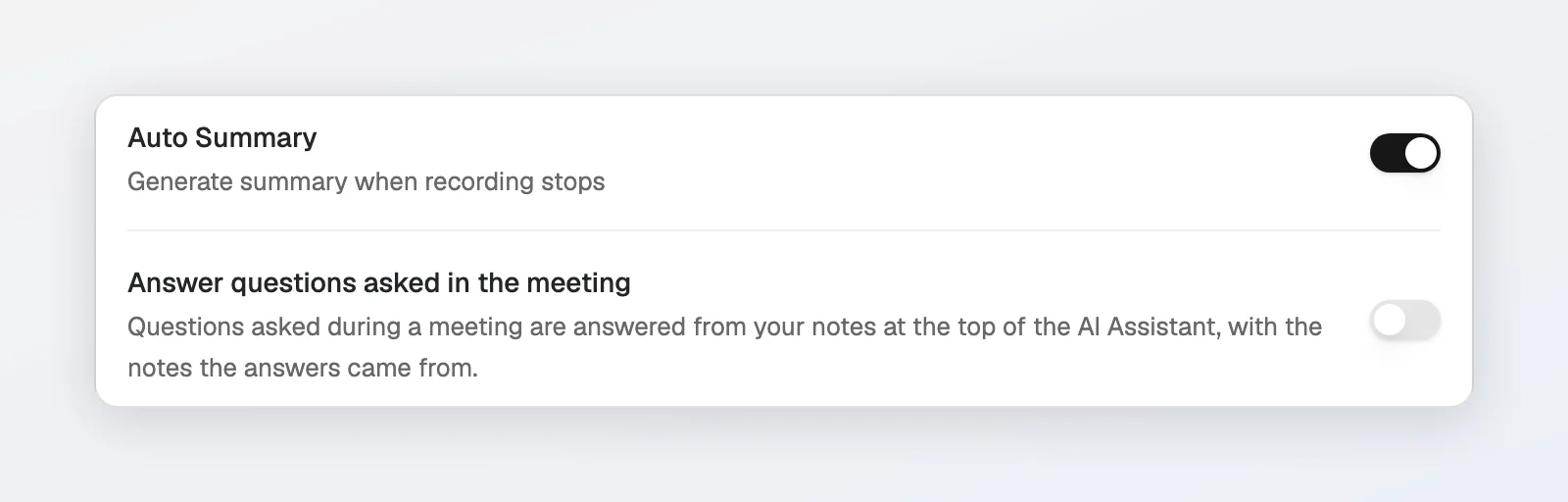
It runs on the model in Run live features on under Settings > Notes > AI features (Automatic: the same fast model as live translation, or Foxl Agent's own model, including a model on this computer). It makes one short AI request for each turn that might be a question - a turn with a question mark or a question word, which in real meetings is about one turn in six, roughly 100 to 300 requests an hour of conversation - plus one for each question it answers. It does not run on OpenRouter's free models: their allowance of 50 requests a day would be gone within the first half hour of a meeting, and your chats and that meeting's summary with it. Turn it off from the ... menu next to Answered from your notes, the Live Q&A switch in the Live panel's Options menu, or Answer questions asked in the meeting in Settings > Notes > AI features.
Coaching report
The Report tab coaches you on the open meeting, as one column with the same margins and text size as your notes. Score leads, followed by the coach's comment and your Speaking share, Turn share and Pace. Skill breakdown shows language use, fluency and grammar as bars with their scores. Feedback is split into What went well and To work on; every point names its category and shows its explanation, what you said (You said) and a better way to say it (Try saying). Action items and Expressions to learn close the report, which says when it was made.
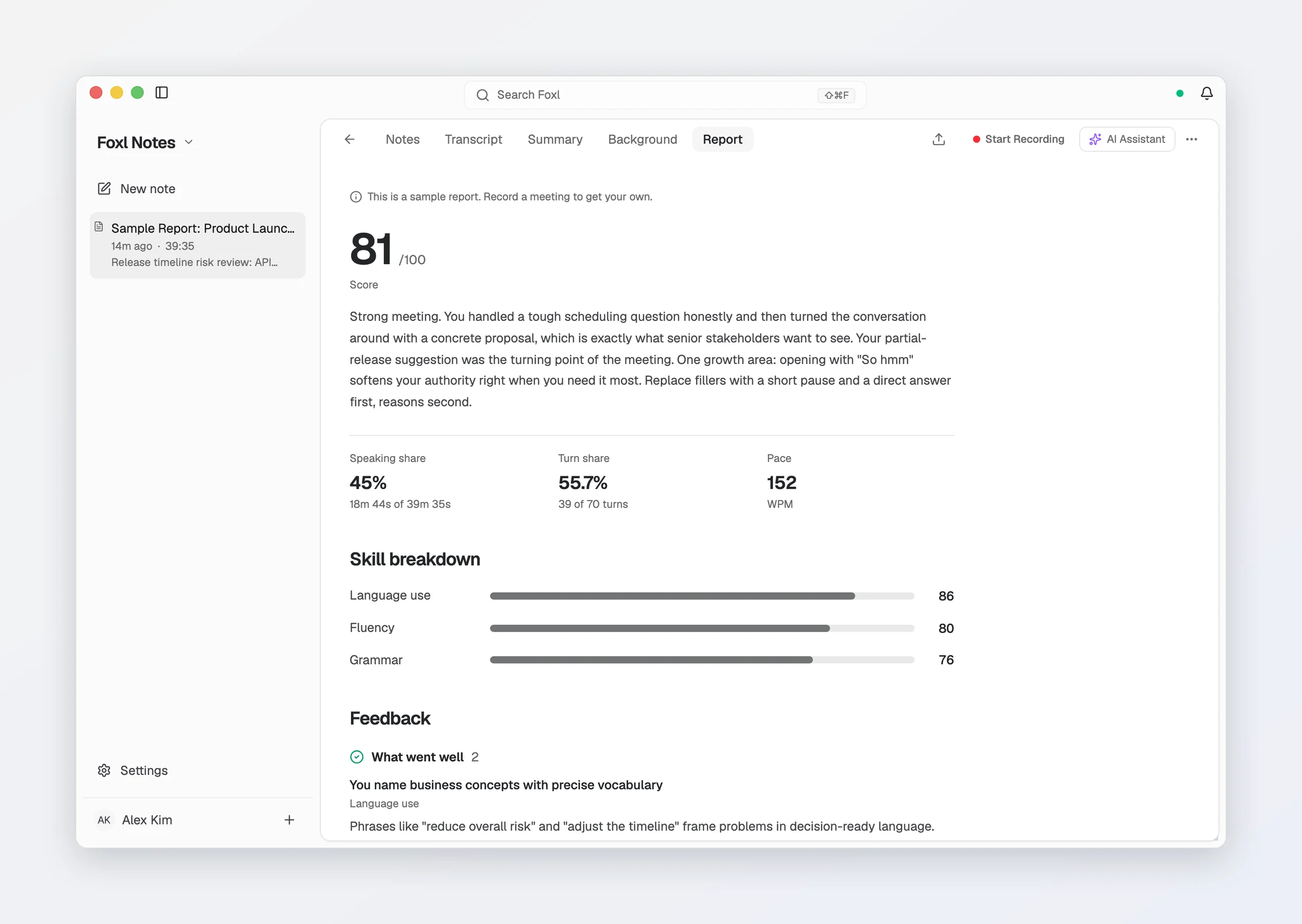
Press Generate report on the empty tab, or turn on Report for every meeting under Settings > Notes > AI features to get one after every recording; Regenerate report sits at the top of a finished one. Whose talk time is measured comes from the speaker you marked with This is me when importing a transcript; otherwise the first speaker is assumed to be you. It runs on your Summary AI model.
Follow-up email
Draft follow-up email, in the ... menu of a note with a summary, notes or a transcript (not while it records), writes a short thank-you with the decisions and next steps, in your own voice and your app's language. It uses the model that writes your summaries, and each press of Draft is one request, billed the way your summaries are; opening the dialog sends nothing. When the note was recorded from a calendar meeting, its invited people are filled in under To (your own address left out). Edit the email, then Copy it or Open in mail app to send it yourself: Foxl never sends it.
Background context
Use the Background tab in the editor (or in the Live panel) to give the AI context before or during a meeting - names, the agenda, what you're trying to get out of it. The assistant, Live Q&A and the summary all use it to produce more relevant, specific output.
There is also a standing My context for AI field under Settings > Notes > AI features - who you are and what your meetings are usually about - used by the assistant and the Live panel on every meeting.
Live translation
Notes can translate speech as it is transcribed. It has its own pane, Settings > Notes > Live translation, at the top of the Notes settings: Translate incoming speech, the language to translate into (Translate into), and the Live translation AI model that does the translating. The first-run Set up Foxl Notes screen has the same switch, off unless you turn it on.
Turning it on picks a target language for you (the app's language), so translation works without a second step. The translation appears under each transcript line, in the note and in the Live panel, whose Options menu has the same switch and language under Captions, plus Translation only to show the translated line in place of the original.
Each line is translated together with the lines before it and a short running summary of the meeting, so a sentence split across two lines reads as one and names and recurring terms keep one spelling. Where speech recognition misheard a word (a sound-alike word, or a name or term from earlier in the meeting), the translation gives what was most likely said, phrased the way an interpreter would rather than word for word; the transcript keeps the words as they were recognized. A long sentence appears while it is spoken and is replaced by one clean translation when it ends. On a model that caches prompts the earlier lines are mostly read from the cache; on others they are paid for as extra input.
The Live translation AI model starts on Automatic, which picks a fast model on a provider you already use - see Choosing a model for which one.
Choosing a model
Notes uses the provider you set for Foxl Agent under Settings > Model & provider - one setting for chat, Notes and Code. Under Settings > Notes > AI features you can pin a different model for each job: Summary AI model (summaries, coaching reports and the assistant; "Same as Model & provider" by default), Title model (a small fast model - it writes one line), Run live features on (what runs during a meeting, such as Live Q&A) and Live translation AI model (in the Live translation pane). The title, live-features and translation models start on Automatic, which picks a fast model on the account Foxl Agent already uses, and each row on Automatic shows one line naming the model it is set to, such as "Set to Gemma 4 E2B (On this device).". What Automatic picks: on Amazon Bedrock, Gemma 4 31B (then GPT-6 Luna, then Claude Haiku 5.5 if your AWS account refuses one); with Foxl Agent on a Gemini API key, Gemini 3.5 Flash-Lite; with Foxl Agent on OpenRouter's free router (openrouter/free), Gemma 4 26B (free); with an Anthropic API key, Claude Haiku 5.5; otherwise Foxl Agent's own model, which is also what a Claude Pro or Max sign-in gets, since it offers no Haiku. When none of those can answer and a model is downloaded under On this device, that model runs them. A helper still set to Claude Haiku 4.5, the earlier default, counts as Automatic. Amazon Bedrock counts for this only when Foxl Agent runs on it, or when AWS keys or a profile are set up in ~/.aws or the environment. When the computer's only AWS access is one it finds on its own, such as an EC2 instance role or a credential_process profile in a custom AWS config file, these jobs run on Foxl Agent's model rather than on Bedrock billed to that account, and the Notes and Dictate anywhere model lists leave Bedrock models out. Each list shows the models of the providers configured on your desktop, including any of the OpenAI-compatible ones Foxl Agent supports - OpenRouter, DeepSeek, Groq, Z.ai, Together, Mistral, xAI and the rest - and a key you paste takes effect immediately. A heavier model produces a richer summary and costs more per run.
Nothing runs until a provider is connected. Notes has no AI model of its own, so it borrows Foxl Agent's provider. With none set up, the AI features pane shows a notice with a Model & provider button, the Notes home shows Notes is almost ready before you record, and a summary attempted anyway ends with the same hint in the note's Summary tab. Connect a provider under Settings > Model & provider (your own key, a local model, or a Claude / ChatGPT subscription you already pay for), or on a Mac with Apple Silicon, a Windows PC or a Linux x64 computer download Gemma 4 under On this device there (or with Install on this Mac on that card, Install on this computer on Windows and Linux), and everything here starts working. On the phone and on app.foxl.ai these features also need your computer reachable over the desktop relay.
Recording and transcription are unaffected and keep working either way - see Credits & privacy.