
Cette page n'est pas encore disponible en Français, elle s'affiche donc en anglais.
Agent Tools
Built-in tools available to the Foxl desktop agent
The Foxl desktop agent comes with a set of built-in tools organized into profiles, plus a few capability-gated tools (like generate_image) that register automatically when their credentials are available. Which built-ins are loaded is decided by the tool profile (Full by default - see below), not per message; your own custom tools and MCP servers are added on top of whichever profile is active.
Browser
| Tool | Description |
|---|---|
| browser | One pinned release of the agent-browser CLI (Rust + Playwright) driving Foxl's own Chrome profile under ~/.foxl/browser-profile - open <url>, snapshot -i, click @ref, fill @ref "text", screenshot. Asks first, unless you auto-approve it. See Browser Automation |
| browser_extension | Control your real Chrome tabs via the Chrome extension. Opening a page or tab, closing a tab, clicking (on an element or at a point), typing, pressing a key and choosing an option ask first, unless you auto-approve it; reading the page, listing tabs, scrolling and hovering do not |
In both, a step that can pay or book (a click on "Place order", "Pay" or "Confirm booking", a priced "Reserve", an Enter in a checkout field) asks even with auto-approve on; see Approvals.
Code & Files
| Tool | Description |
|---|---|
| file_read | Read files from your filesystem |
| file_write | Create or overwrite a file. Asks first, unless you auto-approve it |
| file_edit | Change part of a file: replace an exact piece of text, once or everywhere, and show the change as a diff. Follows the same approval rule as file_write |
| code_search | Search across your codebase with ripgrep (regex, file type filters) |
| view_image | View and analyze images |
A relative path in these tools means a path inside your workspace (~/.foxl/workspace/ on an installed app), so "save notes.md in your workspace" lands there; ~/... is your home folder. When a chat has its own folder (the folder button in the chat header), a path that names no folder points into that folder instead.
When the agent changes a file and reads or views it in the same step - for example rendering a diagram with a shell command and then looking at the PNG - the read waits for the change to finish, so it sees the new file rather than "file not found" or the old version. Reads that do not follow a change still run side by side.
Shell & System
| Tool | Description |
|---|---|
| exec | Run shell commands (bash, zsh, etc.) - covers git, npm, curl, and arbitrary shell pipelines |
| process | List, monitor, and kill running processes |
| terminal | Persistent terminal session for stateful shell workflows |
exec runs in your workspace (or the chat's folder, when the chat has one) unless the agent names another working directory, and a relative working directory is resolved against it too. On macOS, Settings > Safety > Run shell commands in a sandbox (off by default) runs exec and the terminals the agent opens inside a macOS sandbox; see Shell sandbox.
Web
| Tool | Description |
|---|---|
| web_fetch | Fetch web pages and API endpoints |
Web search is the model provider's own search, not a Foxl tool, so it exists only where the provider runs one. On GPT-5.5 and GPT-5.4 through your own AWS account, the model searches with Amazon Bedrock Web Search when a question needs current information, and cites the pages it used; the searches stay inside AWS and are billed by AWS. Claude and GPT-6 models on Amazon Bedrock have no web search there, so with them the agent reads pages with web_fetch or the browser. Turn it off with the Web search switch in Settings > Web Access.
An answer that read web pages lists them under the answer as N sources: the pages it opened with web_fetch, its own browser or the Chrome extension, and the pages the model's own web search cited.
Memory
| Tool | Description |
|---|---|
| memory_save | Save key-value pairs to the SQLite memory database |
| memory_recall | Search and retrieve from the memory database |
| workspace_memory_save | Save content to workspace markdown files (USER.md, MEMORY.md). Asks first, unless you auto-approve it |
| workspace_memory_search | Search across all workspace markdown files |
| workspace_memory_read | Read a specific workspace file |
| workspace_memory_edit | Edit sections within workspace files. Asks first, unless you auto-approve it; SOUL.md, HEARTBEAT.md and AGENTS.md are refused outright - edit those on the Workspace page |
| conversation_search | Search your own past conversations by content, so the agent can find what you decided last week |
| read_thread | Read a Foxl conversation the agent was pointed at, newest turns first |
| notes_search | Search your Foxl Notes meetings and notes, transcripts included, and read one in full. Offered while Let Foxl Agent search your notes is on in Settings > Notes; each note an answer used is listed under it as a source |
| integration_save | Write down a website or web API this chat just reached with one of its tools, with what made it work (endpoints, steps, quirks), so the next task on that site starts from it. A password, key, token or cookie is refused, and so is a site on the Web Access blocked list. No prompt: the record holds no secret |
| integration_read | Look a website or API up by name or address before working with it, and read what was learned there before |
With Save memories off in Settings > Memory, the agent gets none of the memory_*, workspace_memory_* and integration_* tools. What integration_save keeps stays on your computer; see Security.
Scheduling
| Tool | Description |
|---|---|
| schedule | Create, list, update, delete, and trigger schedules (one-time, cron, webhook; the Feed Generator heartbeat is set up in Settings). Creating or changing one asks first, unless you auto-approve it |
| feed_add | Heartbeat runs only - posts an item to your For You feed; urgent also raises a system notification. Never offered in a chat |
Agent
| Tool | Description |
|---|---|
| session_status | Get current date/time, timezone, and session info |
| sessions_spawn | Spawn an autonomous sub-agent for a parallel task (at most 5 at once, across all chats) |
| sessions_status | Check sub-agent progress |
| sessions_stop | Stop a running sub-agent |
| sessions_message | Message a sub-agent: a running one reads it at its next tool call, a finished one resumes with it. See Sub-agents |
| update_plan | The checklist for a task with several steps, pinned above the message box and updated as the agent works. For the main conversation only - a sub-agent reports its progress in its result instead - and not available on a Claude Pro/Max sign-in |
| report_issue | Pass a problem to the Foxl team when you tell the agent something in Foxl went wrong. The report is shown as a card under the reply, and nothing is sent until you press Send; the chat's last messages go with it only if you tick Attach the last messages of this chat, which shows them first. In your own chats only - not in schedules, channels or sub-agents - and not available on a Claude Pro/Max sign-in or the on-device model; use Settings > General > Report an issue there |
| offer_replies | When a reply ends with a quick question ("Want me to dig in?"), offer up to three short answers as buttons under it in the phone apps and a phone's browser; a tap sends the answer word for word as your message. In your own chats only, and not on a Claude Pro/Max sign-in or the on-device model |
Computer use
| Tool | Description |
|---|---|
| computer_open_app | Open an app the agent may use. The first time a chat needs an app, Foxl asks in the chat (Deny, Allow, Always allow) |
| computer | Look at a screenshot of that app's window only, and click, type, press keys and scroll in it with Foxl's own pointer |
Both are offered only while Allow computer use is on in Settings > Computer use (off by default), and only to a model that can view images, because every step answers with a screenshot; with any other model the agent says so and suggests switching. See Computer Use.
Integrations
Integration tools are only available after you connect the corresponding account in Settings > Connect > Integrations.
| Tool | Actions | Description |
|---|---|---|
| outlook | 22 actions | Email (inbox, read, send, reply, forward, search, folders, drafts, attachments, contacts, move, categories, update), Calendar (view, meeting, availability, room booking, search, shared list), To-Do (lists, tasks, checklist) via Microsoft Graph API |
| slack | 16 actions | search_messages, whoami, get_recent_messages, channels_list, conversations_history/replies/add_message/open/members, check_replies_batch, users_lookup/profile_get, attachment_get_data, reactions_add/remove, file_upload |
| gmail | 1 action | send: an email from your Gmail address to at most 25 recipients, plain addresses only, with no attachments. Send only: it cannot read, search or delete mail. See Gmail |
These tools use OAuth user tokens - they act as you, not as a bot. Connect them under Settings > Connect > Integrations.
Channels
| Tool | Description |
|---|---|
| channel_send | Send messages or files to connected channels (Telegram, Slack, iMessage and the others). Asks first, unless you auto-approve it; a file outside your workspace or a recipient outside the channel's allowlist is refused either way |
Media
| Tool | Description |
|---|---|
| generate_image | Generate or edit PNG images with gpt-image-2 through your ChatGPT Plus/Pro subscription. Pass inputImages paths to edit or compose from existing images; omit for pure text-to-image. Auto-saved as generated/generated-<YYYY-MM-DD>-<slug>.png inside your workspace (~/.foxl/workspace/ on an installed app). |
generate_image uses your ChatGPT subscription, not an OpenAI API key. The tool only registers when an OAuth credential file is found at ~/.codex/auth.json, ~/.chatgpt-local/auth.json, or the path set by CODEX_HOME / CHATGPT_LOCAL_HOME. No billing beyond the ChatGPT plan you already have.
Image editing and composition
Pass one or more existing image paths as inputImages to switch from text-to-image into edit / compose mode. When you drag images into the chat, Foxl saves them with the conversation (in ~/.foxl/data/attachments, outside your workspace) and injects the absolute paths into your message, so the agent can reference them without base64 round-tripping through the model's tool-call args.
Examples the agent can drive end-to-end:
| Prompt | What the agent does |
|---|---|
| "이 사진 만화풍으로 바꿔줘" (attach a photo) | Calls generate_image({ prompt: "convert to watercolor anime style", inputImages: ["<path>"] }) |
| "이 두 이미지 합쳐서 하나로" (attach 2+ photos) | Calls generate_image({ prompt: "compose both subjects into one scene", inputImages: ["<a>", "<b>"] }) |
| "blog hero: a cozy cafe at dusk, 1536x1024" | Calls generate_image({ prompt: "...", size: "1536x1024" }) |
Up to 10 input images per call. Output PNG lives at a date-stamped filename with a slug derived from the prompt, in a generated/ subfolder to keep your workspace root clean.
AI-generated label
A picture generate_image makes says so twice. Inside the file, the saved PNG and the preview you download or share from the chat carry the IPTC "Digital Source Type" tag for "Created using Generative AI"; an image that already arrives with its maker's signed Content Credentials saying so is saved exactly as it came. In the chat, the picture carries a small AI-generated label in its corner, on its thumbnail when the steps around it are folded, and in the viewer it opens. A picture you attached, or a screenshot the agent took, has no label.
Tool Profiles
Foxl uses tool profiles to control how many tools are loaded, saving tokens in the system prompt. A tool definition costs roughly 200 tokens, so the profile is a direct trade of capability against every turn's input:
| Profile | Tools | Token Cost | What it adds |
|---|---|---|---|
| Minimal | 13 | ~2,600 | memory, workspace memory, conversation and notes search, thread reading, session status, view image, the problem report, quick replies |
| Default | 21 | ~4,200 | + file read/write/edit, exec, process, the plan checklist, channel send, generate image |
| Standard | 26 | ~5,200 | + code search, web fetch, terminal, the two website-memory tools (integration_save, integration_read) |
| Full | 33 | ~6,600 | + browser, browser extension, schedule, sub-agents (and the two computer use tools while computer use is on) |
The profile picker's own labels (about 1.4k to 4k tokens) were written when the profiles held fewer tools; the table counts today's tools at about 200 tokens each.
A tool whose credential or switch is missing is not sent even when its profile includes it: generate_image needs a ChatGPT sign-in, notes_search the Notes search switch, the memory and website-memory tools Save memories, and the computer use tools Settings > Computer use. offer_replies and report_issue work only in your own chats.
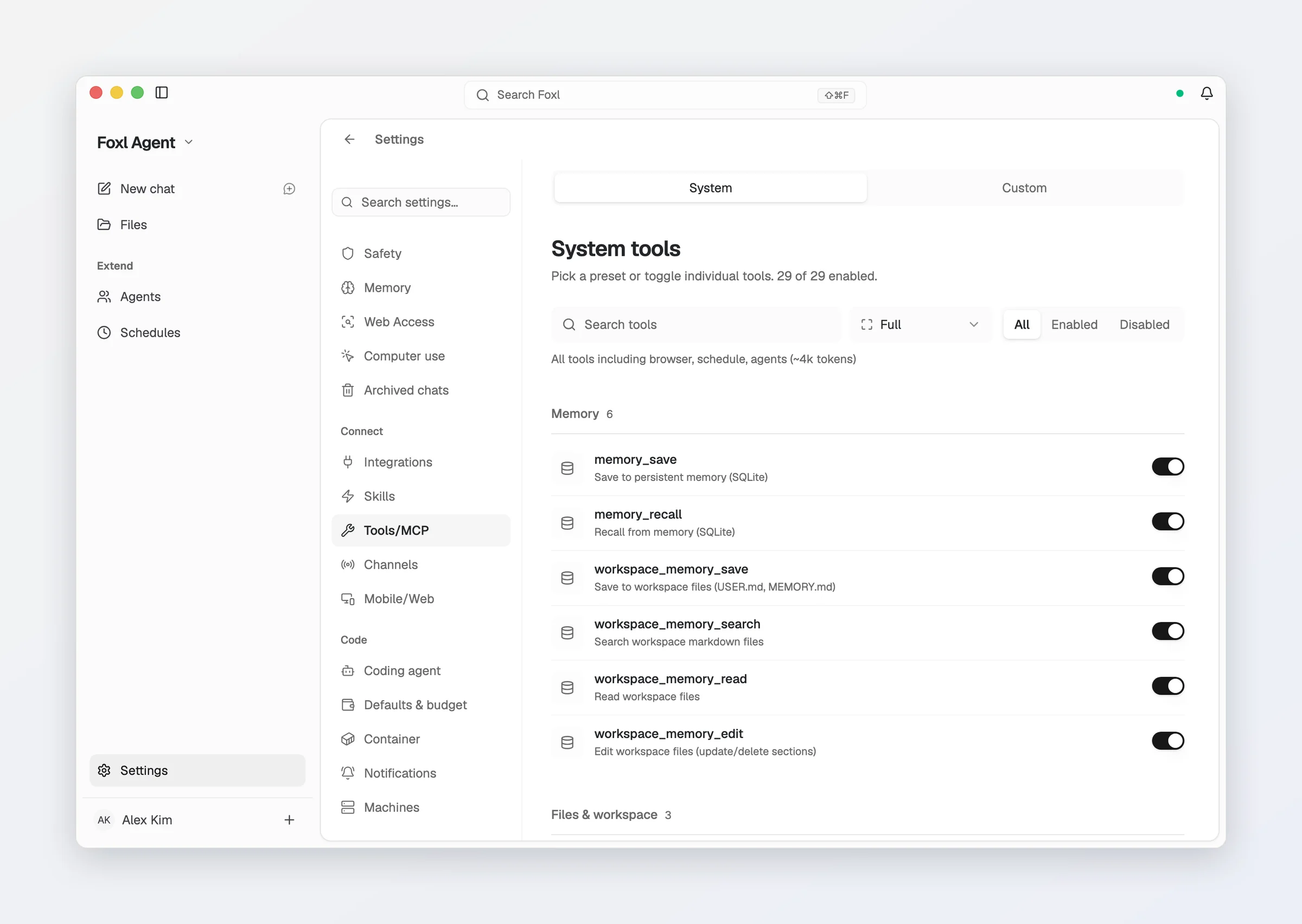
The agent runs in Full profile by default. Switch profiles on the System tab of Settings > Connect > Tools/MCP to save tokens on simpler tasks; the same tab lists every built-in and lets you switch one off. In a language other than English it describes each built-in tool in that language, and searching it still finds a tool by its English description. generate_image lives in the media category and is included in Default, Standard, and Full; Minimal omits it to preserve its token budget.
Integration tools (outlook, slack, gmail) are not counted above; they are in every profile except Minimal, once their account is connected. The profile is the upper bound for built-in tools, including the ones a skill asks for: a skill cannot switch on a tool the profile leaves out. Your own custom tools and MCP tools are not filtered by the profile - a tool you wrote or added is available whichever profile you are on.
Git operations route through exec (e.g. exec git status, exec git push). There is no dedicated git tool - piping and custom flags work better from exec anyway, and exec's own approval rule covers them.
The same tools in Foxl Notes
The same tools serve Foxl Notes. On the desktop, Notes' AI Assistant is a Foxl Chat conversation beside your note, with the same tool steps as chat: it can open your files, search your code and notes, fetch a link or run a command - whatever the System tab has switched on, custom tools and MCP servers included. The Live panel's AI Assistant is the same conversation, so questions asked there and in the main window land on one thread. One switch governs both, Settings > Notes > AI features > Use Foxl Agent tools, on by default; with it off the assistant reasons about the transcript alone. It needs Foxl running on your computer. The automatic work - the post-meeting summary, the auto title, live translation and dictation clean-up - deliberately uses no tools, so nothing you were not waiting for got slower.
Custom tools
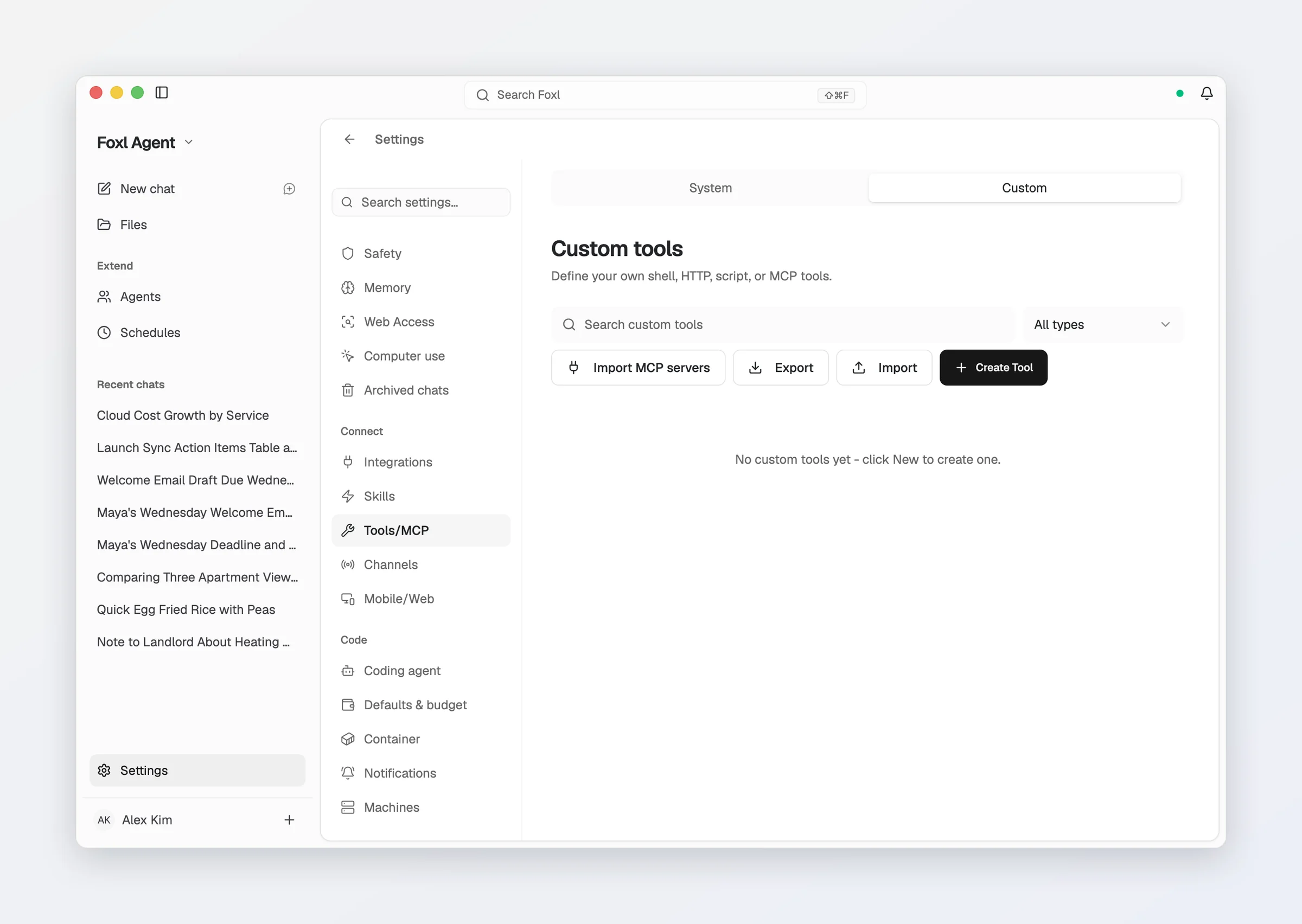
Beyond the built-ins you can add your own on the Custom tab of Settings > Connect > Tools/MCP, which also lists your MCP servers. Six kinds:
| Type | What it is |
|---|---|
| shell | Runs a shell command. |
| script | Evaluates JavaScript. |
| file | Reads or writes a file, from a path template. |
| http | Calls an HTTP endpoint. |
| mcp_local | An MCP server started as a local process (stdio). |
| mcp_remote | An MCP server reached over HTTP. |
A custom tool that runs a shell command, evaluates JavaScript, or writes a
file is gated exactly like the built-in exec tool. That was not always
true: the approval gate matches on a tool's name and treated an unrecognised
name as allowed, so a custom tool wrapping a shell command was a shell with no
per-call prompt - and it is the model that fills in the arguments.
A new install auto-approves every tool, so in the shipped default these calls do not prompt either. Turn that off in Settings > Safety and the per-call prompts appear for custom tools and built-ins alike; a rule you set yourself for a specific tool always wins. Read-only file tools, HTTP tools and calls to MCP tools are unaffected either way; for an MCP server, switching the tool on is the approval (the MCP servers section below explains). See Security.
A file tool's blocked-path list is applied to the path it actually opens, not
to the template - so ~ is expanded first (a ~/notes.md template works), and
/etc/passwd spelled //etc/passwd, reached through .., or under macOS's
/private/etc is covered.
An http tool encodes the values the agent fills into its URL, so a value cannot add
query parameters, cut the address short or climb out of the tool's path with ... A value
in the path can still span segments, such as users/123 for
https://api.example.com/{{endpoint}}. A tool with saved headers (where an API key usually
goes) sends them only to the host written in its URL: when a parameter chooses the host, the
call is refused with a message saying how to fix the tool. A tool with no saved headers
whose host or base address comes from a parameter can reach public websites only.
Saved secrets show as dots. The Custom tab shows the saved API key, environment values and headers of an MCP or HTTP tool as dots, on your computer and through your phone or app.foxl.ai. Saving with the dots left in place keeps what is stored; type a new value to replace one. On your computer, an MCP server that is switched off still shows its environment values, so you can see what switching it on will start.
Permission rules accept hyphens in a tool name. A custom tool called
deploy-prod keeps its name, and every MCP tool is exposed as
<server>__<tool> where the right half usually has one, so a rule written with
an argument pattern like deploy-prod(rm *) matches instead of being stored
under a name no tool is ever called.
MCP servers
Foxl is an MCP client. It speaks the current 2026-07-28 revision and every older one, and asks each server which revisions it supports so the newest one both sides know is used:
| Revision | Shape |
|---|---|
| 2026-07-28 | Stateless - no connection handshake, no session header. |
| 2025-11-25, 2025-03-26, 2024-11-05 | The older handshake. |
There is nothing to configure either way. The server's row on the Custom tab shows which revision was agreed, so a server on the new stateless protocol is visibly different from one on an older one.
Import MCP servers on the Custom tab adds the servers you already set up in
another app: Claude Code (~/.claude.json, the servers added with user scope), Claude
Desktop (claude_desktop_config.json, macOS and Windows), Codex (~/.codex/config.toml),
Cursor (~/.cursor/mcp.json) and Kiro CLI (~/.kiro/settings/mcp.json, and the servers in
its agent files under ~/.kiro/agents/, where an agent you installed keeps its own).
Foxl reads those files on your computer and shows a checklist; tick the servers to add.
Local servers keep their command, arguments and environment, remote ones their URL and an
Authorization: Bearer key. What Foxl cannot carry over is listed under the server rather
than dropped: a working folder (cwd), a Cursor envFile, other headers, a bearer token
Codex reads from an environment variable, and the tools Kiro hides with disabledTools. A
server several Kiro agents define differently is offered once, with a note naming the other
agents. A server switched off in Codex or Kiro arrives switched off. The same import is part
of Settings > Advanced > Import and export, which also brings over Claude Code's or
Codex's instructions and skills.
Your servers in settings.json. Foxl keeps your MCP servers in
~/.foxl/settings.json (%USERPROFILE%\.foxl\settings.json on Windows) as well, in the
mcpServers format Claude Code, Cursor and Kiro use, so a block can be copied in or out and
an agent can add a server by editing one file:
{
  "mcpServers": {
    "github": {
      "command": "npx",
      "args": ["-y", "@modelcontextprotocol/server-github"],
      "env": { "GITHUB_TOKEN": "..." }
    },
    "linear": {
      "type": "http",
      "url": "https://mcp.linear.app/mcp",
      "headers": { "Authorization": "Bearer ..." }
    },
    "slow-build": { "command": "node", "args": ["build.mjs"], "disabled": true, "toolTimeoutSec": 120 }
  }
}- A server you add, change or import on the Custom tab is written to the file. Foxl reads an
edit of the file within a few seconds, so the agent's next message can use it, and the
Custom tab shows it when you come back to the window. Everything else in the file, and any
key Foxl does not use (Kiro's
autoApprove, say), is kept. - A server the file adds is saved switched off, and so is one whose command, arguments,
environment or URL the file changes. Its row says it was added or changed in settings.json
and shows the command or URL it would start; it starts when you switch it on from the
Tools page on this computer. If the file changes it again while the page is open, the
switch (and the Play button) asks you to look again first. If the file goes back to the
command or URL you had switched on, the server is switched on again. Switching a server
off (
"disabled": true), adescriptionandtoolTimeoutSec(seconds) apply directly. - Taking an entry out of the file removes that server once the entry has stayed out for 15 seconds, so a cut and paste, or a quick checkout of another version of the file, removes nothing. A server removed this way comes back as it was (switched on, still signed in) if its entry returns under the same name with the same command or URL within a day. Renaming a key renames the server when its command or URL stays the same; with a new one it is a new server, saved switched off.
- Deleting the file, or the whole
mcpServersblock, removes nothing: Foxl writes your servers back. So does an edit that leaves out every server at once and puts something else there (an agent writing the whole file to add one server); the Custom tab says so. To remove them all, write"mcpServers": {}. - A file that is not valid JSON is neither read nor written: the Custom tab says which line the error is on, and Foxl leaves the file alone until it reads again. A file you made read-only is read as usual, but Foxl does not write to it, and the Custom tab says so. A single entry Foxl cannot use is listed with the reason and left as you wrote it.
- The file holds environment values and keys as you write them, like the files it copies
from. Foxl creates it readable only by you.
${VAR}references are not expanded, and the Custom tab names an entry that uses one.
Signing in to a remote server. A remote MCP server that asks you to sign in shows Sign in on its row. One click opens the server's sign-in page in your browser; once you approve there, the row connects and lists the server's tools, with no key to paste. Foxl renews the sign-in on its own, and Sign out removes it from this computer (it does not revoke the grant at the server). If signing in fails, the row says which step failed and shows the server's own message. It works with servers that let an app register itself during sign-in. The sign-in is kept on this computer, is not sent to the phone or app.foxl.ai, and is started from Foxl on the computer itself.
Tool call timeout. A call to an MCP tool waits 30 seconds by default. A server whose
tools are slow by design (a build, a crawl, a report) can be given up to 600 seconds (10
minutes) in its row's Tool call timeout field; Codex's tool_timeout_sec is carried
over on import, and a Codex server without one keeps Codex's own 60-second default.
Images reach the model. A picture an MCP tool returns, such as a screenshot from
Playwright MCP, is sent to the model as an image it can see and shows in the tool step, like
view_image. On a ChatGPT sign-in it goes in the message after the tool's result, the way a
picture you attach does.
Turning a tool on is the approval. An mcp_local row is a program on your
computer, and once the row is switched on Foxl starts it without asking - when you
save the row, re-check it, open it in the inspector, or the agent uses one of its
tools. Only the Foxl window on this computer can switch an MCP tool on. A server
added or changed from the phone, app.foxl.ai, any other client or an edit of
settings.json is saved switched off, with a note saying so, and the agent does not see its tools until you switch it
on from the Tools page on this computer. An edit that leaves the command, arguments,
environment and URL alone keeps a switched-on server running. An mcp_remote row is
a URL - nothing is started on your computer, and the same rule decides who can
switch it on.
Three things worth knowing:
- A local server keeps running between calls. An
mcp_localserver is started once and reused for later calls, so a server that keeps state in its process keeps it: with Playwright MCP, the pagebrowser_navigateopened is the pagebrowser_take_screenshotcaptures. Your own chats keep one server running between calls; a channel thread (Telegram, Slack, iMessage and the others) or a scheduled run gets its own server, which stops when that run ends, so a message that arrives through a channel never sees a page your chat opened. If such a run needs a server your chat holds idle, your chat's server is restarted, and its next call starts fresh. Playwright MCP started without--isolatedkeeps one browser profile on disk (with its logins), and only one process can hold it: while a channel or scheduled run is using it, a call from your chat or from another run answers "Browser is already in use", and so does a run's call made while a call from your chat is still running. Add--isolatedto its arguments if channels or schedules use it too. Your chats' server stops after 15 minutes without a call, and any server stops when you switch its row off, change its command, arguments or environment, or delete it, and when Foxl quits. On macOS and Linux it also stops when Foxl's server crashes or is force-quit, including a server (or a wrapper script around one) that was still starting up. With Keep running when closed on, the background service keeps running after you quit, so your chats' server stops after those 15 minutes instead. If it crashes, the next call starts it again. - A long tool list is read in full. Servers may hand their catalog over in pages; Foxl walks every page rather than reading the first one and treating it as the whole list.
- A slow tool is not called twice. When a tool took longer to answer than the app was willing to wait, the app used to assume its guess about the protocol was stale, reconnect, and send the same request again - so a tool that sends mail sent it twice while the agent saw one call and one error. It now retries only when nothing can have reached the server, or when the request is a read that cannot have an effect.
Approvals
Which calls ask first is set in Settings > Safety. The full rules are in Security; in short:
- Auto-approve all tools is on for a new install, so scheduled runs, runs from your phone and channel messages never wait on a prompt nobody is there to answer. The switch's own description says what that costs: anything the agent reads can lead it to run a shell command without asking. Turn it off and shell commands, file writes and other risky tools ask first. While it is off, the message box shows a small Asks first label; click it to turn auto-approve back on or to open Safety settings.
- Built-in rules (read-only) lists the rules Foxl ships. Built-in blocks still apply while Auto-approve is on; built-in prompts are skipped. In a language other than English, hover a rule for its explanation in that language.
- Two kinds of step ask even with auto-approve on, with no Always allow: a mail, a message or typed text that carries a card number, a Korean resident registration number or a US Social Security number ("This sends a card number ending 4242"), and a click or an Enter in the browser tools that can pay or book ("Place order", "Pay", "Confirm booking", a priced "Reserve"). See Steps that always ask.
- By where a run comes from sets Full access, Ask first or Read only for your chats, schedules and the heartbeat, channels (Telegram, Slack, iMessage and the others), and the Notes assistant. All four start on Full access.
- Run shell commands in a sandbox (macOS only, off by default, with Allow network)
limits what
execand the agent's terminals can reach. - A prompt can be answered in Foxl on the computer, or in the Foxl app on your phone or on app.foxl.ai while it is connected to that computer. On a Mac, the notification for a waiting prompt has a Deny button; to allow, open Foxl and answer there.
- Hooks (below) are listed at the bottom of the same pane.
Hooks
Hooks are your own commands that Foxl runs around tool calls, written in the Claude Code hooks format so an existing hooks block can be copied in. Put them in ~/.foxl/hooks.json (%USERPROFILE%\.foxl\hooks.json on Windows):
{
  "hooks": {
    "PreToolUse": [
      { "matcher": "Bash", "hooks": [ { "type": "command", "command": "~/.foxl/block-rm.sh", "timeout": 30 } ] }
    ]
  }
}- PreToolUse runs before a tool call, with the event as JSON on stdin (
tool_name,tool_input,tool_use_id,session_id,cwd). Exit code 2 blocks the call, and what the command printed to stderr is the reason the agent reads; a JSONpermissionDecisionof"deny"on stdout blocks too, and"ask"shows the usual approval prompt for that call, as an ask rule would, even with auto-approve on. Any other non-zero exit is logged and the call goes on. - PostToolUse runs after a call with the result as
tool_response. Exit code 2 adds its stderr to the result the agent reads; the tool has already run. - Stop runs after each finished turn of a chat or a channel reply, with
last_assistant_message, for notification and logging. It does not run after a subagent, a schedule or the heartbeat. Unlike Claude Code, exit code 2 does not make the agent continue. - Matchers work as in Claude Code:
*, empty or omitted matches every tool, a plain name or a|list matches exactly, anything else is a regular expression. They are tested against the Foxl tool name (exec,file_read, ...) and, where there is one, the Claude Code name (Bash,Read,Grep,WebFetch,Write,Edit), so"matcher": "Bash"matchesexec.tool_nameon stdin is the Foxl name, andtool_inputcarries the Claude Code spelling of a field beside the Foxl one (file_pathbesidepath), so a hook that readstool_input.file_pathworks. - Other events and handler types are not run; Settings > Safety > Hooks lists what Foxl loaded and what it ignored. A file that is not valid JSON runs no hooks at all, and says so there. Foxl looks at the file at most once a second, so a change applies within a second, with no restart. With no hooks file, a tool call costs nothing extra.
"async": trueruns a hook in the background, as in Claude Code: Foxl does not wait for it and its output has no effect. A PreToolUseupdatedInputis not applied, so a hook that returns one blocks the call instead of letting the original input run.- A handler's
"if"filter (such as"if": "Bash(rm *)"or"if": "Edit(*.ts)|Write(*.ts)") decides when it runs, as in Claude Code, and where Foxl cannot tell it runs the handler, as Claude Code does: a Bash pattern is matched against every command on the line (looking throughVAR=prefixes, quoting and program paths), a file pattern against the file's path, and a command that builds its own text ($(...), a backtick,$VAR) always runs it. A filter Foxl cannot read runs the handler on every call its matcher names, and Settings > Safety > Hooks says so; on Stop a handler with"if"never runs, as in Claude Code.{"continue": false}on stdout blocks a PreToolUse call, with itsstopReasonas the reason the agent reads; after a PostToolUse call it is added to the result. - A hook runs as you, with your environment minus Foxl's own session tokens, so treat the file like any script you would run yourself. It runs in the chat's folder when the chat has one (the folder chip in the chat header), and
cwdon stdin and theCLAUDE_PROJECT_DIRenvironment variable name it. The default timeout is 600 seconds. - How a hook starts follows Claude Code. With
"args"it is exec form:commandis started directly withargsas its arguments, no shell, and${CLAUDE_PROJECT_DIR}in them is replaced; on Windowscommandmust be a real program such asnode(a.cmdor.batshim cannot start that way). Without"args"the command runs insh -con macOS and Linux, and in the Windows command prompt on Windows, as before."shell": "bash"runs it in Git Bash on Windows, which is where Claude Code runs a hook there by default, so add it to a hook copied from Claude Code on Windows;"shell": "powershell"runs it in PowerShell."onFailure": "block"blocks the call when the hook cannot start, times out, exits with a code other than 0 or 2, or prints JSON that does not parse. A handler that cannot start as written (an unknown shell,argsthat are not a list, a program not on PATH) does not run, and Settings > Safety > Hooks lists it; one whose program or shell this computer lacks and that says"onFailure": "block"blocks every call it matches instead, and is listed too.
Skills
Beyond built-in tools, Foxl supports skills - installable capability packages that extend what the agent can do. See Skills for the full catalog.