
هذه الصفحة غير متوفرة باللغة العربية بعد، لذا تُعرض بالإنجليزية.
Computer Use
Let Foxl use the apps on your computer, on macOS, Windows and Linux. It asks before each app, uses its own pointer, and only looks at that app's window.
Foxl can use the apps on your computer for you. It looks at an app's window, presses its buttons, types and scrolls, and tells you what it did. This is called computer use.
It works on a Mac, on Windows, and on Linux in an X11 session (not Wayland). It is off until you turn it on.
1. Turn it on
- Open Settings > Computer use.
- Turn on Allow computer use.
Then give it what your system needs:
Mac
- Under macOS permissions, press Open settings. System Settings opens with a small panel attached to its window: drag Foxl Computer Use from the panel into the list above it, or turn on its switch if it is already in the list. The panel then moves on to the other permission.
- When both are on, Foxl comes back to the front and both rows say Granted. You do not need to quit Foxl.
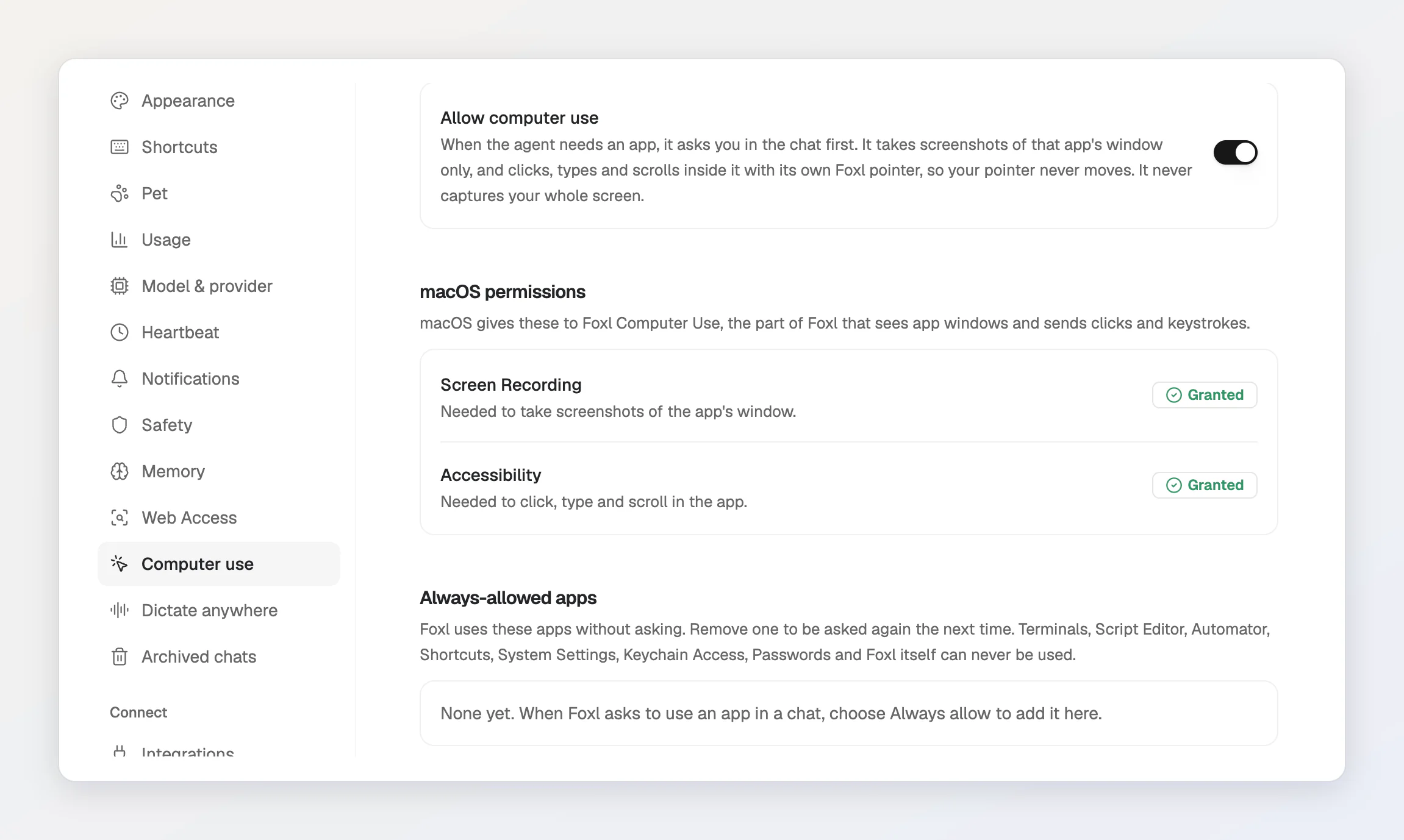
macOS asks for two permissions because Foxl needs to see the app's window (Screen Recording) and to click and type in it (Accessibility). Both go to Foxl Computer Use, the part of Foxl that does this. If you allowed Foxl or node-arm64 in an earlier version, allow Foxl Computer Use once: those permissions do not carry over.
Windows
Nothing else to allow: Windows needs no extra permission for this. Under Windows desktop, App windows and App controls say whether Foxl can use apps right now. They need Windows unlocked, with Foxl running in the same desktop session.
Linux
Linux has no per-app permission for this. Under Linux desktop, Settings checks two things:
- Desktop session: it must be X11. A Wayland session keeps each app's windows private, so there Foxl cannot use apps: log out and choose an Xorg (X11) session on the login screen.
- Accessibility bus (AT-SPI): how Foxl presses buttons and types without moving your pointer. Every Linux desktop comes with it.
Without a compositor running, Foxl can only take a screenshot of a window that nothing covers.
2. Pick a model that can see
Each step shows the model a picture of the app, so the model must be able to read images. If the model you picked cannot, Foxl tells you so in the chat, and you can switch models.
Claude models do this best. Claude Sonnet 5.5 on Amazon Bedrock did the example below in about a minute, and Claude Haiku 5.5 on OpenRouter did it too. Free OpenRouter models can work, but they are often busy, and each step uses one of your free requests for the day.
3. Ask Foxl
Start a new chat and say what you want done, and in which app. For example:
- "Use Calculator to add an 18% tip to $186.40 and split it four ways."
- "Type a short thank-you note into the document open in TextEdit."
The first time a chat uses an app, Foxl asks you first:
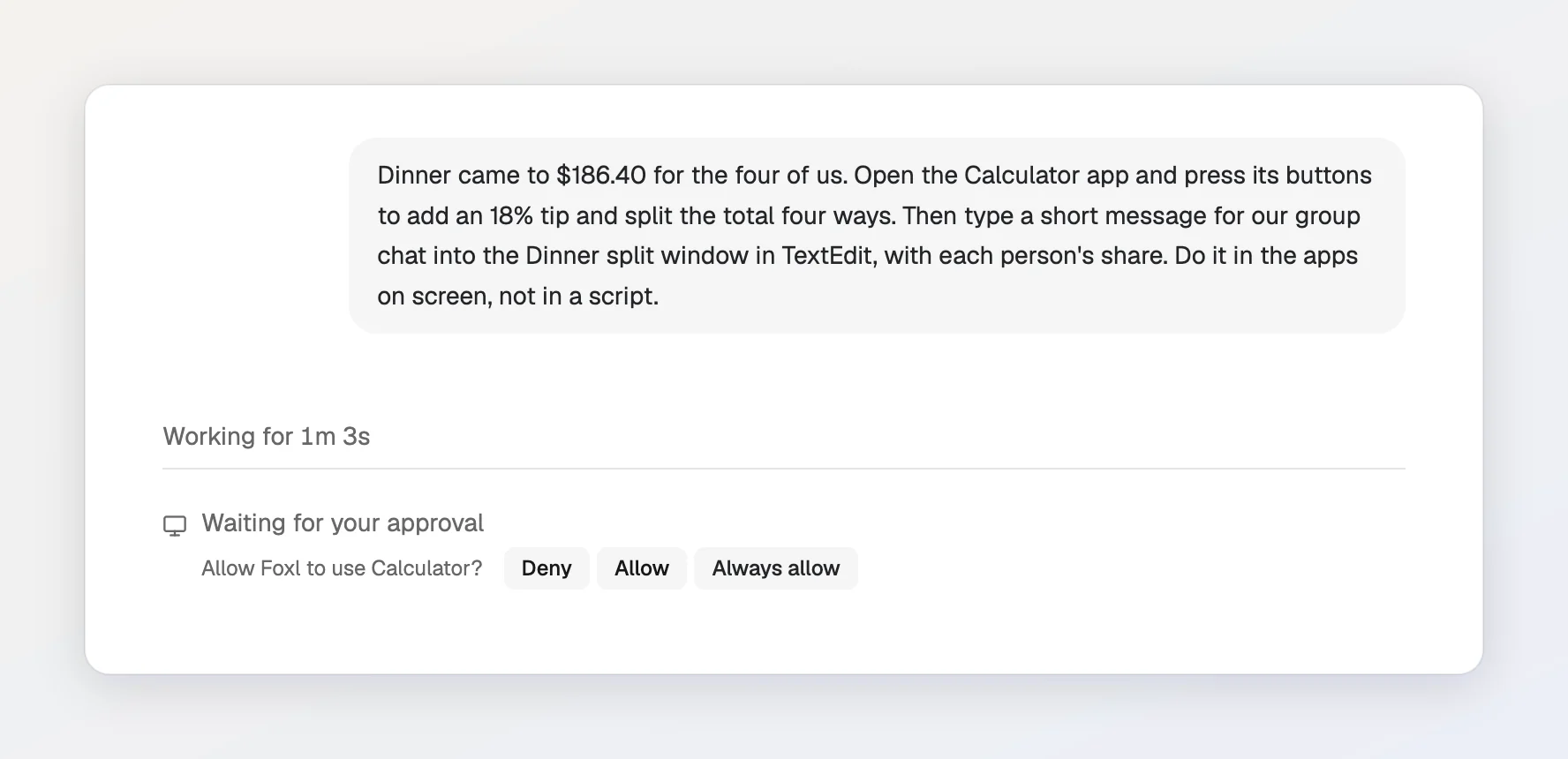
- Allow: this chat may use the app.
- Always allow: Foxl stops asking for this app. You can remove it later under Always-allowed apps in Settings > Computer use.
- Deny: Foxl does not use the app.
If the chat runs from the iPhone, iPad or Android app, or from app.foxl.ai in a phone's browser, the step shows there as waiting for approval on your computer, with Deny, and says so once it was answered on the computer. A phone you set up can allow it as well: see Allow from your phone. app.foxl.ai in a wider browser window does not show it; allow or deny it on the computer.
Then you can watch it work. A small gray pointer moves to each button Foxl presses:
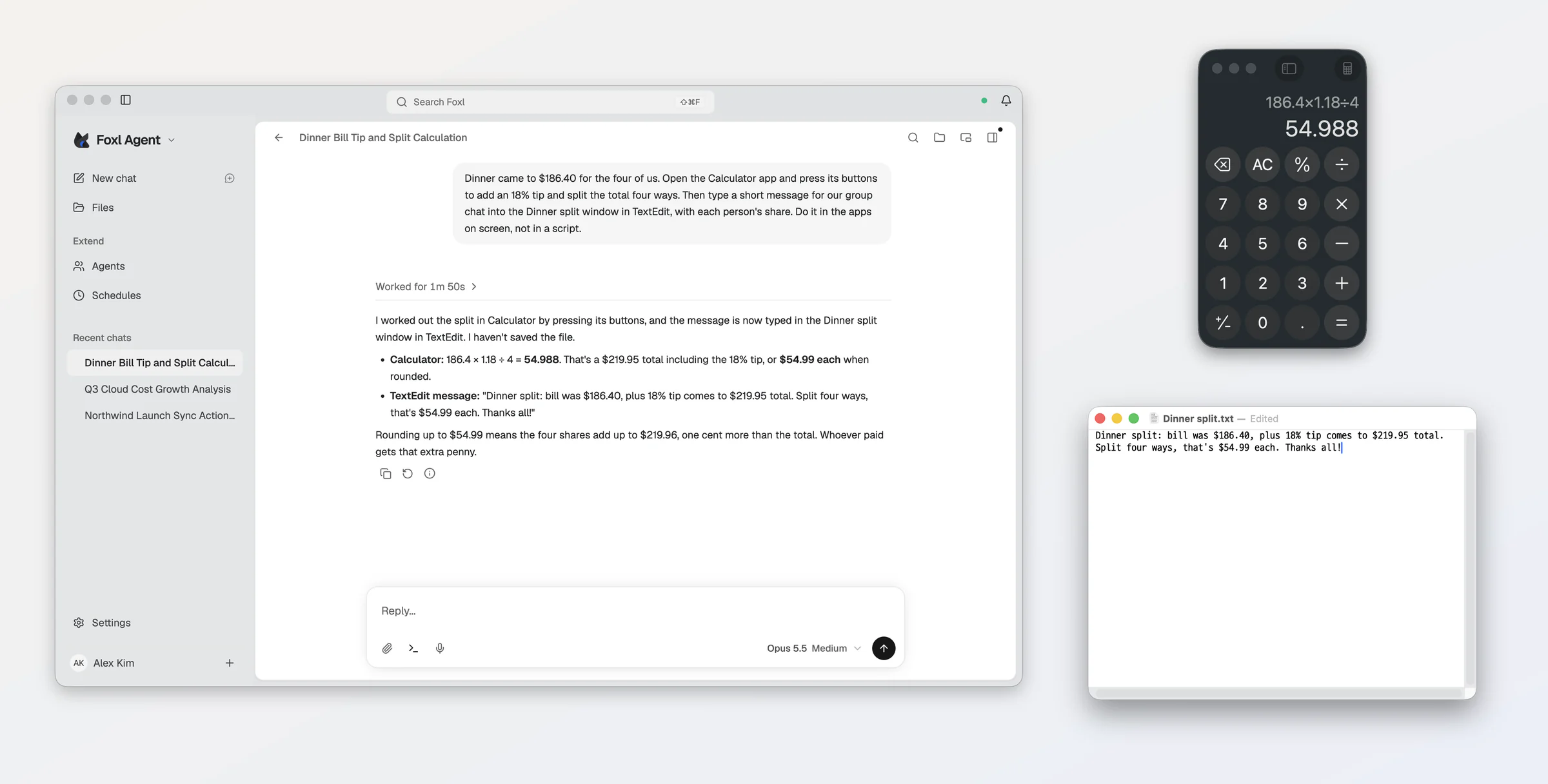
To stop at any time, press Stop on the Foxl is using bar.
Allow from your phone
Set a phone up once and it answers a computer-use step with the same Deny, Allow and Always allow as the computer. This works in the iPhone, iPad and Android apps (Android 9 or later) and in app.foxl.ai in a phone's browser, with Foxl 0.9.1 or later on the computer; until the computer has it, the phone says to update Foxl there.
- On the phone, tap Approve from this phone under a step waiting for approval, or, while your computer is connected, Set up beside Approve computer use from this phone in Settings > Desktop. The phone shows a six-digit code.
- In Foxl on your computer, a card asks Let a phone approve computer use? and shows a code too. Press Accept only if it is the same code. The request waits five minutes.
- The phone says it can now approve computer use.
From then on, in the iPhone, iPad and Android apps, every Allow and Always allow first asks for Face ID, Touch ID, a fingerprint, or the phone's passcode or screen lock; if the phone cannot confirm it is you, nothing is sent. A phone's browser asks for nothing first, so anyone using that browser can approve, and the card on your computer says so before you accept it. Deny works from any phone without setting it up.
The phones you accepted are listed under Devices that can approve in Settings > Computer use on the computer, and removing one there stops it at once. Stop in the phone's Settings > Desktop removes that phone too. A phone is accepted in Foxl on your computer, not from the phone; what that keeps out, and what it does not, is under Security.
Good to know
- Your mouse stays yours. Foxl does not move your pointer, so you can keep working. Some key presses and shortcuts bring the app forward for a moment, and your window is put back right after. On Windows and Linux, shortcuts use Ctrl.
- Foxl only looks at that app's window, never your whole screen.
- Typing a card number, a Korean resident registration number or a US Social Security number asks first, even in an app you always allow: the prompt names what it found (a card or SSN by its last four digits only), Allow covers that one step, and there is no Always allow for it.
- Some apps are never used:
- On a Mac: Terminal and other terminal apps, Script Editor, Automator, Shortcuts, System Settings, Keychain Access, Passwords, and Foxl itself.
- On Windows: terminals and script runners (Command Prompt, PowerShell, Windows Terminal, WSL and the like), File Explorer, Settings and Control Panel, Task Manager and Registry Editor, password managers, apps running as administrator, and Foxl itself. Foxl also never reads or types into a password field.
- On Linux: terminals, run dialogs, the system settings, password managers, and Foxl itself.
- Apps that describe their windows work best. Foxl works through each system's accessibility interface. Mac apps like Calculator and TextEdit do well. On a Mac, Foxl can also press the buttons and other controls inside an app built on Electron (Slack, VS Code, Notion and Discord, for example), even in a window that was never in front: while it operates one, it asks the app to describe its whole window, which adds two to three seconds to the first step of each turn, and turns that off again when the turn ends or Foxl quits. An app that VoiceOver or another assistive app is already using is left as it is. Chrome and the other Chromium browsers, and on Windows apps built on Chromium or Electron, still describe little of their pages, so there Foxl can do less. On Linux, apps built with GTK (GNOME and Xfce apps, for example) work, while many apps built with Qt, Chromium or Electron do not describe their windows, and Foxl refuses to click in them and says so. For websites, use the Chrome extension.
More detail, with a video of a real run and the models we tried: Computer use on Mac.