
Русский: перевода этой страницы пока нет, поэтому она показана на английском.
The editor
Rich-text editing, the Notes / Transcript / Summary / Background / Report tabs, find-in-note, and playing back audio
Every Foxl note is a full rich-text document. Whether it started as a live transcript or an AI summary, you can edit it like any other editor.
Notes, Transcript, Summary, Background and Report tabs
On the desktop, app.foxl.ai and the iPad the editor has five tabs in the top bar, Notes | Transcript | Summary | Background | Report:
- Notes - your meeting notes: what you type. A summary never replaces it.
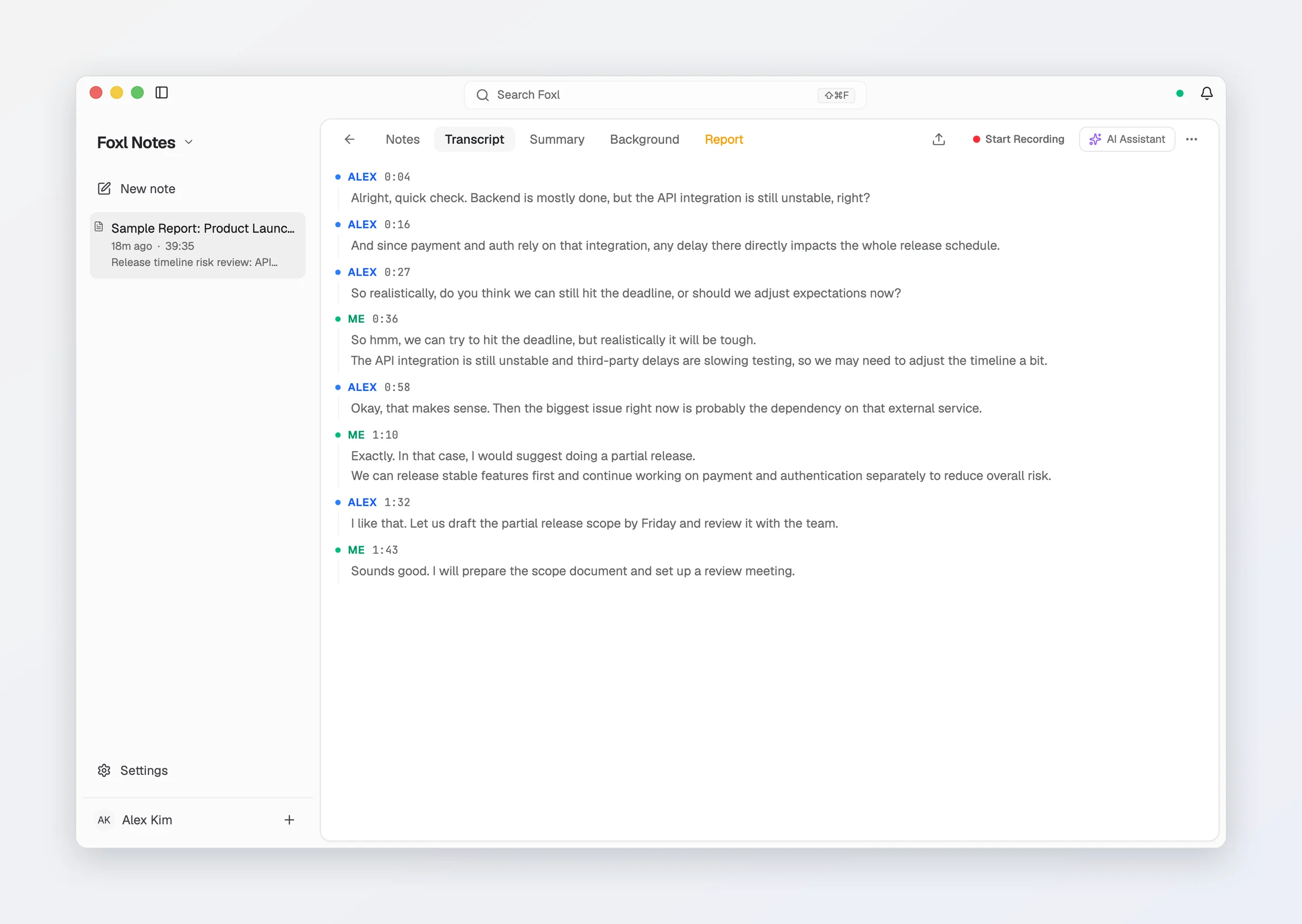
- Transcript - the meeting's transcript, speaker by speaker, in your notes' place, while you record and for any note with a transcript. Switching to it and back keeps your place in each, and its lines are the size of your notes.
- Summary - the AI summary of the open note, which you can edit like the note. Empty, it has a Generate AI Summary button; once there is one, Regenerate at the end of its toolbar writes it again. Exports and shares put the summary first and your notes under it.
- Background - a scratch space for context you give the AI (agenda, attendees, goals). It isn't part of the exported note; it's there to make the summary and assistant smarter.
- Report - a coaching report on the open meeting, in one column like your notes: Score, your speaking share, turn share and pace, a skill breakdown, feedback split into What went well and To work on, action items, and expressions worth learning. Press Generate report on the tab, or turn on Report for every meeting under Settings > Notes > AI features to get one after every recording. See Coaching report.
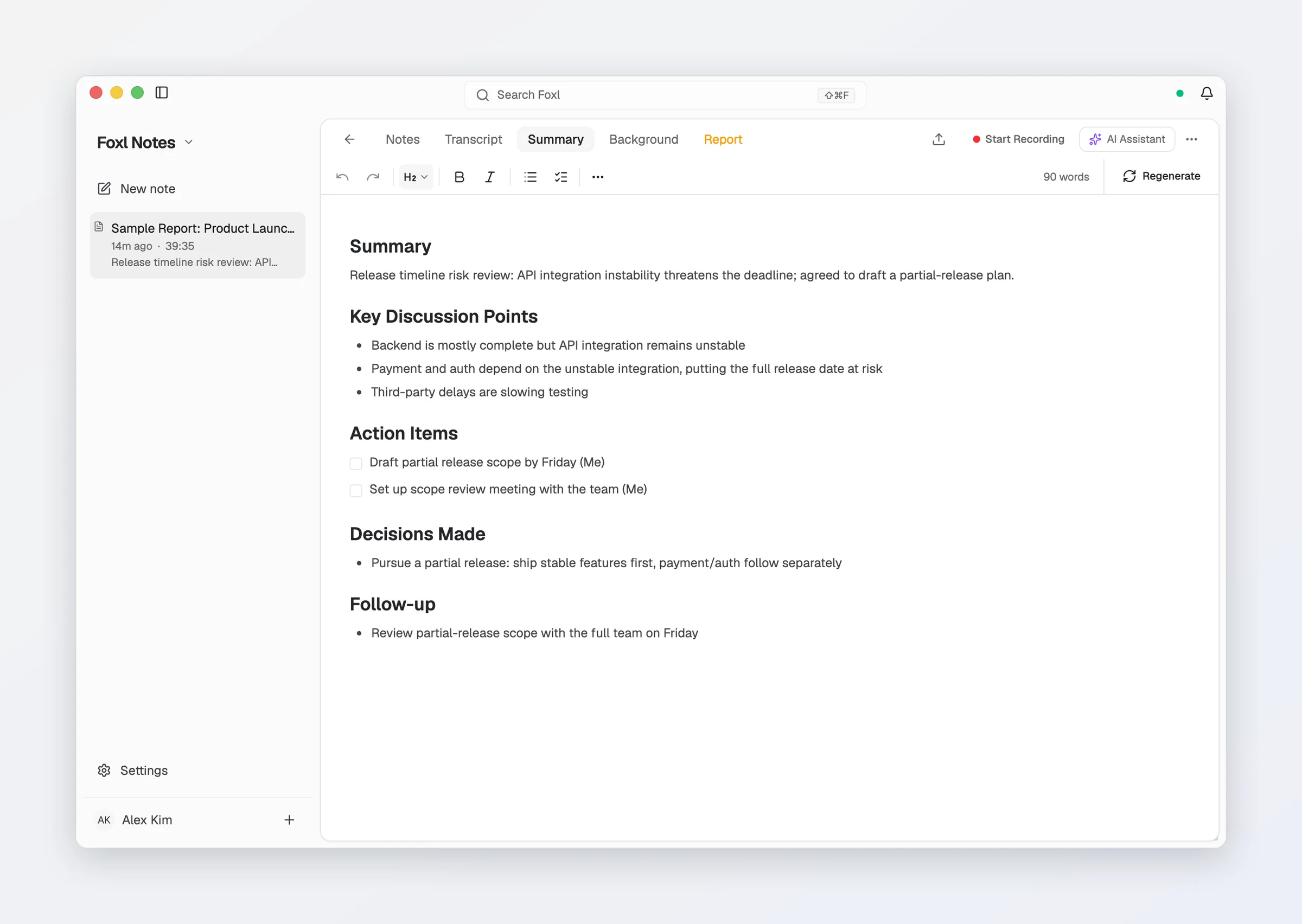
The AI Assistant is not a tab: its button in the top bar opens it at the right edge of the window, beside whichever tab is open, so a note never splits into more than two columns.
On the phone there is no tab row: reach Background from the home screen's Add context for better AI row, and switch between Summary, Transcript, Notes and Report with the segmented control on an open note. There too, Summary shows only the AI summary and Notes keeps what you typed.
Formatting
The editor toolbar is the same on every device: seven tools in view - Undo, Redo, Text style, Bold, Italic, Bullet list and Checklist - and everything else in one More formatting menu.
- Text style is a menu of Body text and Heading 1 to Heading 4; its button shows the level of the line you are in.
- Bold and Italic look pressed as soon as you select text that already has them, and the More formatting menu marks what the selection already has.
- More formatting holds underline, strikethrough, highlight, inline code, numbered lists, block quotes, code blocks with syntax highlighting, horizontal rules, links, tables (with rows and columns to add or delete), images, and left / centre / right alignment.
A live word count sits at the right end of the toolbar when the row has room for it. Undo (Cmd+Z, Ctrl+Z on Windows and Linux) takes back only what you typed since the note opened.
Editing the transcript
When the transcript is in the note (a recording you did not type into, or with Transcript in my notes on), corrections you make there are treated as the source of truth. If the transcriber misheard a word, fix it - the next AI summary uses your corrected text. Beside notes you typed yourself, the summary reads the transcript as it was transcribed. You can also rename a speaker from the Transcript tab and it updates everywhere. Speakers are named in the app's language and numbered in the order they first speak, so a note with two participants reads Speaker 1 and Speaker 2.
Playing the recording back
Every final line in the Transcript tab is a play button: click it to hear the recording from that moment, and the line under the playhead is highlighted as it plays. Click the playing line again to pause. The audio is kept on the device you recorded on, on every platform, and does not sync, so a note's recording plays back only on the device that recorded it. The Transcript tab's own toolbar also has Copy (the whole transcript, translations included), Send to Notes (drop the transcript into the editor) and Share.
Find in a note
Press Cmd+F (Ctrl+F on Windows and Linux) with a note open to find text inside your notes; from the Transcript tab it brings the Notes tab forward with the find bar. A small find bar appears; type to highlight matches, and use the up/down arrows (or Enter / Shift+Enter) to jump between them. Press Escape to close.
To search across all your notes instead, use the app search: Cmd+Shift+F, the titlebar search field on the Mac and Linux desktop app, or the search button in the top bar everywhere else - see Organizing notes.
Saving
You never press save. Notes persist automatically. In a browser (app.foxl.ai, or Foxl in a browser tab), if you reload or close the tab while a rename or what you just typed is still being saved, the browser asks before leaving; once it is saved, nothing asks. For a file on disk, use export or auto-save - see Exporting & saving.