
Esta página ainda não está disponível em Português, por isso aparece em inglês.
Organizing notes
The sidebar list, titles, renaming, searching across notes, and syncing them between your devices
Every note you record lives in the sidebar list on the left, newest first.
The notes list
Each row shows the note's title, and below it when it was recorded and how long it ran (for example, "27m ago · 0:13"). A note that has a summary also shows the summary's first line and a small document icon, and a recording whose notes are its transcript shows the first thing that was said. The most recent note sits at the top, and the list is grouped by day. Click any row to open it: a note with a summary opens on its Summary tab, any other note on Notes (on the phone, on its transcript when it has one). Opening a note leaves the AI Assistant open or closed as you had it. While a recording is running the list is greyed out until you stop.
Titles
- A new recording starts as "New Transcript".
- With Auto title on (Settings > Notes > AI features, the default) Foxl names the note from what was said as soon as the recording stops, using a small fast model you can change in the Title model row. When an AI summary is written the title updates to match it. Both need a connected model provider.
- You can rename any note yourself: double-click its row, or right-click it and choose Rename. Once you rename a note by hand, automatic titles no longer change it.
The row menu
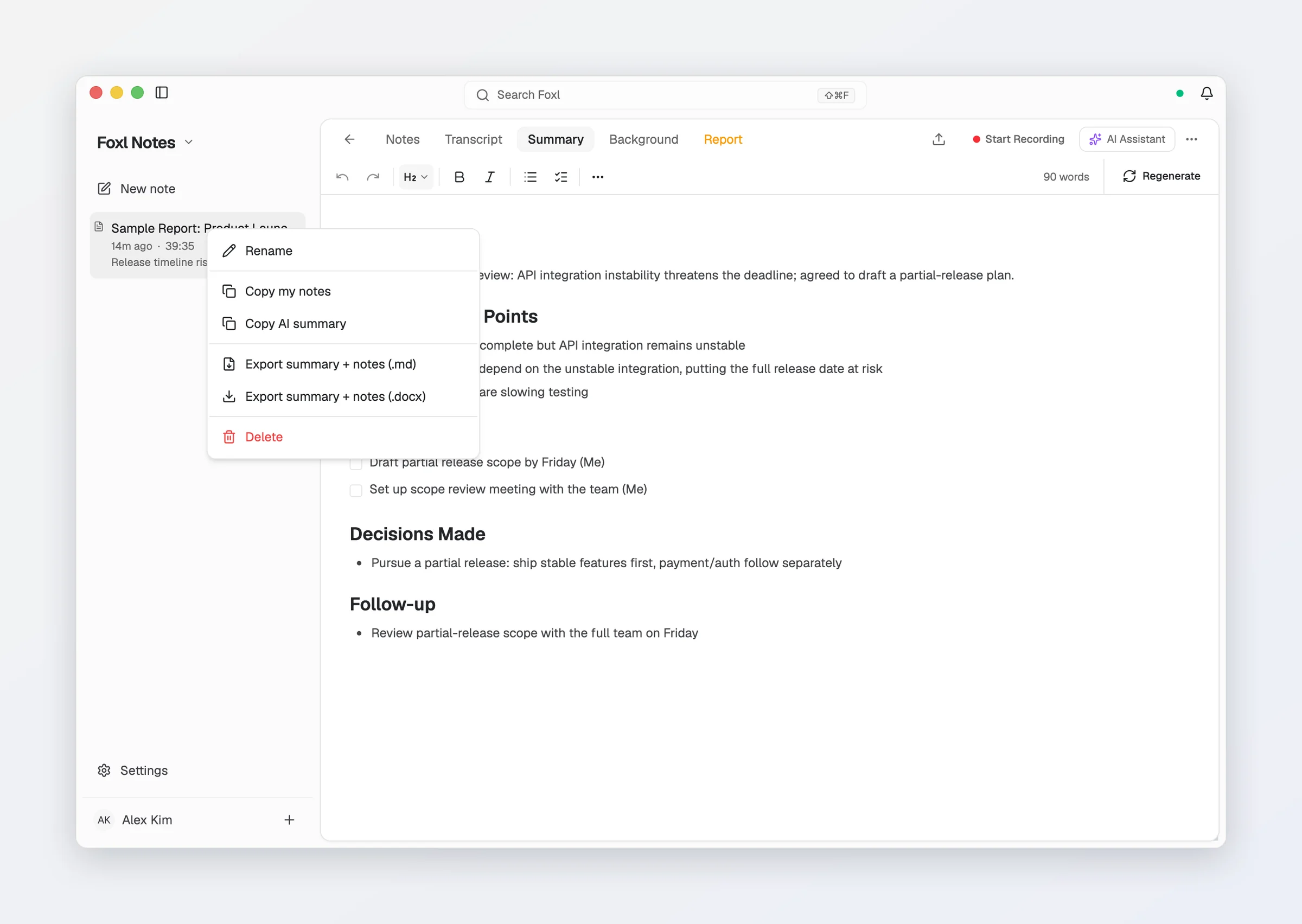
Right-click a note for quick actions:
- Rename
- Copy my notes - puts your own notes (the Notes tab) on your clipboard.
- Copy AI summary - puts the AI summary on your clipboard, on a note that has one.
- Export summary + notes (.md) / (.docx) - below a divider: save the whole note as a file, the summary first (see Exporting). Before the note has a summary these read Export notes. Where the note has tabs above it, the transcript and the other tabs are copied or exported by right-clicking their tab.
- Copy transcript, Export transcript (.md) / Export transcript (.docx) - on a phone, and in a window too narrow to show the tabs: the same for the note's transcript, on a note that has one.
- Open saved file (desktop) - opens the auto-saved copy, or reveals the folder if there is none yet.
- Delete - asks first, then removes the note and its recorded audio from this device; with sync on, the note is deleted on your other devices too (see Notes on every device).
Cmd+D (Ctrl+D on Windows and Linux) deletes the open note without asking, but not while your cursor is in its text: the note leaves the list at once, and Undo in the "Deleted" notice brings it back for 8 seconds before anything is removed.
Searching across notes
Foxl Notes uses the app's one search, the same one that finds your chats. On the Mac and Linux desktop app, while the titlebar shows its search field (the default), that field is the search: click it or press Cmd+Shift+F (Ctrl+Shift+F on Linux). Everywhere else - the web, Windows, the phones and the iPad - press the search button in the top bar (it is there on the Settings and Account pages too), Cmd+Shift+F (Ctrl+Shift+F on Windows), or Cmd+F with no note open.
Type at least two characters. The search matches note titles, the text you typed and the transcript, and pick a note to open it. While you are in Foxl Notes your notes are listed first, above your chats; everywhere else they come after the conversations, so pressing Enter outside Notes opens the top conversation instead of switching you to Notes. The example note Foxl adds on first launch is not listed; open it from the sidebar. That sample meeting is written in the language the app is set to when Notes first opens.
Cmd+F searches within the open note; the app search (the titlebar field, or the search button) and Cmd+Shift+F search across all notes. See Keyboard shortcuts.
Notes on every device
Foxl Notes syncs between your computer and your phone, iPad and app.foxl.ai, in both directions. A meeting recorded on the iPhone appears in Notes on your computer, and one recorded on the computer appears on the phone, with its transcript, notes, summary and report; edits and deletes follow. Sync is on for every device until you turn it off there.
- Your computer holds the shared copy. The other devices sync with Foxl on your computer while it runs, signed in to your account, so a phone or a browser that is away catches up the next time it reaches the computer. The computer needs Foxl 0.9.3 or later; an older one is named in Settings.
- Over the encrypted connection only. A phone, iPad or browser sends and fetches notes only in requests sealed with the key it shares with your computer (the relay forwards them without it), and Foxl's servers keep none of them. A device with no encrypted connection yet waits rather than sending. See Transport security.
- Audio stays on the device that recorded it, so a note's recording plays back only there. The sample meeting does not sync, and a note too large to sync stays on its device, counted in Settings. A large library syncs in steps, and nothing syncs on a device until Notes is used there.
- Two devices changed the same note? Both versions are kept: the one that arrives second is saved as a note titled Conflict copy: ..., and a message names the note. Later collisions on that note add their text to the same copy rather than making new ones.
- Deletes. A delete reaches every device. If one device deletes a note that another has edited in the meantime, the edit wins and the note comes back. Deleting most of your notes at once is paused for about ten minutes before the rest go.
- Two computers on one account each keep their own place, so switching between them makes no extra copies. On a computer shared by two Foxl accounts, a note one account syncs is not sent to the other's.
Settings > Notes > Sync across devices has the Sync notes switch for this device, when it last synced and how many notes it holds, Sync now, and what it is waiting for (your computer, an encrypted connection, an update or a sign-in on the computer).
Starting fresh
The New note row at the top of the notes list in the sidebar (on a phone, the plus sign in the top bar), Cmd+N, or File > New clears the editor to an empty state, ready for a new recording. It works from anywhere in Foxl Notes, including Settings; on an already-empty Notes screen the phone's plus sign is hidden because there is nothing to clear.
The editor
Rich-text editing, the Notes / Transcript / Summary / Background / Report tabs, find-in-note, and playing back audio
Exporting & saving
Export a note or its transcript to Markdown or Word, copy and share, auto-save the summary, the transcript or both as Word, Markdown, plain text or subtitles, and let Foxl Agent search your meetings